Docker
- Docker + Docker Compose installieren
- Portainer installieren (+ Docker)
- Docker-Compose .yamls
- Bitwarden (Vaultwarden)
- Bookstack
- Heimdall Dashboard
- Homer Dashboard
- Kimai Zeiterfassung
- Nginx Proxy Manager (NPM)
- VSCode
- Wireguard VPN-Server
- Zigbee2MQTT
- openHAB3
- Unifi Controller (Ubiquiti)
- AdGuard Home
- paperless-ngx
- Nextcloud
- Gitlab Community Edition (CE)
- Mattermost
- WatchTower
- n8n
- UpSnap WakeOnLan WOL
- Shlink URL-Shortener
- OpenProject
- Windmill
- Uptime Kuma
- Babby Buddy
- Thingsboard MQTT Broker 'TBMQ'
- Thingsboard
- homepage (Homelab Dashboard)
- restic (Autobackups von zb Docker)
- backrest (+ restic Befehle)
- min.io (minio, S3 compatible Storage)
- authentik
- Netbird (VPN IT Infrastructure mit Wireguard und authentik)
- Collabora (Nextcloud Office)
- Outline (Wiki, Confluence Alternative)
- Vikunja
- Jitsi Meet
- InvoiceNinja
- CheckMK
- Netdata
- OliveTin (Web-UI für Shell-Cmds)
- Beszel (Simples Server Monitoring)
- Duplicati (Backup Tool)
- Coturn (STUN / TURN Server für Jitsi Meet)
- Stirling PDF
- DocuSeal (Docusign Alternative)
- Grafana + Prometheus + Loki
- Lokale KI mit Ollama + open-WebUI
- Hoarder (Bookmark-Senke)
- Nextcloud AIO
- Nexterm (SSH, VNC, RDP über Web-UI)
- pgAdmin (PostgreSQL Web-UI)
- Gotify
- Gitea
- Rustdesk
- DDNS-Updater
- Trilium Notes
- CUPS Druckerserver
- scanservjs (Scanner Web-UI)
- Semaphore UI (Ansible)
- paperless-ai
- immich
- Windows in Docker
- Zerobyte (Restic Backup UI)
- ! /var/lib/docker/overlay2 aufräumen
- ! Log-Datei Limit
- ! NAS-Server als Volume einbinden
- ! Portainer Stack: Environment Variables
- ! CPU+RAM limitieren
- Docker Images updaten
- Wichtige Docker Befehle
- Portainer Console geht nicht
- Docker-Volumes mit winSCP kopieren
- Hetzner Storage Box über Samba einbinden
- MySQL: Fatal glibc error: CPU does not support x86-64-v2
- Docker Standardverzeichnis ändern
- Error response from daemon: client version 1.xx is too old
- ! IP-Kollidierung bei Netbird verhindern (192.168.x und 10.1.x)
Docker + Docker Compose installieren
https://docs.docker.com/engine/install/ubuntu/#install-using-the-repository
# Add Docker's official GPG key:
sudo apt-get update
sudo apt-get install ca-certificates curl
sudo install -m 0755 -d /etc/apt/keyrings
sudo curl -fsSL https://download.docker.com/linux/ubuntu/gpg -o /etc/apt/keyrings/docker.asc
sudo chmod a+r /etc/apt/keyrings/docker.asc
# Add the repository to Apt sources:
echo \
"deb [arch=$(dpkg --print-architecture) signed-by=/etc/apt/keyrings/docker.asc] https://download.docker.com/linux/ubuntu \
$(. /etc/os-release && echo "$VERSION_CODENAME") stable" | \
sudo tee /etc/apt/sources.list.d/docker.list > /dev/null
sudo apt-get updatedann
sudo apt-get install docker-ce docker-ce-cli containerd.io docker-buildx-plugin docker-compose-plugindann
sudo docker run hello-worldoder weiter zur Installation von Portainer
Portainer installieren (+ Docker)
Docker
curl -fsSL https://get.docker.com -o get-docker.sh sh get-docker.sh
Portainer
stand: 14.11.24
Docker-Compose .yamls
Bitwarden (Vaultwarden)
PL
updated 2026-01-27
SSO via OIDC mit Authentik:
https://integrations.goauthentik.io/security/vaultwarden
https://github.com/dani-garcia/vaultwarden/wiki/Enabling-SSO-support-using-OpenId-Connect
version: '3'
services:
bitwarden:
container_name: bitwarden
image: vaultwarden/server:1.35.2
restart: always
volumes:
- bitwarden:/data/
environment:
ADMIN_TOKEN: 'oLN3gTp...82CYqV2'
LOG_LEVEL: debug
SSO_ENABLED: true
SSO_AUTHORITY: https://authentik.MEINEDOMAIN.de/application/o/<PROVIDER-SLUG aus Authentik, zb bitwarden oder vaultwarden>/
# ^^ Trailing slash am Ende ist notwendig!
SSO_SCOPES: "openid email profile offline_access"
SSO_CLIENT_ID: UKm...eux1ZLoq
SSO_CLIENT_SECRET: xva4gwxwKzxaoNw2.........EIicxhNjE6UXu5cOyl
ports:
- 9780:80
volumes:
bitwarden:SSO OIDC variablen:
SSO_ENABLED=true
SSO_AUTHORITY=https://authentik.company/application/o/<application_slug>/
SSO_CLIENT_ID=<client_id>
SSO_CLIENT_SECRET=<client_secret>
SSO_SCOPES="openid email profile offline_access"
SSO_ALLOW_UNKNOWN_EMAIL_VERIFICATION=false
SSO_CLIENT_CACHE_EXPIRATION=0
SSO_ONLY=false # Set to true to disable email+master password login and require SSO
SSO_SIGNUPS_MATCH_EMAIL=true # Match first SSO login to existing account by emailAuto confirm invited users
https://github.com/dani-garcia/vaultwarden/discussions/3954
bitwarden cli client installieren: https://bitwarden.com/help/cli/#download-and-install
cronjob:
* * * * * bash bw-confirm-users.sh; bw logoutbw-confirm-users.sh
set -a
source .env.cli
set +a
bw login --raw --apikey
sessionKey="$(bw unlock --raw --passwordenv BW_PASSWORD)"
orgIds=$(bw --session $sessionKey list organizations | jq -r '.[].id')
for orgId in $orgIds; do
members=$(bw --session $sessionKey list org-members --organizationid $orgId | jq -r '.[] | select(.status == 1) | .id')
for memberId in $members; do
echo "Confirming member $memberId..."
bw confirm --session $sessionKey --organizationid $orgId org-member $memberId
done
done.env.cli
BW_CLIENTID=client_id
BW_CLIENTSECRET=client_secret
BW_PASSWORD=master_password
Alt
EA
services:
bitwarden:
image: vaultwarden/server:latest
container_name: bitwarden
restart: unless-stopped
environment:
- ADMIN_TOKEN=Q9kjrfy5---IrgendeinToken---b01fPm0ysaKRLRiwL
ports:
- 8081:80
volumes:
- /srv/dev-disk-by-label-LaufwerkSRaid/LaufwerkS/docker/bitwarden:/data
Eikes Fernnetz (Hetzner)
version: '3'
services:
vaultwarden:
container_name: vaultwarden
image: vaultwarden/server:latest
restart: unless-stopped
volumes:
- vaultwarden_data:/data/
ports:
- 23001:80
volumes:
vaultwarden_data:WIS
version: '3'
services:
bitwarden:
container_name: bitwarden
image: vaultwarden/server:latest
restart: always
volumes:
- ./bitwarden/data:/data/
environment:
ADMIN_TOKEN: 'Nc1.........eoY'
ports:
- 9780:80ADMIN_TOKEN mit folgendem Befehl erstellen
openssl rand -base64 48NEU ADMIN_TOKEN mit `vaultwarden hash` erstellen. Das Passwort bei der Tokenerstellung ist gleichzeitig das Passwort für die Adminpage https://bitwarden.meineseite.de/admin
in container:
vaultwarden hash
oder
docker exec -it containername /vaultwarden hash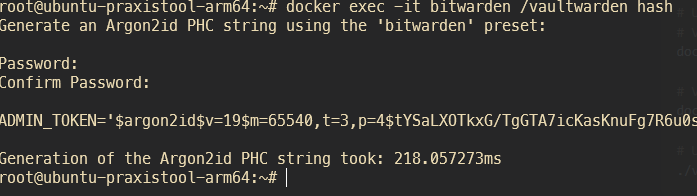
danach Konto erstellen über die Webseite (erstmal nicht öffentlich zugänglich machen, nur die eigene IP whitelisten).
Dann Konto erstellen über Adminpage deaktivieren (allow new signups = false):

Bookstack
2026-03-30
mit Authentik verknüpft
https://hub.docker.com/r/linuxserver/bookstack
services:
bookstack:
image: lscr.io/linuxserver/bookstack:26.03.2
container_name: bookstack
environment:
- PUID=1000
- PGID=1000
- APP_URL=https://bookstack.MEINEDOMAIN.DE
- DB_HOST=bookstack_db
- DB_PORT=3306
- DB_USER=bookstack
- DB_PASS=MEIN-DB-PASS
- DB_DATABASE=bookstackapp
# OIDC ab hier
- AUTH_METHOD=standard # hier nachher nochmal einloggen, um external-auth-id in admin ui zu vergeben
#- AUTH_METHOD=oidc
- AUTH_AUTO_INITIATE=false # Set this to "true" to automatically redirect the user to authentik.
- OIDC_NAME=Authentik # The display name shown on the login page.
- OIDC_DISPLAY_NAME_CLAIMS=name # Claim(s) for the user's display name. Can have multiple attributes listed, separated with a '|' in which case those values will be joined with a space.
- OIDC_CLIENT_ID=Drv...bOx
- OIDC_CLIENT_SECRET=ZPmeXvnaZapcw.......WrLl
- OIDC_ISSUER=https://auth.MEINEDOMAIN.DE/application/o/bookstack/
- OIDC_ISSUER_DISCOVER=true
- OIDC_END_SESSION_ENDPOINT=true
volumes:
- app:/config
ports:
- 6875:80
restart: unless-stopped
depends_on:
- bookstack_db
bookstack_db:
image: lscr.io/linuxserver/mariadb:10.11.8
container_name: bookstack_db
environment:
- PUID=1000
- PGID=1000
- MYSQL_ROOT_PASSWORD=FmNhDfNxF8Sdf6
- TZ=Europe/Berlin
- MYSQL_DATABASE=bookstackapp
- MYSQL_USER=bookstack
- MYSQL_PASSWORD=FmNhDfNxF8Sdf6
volumes:
- db:/config
restart: unless-stopped
volumes:
db:
app:
Heimdall Dashboard
WPD
---
version: "2.1"
services:
heimdall:
image: lscr.io/linuxserver/heimdall:latest
container_name: heimdall
environment:
- PUID=1000
- PGID=1000
- TZ=Europe/Berlin
volumes:
- /path/to/appdata/config:/config
ports:
- 1080:80
- 10443:443
restart: unless-stoppedBS
---
version: "2.1"
services:
heimdall:
image: lscr.io/linuxserver/heimdall:latest
logging:
options:
max-size: "100m"
container_name: heimdall
environment:
- PUID=1000
- PGID=1000
- TZ=Europe/Berlin
volumes:
- ./heimdall/config:/config
ports:
- 8095:80
- 10443:443
restart: unless-stoppedHomer Dashboard
HW
version: "2"
services:
homer:
image: b4bz/homer
logging:
options:
max-size: "100m"
container_name: homer
volumes:
- /var/lib/docker/volumes/homer/:/www/assets
ports:
- 8090:8080
#environment:
# - UID=1000
# - GID=1000
restart: unless-stoppedKimai Zeiterfassung
<MEINPW123> ersetzen
https://github.com/tobybatch/kimai2/blob/main/docker-compose.yml
HW (x86)
version: "2"
services:
app:
container_name: kimai_app
image: kimai/kimai2:apache-2.45.0
logging:
options:
max-size: "100m"
restart: unless-stopped
ports:
- "8001:8001"
depends_on:
- db
volumes:
- var:/opt/kimai/var
environment:
- TRUSTED_PROXIES=localhost,127.0.0.1,kimai.MEINEDOMAIN.de,192.168.178.190,192.168.1.71,kimai.MEINEDOMAIN.it,10.1.1.71
- DATABASE_URL=mysql://kimai:ha.......AS@db:3309/kimai
db:
image: mysql:8-oraclelinux8
container_name: kimai_db
restart: unless-stopped
volumes:
- mysql-data:/var/lib/mysql
environment:
- MYSQL_DATABASE=kimai
- MYSQL_USER=kimai
- MYSQL_PASSWORD=ha........AS
- MYSQL_RANDOM_ROOT_PASSWORD=1
- MYSQL_TCP_PORT= 3309
ports:
- 3309:3306
volumes:
var:
mysql-data:Nginx Proxy Manager (NPM)
2026-02-08
version: '3.8'
services:
app:
image: 'jc21/nginx-proxy-manager:2.13.7'
restart: always
ports:
- '80:80'
- '81:81'
- '443:443'
volumes:
- data:/data
- le:/etc/letsencrypt
volumes:
data:
le:
Dateien über NPM zur Verfügung stellen
Dateien ins volume data hochladen:
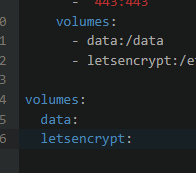
Pfad zb in
/var/lib/docker/volumes/npm_data/_data/nginx/default_www/images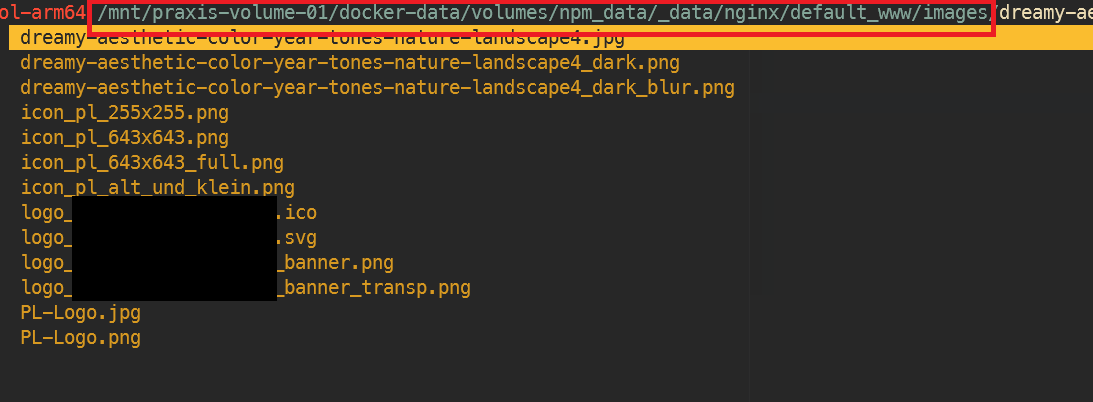
dann unter npm > proxy host > edit > advanced > custom nginx configuration:
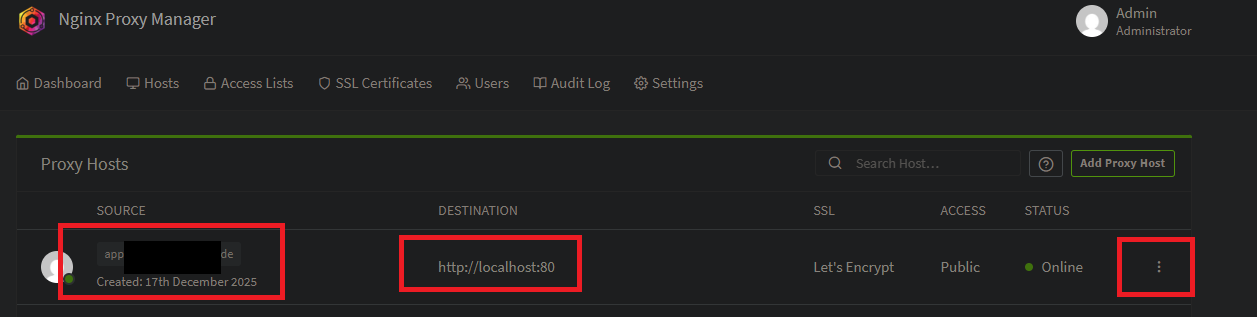
>>>
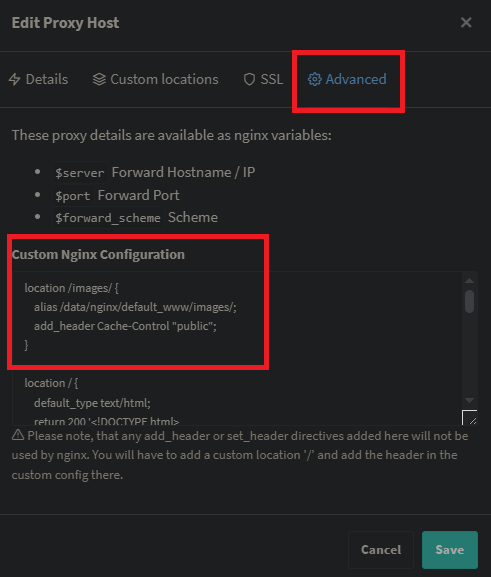
mit folgendem Inhalt:
location /images/ {
alias /data/nginx/default_www/images/;
add_header Cache-Control "public";
}
location / {
default_type text/html;
return 200 '<!DOCTYPE html>
<html lang="de">
<head>
<meta charset="UTF-8">
<meta name="viewport" content="width=device-width, initial-scale=1.0">
<title>In Arbeit</title>
<style>
body {
margin: 0;
height: 100vh;
display: flex;
justify-content: center;
align-items: center;
font-family: Arial, sans-serif;
background: linear-gradient(135deg, #667eea 0%, #764ba2 100%);
color: white;
}
h1 {
font-size: 2.5rem;
text-align: center;
}
</style>
</head>
<body>
<h1>Platzhalter, diese Seite befindet sich im Aufbau</h1>
</body>
</html>';
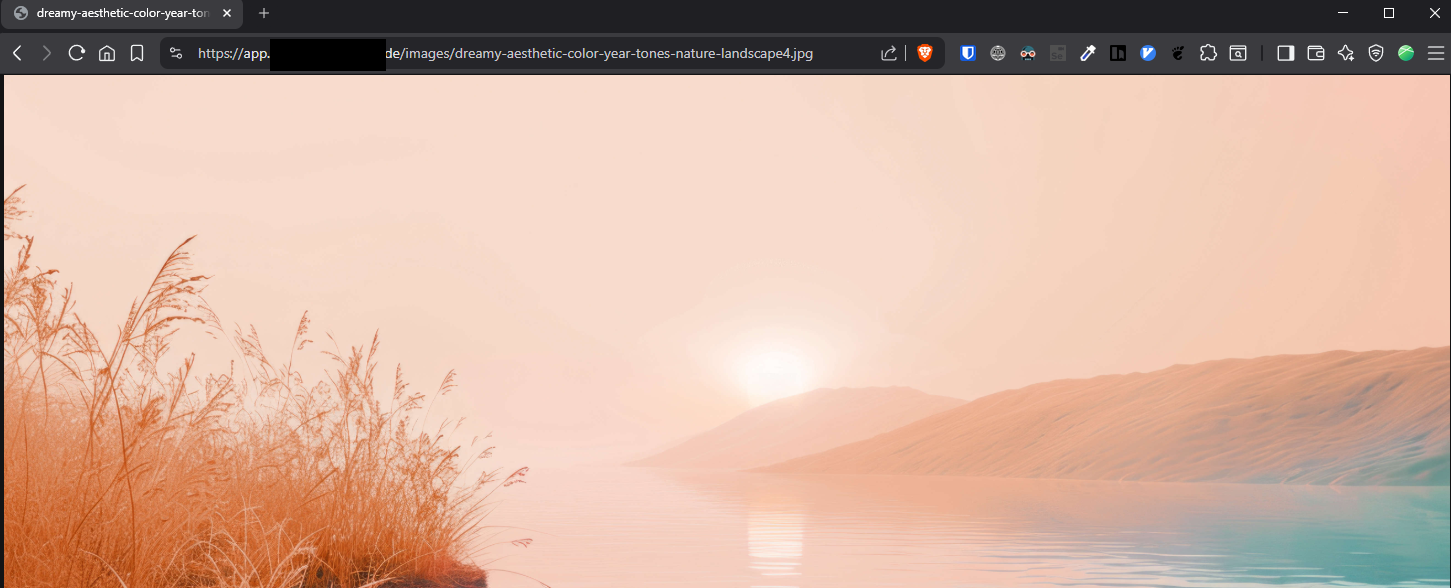
}Danach sind die Dateien unter der url aufrufbar, zb
https://app.MEINEDOMAIN.de/images/dreamy-aesthetic-color-year-tones-nature-landscape4.jpg
Alte Einträge:
EA
services:
nginxreverseproxymanager:
image: jlesage/nginx-proxy-manager
container_name: NginxReverseProxyManager
restart: unless-stopped
ports:
- 8082:8080
- 8181:8181
- 4443:4443
volumes:
- /srv/dev-disk-by-label-LaufwerkSRaid/LaufwerkS/docker/nginxreverseproxymanager:/config:rw
WPD
version: "2"
services:
app:
image: 'jc21/nginx-proxy-manager:latest'
restart: unless-stopped
ports:
# These ports are in format <host-port>:<container-port>
- 8080:80 # Public HTTP Port
- 8443:443 # Public HTTPS Port
- 8181:81 # Admin Web Port
# Add any other Stream port you want to expose
# - '21:21' # FTP
# Uncomment the next line if you uncomment anything in the section
# environment:
# Uncomment this if you want to change the location of
# the SQLite DB file within the container
# DB_SQLITE_FILE: "/data/database.sqlite"
# Uncomment this if IPv6 is not enabled on your host
# DISABLE_IPV6: 'true'
volumes:
- ./nginx/data:/data
- ./nginx/letsencrypt:/etc/letsencrypt
STANDARDLOGIN
admin@example.com
changeme
WIS / FN
version: '3.8'
services:
app:
image: 'jc21/nginx-proxy-manager:2.9.22'
restart: always
ports:
- '80:80'
- '81:81'
- '443:443'
volumes:
- ./data2:/data
- ./letsencrypt2:/etc/letsencryptVSCode
---
version: "2.1"
services:
code-server:
image: lscr.io/linuxserver/code-server
container_name: code-server
environment:
- PUID=1000
- PGID=1000
- TZ=Europe/Berlin
- SUDO_PASSWORD=MEINPW123
volumes:
- /srv/dev-disk-by-label-LaufwerkSRaid/LaufwerkS/docker/vscode/config:/config
ports:
- 8443:8443
restart: unless-stopped
Wireguard VPN-Server
wg-easy
WPD
version: "3.8"
services:
wg-easy:
environment:
# ⚠️ Required:
# Change this to your host's public address
- WG_HOST=<sub.deinedomain.de>
# Optional:
# - PASSWORD=foobar123
# - WG_PORT=51820
# - WG_DEFAULT_ADDRESS=10.8.0.x
# - WG_DEFAULT_DNS=1.1.1.1
# - WG_MTU=1420
# - WG_ALLOWED_IPS=192.168.15.0/24, 10.0.1.0/24
# - WG_PRE_UP=echo "Pre Up" > /etc/wireguard/pre-up.txt
# - WG_POST_UP=echo "Post Up" > /etc/wireguard/post-up.txt
# - WG_PRE_DOWN=echo "Pre Down" > /etc/wireguard/pre-down.txt
# - WG_POST_DOWN=echo "Post Down" > /etc/wireguard/post-down.txt
image: weejewel/wg-easy
container_name: wg-easy
volumes:
- .:/etc/wireguard
ports:
- "51822:51820/udp"
- "51821:51821/tcp"
restart: unless-stopped
cap_add:
- NET_ADMIN
- SYS_MODULE
sysctls:
- net.ipv4.ip_forward=1
- net.ipv4.conf.all.src_valid_mark=1Zigbee2MQTT
HW
version: '3.8'
services:
zigbee2mqtt:
container_name: zigbee2mqtt
image: koenkk/zigbee2mqtt
logging:
options:
max-size: "100m"
restart: unless-stopped
volumes:
- /var/lib/docker/volumes/zigbee2mqtt/data:/app/data
- /run/udev:/run/udev:ro
ports:
# Frontend port
- 8910:8080
environment:
- TZ=Europe/Berlin
devices:
# Make sure this matched your adapter location
- /dev/serial/by-id/usb-dresden_elektronik_ingenieurtechnik_GmbH_ConBee_II_DE2123629-if00:/dev/ttyACM0NKS
version: '3.8'
volumes:
zigbee2mqtt_data:
services:
zigbee2mqtt:
container_name: zigbee2mqtt
image: koenkk/zigbee2mqtt
logging:
options:
max-size: "100m"
restart: unless-stopped
volumes:
- zigbee2mqtt_data:/app/data
- /run/udev:/run/udev:ro
ports:
# Frontend port
- 8910:8080
environment:
- TZ=Europe/Berlin
#devices:
# Make sure this matched your adapter location
#- /dev/serial/by-id/usb-dresden_elektronik_ingenieurtechnik_GmbH_ConBee_II_DE2123629-if00:/dev/ttyACM0openHAB3
NKS
version: '2.2'
services:
openhab:
image: "openhab/openhab:3.4.2"
restart: always
network_mode: host
volumes:
- "/etc/localtime:/etc/localtime:ro"
- "/etc/timezone:/etc/timezone:ro"
- "openhab_addons:/openhab/addons"
- "openhab_conf:/openhab/conf"
- "openhab_userdata:/openhab/userdata"
environment:
CRYPTO_POLICY: "unlimited"
EXTRA_JAVA_OPTS: "-Duser.timezone=Europe/Berlin"
OPENHAB_HTTP_PORT: "8080"
OPENHAB_HTTPS_PORT: "8443"
volumes:
openhab_addons:
driver: local
openhab_conf:
driver: local
openhab_userdata:
driver: localUnifi Controller (Ubiquiti)
Stichwort Fix for ADOPTING / OFFLINE loop on Docker Unifi Controller
Falls es ein Problem gibt, mein Reddit Artikel sollte helfen:
https://www.reddit.com/r/Ubiquiti/comments/v42avk/fix_for_adopting_offline_loop_on_docker_unifi/
TLDR: Ports so lassen wie sie sind und docker-host-ip in Unifi Controller UI eintragen!
PL (aktuell)
services:
unifi-controller:
container_name: unificontroller
image: jacobalberty/unifi:v9.0.114
restart: always
volumes:
- unifi:/unifi
ports:
- 3478:3478/udp # STUN service
- 8080:8080 # Device command/control
- 8443:8443 # Web interface + API
#- 8843:8843 # HTTPS portal (optional)
#- 8880:8880 # HTTP portal (optional)
#- 6789:6789 # Speed Test (unifi5 only) (optional)
environment:
- TZ=Europe/Berlin
labels:
- 'unifi-controller'
volumes:
unifi:
HW (alte volumes)
services:
unifi-controller:
container_name: unificontroller
image: jacobalberty/unifi:v8.5
restart: always
volumes:
- lib:/var/lib/unifi
- log:/var/log/unifi
- run:/var/run/unifi
ports:
- 3478:3478/udp
- 10001:10001/udp
- 6789:6789/tcp
- 8080:8080/tcp
- 8880:8880/tcp
- 8443:8443/tcp
- 8843:8843/tcp
environment:
- TZ=Europe/Berlin
labels:
- 'unifi-controller'
volumes:
lib:
log:
run:
Docker-Compose armv7 zb Raspberry Pi 32bit (alt)
version: '2'
services:
unifi-controller:
container_name: unificontroller
image: jacobalberty/unifi:latest
restart: always
volumes:
- ./unificontroller/lib:/var/lib/unifi
- ./unificontroller/log:/var/log/unifi
- ./unificontroller/run:/var/run/unifi
ports:
- 3478:3478/udp
- 10001:10001/udp
- 6789:6789/tcp
- 8080:8080/tcp
- 8880:8880/tcp
- 8443:8443/tcp
- 8843:8843/tcp
environment:
- TZ=Europe/Berlin
labels:
- 'unifi-controller'falls es Probleme gibt, Firewall installieren und alle relevanten Ports zulassen:
sudo apt install ufw
sudo ufw allow 3478/udp
...
sudo ufw allow 8843/tcp
sudo rebootAdGuard Home
AdBlocker Werbeblocker
version: "2"
services:
adguardhome:
image: adguard/adguardhome
# network_mode: "host"
container_name: adguardhome
ports:
- 53:53/tcp
- 53:53/udp
- 784:784/udp
- 853:853/tcp
- 3001:3000/tcp
- 8680:80/tcp
- 8643:443/tcp
volumes:
- ./adguard/work:/opt/adguardhome/work
- ./adguard/conf:/opt/adguardhome/conf
restart: unless-stopped
networks:
- adguard-nw
networks:
adguard-nw:
internal: false
driver: bridge
driver_opts:
com.docker.network.bridge.name: br-adguardIch hab jedoch die Proxmox LXC Variante verwendet, um AdGuard eine eigene statische IP zu geben.
siehe
https://wiki.folkerts.it/books/proxmox/page/adguard-lxc-container
paperless-ngx
2025-11-25 paperless-ngx 2.20.0
https://github.com/paperless-ngx/paperless-ngx/blob/main/docker/compose
services:
broker:
image: docker.io/library/redis:8
restart: unless-stopped
volumes:
- redisdata:/data
db:
image: docker.io/library/postgres:18
restart: unless-stopped
volumes:
- pgdata:/var/lib/postgresql
environment:
POSTGRES_DB: paperless
POSTGRES_USER: paperless
POSTGRES_PASSWORD: paperless
webserver:
image: ghcr.io/paperless-ngx/paperless-ngx:2.20.0
restart: unless-stopped
depends_on:
- db
- broker
ports:
- "8010:8000"
volumes:
- data:/usr/src/paperless/data
- media:/usr/src/paperless/media
- export:/usr/src/paperless/export
- consume:/usr/src/paperless/consume
env_file: stack.env
environment:
PAPERLESS_REDIS: redis://broker:6379
PAPERLESS_DBHOST: db
volumes:
data:
media:
export:
consume:
pgdata:
redisdata:.env
###############################################################################
# Paperless-ngx settings #
###############################################################################
# See http://docs.paperless-ngx.com/configuration/ for all available options.
# The UID and GID of the user used to run paperless in the container. Set this
# to your UID and GID on the host so that you have write access to the
# consumption directory.
USERMAP_UID=1000
USERMAP_GID=1000
# See the documentation linked above for all options. A few commonly adjusted settings
# are provided below.
# This is required if you will be exposing Paperless-ngx on a public domain
# (if doing so please consider security measures such as reverse proxy)
PAPERLESS_URL=https://paperless.MEINEDOMAIN.DE
# Adjust this key if you plan to make paperless available publicly. It should
# be a very long sequence of random characters. You don't need to remember it.
PAPERLESS_SECRET_KEY=changeme<zb mit linuxcmd openssl rand -hex 24>
# Use this variable to set a timezone for the Paperless Docker containers. Defaults to UTC.
#PAPERLESS_TIME_ZONE=America/Los_Angeles
PAPERLESS_TIME_ZONE=Europe/Berlin
# The default language to use for OCR. Set this to the language most of your
# documents are written in.
#PAPERLESS_OCR_LANGUAGE=eng
PAPERLESS_OCR_LANGUAGE=deu
# Additional languages to install for text recognition, separated by a whitespace.
# Note that this is different from PAPERLESS_OCR_LANGUAGE (default=eng), which defines
# the language used for OCR.
# The container installs English, German, Italian, Spanish and French by default.
# See https://packages.debian.org/search?keywords=tesseract-ocr-&searchon=names
# for available languages.
#PAPERLESS_OCR_LANGUAGES=tur ces
PAPERLESS_OCR_LANGUAGES=engDanach verbinden mit paperless-ai, um ki gestützte Dokumentenprüfung und Tagging mit OpenAI oder Ollama zu erhalten (siehe hier im Wiki 'paperless-ai')
Alt (paperless-ngx v.2.11 oder älter)
# docker-compose file for running paperless from the Docker Hub.
# This file contains everything paperless needs to run.
# Paperless supports amd64, arm and arm64 hardware.
#
# All compose files of paperless configure paperless in the following way:
#
# - Paperless is (re)started on system boot, if it was running before shutdown.
# - Docker volumes for storing data are managed by Docker.
# - Folders for importing and exporting files are created in the same directory
# as this file and mounted to the correct folders inside the container.
# - Paperless listens on port 8010.
#
# In addition to that, this docker-compose file adds the following optional
# configurations:
#
# - Instead of SQLite (default), PostgreSQL is used as the database server.
#
# To install and update paperless with this file, do the following:
#
# - Open portainer Stacks list and click 'Add stack'
# - Paste the contents of this file and assign a name, e.g. 'Paperless'
# - Click 'Deploy the stack' and wait for it to be deployed
# - Open the list of containers, select paperless_webserver_1
# - Click 'Console' and then 'Connect' to open the command line inside the container
# - Run 'python3 manage.py createsuperuser' to create a user
# - Exit the console
#
# For more extensive installation and update instructions, refer to the
# documentation.
version: "3.4"
services:
broker:
image: docker.io/library/redis:7
restart: unless-stopped
volumes:
- redisdata:/data
db:
image: docker.io/library/postgres:13
restart: unless-stopped
volumes:
- pgdata:/var/lib/postgresql/data
environment:
POSTGRES_DB: paperless
POSTGRES_USER: paperless
POSTGRES_PASSWORD: paperless
webserver:
image: ghcr.io/paperless-ngx/paperless-ngx:latest
restart: unless-stopped
depends_on:
- db
- broker
ports:
- "8010:8000"
healthcheck:
test: ["CMD", "curl", "-fs", "-S", "--max-time", "2", "http://localhost:8000"]
interval: 30s
timeout: 10s
retries: 5
volumes:
- data:/usr/src/paperless/data
- media:/usr/src/paperless/media
- ./export:/usr/src/paperless/export
- ./consume:/usr/src/paperless/consume
environment:
PAPERLESS_REDIS: redis://broker:6379
PAPERLESS_DBHOST: db
# The UID and GID of the user used to run paperless in the container. Set this
# to your UID and GID on the host so that you have write access to the
# consumption directory.
USERMAP_UID: 1000
USERMAP_GID: 100
# Additional languages to install for text recognition, separated by a
# whitespace. Note that this is
# different from PAPERLESS_OCR_LANGUAGE (default=eng), which defines the
# language used for OCR.
# The container installs English, German, Italian, Spanish and French by
# default.
# See https://packages.debian.org/search?keywords=tesseract-ocr-&searchon=names&suite=buster
# for available languages.
#PAPERLESS_OCR_LANGUAGES: tur ces
# Adjust this key if you plan to make paperless available publicly. It should
# be a very long sequence of random characters. You don't need to remember it.
#PAPERLESS_SECRET_KEY: change-me
# Use this variable to set a timezone for the Paperless Docker containers. If not specified, defaults to UTC.
PAPERLESS_TIME_ZONE: Europe/Berlin
# The default language to use for OCR. Set this to the language most of your
# documents are written in.
PAPERLESS_OCR_LANGUAGE: de
volumes:
data:
media:
pgdata:
redisdata:wie in den Kommentaren geschrieben, muss man im Container einen neuen user anlegen, dafuer in Portainer mit der Shell verbinden und
python3 manage.py createsuperusereingeben.
Als App Paperless mobile benutzen:
https://github.com/astubenbord/paperless-mobile
https://play.google.com/store/apps/details?id=de.astubenbord.paperless_mobile
Nextcloud
Empfohlen:
Nextcloud AIO Manual-Install Variante
siehe https://wiki.folkerts.it/books/docker/page/nextcloud-aio
Nextcloud AIO Variante
Anleitung für Nextcloud AIO: https://github.com/nextcloud/all-in-one
Dockerhub: https://hub.docker.com/r/nextcloud/all-in-one
Folgende docker-compose.yml für Reverse Proxy angepasst. Mehr dazu unter https://github.com/nextcloud/all-in-one/blob/main/reverse-proxy.md
services:
nextcloud-aio-mastercontainer:
image: ghcr.io/nextcloud-releases/all-in-one:20250424_092733
init: true
restart: always
container_name: nextcloud-aio-mastercontainer # This line is not allowed to be changed as otherwise AIO will not work correctly
volumes:
- nextcloud_aio_mastercontainer:/mnt/docker-aio-config # This line is not allowed to be changed as otherwise the built-in backup solution will not work
- /var/run/docker.sock:/var/run/docker.sock:ro # May be changed on macOS, Windows or docker rootless. See the applicable documentation. If adjusting, don't forget to also set 'WATCHTOWER_DOCKER_SOCKET_PATH'!
network_mode: bridge # add to the same network as docker run would do
ports:
#- 80:80 # Can be removed when running behind a web server or reverse proxy (like Apache, Nginx, Caddy, Cloudflare Tunnel and else). See https://github.com/nextcloud/all-in-one/blob/main/reverse-proxy.md
- 8080:8080 # AIO Web-UI
#- 8443:8443 # Can be removed when running behind a web server or reverse proxy (like Apache, Nginx, Caddy, Cloudflare Tunnel and else). See https://github.com/nextcloud/all-in-one/blob/main/reverse-proxy.md
environment: # Is needed when using any of the options below
# AIO_DISABLE_BACKUP_SECTION: false # Setting this to true allows to hide the backup section in the AIO interface. See https://github.com/nextcloud/all-in-one#how-to-disable-the-backup-section
# AIO_COMMUNITY_CONTAINERS: # With this variable, you can add community containers very easily. See https://github.com/nextcloud/all-in-one/tree/main/community-containers#community-containers
APACHE_PORT: 11000 # Is needed when running behind a web server or reverse proxy (like Apache, Nginx, Caddy, Cloudflare Tunnel and else). See https://github.com/nextcloud/all-in-one/blob/main/reverse-proxy.md
APACHE_IP_BINDING: 0.0.0.0 # Should be set when running behind a web server or reverse proxy (like Apache, Nginx, Caddy, Cloudflare Tunnel and else) that is running on the same host. See https://github.com/nextcloud/all-in-one/blob/main/reverse-proxy.md
APACHE_ADDITIONAL_NETWORK: "" # (Optional) Connect the apache container to an additional docker network. Needed when behind a web server or reverse proxy (like Apache, Nginx, Caddy, Cloudflare Tunnel and else) running in a different docker network on same server. See https://github.com/nextcloud/all-in-one/blob/main/reverse-proxy.md
# BORG_RETENTION_POLICY: --keep-within=7d --keep-weekly=4 --keep-monthly=6 # Allows to adjust borgs retention policy. See https://github.com/nextcloud/all-in-one#how-to-adjust-borgs-retention-policy
# COLLABORA_SECCOMP_DISABLED: false # Setting this to true allows to disable Collabora's Seccomp feature. See https://github.com/nextcloud/all-in-one#how-to-disable-collaboras-seccomp-feature
# FULLTEXTSEARCH_JAVA_OPTIONS: "-Xms1024M -Xmx1024M" # Allows to adjust the fulltextsearch java options. See https://github.com/nextcloud/all-in-one#how-to-adjust-the-fulltextsearch-java-options
#NEXTCLOUD_DATADIR: /mnt/hz-s3-pl-01/nextcloud_data # Allows to set the host directory for Nextcloud's datadir. ⚠️⚠️⚠️ Warning: do not set or adjust this value after the initial Nextcloud installation is done! See https://github.com/nextcloud/all-in-one#how-to-change-the-default-location-of-nextclouds-datadir
# NEXTCLOUD_MOUNT: /mnt/ # Allows the Nextcloud container to access the chosen directory on the host. See https://github.com/nextcloud/all-in-one#how-to-allow-the-nextcloud-container-to-access-directories-on-the-host
# NEXTCLOUD_UPLOAD_LIMIT: 16G # Can be adjusted if you need more. See https://github.com/nextcloud/all-in-one#how-to-adjust-the-upload-limit-for-nextcloud
# NEXTCLOUD_MAX_TIME: 3600 # Can be adjusted if you need more. See https://github.com/nextcloud/all-in-one#how-to-adjust-the-max-execution-time-for-nextcloud
# NEXTCLOUD_MEMORY_LIMIT: 512M # Can be adjusted if you need more. See https://github.com/nextcloud/all-in-one#how-to-adjust-the-php-memory-limit-for-nextcloud
# NEXTCLOUD_TRUSTED_CACERTS_DIR: /path/to/my/cacerts # CA certificates in this directory will be trusted by the OS of the nextcloud container (Useful e.g. for LDAPS) See https://github.com/nextcloud/all-in-one#how-to-trust-user-defined-certification-authorities-ca
# NEXTCLOUD_STARTUP_APPS: deck twofactor_totp tasks calendar contacts notes # Allows to modify the Nextcloud apps that are installed on starting AIO the first time. See https://github.com/nextcloud/all-in-one#how-to-change-the-nextcloud-apps-that-are-installed-on-the-first-startup
# NEXTCLOUD_ADDITIONAL_APKS: imagemagick # This allows to add additional packages to the Nextcloud container permanently. Default is imagemagick but can be overwritten by modifying this value. See https://github.com/nextcloud/all-in-one#how-to-add-os-packages-permanently-to-the-nextcloud-container
# NEXTCLOUD_ADDITIONAL_PHP_EXTENSIONS: imagick # This allows to add additional php extensions to the Nextcloud container permanently. Default is imagick but can be overwritten by modifying this value. See https://github.com/nextcloud/all-in-one#how-to-add-php-extensions-permanently-to-the-nextcloud-container
# NEXTCLOUD_ENABLE_DRI_DEVICE: true # This allows to enable the /dev/dri device for containers that profit from it. ⚠️⚠️⚠️ Warning: this only works if the '/dev/dri' device is present on the host! If it should not exist on your host, don't set this to true as otherwise the Nextcloud container will fail to start! See https://github.com/nextcloud/all-in-one#how-to-enable-hardware-acceleration-for-nextcloud
# NEXTCLOUD_ENABLE_NVIDIA_GPU: true # This allows to enable the NVIDIA runtime and GPU access for containers that profit from it. ⚠️⚠️⚠️ Warning: this only works if an NVIDIA gpu is installed on the server. See https://github.com/nextcloud/all-in-one#how-to-enable-hardware-acceleration-for-nextcloud.
# NEXTCLOUD_KEEP_DISABLED_APPS: false # Setting this to true will keep Nextcloud apps that are disabled in the AIO interface and not uninstall them if they should be installed. See https://github.com/nextcloud/all-in-one#how-to-keep-disabled-apps
SKIP_DOMAIN_VALIDATION: true # This should only be set to true if things are correctly configured. See https://github.com/nextcloud/all-in-one?tab=readme-ov-file#how-to-skip-the-domain-validation
# TALK_PORT: 3478 # This allows to adjust the port that the talk container is using which is exposed on the host. See https://github.com/nextcloud/all-in-one#how-to-adjust-the-talk-port
# WATCHTOWER_DOCKER_SOCKET_PATH: /var/run/docker.sock # Needs to be specified if the docker socket on the host is not located in the default '/var/run/docker.sock'. Otherwise mastercontainer updates will fail. For macos it needs to be '/var/run/docker.sock'
# security_opt: ["label:disable"] # Is needed when using SELinux
# # Optional: Caddy reverse proxy. See https://github.com/nextcloud/all-in-one/discussions/575
# # Alternatively, use Tailscale if you don't have a domain yet. See https://github.com/nextcloud/all-in-one/discussions/5439
# # Hint: You need to uncomment APACHE_PORT: 11000 above, adjust cloud.example.com to your domain and uncomment the necessary docker volumes at the bottom of this file in order to make it work
# # You can find further examples here: https://github.com/nextcloud/all-in-one/discussions/588
# caddy:
# image: caddy:alpine
# restart: always
# container_name: caddy
# volumes:
# - caddy_certs:/certs
# - caddy_config:/config
# - caddy_data:/data
# - caddy_sites:/srv
# network_mode: "host"
# configs:
# - source: Caddyfile
# target: /etc/caddy/Caddyfile
# configs:
# Caddyfile:
# content: |
# # Adjust cloud.example.com to your domain below
# https://cloud.example.com:443 {
# reverse_proxy localhost:11000
# }
volumes: # If you want to store the data on a different drive, see https://github.com/nextcloud/all-in-one#how-to-store-the-filesinstallation-on-a-separate-drive
nextcloud_aio_mastercontainer:
name: nextcloud_aio_mastercontainer # This line is not allowed to be changed as otherwise the built-in backup solution will not work
# caddy_certs:
# caddy_config:
# caddy_data:
# caddy_sites:verbotene Zeichen am Ende von Dateien und Ordnern
erstmal bestimmte zeichen generell verbieten siehe oben config.php
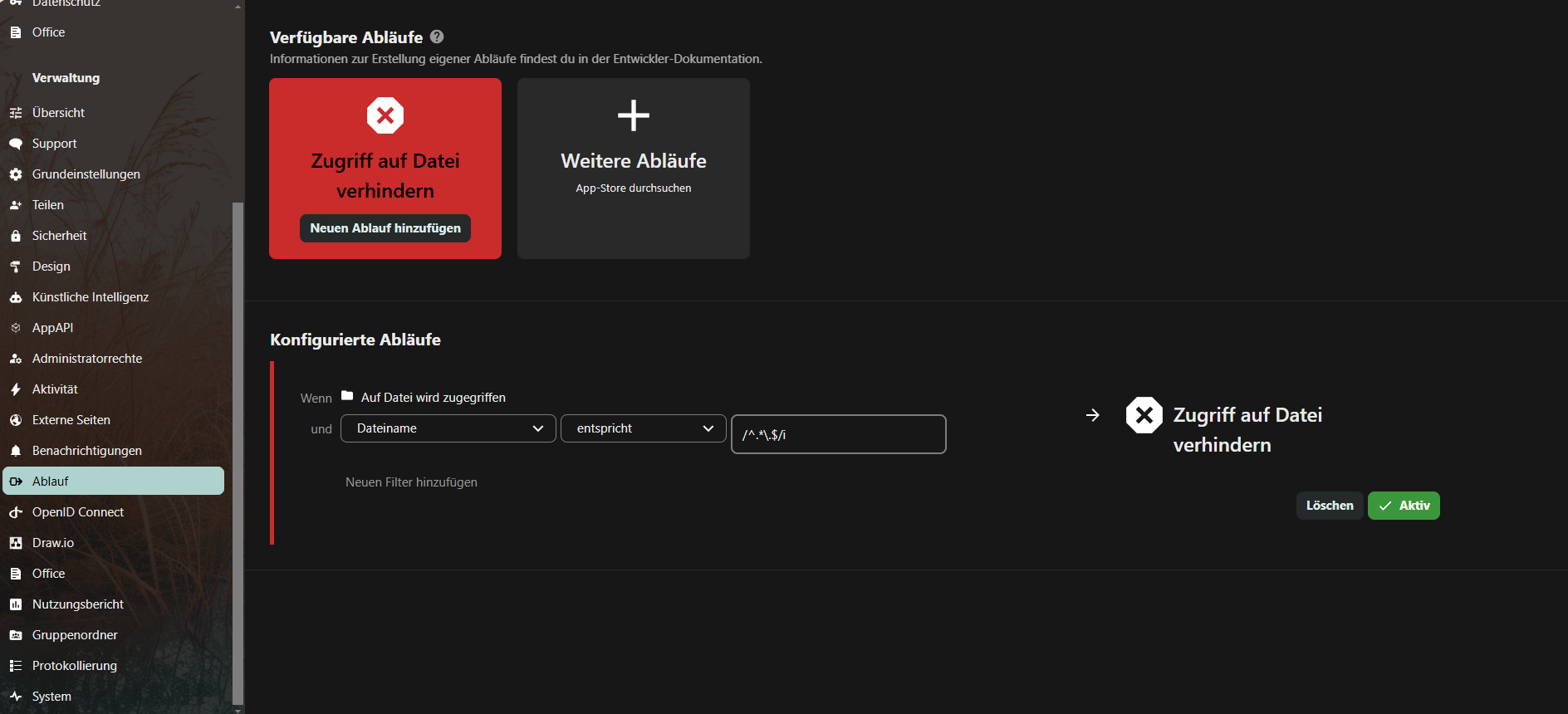
danach App File Access Control installieren https://apps.nextcloud.com/apps/files_accesscontrol
Regel für Dateiname > entspricht > /^.*\.$/i aktivieren, um Punkte am Ende einer Datei zu verhindern
Standardsprache DE für neue Benutzer
mit
docker exec -it nextcloud-app-1 bashin die Shell des Containers gehen (oder einfach im Volume), dann
apt-get update
apt-get install nano
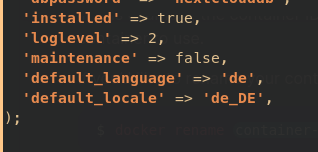
nano config/config.phpund folgendes anhängen:
'loglevel' => 2,
'maintenance' => false,
'default_language' => 'de',
'default_locale' => 'de_DE',
'default_timezone' => 'Europe/Berlin',
);
https://docs.nextcloud.com/server/16/admin_manual/configuration_server/language_configuration.html
S3 Minio als primary storage in config.php
(eigentlich über die env-vars im Stack, aber falls das verpasst wurde)
'objectstore' =>
array (
'class' => '\\OC\\Files\\ObjectStore\\S3',
'arguments' =>
array (
'bucket' => 'nextcloud',
'region' => '',
'hostname' => 'minio-s3.MEINEDOMAIN.de',
'port' => '443',
'StorageClass' => '',
'objectPrefix' => 'urn:oid:',
'autocreate' => false,
'use_ssl' => true,
'use_path_style' => true,
'legacy_auth' => false,
'key' => '3svCe...wVvluT',
'secret' => 'mHK6Q............0GTa',
),
),E-Mail Einstellungen SMTP in config.php (auch über GUI)
'mail_from_address' => 'admin',
'mail_smtpmode' => 'smtp',
'mail_sendmailmode' => 'smtp',
'mail_domain' => 'MEINEDOMAIN.de',
'mail_smtphost' => 'smtp.strato.de',
'mail_smtpauth' => 1,
'mail_smtpport' => '587',
'mail_smtpname' => 'admin@MEINEDOMAIN.de',
'mail_smtppassword' => 'MEIN-123-PASSWORT',Direkter Login (umgeht OIDC/SAML)
http://nextcloud.MEINEDOMAIN.de/login?direct=1
Troubleshooting
Zugriff ueber eine nicht vertrauenswuerdige Domain
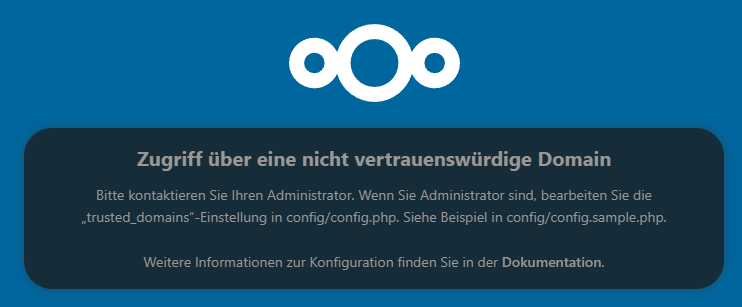
Zugriff über eine nicht vertrauenswürdige Domain
Bitte kontaktieren Sie Ihren Administrator. Wenn Sie Administrator sind, bearbeiten Sie die „trusted_domains“-Einstellung in config/config.php. Siehe Beispiel in config/config.sample.php.
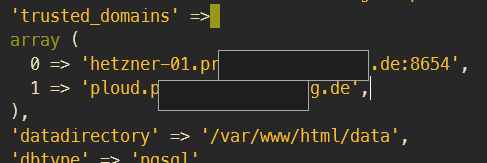
falls die trusted domains in den env nicht passen, siehe ....
- NEXTCLOUD_TRUSTED_DOMAINS=<nextcloud.mydomain.com>
- OVERWRITEPROTOCOL=https
- OVERWRITECLIURL=https://<nextcloud.mydomain.com>
...muss die config/config.php noch bearbeitet werden:
'trusted_domains' =>
array (
0 => 'localhost',
1 => 'server1.example.com',
2 => '192.168.1.50',
3 => '[fe80::1:50]',
),
PERMISSION / OWNER FEHLER
Configuration was not read or initialized correctly, not overwriting /var/www/html/config/config.php
Passiert evtl beim Migrieren

Wenn dieser Fehler kommt, kann es sein, dass der Besitz oder die Berechtigungen der Dateien im Volume nicht stimmen.
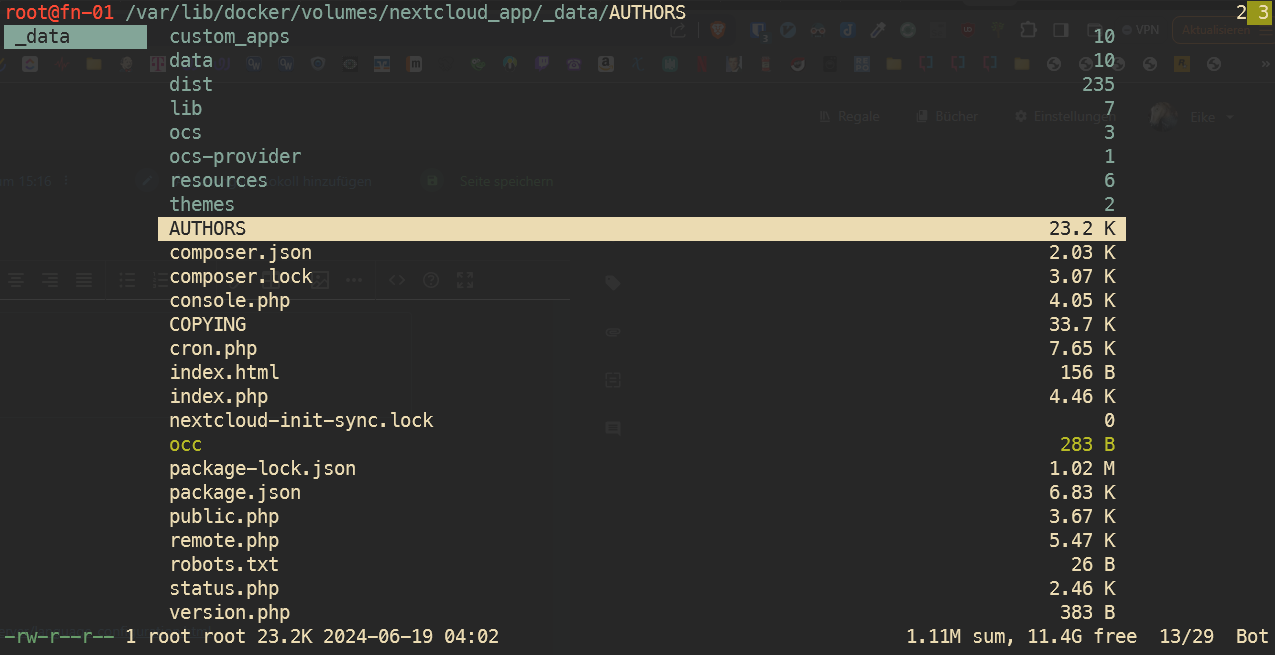
Hier zu sehen im CLI Fileexplorer Ranger, dass der Besitzer root ist (unten links), sollte aber www-data sein.
Um den Besitzer zu ändern, eine Ebene höher gehen, sodass der Ordner _data zu sehen ist, mit ! ein Shell Command ausführen
('@'-Zeichen ist der Shortcut für Shell-Kommando in Ranger):
chown -R www-data:www-data _datadas ändert die Rechte rekursiv, also auch alle untergeordneten Dateien und Ordner:
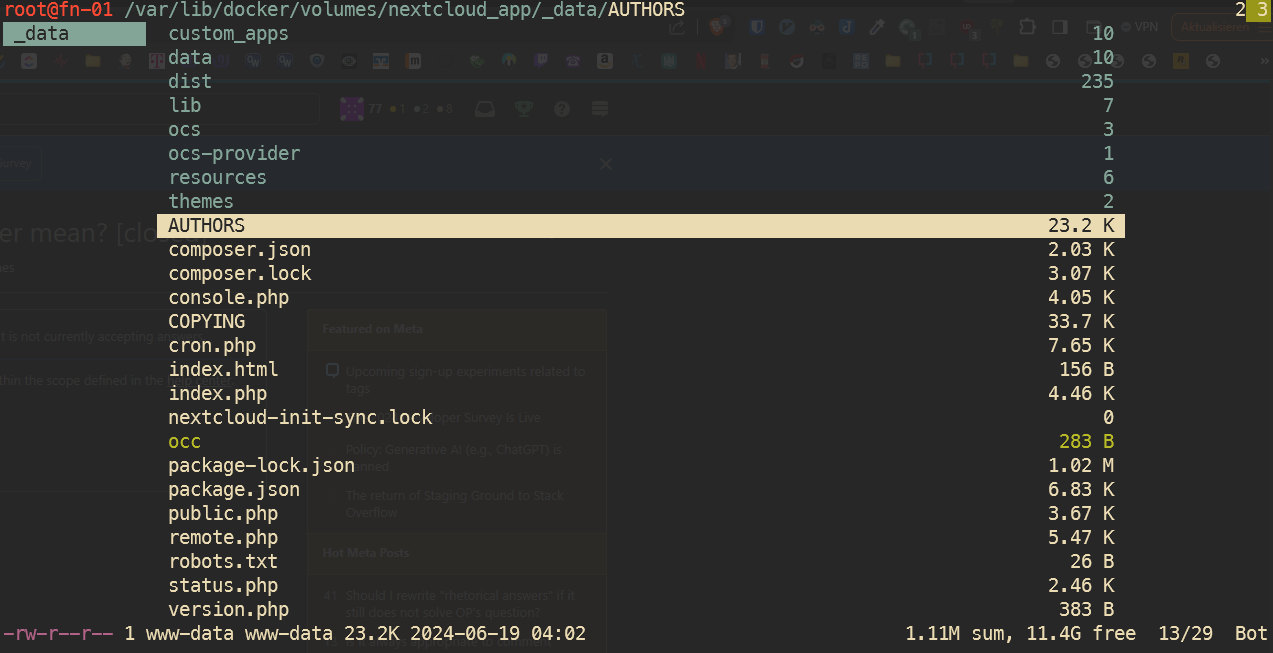
ALTE VARIANTEN AB HIER
Kunde PL
nicht-samba-variante: (Diese Variante installiert sich komplett selbst)
stand 22.11.2024, aktuelle docker-image-versionen ausm dockerhub holen:
https://hub.docker.com/r/collabora/code
https://hub.docker.com/_/nextcloud
https://hub.docker.com/_/postgres
https://hub.docker.com/_/redis
version: '3'
services:
db:
image: postgres:16.5-alpine3.20
restart: always
volumes:
- db:/var/lib/postgresql/data:Z
env_file:
- stack.env
redis:
image: redis:7.4.1-alpine3.20
restart: always
app:
image: nextcloud:30.0.2-apache
restart: always
ports:
- 8654:80
volumes:
- app:/var/www/html:z
environment:
- POSTGRES_HOST=db
- REDIS_HOST=redis
env_file:
- stack.env
depends_on:
- db
- redis
deploy:
resources:
limits:
cpus: '0.90'
memory: 4000M
cron:
image: nextcloud:30.0.2-apache
restart: always
volumes:
- app:/var/www/html:z
entrypoint: /cron.sh
depends_on:
- db
- redis
whiteboard:
image: ghcr.io/nextcloud-releases/whiteboard:v1.0.4
ports:
- 3002:3002
environment:
- NEXTCLOUD_URL=https://nextcloud.DOMAIN.de
- JWT_SECRET_KEY=XYZ123...[openssl rand -base64 32]...321ZYX
restart: unless-stopped
collabora:
image: collabora/code:24.04.9.2.1
container_name: collabora
environment:
- aliasgroup1=https://nextcloud.DOMAIN.de
- aliasgroup2=https://another.DOMAIN.de
- aliasgroup3=https://another.DOMAIN.de
#- server_name=collabora.DOMAIN.de
- username=MYUSERNAME
- password=MYPASSWORD
ports:
- '9980:9980'
restart: unless-stopped
volumes:
db:
app:
dazugehörige Environment variables (bei einem Portainer stack unten auf advanced mode stellen, da steht auch dass sie als stack.env eingebunden werden müssen)
POSTGRES_PASSWORD=MEINPASSWORD123
POSTGRES_DB=nextcloud
POSTGRES_USER=nextcloud
NEXTCLOUD_ADMIN_USER=MEIN-NC-ADMIN
NEXTCLOUD_ADMIN_PASSWORD=MEIN-NC-PW
OVERWRITEPROTOCOL=https
OVERWRITECLIURL=https://nextcloud.MEINEDOMAIN.de
NEXTCLOUD_TRUSTED_DOMAINS=nextcloud.MEINEDOMAIN.de
NEXTCLOUD_DEFAULT_LANGUAGE=de
OBJECTSTORE_S3_BUCKET=nextcloud
OBJECTSTORE_S3_KEY=DC...MEIN-minio-ACCESSKEY...dVZP
OBJECTSTORE_S3_SECRET=jJsHxEhdIJUM....MEIN-minio-SECRETKEY....4xTd9REse
OBJECTSTORE_S3_HOST=minio-s3.MEINEDOMAIN.de
OBJECTSTORE_S3_PORT=443
OBJECTSTORE_S3_SSL=true
OBJECTSTORE_S3_USEPATH_STYLE=true
Diese env-vars werden nur beim ersten Erzeugen in die config/config.php geschrieben. Wenn sie bei einer bestehenden Instanz nachgetragen werden, muss man die config.php von Hand bearbeiten.
weitere interessante Einstellungen in der config/config.php:
'default_language' => 'de',
'default_locale' => 'de',
'default_timezone' => 'Europe/Berlin',
'defaultapp' => 'files',
'knowledgebaseenabled' => false,
'lost_password_link' => 'disabled',
'skeletondirectory' => '',
'simpleSignUpLink.shown' => false,
'loglevel' => 2,
'default_charset' => 'UTF-8',
'activity_use_cached_mountpoints' => true,
'forbidden_filename_characters' => array('?', '<', '>', ':', '*', '|', '"'),
Whiteboard: https://github.com/nextcloud/whiteboard
samba-variante
version: '3'
services:
db:
image: postgres:alpine
restart: always
volumes:
- hetzner_sb:/var/lib/postgresql/data:Z
env_file:
- stack.env
redis:
image: redis:alpine
restart: always
app:
image: nextcloud:apache
restart: always
ports:
- 8654:80
volumes:
- hetzner_sb:/var/www/html:z
environment:
- POSTGRES_HOST=db
- REDIS_HOST=redis
env_file:
- stack.env
depends_on:
- db
- redis
cron:
image: nextcloud:apache
restart: always
volumes:
- hetzner_sb:/var/www/html:z
entrypoint: /cron.sh
depends_on:
- db
- redis
volumes:
db:
hetzner_sb:
driver: local
driver_opts:
type: cifs
o: "username=u12345-sub1,password=zwwEXAMPLEQpp,file_mode=0770,dir_mode=0770,vers=3.1.1,seal,uid=33"
device: "//u12345-sub1.your-storagebox.de/u12345-sub1/dockervolume_nextcloud"
...,file_mode=0770,dir_mode=0770,vers=3.1.1,seal,uid=33"am ende nicht vergessen!
Quellen:
https://help.nextcloud.com/t/how-to-get-a-rock-solid-nextcloud-installation/150002
https://github.com/nextcloud/docker/blob/master/.examples/docker-compose/insecure/postgres/apache/docker-compose.yml
Mit MariaDB von
https://xmpls.org/install-nextcloud-with-docker-compose/
Kunde WIS
version: '2'
services:
db:
image: mariadb:10.5
command: --transaction-isolation=READ-COMMITTED --binlog-format=ROW
volumes:
- ./nextcloud-mariadb/mariadb:/var/lib/mysql
environment:
- MYSQL_ROOT_PASSWORD=nextclouddb
- MYSQL_PASSWORD=nextclouddb
- MYSQL_DATABASE=nextcloud
- MYSQL_USER=nextcloud
restart: unless-stopped
app:
image: nextcloud
ports:
- 5001:80
links:
- db
volumes:
- ./nextcloud-mariadb/nextcloud-itself:/var/www/html
environment:
- MYSQL_PASSWORD=nextclouddb
- MYSQL_DATABASE=nextcloud
- MYSQL_USER=nextcloud
- MYSQL_HOST=db
restart: unless-stoppedFür weitere Schritte (DOMAIN ZU TRUSTED DOMAINS HINZUFÜGEN), den Nextcloud Artikel im Buch TrueNAS folgen:
Fernnetz (arm)
WICHTIG! Die Environment-Variablen NEXTCLOUD_TRUSTED_DOMAINS, OVERWRITEPROTOCOL und OVERWRITECLIURL werden in die config.php von Nextcloud nur bei Erstellung des Containers geschrieben. Eine nachträgliche Änderung ist nicht möglich (zumindest nicht ueber docker-compose ENVs. Wenn man es aendern möchte muss man die config.php im container editieren).
Siehe https://github.com/nextcloud/docker/issues/582#issuecomment-834225766
<nextcloud.mydomain.com> ersetzen
version: '2'
services:
db:
image: mariadb:10.5
command: --transaction-isolation=READ-COMMITTED --binlog-format=ROW
volumes:
- ./nextcloud/mariadb:/var/lib/mysql #befindet sich unter /data/compose/<stack-nummer>/... auf dem docker host
environment:
- MYSQL_ROOT_PASSWORD=nextclouddb
- MYSQL_PASSWORD=nextclouddb
- MYSQL_DATABASE=nextcloud
- MYSQL_USER=nextcloud
restart: unless-stopped
app:
image: nextcloud
ports:
- 5001:80
links:
- db
volumes:
- ./nextcloud/app:/var/www/html
environment:
- NEXTCLOUD_TRUSTED_DOMAINS=<nextcloud.mydomain.com>
- OVERWRITEPROTOCOL=https
- OVERWRITECLIURL=https://<nextcloud.mydomain.com>
- MYSQL_PASSWORD=nextclouddb
- MYSQL_DATABASE=nextcloud
- MYSQL_USER=nextcloud
- MYSQL_HOST=db
restart: unless-stoppedGitlab Community Edition (CE)
WIS
ACHTUNG: Systemmindestvoraussetzungen beachten: 4-Core CPU, 4GB RAM
https://docs.gitlab.com/ee/install/requirements.html
Ansonsten legt es den Server lahm (hohe Festplatten I/Os und CPU am Limit, nichts geht mehr)
version: '3.6'
services:
web:
image: 'gitlab/gitlab-ce:latest'
restart: always
hostname: 'gl.wo....se.com'
environment:
GITLAB_OMNIBUS_CONFIG: |
external_url 'https://gl.wo...se.com'
# Add any other gitlab.rb configuration here, each on its own line
ports:
- '9680:80'
- '9643:443'
- '9622:22'
volumes:
- './gitlab/config:/etc/gitlab'
- './gitlab/logs:/var/log/gitlab'
- './gitlab/data:/var/opt/gitlab'
shm_size: '256m'danach in die container shell gehen und mit sudo cat /etc/gitlab/initial_root_passworddas pw für den Benutzer root (oder admin? oder frei wählbar?) anzeigen lassen
Quelle auch mit Hinweis zu Kubernetes secret:
https://forum.gitlab.com/t/after-gitlab-ce-installation-on-ubuntu/32896/7
Mattermost
WIS
https://docs.mattermost.com/install/install-docker.html
Installationsanleitung folgen. Hier in kurzform:
git clone https://github.com/mattermost/docker
cd dockercp env.example .envmkdir -p ./volumes/app/mattermost/{config,data,logs,plugins,client/plugins,bleve-indexes}
sudo chown -R 2000:2000 ./volumes/app/mattermostBeispiel OHNE Nginx incl. (weil wir schon einen NGINX Reverse Proxy Manager haben)
sudo docker-compose -f docker-compose.yml -f docker-compose.without-nginx.yml up -dund
sudo docker-compose -f docker-compose.yml -f docker-compose.without-nginx.yml downWatchTower
FN
version: "3"
services:
watchtower:
image: containrrr/watchtower
container_name: watchtower
restart: always
environment:
WATCHTOWER_SCHEDULE: "0 0 6 * * *"
TZ: Europe/Berlin
WATCHTOWER_CLEANUP: "true"
WATCHTOWER_DEBUG: "true"
#WATCHTOWER_NOTIFICATIONS: "email"
#WATCHTOWER_NOTIFICATION_EMAIL_FROM: "cldocker01@cloud.local"
#WATCHTOWER_NOTIFICATION_EMAIL_TO: "pushover@mailrise.xyz"
# you have to use a network alias here, if you use your own certificate
#WATCHTOWER_NOTIFICATION_EMAIL_SERVER: "10.1.149.19"
#WATCHTOWER_NOTIFICATION_EMAIL_SERVER_PORT: "8025"
#WATCHTOWER_NOTIFICATION_EMAIL_DELAY: 2
volumes:
- /var/run/docker.sock:/var/run/docker.sock
n8n
Wichtig!
vorher ein Docker Volume erzeugen und darin die Schreibrechte anpassen, sonst kommt die Fehlermeldung
EACCES: permission denied, open '/home/node/.n8n/crash.journal'
siehe https://github.com/n8n-io/n8n/issues/1240
also:
docker volume create n8n_data
docker run -it --rm -v n8n_data:/home/data bash chown 1000:1000 -R /home/data
oder einfacher:
chown -R 1000:1000 /var/lib/docker/volumes/n8n_data/_datadanach, entweder einen Container temporär starten:
docker run -it --rm --name n8n -p 5678:5678 -v n8n_data:/home/node/.n8n n8nio/n8n
oder über docker-compose:
version: "3"
services:
n8n:
image: n8nio/n8n:1.76.0
restart: always
ports:
- 5678:5678
environment:
#- PUID=1001
#- PGID=1001
- N8N_HOST=n8n.MEINEDOMAIN.de
- N8N_PORT=5678
- N8N_PROTOCOL=https
- NODE_ENV=production
- WEBHOOK_URL=https://n8n.MEINEDOMAIN.de
- GENERIC_TIMEZONE=Europe/Berlin
volumes:
- n8n_data:/home/node/.n8n
volumes:
n8n_data:
driver: localUpSnap WakeOnLan WOL
version: "3"
services:
upsnap:
container_name: upsnap
image: ghcr.io/seriousm4x/upsnap:4
network_mode: host
restart: unless-stopped
volumes:
- ./data:/app/pb_data
# # To use a non-root user, create the mountpoint first (mkdir data) so that it has the right permission.
# user: 1000:1000
environment:
- TZ=Europe/Berlin # Set container timezone for cron schedules
# - UPSNAP_INTERVAL=@every 10s # Sets the interval in which the devices are pinged
# - UPSNAP_SCAN_RANGE=192.168.1.0/24 # Scan range is used for device discovery on local network
# - UPSNAP_WEBSITE_TITLE=Custom name # Custom website title
# # dns is used for name resolution during network scan
# dns:
# - 192.18.0.1
# - 192.18.0.2
# # you can change the listen ip:port inside the container like this:
entrypoint: /bin/sh -c "./upsnap serve --http 0.0.0.0:5080"
healthcheck:
test: curl -fs "http://localhost:5080/api/health" || exit 1
interval: 10s
# # or install custom packages for shutdown
# entrypoint: /bin/sh -c "apk update && apk add --no-cache <YOUR_PACKAGE> && rm -rf /var/cache/apk/* && ./upsnap serve --http 0.0.0.0:8090"
Shlink URL-Shortener
version: '3'
services:
shlink:
container_name: shlink
image: shlinkio/shlink:stable
restart: always
environment:
TZ: 'Europe/Berlin'
IS_HTTPS_ENABLED: true
INITIAL_API_KEY: 'JUs.....fzT'
DEFAULT_DOMAIN: 'link.folkerts.it'
ports:
- 8066:8080
Wenn alles geklappt hat, kommt eine 404 not found:
(damit ich die Seite sehen kann, hab ich in der Hetzner Firewall meine IP für Port 8066 erlaubt)
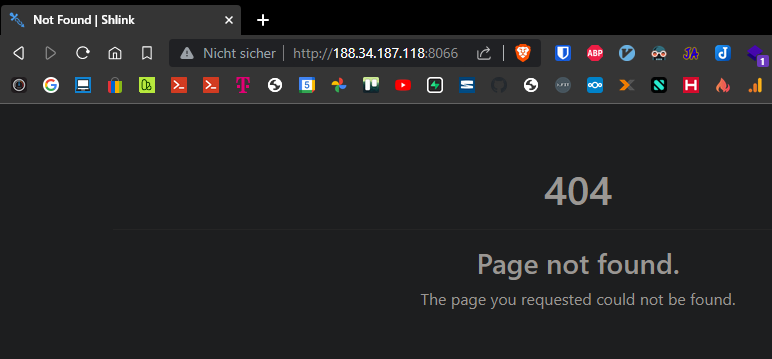
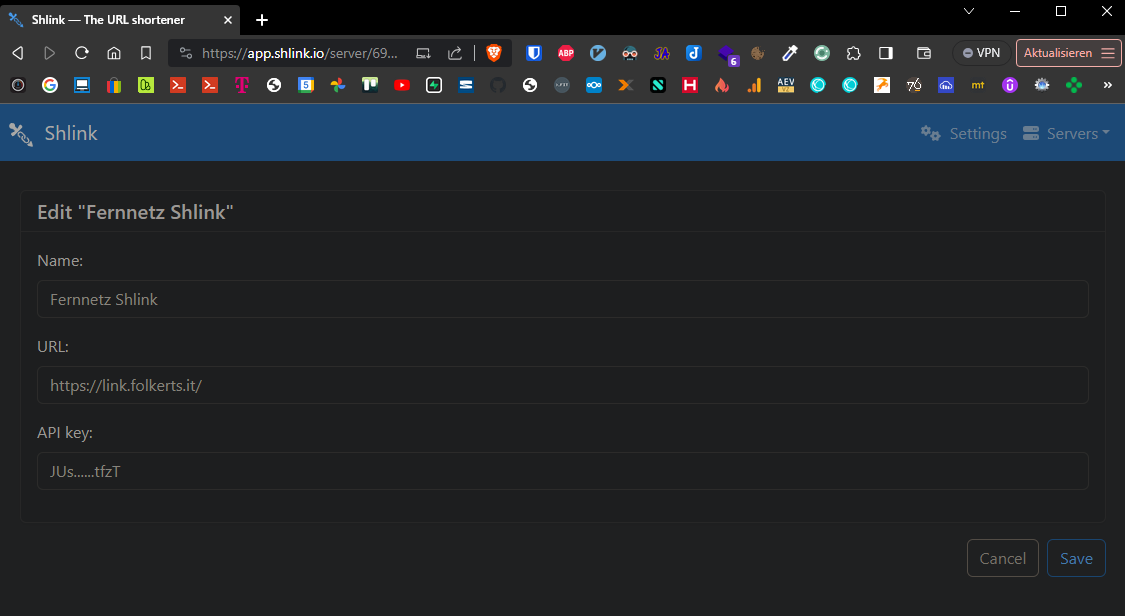
Es ist jetzt erstmal nur der Server installiert, eine WebUI gibt es offiziell von shlink unter app.shlink.io
man gibt dann seinen API Key und die Serveradresse ein und verbindet sich zum eigenen Shlink Server. Vorher muss man allerdings eine https Umleitung einrichten, damit es klappt, weil nicht von https auf http zugegriffen werden kann.
(vorher natürlich die subdomain zb link.folkerts.it beim domainhoster zb strato oder web4you registrieren)
zb mit nginx proxy manager:
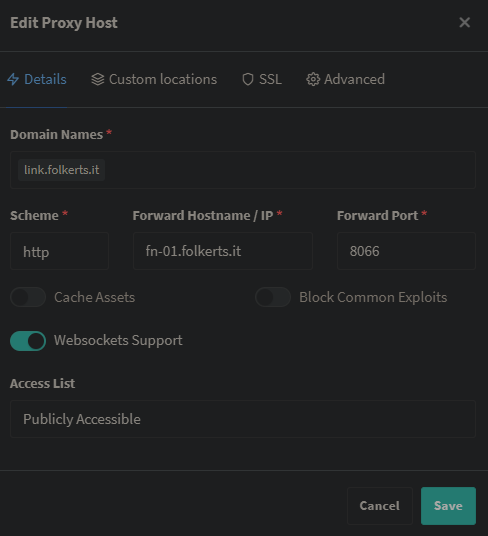
und
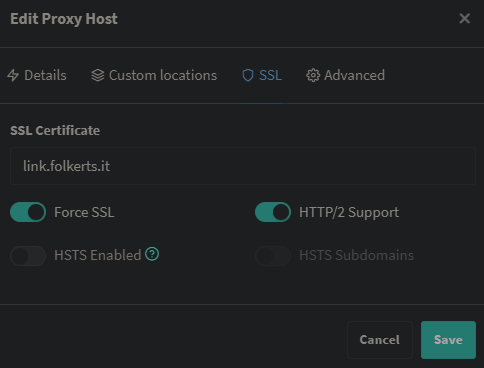
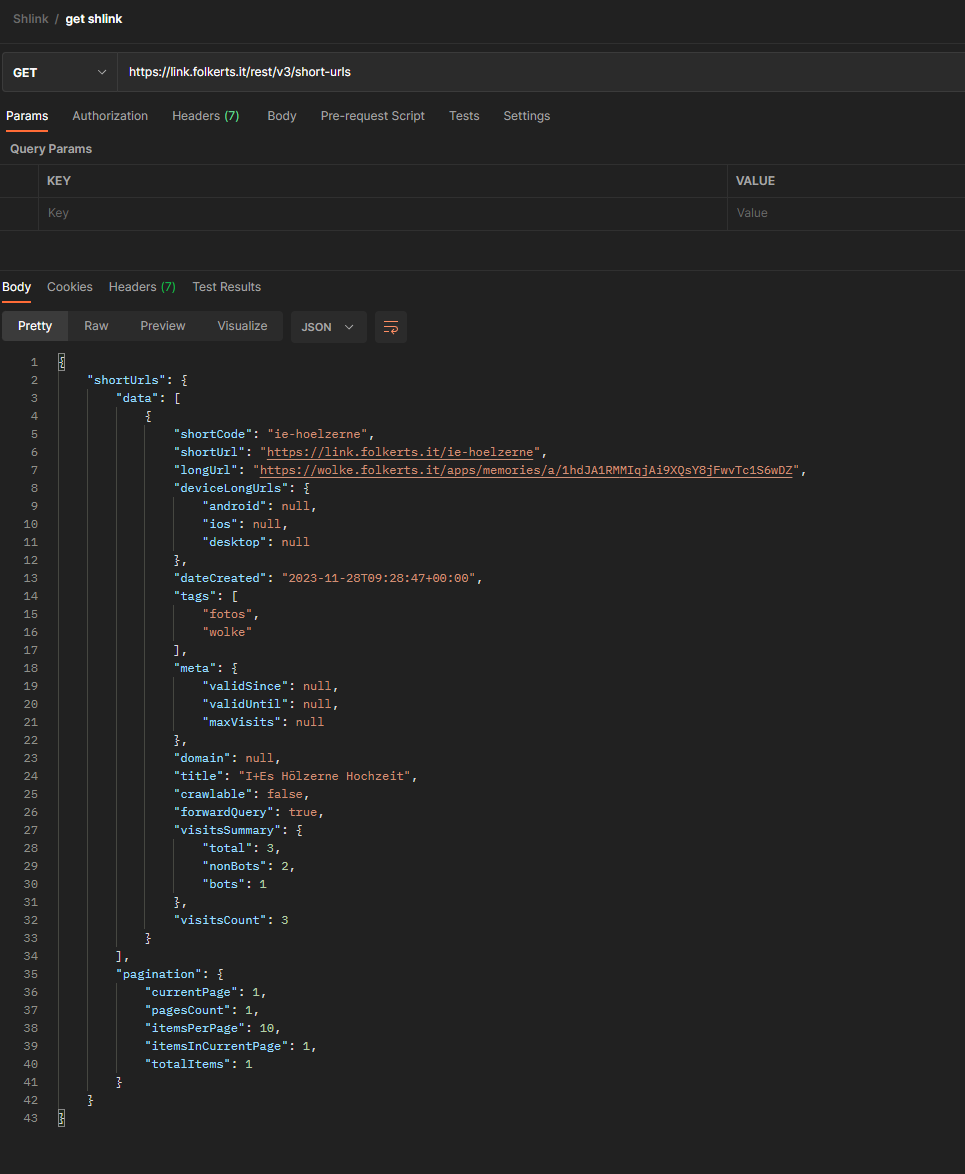
danach klappt der Abruf via RestAPI mit zb Postman:
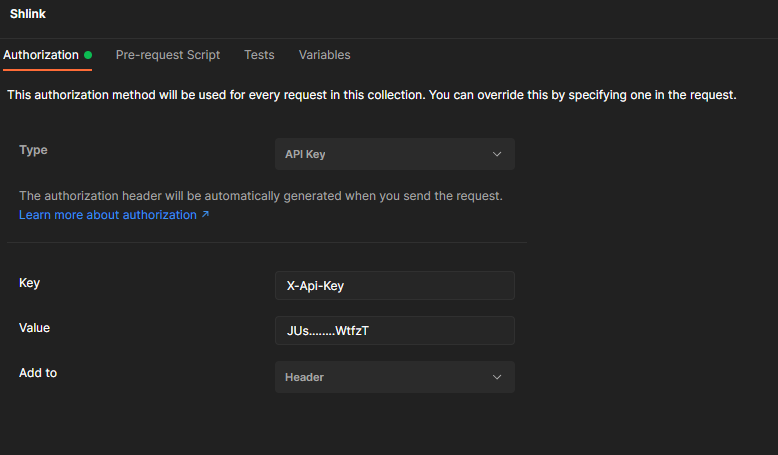
und dann der Request:
so sieht dann die Konfiguration auf https://app.shlink.io/ aus
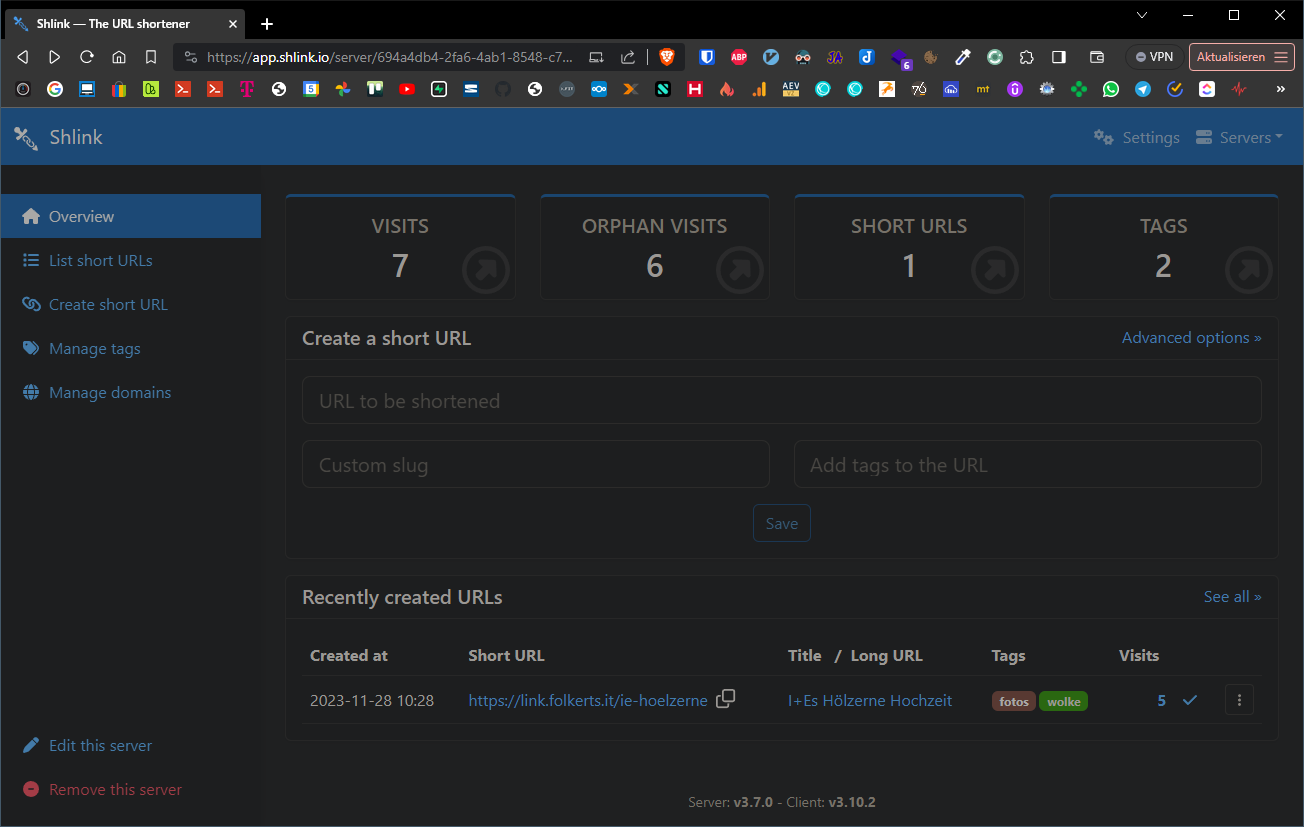
und so die webui:
OpenProject
Port 8080 hatte ich probiert zu ändern, hat aber beim ersten Versuch nicht geklappt, daher ist es jetzt dabei geblieben. Wenn man einen Unifi Controller in Docker hat muss man allerdings zwangsweise auf einen anderen Port ausweichen, weil Unifi den 8080er braucht.
OPENPROJECT_HOST__NAME und ggf. Postgres-Passwort abändern!
version: "3.7"
networks:
frontend:
backend:
volumes:
pgdata:
opdata:
x-op-restart-policy: &restart_policy
restart: unless-stopped
x-op-image: &image
image: openproject/community:${TAG:-13}
x-op-app: &app
<<: [*image, *restart_policy]
environment:
OPENPROJECT_HTTPS: "${OPENPROJECT_HTTPS:-true}"
OPENPROJECT_HOST__NAME: "${OPENPROJECT_HOST__NAME:-openproject.MEINEDOMAIN.DE}"
OPENPROJECT_HSTS: "${OPENPROJECT_HSTS:-true}"
RAILS_CACHE_STORE: "memcache"
OPENPROJECT_CACHE__MEMCACHE__SERVER: "cache:11211"
OPENPROJECT_RAILS__RELATIVE__URL__ROOT: "${OPENPROJECT_RAILS__RELATIVE__URL__ROOT:-}"
DATABASE_URL: "${DATABASE_URL:-postgres://postgres:p4ssw0rd@db/openproject?pool=20&encoding=unicode&reconnect=true}"
RAILS_MIN_THREADS: ${RAILS_MIN_THREADS:-4}
RAILS_MAX_THREADS: ${RAILS_MAX_THREADS:-16}
# set to true to enable the email receiving feature. See ./docker/cron for more options
IMAP_ENABLED: "${IMAP_ENABLED:-false}"
volumes:
- "${OPDATA:-opdata}:/var/openproject/assets"
services:
db:
image: postgres:13
<<: *restart_policy
stop_grace_period: "3s"
volumes:
- "${PGDATA:-pgdata}:/var/lib/postgresql/data"
environment:
POSTGRES_PASSWORD: ${POSTGRES_PASSWORD:-p4ssw0rd}
POSTGRES_DB: openproject
networks:
- backend
cache:
image: memcached
<<: *restart_policy
networks:
- backend
proxy:
<<: [*image, *restart_policy]
command: "./docker/prod/proxy"
ports:
- "${PORT:-8080}:80"
environment:
APP_HOST: web
OPENPROJECT_RAILS__RELATIVE__URL__ROOT: "${OPENPROJECT_RAILS__RELATIVE__URL__ROOT:-}"
depends_on:
- web
networks:
- frontend
web:
<<: *app
command: "./docker/prod/web"
networks:
- frontend
- backend
depends_on:
- db
- cache
- seeder
labels:
- autoheal=true
healthcheck:
test: ["CMD", "curl", "-f", "http://localhost:8080${OPENPROJECT_RAILS__RELATIVE__URL__ROOT:-}/health_checks/default"]
interval: 10s
timeout: 3s
retries: 3
start_period: 30s
autoheal:
image: willfarrell/autoheal:1.2.0
volumes:
- "/var/run/docker.sock:/var/run/docker.sock"
environment:
AUTOHEAL_CONTAINER_LABEL: autoheal
AUTOHEAL_START_PERIOD: 600
AUTOHEAL_INTERVAL: 30
worker:
<<: *app
command: "./docker/prod/worker"
networks:
- backend
depends_on:
- db
- cache
- seeder
cron:
<<: *app
command: "./docker/prod/cron"
networks:
- backend
depends_on:
- db
- cache
- seeder
seeder:
<<: *app
command: "./docker/prod/seeder"
restart: on-failure
networks:
- backend
danach den NGINX einfach auf https://docker-host-ip:8080 umleiten:
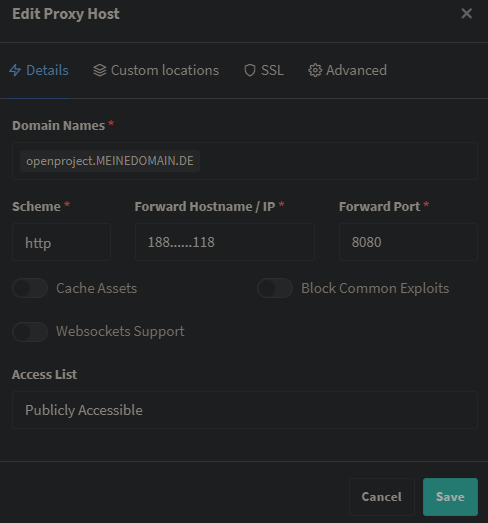
man muss ein bisschen rumspielen mit der Zeile bei den environment-variablen
OPENPROJECT_HTTPS: "${OPENPROJECT_HTTPS:-true}"
Ich hatte es zuerst auf false, dann den nginx eingerichtet, dann kam auf der OpenProject GUI die Meldung, dass die Variable wieder auf true gesetzt werden muss. Danach klappt es, obwohl NGINX noch auf http verweist. Keine Ahnung was da los ist. Vielleicht klappt es auch direkt wenn die Variable auf true ist und der HOST_NAME in der nächsten Zeile direkt richtig ist. Das hatte ich zu Beginn vergessen.
Windmill
Server um Pythonprogramme über eine WebUI mit APIs zu verknüpfen
https://www.windmill.dev/docs/advanced/self_host
https://github.com/windmill-labs/windmill/blob/main/docker-compose.yml
https://github.com/windmill-labs/windmill/blob/main/.env
https://github.com/windmill-labs/windmill/blob/main/Caddyfile
OBACHT, die docker-compose.yml für Windmill + Selenium ist die aktuellste. Darunter kommt eine alte docker-compose.yml mit nur Windmill ohne Selenium
Windmill + Selenium
OBACHT: Probleme mit arm-Architektur und Selenium Browser. Nach umzug auf amd64 klappt der selenoid container. Außerdem gibt es das selenoid-ui image aktuell nicht für arm.
Mit diesem Tutorial als Basis: https://www.windmill.dev/blog/use-selenium-with-windmill
und mit Hilfe der Selenium MAN https://aerokube.com/selenoid/latest/
docker-compose.yml
#https://www.windmill.dev/blog/use-selenium-with-windmill
#https://wiki.folkerts.it/books/docker/page/windmill
services:
db:
hostname: wm_db
deploy:
# To use an external database, set replicas to 0 and set DATABASE_URL to the external database url in the .env file
replicas: 1
image: postgres:14
restart: unless-stopped
volumes:
- db_data:/var/lib/postgresql/data
expose:
- 5432
environment:
POSTGRES_PASSWORD: ${DATABASE_PW}
POSTGRES_DB: windmill
healthcheck:
test: ["CMD-SHELL", "pg_isready -U postgres"]
interval: 10s
timeout: 5s
retries: 5
networks:
windmill:
windmill_server:
hostname: wm_server
image: ${WM_IMAGE}
pull_policy: always
deploy:
replicas: 1
restart: unless-stopped
expose:
- 8000
ports:
- 9920-9930:9920-9930 # <- added this; only 10 ports are opened; if you want to open more ports increase the 2nd number respectively
environment:
- DATABASE_URL=postgres://postgres:${DATABASE_PW}@db/windmill?sslmode=disable
- MODE=server
#- NUM_WORKERS=10 # <- an increased number of workers is helpful when running a lot of scraping scripts in parallel
depends_on:
db:
condition: service_healthy
networks:
windmill:
windmill_worker:
#container_name: wm_worker
image: ${WM_IMAGE}
pull_policy: always
deploy:
replicas: 2
resources:
limits:
cpus: "1"
memory: 2048M
restart: unless-stopped
environment:
- DATABASE_URL=postgres://postgres:${DATABASE_PW}@db/windmill?sslmode=disable
- MODE=worker
- WORKER_GROUP=default
depends_on:
db:
condition: service_healthy
# to mount the worker folder to debug, KEEP_JOB_DIR=true and mount /tmp/windmill
volumes:
# mount the docker socket to allow to run docker containers from within the workers
- /var/run/docker.sock:/var/run/docker.sock
- worker_dependency_cache:/tmp/windmill/cache
networks:
windmill:
## This worker is specialized for "native" jobs. Native jobs run in-process and thus are much more lightweight than other jobs
windmill_worker_native:
#container_name: wm_worker_nat
# Use ghcr.io/windmill-labs/windmill-ee:main for the ee
image: ${WM_IMAGE}
pull_policy: always
deploy:
replicas: 2
resources:
limits:
cpus: "0.1"
memory: 128M
restart: unless-stopped
environment:
- DATABASE_URL=postgres://postgres:${DATABASE_PW}@db/windmill?sslmode=disable
- MODE=worker
- WORKER_GROUP=native
depends_on:
db:
condition: service_healthy
networks:
windmill:
## This worker is specialized for reports or scrapping jobs. It is assigned the "reports" worker group which has an init script that installs chromium and can be targeted by using the "chromium" worker tag.
# windmill_worker_reports:
# image: ${WM_IMAGE}
# pull_policy: always
# deploy:
# replicas: 1
# resources:
# limits:
# cpus: "1"
# memory: 2048M
# restart: unless-stopped
# environment:
# - DATABASE_URL=${DATABASE_URL}
# - MODE=worker
# - WORKER_GROUP=reports
# depends_on:
# db:
# condition: service_healthy
# # to mount the worker folder to debug, KEEP_JOB_DIR=true and mount /tmp/windmill
# volumes:
# # mount the docker socket to allow to run docker containers from within the workers
# - /var/run/docker.sock:/var/run/docker.sock
# - worker_dependency_cache:/tmp/windmill/cache
lsp:
hostname: wm_lsp
image: ghcr.io/windmill-labs/windmill-lsp:latest
pull_policy: always
restart: unless-stopped
expose:
- 3001
volumes:
- lsp_cache:/root/.cache
networks:
windmill:
multiplayer:
hostname: wm_mp
image: ghcr.io/windmill-labs/windmill-multiplayer:latest
deploy:
replicas: 0 # Set to 1 to enable multiplayer, only available on Enterprise Edition
restart: unless-stopped
expose:
- 3002
networks:
windmill:
caddy:
hostname: wm_caddy
image: caddy:2.5.2-alpine
restart: unless-stopped
# Configure the mounted Caddyfile and the exposed ports or use another reverse proxy if needed
volumes:
- ${CADDYFILE_PATH}:/etc/caddy/Caddyfile
# - ./certs:/certs # Provide custom certificate files like cert.pem and key.pem to enable HTTPS - See the corresponding section in the Caffyfile
ports:
# To change the exposed port, simply change 80:80 to <desired_port>:80. No other changes needed
- ${HTTP_EXPOSE_PORT_WINDMILL}:80
# - 443:443 # Uncomment to enable HTTPS handling by Caddy
environment:
- BASE_URL=":80"
# - ADDRESS="localhost"
# - BASE_URL=":443" # uncomment and comment line above to enable HTTPS via custom certificate and key files
# - BASE_URL=mydomain.com # Uncomment and comment line above to enable HTTPS handling by Caddy
networks:
windmill:
selenoid:
#network_mode: bridge
hostname: wm_selenoid
restart: unless-stopped
image: aerokube/selenoid:latest-release
volumes:
- sel_cfg:/etc/selenoid # <- change this
- sel_video:/opt/selenoid/video # <- change this
- sel_logs:/opt/selenoid/logs # <- change this
- /var/run/docker.sock:/var/run/docker.sock
environment:
- OVERRIDE_VIDEO_OUTPUT_DIR=${SELENOID_VIDEO_DIR}
command:
[
'-conf',
'/etc/selenoid/browsers.json',
'-video-output-dir',
'/opt/selenoid/video',
'-log-output-dir',
'/opt/selenoid/logs',
'-container-network',
'${SELENOID_CONTAINER_NETWORK}'
]
ports:
- 4444:4444
networks:
windmill:
selenoid-ui:
hostname: wm_selenoid-ui
image: aerokube/selenoid-ui
#network_mode: bridge
restart: unless-stopped
depends_on:
- selenoid
#links:
# - selenoid
ports:
- ${HTTP_EXPOSE_PORT_SELENOIDUI}:8080
command: ['--selenoid-uri', 'http://wm_selenoid:4444']
networks:
windmill:
volumes:
db_data: null
worker_dependency_cache: null
lsp_cache: null
sel_logs:
sel_video:
sel_cfg:
networks:
windmill:
driver: bridge
.env
HTTP_EXPOSE_PORT_WINDMILL=86
HTTP_EXPOSE_PORT_SELENOIDUI=8941
DATABASE_PW=MEINTOLLES..........DBPW
WM_IMAGE=ghcr.io/windmill-labs/windmill:1.466.2
CADDYFILE_PATH=/var/lib/docker/volumes/windmill_caddy/Caddyfile
SELENOID_VIDEO_DIR=/var/lib/docker/volumes/windmill_sel_video/_data
SELENOID_CONTAINER_NETWORK=windmill_windmillTODO:
- Caddyfile erstellen (sieh unten)
- browsers.json erstellen (siehe unten)
Caddyfile
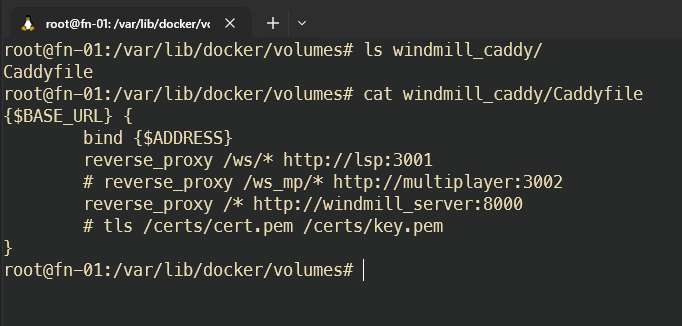
Auf dem Server eine Caddyfile anlegen:
zb /var/lib/docker/volumes/windmill_caddy/Caddyfile
{$BASE_URL} {
bind {$ADDRESS}
reverse_proxy /ws/* http://lsp:3001
# reverse_proxy /ws_mp/* http://multiplayer:3002
reverse_proxy /* http://windmill_server:8000
# tls /certs/cert.pem /certs/key.pem
}
Diese Datei dann wie beschrieben in der docker-compose.yml verknüpfen
browsers.json
browsers.json für selenoid Container erstellen und Pfad dafür in docker-compose (ca Zeile 171) in
- sel_cfg:/etc/selenoid # <- change thisablegen, also zb /var/lib/docker/volumes/windmill_sel_cfg/_data/browsers.json
{
"firefox": {
"default": "104.0",
"versions": {
"104.0": {
"image": "selenoid/firefox:104.0",
"port": "4444",
"path": "/wd/hub",
"env": ["TZ=Europe/Berlin"]
}
}
},
"chrome": {
"default": "104.0",
"versions": {
"104.0": {
"image": "selenoid/chrome:104.0",
"port": "4444",
"path": "/",
"env": ["TZ=Europe/Berlin"]
}
}
}
}
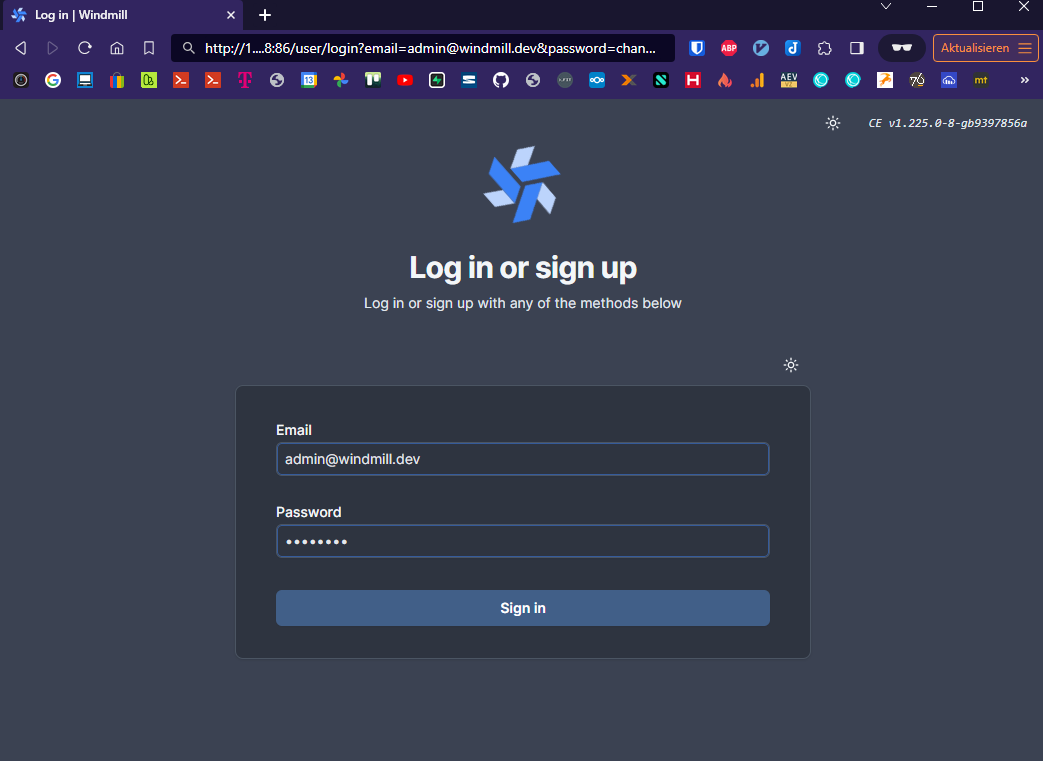
Login
email:
admin@windmill.dev
pw:
changeme
webui ist danach unter http://docker-ip:86 zu erreichen
prefilled link: http://docker-ip:86/user/login?email=admin@windmill.dev&password=changeme
Docker-Images für Selenium Browser
Nun noch die Dockerimages der Browser pullen
docker pull selenoid/chrome:104.0
docker pull selenoid/vnc_chrome:104.0
docker pull selenoid/firefox:104.0
docker pull selenoid/vnc_firefox:104.0Docker-Image für Selenium Videorecording
https://aerokube.com/selenoid/latest/#_video_recording
docker pull selenoid/video-recorder:latest-releasePython Beispiel mit Selenium in Windmill
# extra_requirements:
# blinker==1.7.0
# selenium==4.9.1
import os
import wmill
import blinker
import selenium
from seleniumwire import webdriver
from webdriver_manager.chrome import ChromeDriverManager
def main(domain: str, mailbox_prefix: str, mailbox_password: str):
try:
driver = initiateDriver()
# driver.get("https://www.github.com")
# Test whether Seleniumwire is working
for request in driver.requests:
if request.response:
print(
request.url,
request.response.status_code,
request.response.headers["Content-Type"],
)
# Geheimnisse aus Windmill-Variablen laden
strato_username = wmill.get_variable("f/admintools/strato_username")
strato_password = wmill.get_variable("f/admintools/strato_password")
# Selenium-Importe innerhalb der Funktion (Windmill-Umgebung)
import time
from selenium import webdriver
from selenium.webdriver.common.by import By
from selenium.webdriver.common.action_chains import ActionChains
from selenium.webdriver.support import expected_conditions
from selenium.webdriver.support.wait import WebDriverWait
from selenium.webdriver.common.keys import Keys
from selenium.webdriver.common.desired_capabilities import DesiredCapabilities
# WebDriver starten (Chrome als Beispiel)
print("### Öffne strato.de")
driver.get("https://www.strato.de/")
driver.set_window_size(1920, 1080)
driver.implicitly_wait(5)
# Selenium-Schritte
print("### Akzeptiere Cookies")
driver.find_element(By.CSS_SELECTOR, ".consentAgree:nth-child(3)").click()
driver.find_element(By.CSS_SELECTOR, "li:nth-child(3) .text-uppercase").click()
print("### Füge Strato Username ein")
driver.find_element(By.ID, "username").send_keys(strato_username)
print("### Füge Strato Passwort ein")
driver.find_element(By.ID, "jss_ksb_password").send_keys(strato_password)
print("### Klicke auf Anmelden")
driver.find_element(By.NAME, "action_customer_login.x").click()
print("### Klicke auf E-Mail")
driver.find_element(By.LINK_TEXT, "E-Mail").click()
print("### Klicke auf Verwaltung")
driver.find_element(By.LINK_TEXT, "Verwaltung").click()
print("### Klicke auf Postfach anlegen")
driver.find_element(By.ID, "jss_create_mailbox").click()
print("### Wähle Basic-Postfach anlegen")
driver.find_element(By.LINK_TEXT, "Basic-Postfach anlegen").click()
print("### Klicke auf Mailbox Domain Dropdown")
driver.find_element(By.ID, "create_mailbox_domain_select").click()
print("### Wähle domain aus Domain-Dropdown über send_keys")
select = driver.find_element(By.ID, "create_mailbox_domain_select")
select.send_keys(f"{domain}")
driver.find_element(By.ID, "group1").send_keys(mailbox_prefix)
print("### Füge E-Mail Passwort ein")
driver.find_element(By.NAME, "password_new").send_keys(mailbox_password)
print("### Klicke auf Postfach anlegen")
driver.find_element(By.CSS_SELECTOR, ".jss_action_handle_password").click()
print(
'### Warte auf den Text "Es wurde eine neue E-Mail-Adresse angelegt und aktiviert" von Strato'
)
WebDriverWait(driver, 5).until(
expected_conditions.visibility_of_element_located(
(By.CSS_SELECTOR, ".success > p:nth-child(1)")
)
)
print(f"### Erfolg! {mailbox_prefix}@{domain} wurde angelegt.")
# WebDriver schließen
driver.quit()
# Ergebnis zurückgeben (wird in Windmill als JSON dargestellt)
return {
"domain": domain,
"mailbox_prefix": mailbox_prefix,
"mailbox_passwort": mailbox_password,
"status": "Mailbox erfolgreich erstellt",
}
except Exception as e:
print(
"FEHLER. Mailadresse evtl. schon vorhanden? Nicht genug Strato Mail Speicherplatz verfügbar? Passwort entspricht nicht den Anforderungen? Anforderung Stratomail-Passwort: Mindestens 10 Zeichen, Maximal 128 Zeichen, erlaubte Buchstaben: a-z und A-Z, keine Umlaute, erlaubte Ziffern: 0-9, erlaubte Sonderzeichen: !#$%&()*+,-./:;<>=?@[]^_{|}~"
)
print(f"Fehlermeldung: {e}")
return {
"domain": domain,
"mailbox_prefix": mailbox_prefix,
"mailbox_passwort": mailbox_password,
"status": "Fehler beim erstellen der Mailbox: Mailadresse evtl. schon vorhanden? Nicht genug Strato Mail Speicherplatz verfügbar? Passwort entspricht nicht den Anforderungen? Anforderung Stratomail-Passwort: Mindestens 10 Zeichen, Maximal 128 Zeichen, erlaubte Buchstaben: a-z und A-Z, keine Umlaute, erlaubte Ziffern: 0-9, erlaubte Sonderzeichen: !#$%&()*+,-./:;<>=?@[]^_{|}~",
"error": f"{e}",
}
def initiateDriver(macM1=False):
print("initiating driver")
# driver = None
if (
macM1
): # if we are on mac m1 -> custom image by selecting the browser version 91.0
i = 9919
while True:
try:
i += 1
HOST = "host.docker.internal"
options = {
"auto_config": False,
# the addr and the port where the proxy should start: -> starts it in the windmill container
"addr": "0.0.0.0",
"port": i,
}
chrome_capabilities = {
"browserName": "chrome",
"browserVersion": "91.0", # 91.0 for mac only?
"selenoid:options": {"enableVNC": True, "enableVideo": True},
"goog:chromeOptions": {
"extensions": [],
"args": [
f"--proxy-server=host.docker.internal:{i}",
"--ignore-certificate-errors",
],
},
}
print(f"Test Selenium with port:{i}")
driver = webdriver.Remote(
command_executor="http://{}:4444/wd/hub".format(HOST),
desired_capabilities=chrome_capabilities,
seleniumwire_options=options,
)
print(f"initiated successfully with port:{i}")
break
except:
print(f"initiating driver with port:{i}")
if i > 9930:
print("port limit exceeded")
break
else: # windows or linux image
i = 9919
while True:
try:
i += 1
# HOST = "host.docker.internal"
options = {
"auto_config": False,
# the addr and the port where the proxy should start: -> starts it in the windmill container
"addr": "0.0.0.0",
"port": i,
}
chrome_capabilities = {
"browserName": "chrome",
"browserVersion": "104.0", # on Windows we can use the latest version by not specifying the version number
"selenoid:options": {"enableVNC": True, "enableVideo": True},
"goog:chromeOptions": {
"extensions": [],
"args": [
# f"--proxy-server=wm_server:{i}",
"--ignore-certificate-errors",
],
},
}
driver = webdriver.Remote(
# command_executor="http://{}:4444/wd/hub".format(HOST),
command_executor="http://wm_selenoid:4444/wd/hub",
desired_capabilities=chrome_capabilities,
seleniumwire_options=options,
)
print(f"initiated successfully with port:{i}")
break
except Exception as e:
print(f"initiating driver with port:{i}: {e}")
if i > 9930:
print("port limit exceeded")
break
return driver
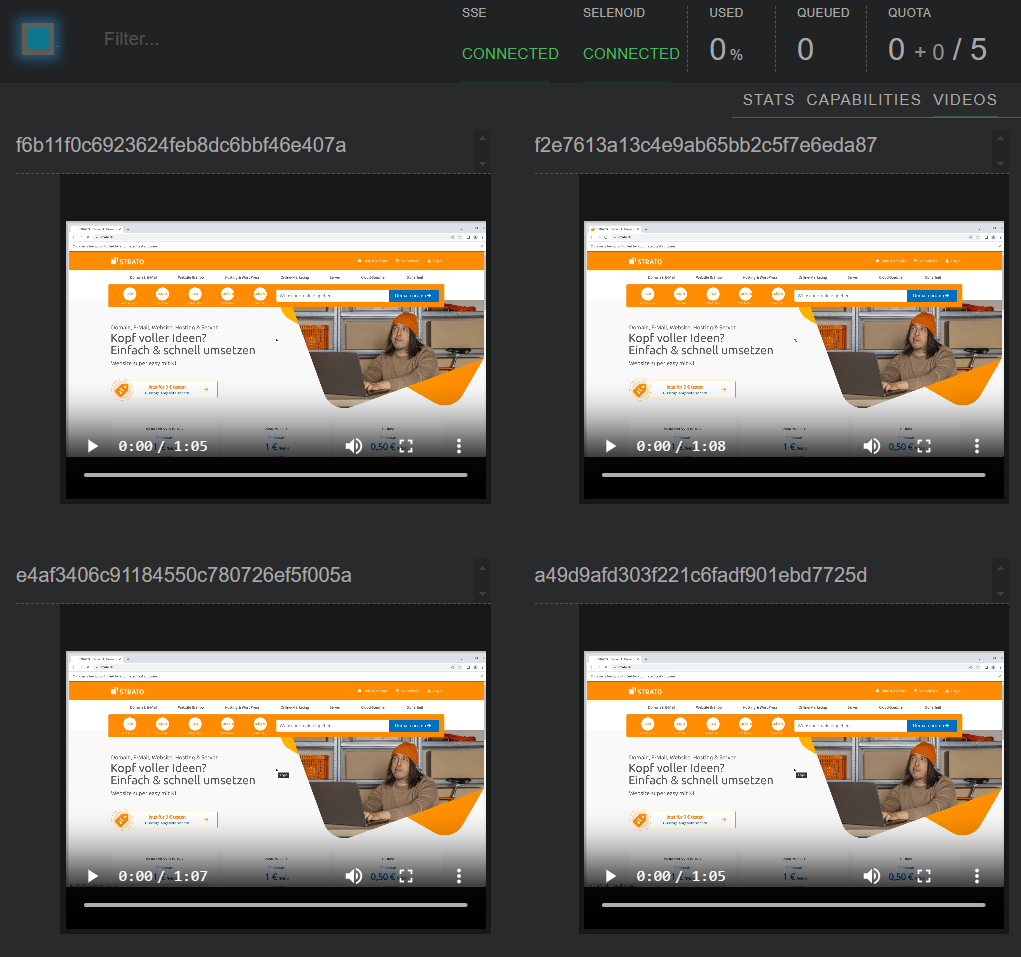
Selenoid-UI
http://DOCKER-IP:8941 zeigt selenoid-ui mit Videorecordings der Seleniumausführunge
Windmill only (alte version)
folgendes ändern:
Zeile 15: DB Passwort
Zeile 128: Dateipfad für die Caddyfile (siehe unten)
Zeile 132: Port für die Windmill WebUI
.env Datei: DB Passwort (siehe unten)
docker-compose.yml
version: "3.7"
services:
db:
deploy:
# To use an external database, set replicas to 0 and set DATABASE_URL to the external database url in the .env file
replicas: 1
image: postgres:14
restart: unless-stopped
volumes:
- db_data:/var/lib/postgresql/data
expose:
- 5432
environment:
POSTGRES_PASSWORD: MEIN.....PASSWORT
POSTGRES_DB: windmill
healthcheck:
test: ["CMD-SHELL", "pg_isready -U postgres"]
interval: 10s
timeout: 5s
retries: 5
windmill_server:
image: ${WM_IMAGE}
pull_policy: always
deploy:
replicas: 1
restart: unless-stopped
expose:
- 8000
environment:
- DATABASE_URL=${DATABASE_URL}
- MODE=server
depends_on:
db:
condition: service_healthy
windmill_worker:
image: ${WM_IMAGE}
pull_policy: always
deploy:
replicas: 3
resources:
limits:
cpus: "1"
memory: 2048M
restart: unless-stopped
environment:
- DATABASE_URL=${DATABASE_URL}
- MODE=worker
- WORKER_GROUP=default
depends_on:
db:
condition: service_healthy
# to mount the worker folder to debug, KEEP_JOB_DIR=true and mount /tmp/windmill
volumes:
# mount the docker socket to allow to run docker containers from within the workers
- /var/run/docker.sock:/var/run/docker.sock
- worker_dependency_cache:/tmp/windmill/cache
## This worker is specialized for "native" jobs. Native jobs run in-process and thus are much more lightweight than other jobs
windmill_worker_native:
# Use ghcr.io/windmill-labs/windmill-ee:main for the ee
image: ${WM_IMAGE}
pull_policy: always
deploy:
replicas: 2
resources:
limits:
cpus: "0.1"
memory: 128M
restart: unless-stopped
environment:
- DATABASE_URL=${DATABASE_URL}
- MODE=worker
- WORKER_GROUP=native
depends_on:
db:
condition: service_healthy
## This worker is specialized for reports or scrapping jobs. It is assigned the "reports" worker group which has an init script that installs chromium and can be targeted by using the "chromium" worker tag.
# windmill_worker_reports:
# image: ${WM_IMAGE}
# pull_policy: always
# deploy:
# replicas: 1
# resources:
# limits:
# cpus: "1"
# memory: 2048M
# restart: unless-stopped
# environment:
# - DATABASE_URL=${DATABASE_URL}
# - MODE=worker
# - WORKER_GROUP=reports
# depends_on:
# db:
# condition: service_healthy
# # to mount the worker folder to debug, KEEP_JOB_DIR=true and mount /tmp/windmill
# volumes:
# # mount the docker socket to allow to run docker containers from within the workers
# - /var/run/docker.sock:/var/run/docker.sock
# - worker_dependency_cache:/tmp/windmill/cache
lsp:
image: ghcr.io/windmill-labs/windmill-lsp:latest
pull_policy: always
restart: unless-stopped
expose:
- 3001
volumes:
- lsp_cache:/root/.cache
multiplayer:
image: ghcr.io/windmill-labs/windmill-multiplayer:latest
deploy:
replicas: 0 # Set to 1 to enable multiplayer, only available on Enterprise Edition
restart: unless-stopped
expose:
- 3002
caddy:
image: caddy:2.5.2-alpine
restart: unless-stopped
# Configure the mounted Caddyfile and the exposed ports or use another reverse proxy if needed
volumes:
- ${CADDYFILE_PATH}:/etc/caddy/Caddyfile
# - ./certs:/certs # Provide custom certificate files like cert.pem and key.pem to enable HTTPS - See the corresponding section in the Caffyfile
ports:
# To change the exposed port, simply change 80:80 to <desired_port>:80. No other changes needed
- 86:80
# - 443:443 # Uncomment to enable HTTPS handling by Caddy
environment:
- BASE_URL=":80"
# - ADDRESS="localhost"
# - BASE_URL=":443" # uncomment and comment line above to enable HTTPS via custom certificate and key files
# - BASE_URL=mydomain.com # Uncomment and comment line above to enable HTTPS handling by Caddy
volumes:
db_data: null
worker_dependency_cache: null
lsp_cache: null.env
DATABASE_URL=postgres://postgres:MEIN......PASSWORT@db/windmill?sslmode=disable
# For Enterprise Edition, use:
# WM_IMAGE=ghcr.io/windmill-labs/windmill-ee:main
WM_IMAGE=ghcr.io/windmill-labs/windmill:main
#Pfad für selbst angelegte Caddyfile
CADDYFILE_PATH=/var/lib/docker/volumes/windmill_caddy/Caddyfile
# To use another port than :80, setup the Caddyfile and the caddy section of the docker-compose to your needs: https://caddyserver.com/docs/getting-started
# To have caddy take care of automatic TLS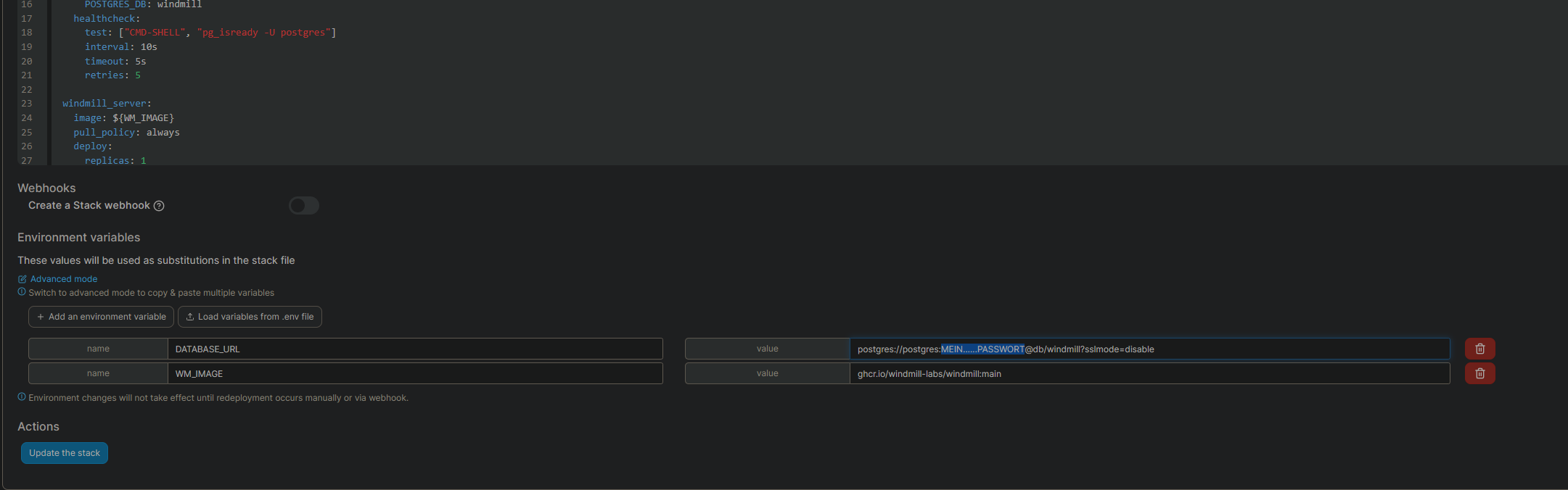
Caddyfile erstellen und verknüpfen siehe oben
Uptime Kuma
name: uptimekuma
services:
uptime-kuma:
container_name: uptime-kuma
image: louislam/uptime-kuma:1.23.16
restart: always
ports:
- 3001:3001
volumes:
- data:/app/data
- /var/run/docker.sock:/var/run/docker.sock #damit uptime auf die Docker Container zugreifen kann
volumes:
data:https://hub.docker.com/r/louislam/uptime-kuma/tags
https://github.com/louislam/uptime-kuma
Um Windows-PCs zu Pingen, folgendes in CMD mit Adminrechten eingeben:
netsh advfirewall firewall add rule name="Allow ICMPv4-In" protocol=icmpv4:8,any dir=in action=allow
netsh advfirewall firewall add rule name="Allow ICMPv4-Out" protocol=icmpv4:8,any dir=out action=allow
Babby Buddy
---
services:
babybuddy:
image: lscr.io/linuxserver/babybuddy:latest
container_name: babybuddy
environment:
- PUID=1000
- PGID=1000
- TZ=Europe/Berlin
- CSRF_TRUSTED_ORIGINS=http://127.0.0.1:8000,https://babybuddy.MEINEDOMAIN.DE
volumes:
- /var/lib/docker/volumes/babybuddy/config:/config
ports:
- 8774:8000
restart: unless-stopped
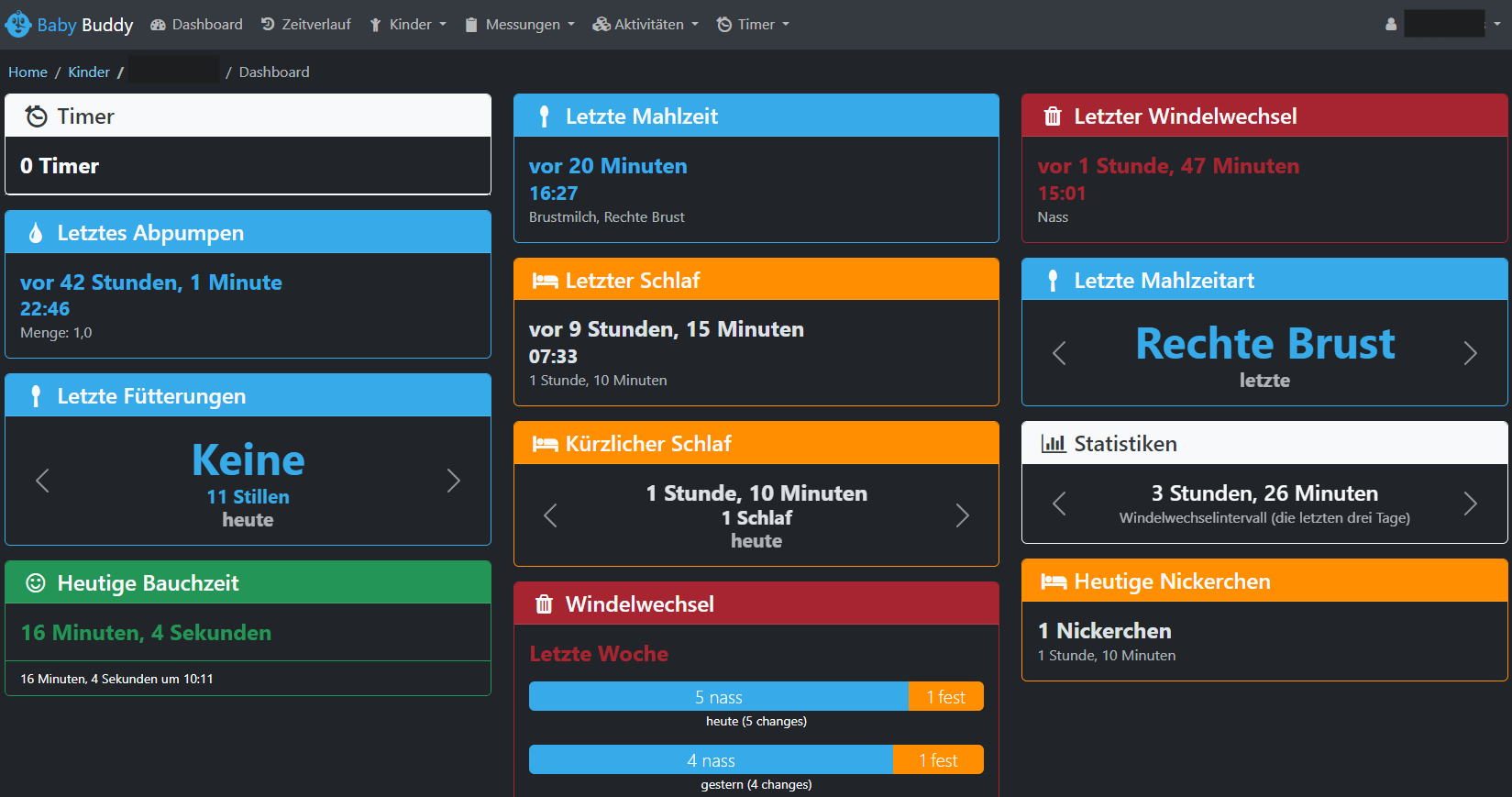
Thingsboard MQTT Broker 'TBMQ'
port 1883 auf 1889 geändert, weil die Thingsboardinstanz schon den Port 1883 verwendet.
#
# Copyright © 2016-2024 The Thingsboard Authors
#
# Licensed under the Apache License, Version 2.0 (the "License");
# you may not use this file except in compliance with the License.
# You may obtain a copy of the License at
#
# http://www.apache.org/licenses/LICENSE-2.0
#
# Unless required by applicable law or agreed to in writing, software
# distributed under the License is distributed on an "AS IS" BASIS,
# WITHOUT WARRANTIES OR CONDITIONS OF ANY KIND, either express or implied.
# See the License for the specific language governing permissions and
# limitations under the License.
#
version: "3.0"
services:
postgres:
restart: always
image: "postgres:15"
ports:
- "5432"
environment:
POSTGRES_DB: thingsboard_mqtt_broker
POSTGRES_PASSWORD: postgres
volumes:
- tbmq-postgres-data:/var/lib/postgresql/data
kafka:
restart: always
image: "bitnami/kafka:3.5.1"
ports:
- "9092"
environment:
KAFKA_CFG_NODE_ID: 0
KAFKA_CFG_PROCESS_ROLES: controller,broker
KAFKA_CFG_CONTROLLER_QUORUM_VOTERS: 0@kafka:9093
KAFKA_CFG_LISTENERS: PLAINTEXT://:9092,CONTROLLER://:9093
KAFKA_CFG_ADVERTISED_LISTENERS: PLAINTEXT://:9092
KAFKA_CFG_LISTENER_SECURITY_PROTOCOL_MAP: CONTROLLER:PLAINTEXT,PLAINTEXT:PLAINTEXT
KAFKA_CFG_CONTROLLER_LISTENER_NAMES: CONTROLLER
KAFKA_CFG_INTER_BROKER_LISTENER_NAME: PLAINTEXT
volumes:
- tbmq-kafka-data:/bitnami/kafka
tbmq:
restart: always
image: "thingsboard/tbmq:1.3.0"
depends_on:
- postgres
- kafka
ports:
- "8083:8083"
- "1889:1883"
- "8084:8084"
environment:
TB_SERVICE_ID: tbmq
SPRING_DATASOURCE_URL: jdbc:postgresql://postgres:5432/thingsboard_mqtt_broker
SPRING_DATASOURCE_USERNAME: postgres
SPRING_DATASOURCE_PASSWORD: postgres
TB_KAFKA_SERVERS: kafka:9092
SECURITY_MQTT_BASIC_ENABLED: "true"
#JAVA_OPTS: "-Xmx2048M -Xms2048M -Xss384k -XX:+AlwaysPreTouch"
volumes:
- tbmq-logs:/var/log/thingsboard-mqtt-broker
- tbmq-data:/data
volumes:
tbmq-postgres-data:
external: true
tbmq-kafka-data:
external: true
tbmq-logs:
external: true
tbmq-data:
external: true
Thingsboard
version: '3.0'
services:
mytbpe:
restart: always
image: "thingsboard/tb-pe:3.6.4PE"
networks:
- tb-bridge
ports:
- "8080:8080"
- "1883:1883"
- "7070:7070"
- "5683-5688:5683-5688/udp"
logging:
options:
max-size: "100m"
max-file: "5"
environment:
TB_QUEUE_TYPE: in-memory
SPRING_DATASOURCE_URL: jdbc:postgresql://postgres:5432/thingsboard
TB_LICENSE_SECRET: vbYq.......976
TB_LICENSE_INSTANCE_DATA_FILE: /data/license.data
volumes:
- /var/lib/docker/volumes/tbpe-data:/data
- /var/lib/docker/volumes/tbpe-logs:/var/log/thingsboard
postgres:
restart: always
image: "postgres:12" # Eigentlich postgres:15
networks:
- tb-bridge
ports:
- "5432:5432"
logging:
options:
max-size: "100m"
max-file: "5"
environment:
POSTGRES_DB: thingsboard
POSTGRES_PASSWORD: postgres
volumes:
- /var/lib/docker/volumes/tbpe-data/db:/var/lib/postgresql/data
networks:
tb-bridge:
name: thingsboard-bridge
driver: bridgehomepage (Homelab Dashboard)
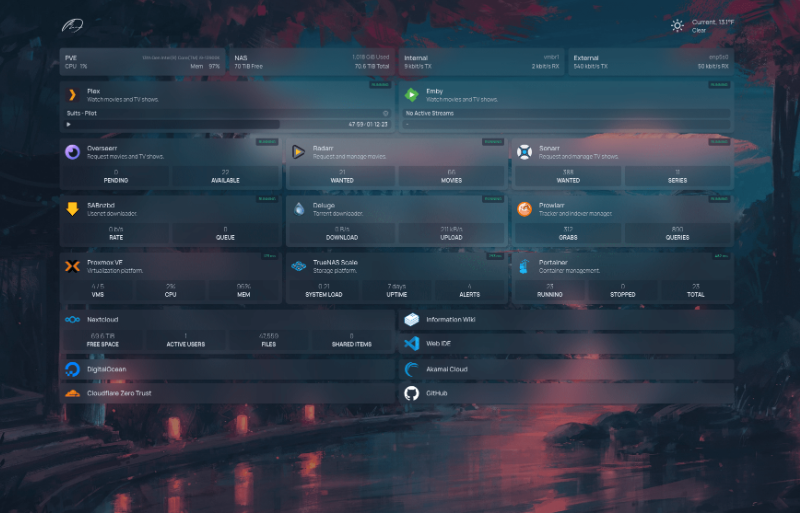
https://github.com/gethomepage/homepage
version: "3.3"
services:
homepage:
image: ghcr.io/gethomepage/homepage:v0.9.11
container_name: homepage
#environment:
#PUID: 1000 -- optional, your user id
#PGID: 1000 -- optional, your group id
ports:
- 3000:3000
volumes:
- config:/app/config # Make sure your local config directory exists
- /var/run/docker.sock:/var/run/docker.sock:ro # optional, for docker integrations
restart: unless-stopped
volumes:
config:Icons
https://selfh.st/icons/ mit sh-XXX zb sh-invoice-ninja-light
https://simpleicons.org/ mit si-XXX
services.yaml
restic (Autobackups von zb Docker)
#https://www.youtube.com/watch?v=WBBTC5WfGis
#https://github.com/JamesTurland/JimsGarage/blob/main/restic/docker-compose.yml
#https://github.com/djmaze/resticker
#https://github.com/djmaze/resticker/blob/master/docker-compose.example.yml
### Restore
## Find the latest snapshot for the current host (note the ID)
#docker-compose exec app restic snapshots -H <HOSTNAME>
# Restore the given file on the host
#docker-compose exec app restic restore --include /path/to/file <ID>
version: "3.3"
services:
backup:
image: mazzolino/restic
hostname: dockerhetzner
restart: unless-stopped
environment:
RUN_ON_STARTUP: "true"
BACKUP_CRON: "0 30 4 * * *"
RESTIC_REPOSITORY: s3:https://s3-ostfr1........luckycloud.de/REPO.......NAME
RESTIC_PASSWORD: Ur6Hs.....................................Qqfz
RESTIC_BACKUP_SOURCES: /mnt/data/compose
RESTIC_BACKUP_ARGS: >-
--tag docker-volumes
--exclude 3/nextcloud-wolke
#--exclude another-folder/with\ space
#--exclude *.tmp
--verbose
RESTIC_FORGET_ARGS: >-
--keep-last 10
--keep-daily 7
--keep-weekly 5
--keep-monthly 12
AWS_ACCESS_KEY_ID: GP.......................X3
AWS_SECRET_ACCESS_KEY: wQ................koJ
TZ: Europe/Berlin
volumes:
- /data/compose:/mnt/data/compose:ro
backrest (+ restic Befehle)
restic repo GUI mit Autobackups + Luckycloud S3-Storage oder Hetzner StorageBox
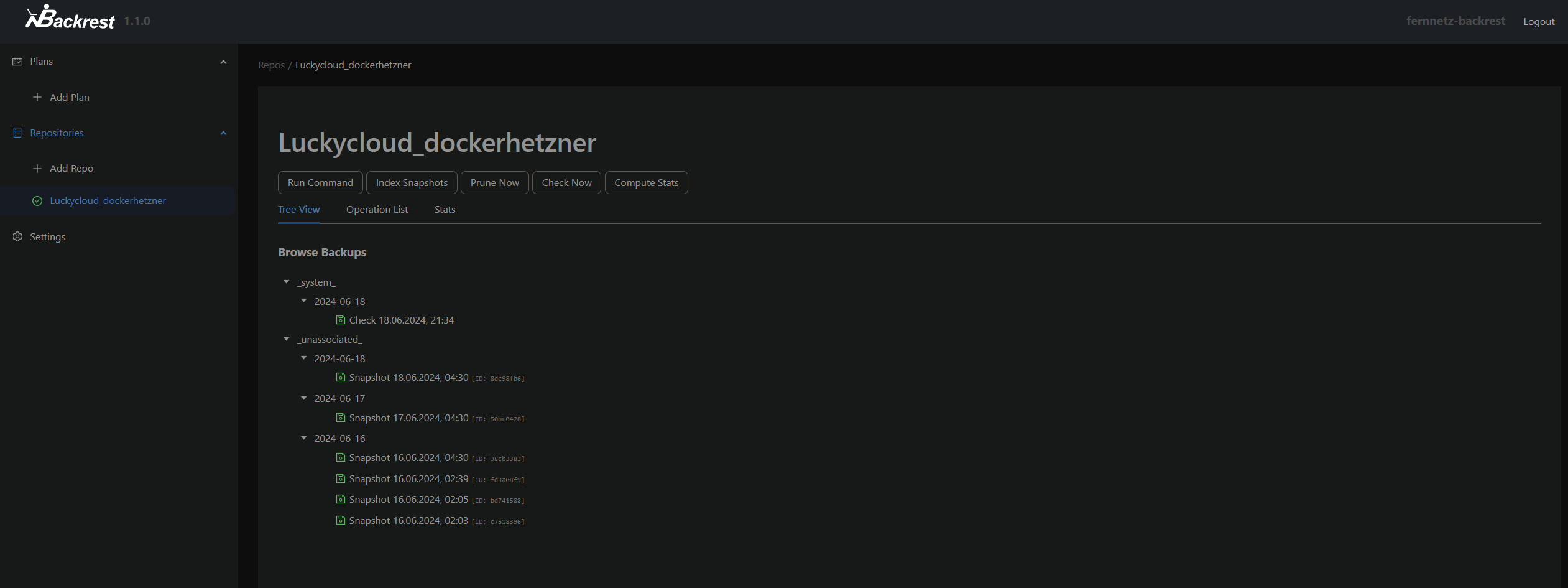
https://github.com/garethgeorge/backrest
version: "3.2"
services:
backrest:
image: garethgeorge/backrest
container_name: backrest
hostname: backrest
volumes:
- data:/data
- config:/config
- cache:/cache
- /var/lib/docker/volumes:/docker-var-lib
- /data/compose:/docker-data-compose
#- /MY-BACKUP-DATA:/userdata # [optional] mount local paths to backup here.
#- /MY-REPOS:/repos # [optional] mount repos if using local storage, not necessary for remotes e.g. B2, S3, etc.
environment:
- BACKREST_DATA=/data # path for backrest data. restic binary and the database are placed here.
- BACKREST_CONFIG=/config/config.json # path for the backrest config file.
- XDG_CACHE_HOME=/cache # path for the restic cache which greatly improves performance.
- TZ=Europe/Berlin # set the timezone for the container, used as the timezone for cron jobs.
restart: unless-stopped
ports:
- 9898:9898
volumes:
data:
config:
cache:Konfiguration mit Luckycloud
In Luckyclouc einen S3 Speicher anlegen:
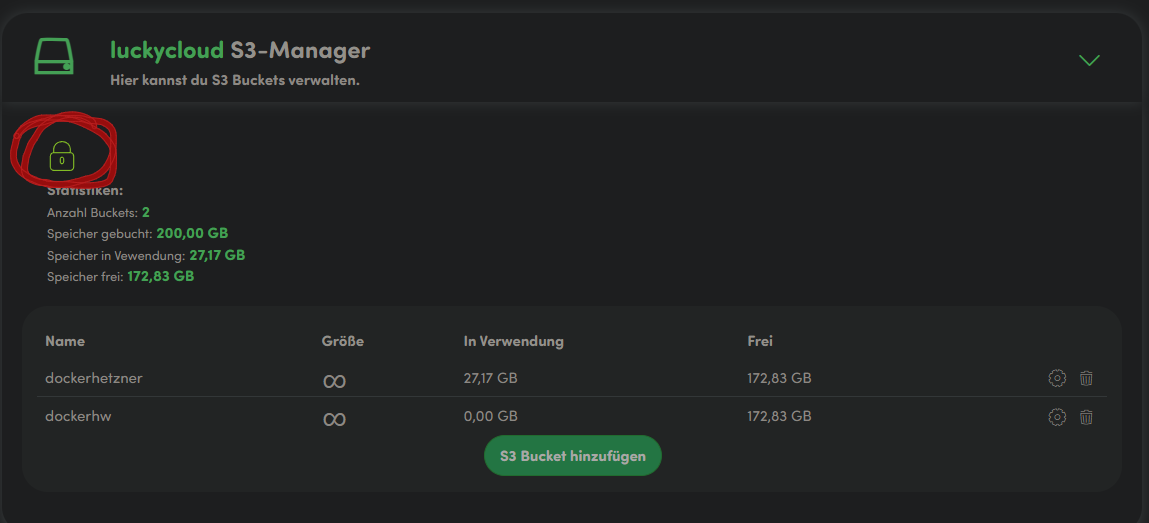
auf das grüne Schloss drücken, um die Zugangsdaten AWS_ACCESS_KEY_ID und AWS_SECRET_ACCESS_KEY zu erhalten:
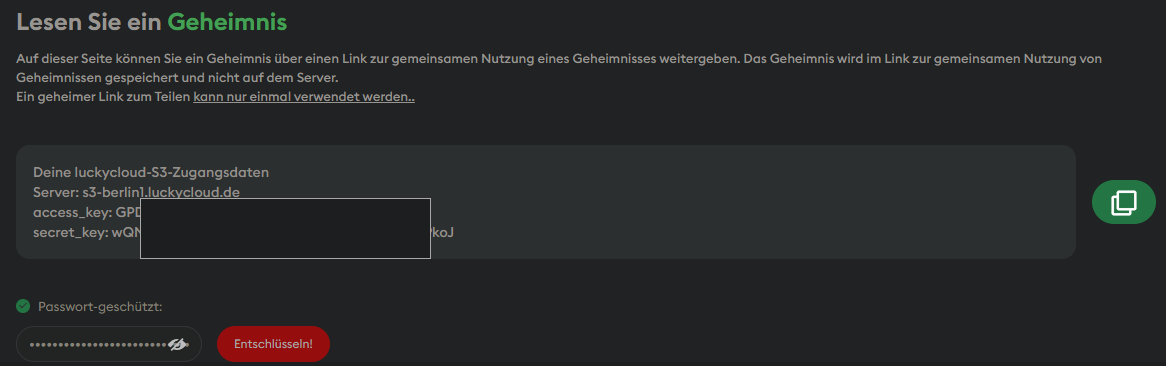
die Zugangsdaten bei backrest als neues repo anlegen:
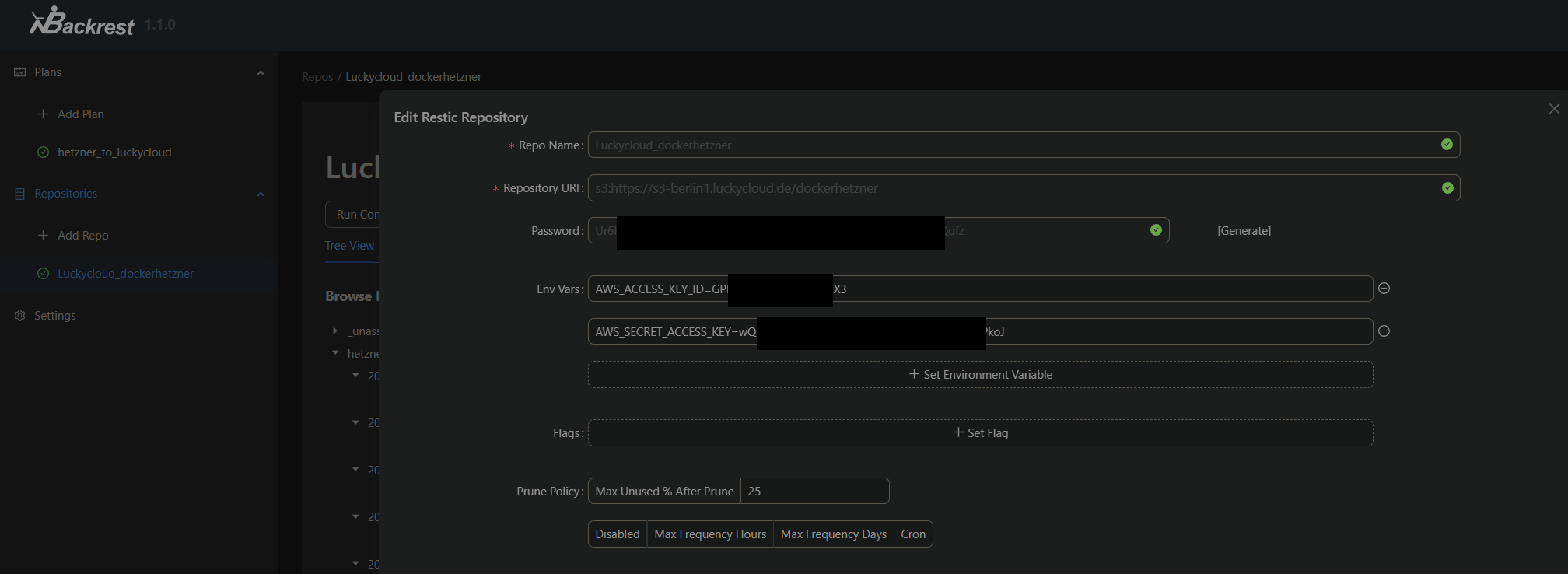
die repository url ist dann sowas wie
s3:https://<luckycloudserver>.luckycloud.de/<bucketname>
und ist zu finden im luckycloud portal:
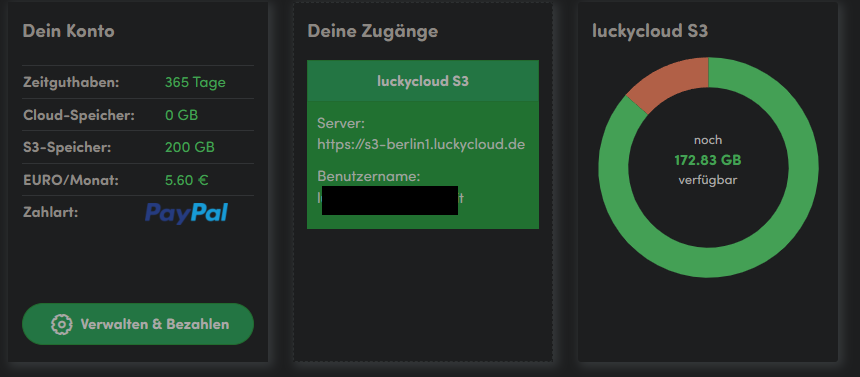
als Plan dann zb folgendes:
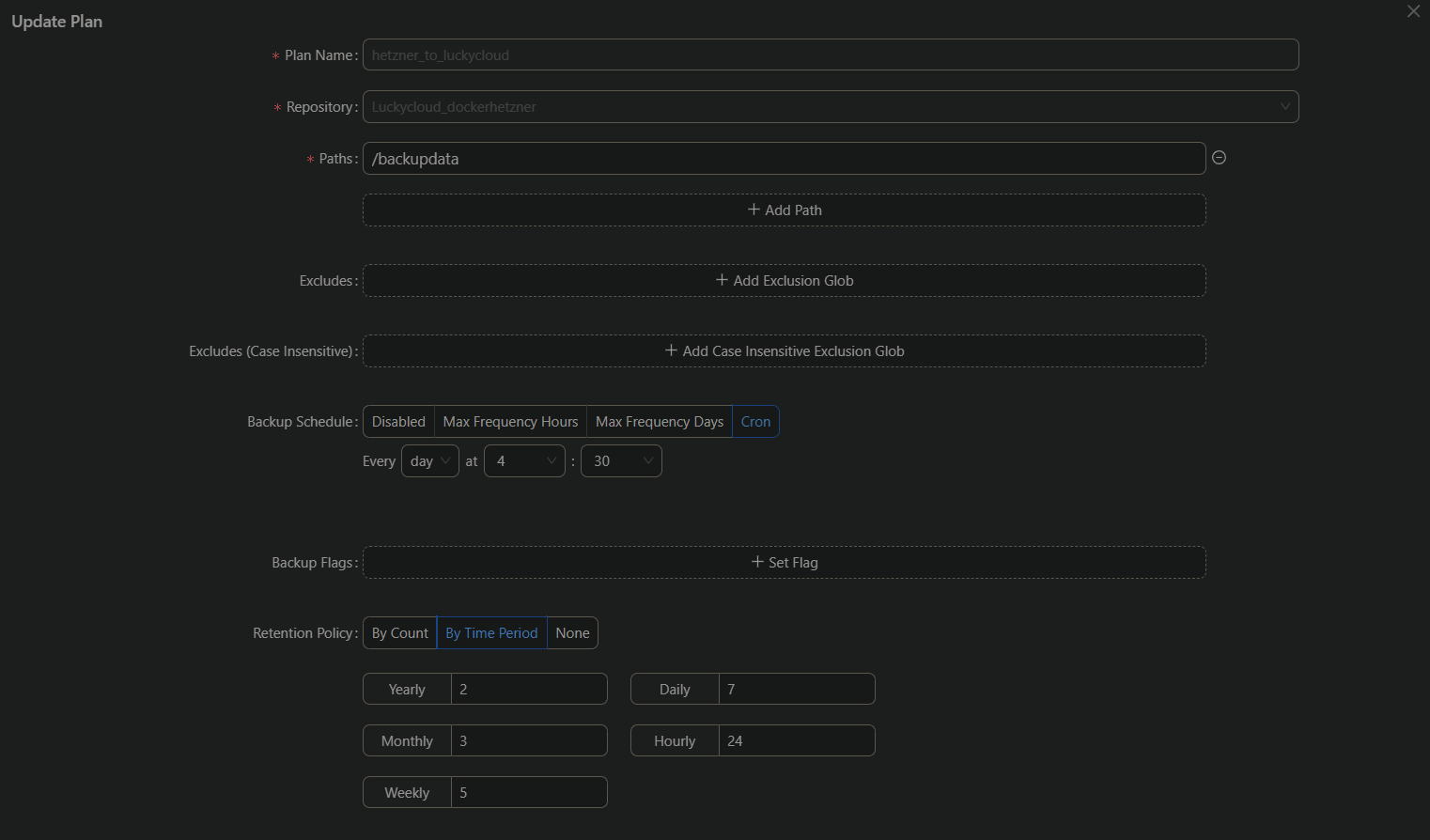
oder /docker-var-lib als Path wenn man das Beispiel aus der docker-compose.yaml von oben nimmt
Konfiguration mit Hetzner Storage Box (SFTP)
- Unter Hetzner Robot SSH aktivieren:

- Auf dem Server, auf dem Docker mit backrest als Container läuft, einen SSH-Key erzeugen, wenn noch nicht geschehen:
ssh-keygen - SSH Public Key an Storage Box SSH Port 23 übertragen (kann auch id_ed25519.pub heißen oä, wenn es kein rsa ist):
cat ~/.ssh/id_rsa.pub | ssh -p23 uXXXXX@uXXXXX.your-storagebox.de install-ssh-key - testweise nochmal mit der Storage Box über ssh verbinden, sollte nun ohne Bestätigung klappen:
ssh -p 23 uXXXXX@uXXXXX.your-storagebox.deoder mit Angabe zum Private-Key
ssh -i /root/.ssh/id_mein-admin_ed25519 -p 23 uXXXXX@uXXXXX.your-storagebox.de /home/<user>/.ssh/known_hostsund/home/<user>/.ssh/id_ed25519(SSH Private Key) vom Docker Server in das Config Volume vom Backrest Container kopieren, sodass backrest Zugriff auf den PrivateKey und die known_hosts Datei hat:

oder als Bsp auf hz-02:

- Neues Repository in backrest hinzufügen:

Repository URL bei SFTP hinzufügen:
sftp:user@host:/path/to/repo also zb sftp:u12345@u12345.your-storagebox.de:ResticBackup/DockerServerDas Passwort für das Restic Backup kann man einfach mit klick auf Generate generieren lassen *udontsay.gif*
Flags (sftp.args) hinzufügen:-o sftp.args="-i /config/ssh_keys/id_ed25519 -P 23 -o UserKnownHostsFile=/config/ssh_keys/known_hosts"
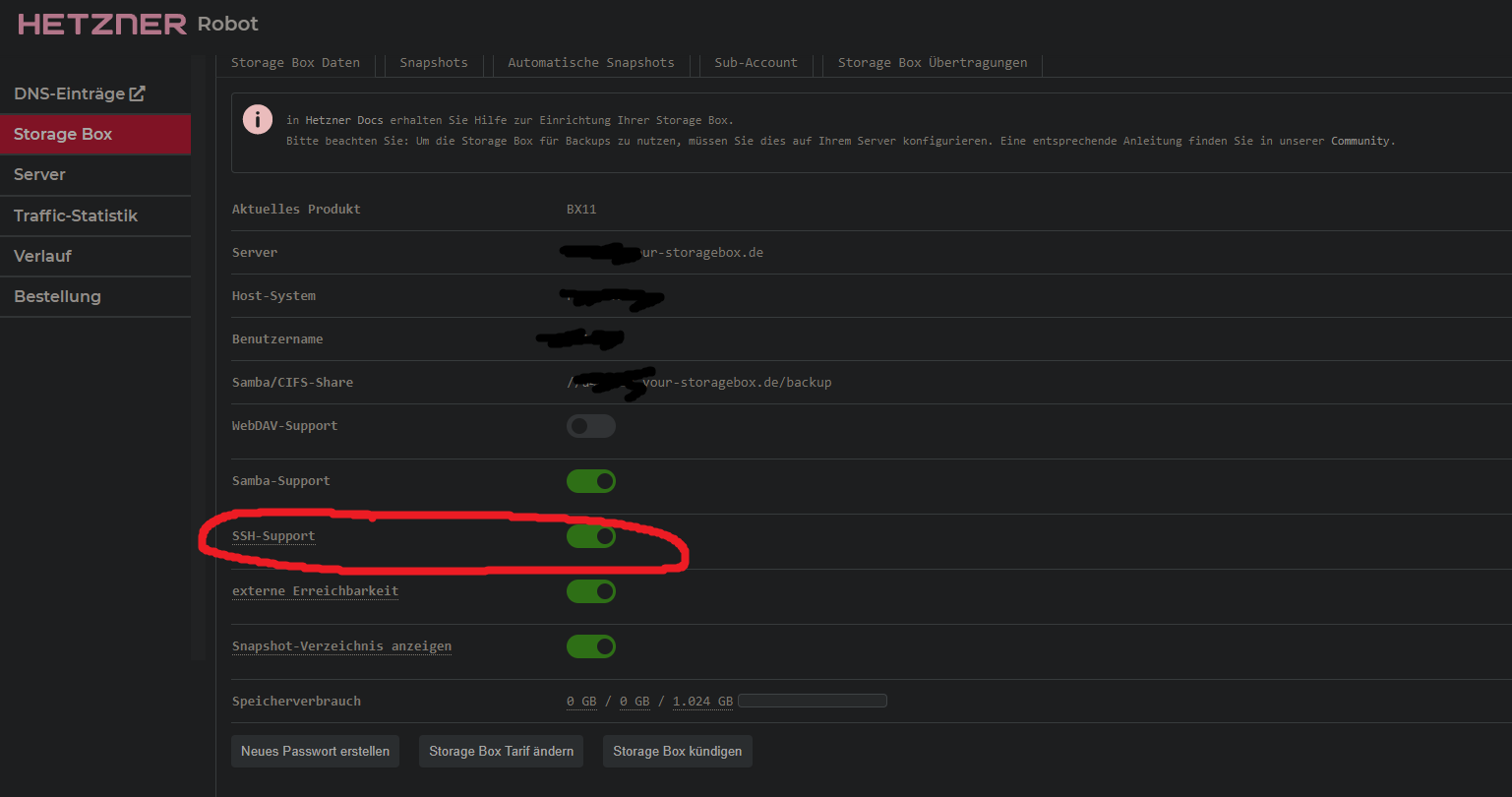
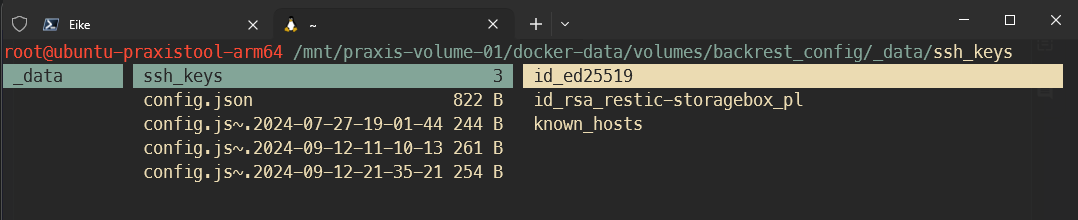

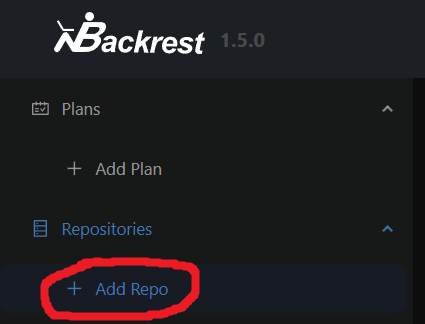
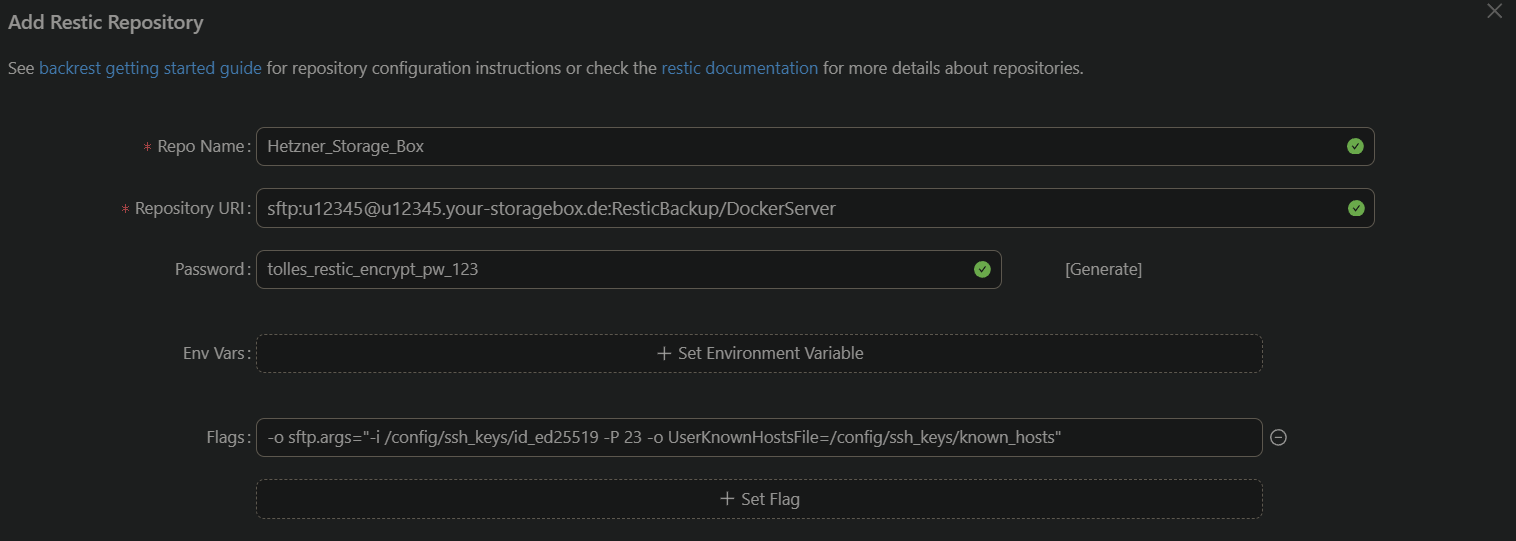

Falls es zu Problemen kommt, kann die SSH config angepasst werden, sodass man die SSH Flags weglassen kann:
Quelle: https://forum.restic.net/t/usability-issue-with-sftp-and-sftp-command/1170/2
OBACHT
Dieser "Trick" ist vollkommen sinnlos, weil man einen ssh-key und eine ssh-config in den flüchtigen ordner /root/.ssh im backrest-container legt. Nach jedem Neustart des Containers sind die Dateien also weg. Besser bei oben bleiben, wo man Flags hinzufügt und den SSH-Key sowie die known_hosts in das backrest_config Docker-Volume legt
docker exec -it backrest /bin/bashnano /root/.ssh/config.ssh/config:
Host storagebox
Hostname u12345.your-storagebox.de
Port 23
User u12345
IdentityFile /root/.ssh/id_admin_ed25519
ODER
IdentityFile /config/ssh_keys/id_admin_ed25519
JE NACHDEM WO DER SSH-KEY LIEGT!wenn dannn noch WARNING UNPROTECTED PRIVATE KEY FILE Meldung kommt, einfach
chown 600 /config/ssh_keys/id_admin_ed25519danach sollte
ssh storageboxfunktionieren und damit auch bei Repository URI:
sftp:storagebox:MEIN-PROJEKT/restic-backup
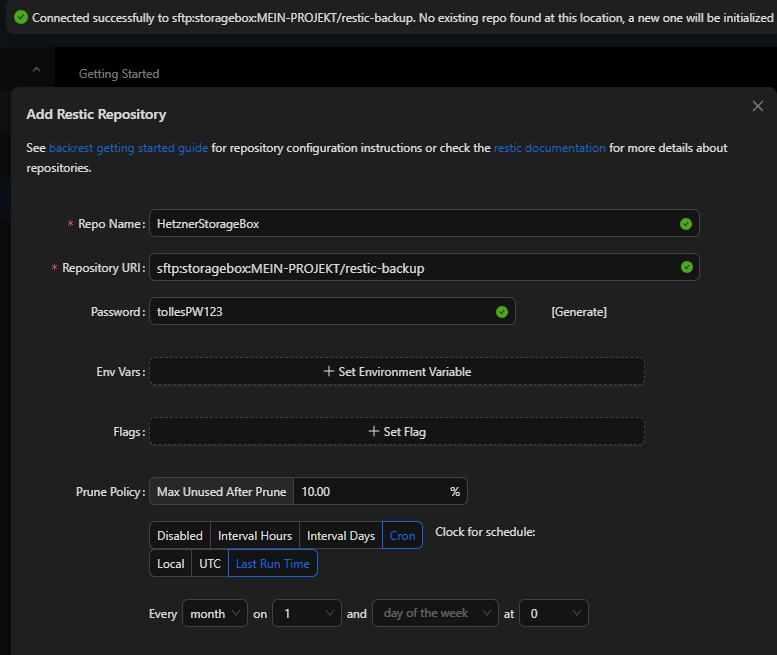
restic unlock
https://github.com/restic/restic/issues/1450
Falls es zu folgender Fehlermeldung bei einem Backup kommt, kann man das Repository mit restic unlock wieder entsperren:
unable to create lock in backend: repository is already locked by PID 3604 on HOSTNAME by HOSTNAME\User (UID 0, GID 0)
lock was created at 2025-08-17 22:58:46 (725h49m33.96593014s ago)
storage ID 42...bce
the `unlock` command can be used to remove stale locksLösung:
In die Shell des Backrest Docker-Container gehen und folgende Befehle eingeben:
restic -r /path/to/repository/external/drive unlock
# release previous lock
restic -r /path/to/repository/external/drive check
# Return some "not referenced in any index"
restic -r /path/to/repository/external/drive rebuild-index
# rebuild index
restic -r /path/to/repository/external/drive check
# return a few "not referenced in any index"
restic -r /path/to/repository/external/drive prune
# remove those few incomplete packs
restic -r /path/to/repository/external/drive check
# no errors were foundWobei aus dem Hetzner-Storagebox SFTP Beispiel oben als Repository mit angegebenem SSH-Key folgende Zeile resultiert:
restic -r sftp:u12345@u12345.your-storagebox.de:ResticBackup/DockerServer -o sftp.args="-i /config/ssh_keys/i
d_ed25519 -p 23 -o UserKnownHostsFile=/config/ssh_keys/known_hosts" checkDanach das repository-Passwort eingeben:
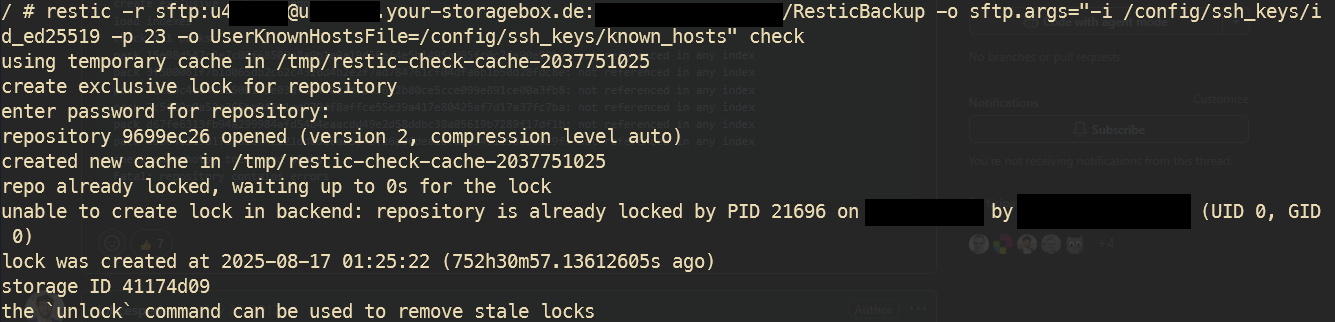
Backup wiederherstellen (Restic CLI)
In die Shell des Containers backrest gehen
# mit hz-03 verbinden
ssh hz-03
# mit lazydocker in den container backrest gehen:
lazydocker
# mit J/K hoch und runter zum Container "backrest" navigieren und Shift+E drücken für exec in shell: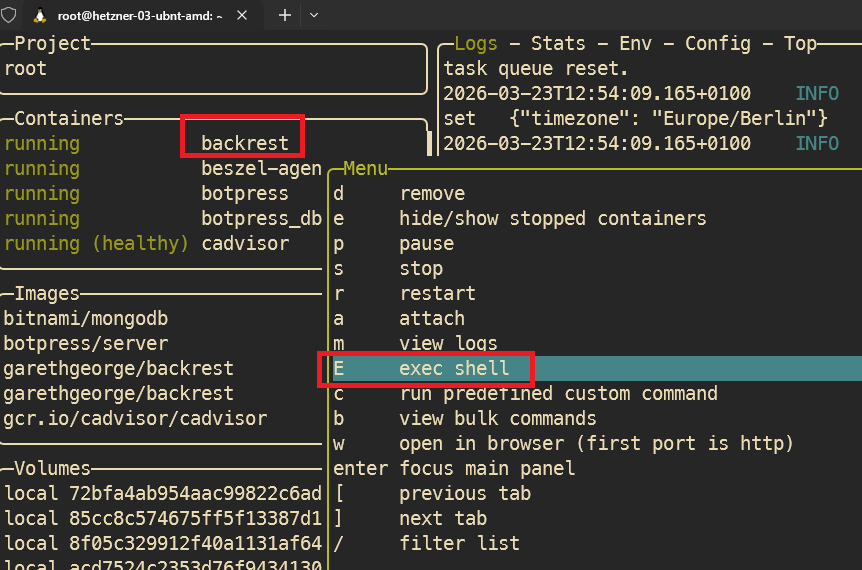
lazydocker > exec shell in Container "backrest"
config.json des repositories anzeigen
# config des restic repositories anzeigen:
cat config/config.json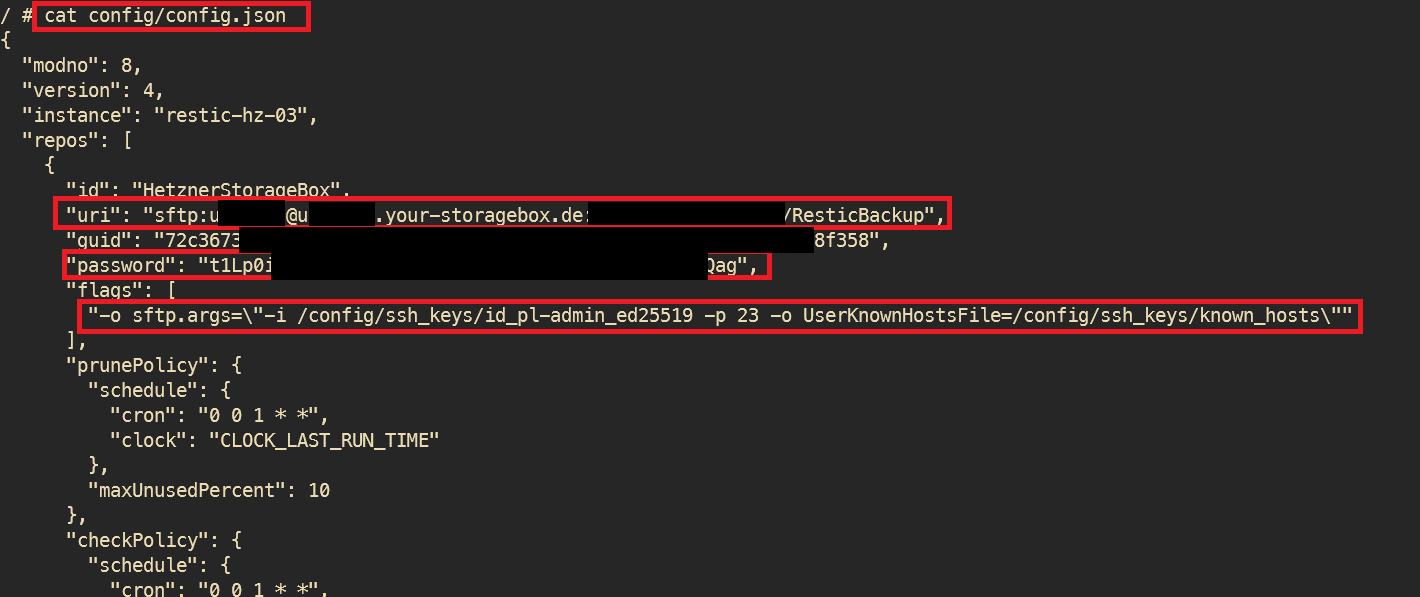
wichtig sind uri, pw und flags für sftp des repos
restic cmd vorbereiten
# dann folgende ENVs im Container festlegen (aus config.json kopiert) mit
export RESTIC_REPOSITORY="sftp:u123456@..................de:MEINEPRAXIS/ResticBackup"
export RESTIC_PASSWORD="t1Lp0iF......................KnTqEQag"
# und zuletzt einen alias für restic setzen mit
alias restic='restic -o sftp.args="-i /config/ssh_keys/id_pl-admin_ed25519 -p 23 -o UserKnownHostsFile=/config/ssh_keys/known_hosts"'restic Befehle anwenden und Dateien / Pfade suchen
# snapshots anzeigen mit repo-name und plan-name
restic snapshots
# oder kompakt
restic snapshots --compact
# oder nur bestimmter host
restic snapshots --host meinserver
# nach PDF-Dateien in bestimmtem Ordner suchen:
restic find --tag "plan:daily-docker-nextcloud" "*/PatientInnen MAX MUSTERMANN/MUSTERFRAU, MAXI Gruppe ACT W1263456/Dokumentation Therapie/*.pdf"
# alle dateien in bestimmtem Ordner:
restic find --tag "plan:daily-docker-nextcloud" "/backup/docker-praxis-volume-03/nextcloud_aio_nextcloud_data/_data/admin/files/PLoud-Ordner/2_Praxismgmt/PatientInnen___alle_/PatientInnen MAX MUSTERMANN/MUSTERFRAU, MAXI Gruppe ACT W1263456/Dokumentation Therapie/*.*"
Je genauer der Pfad, desto schneller die Suche
Beispiel für langsame Suche
restic find --tag "plan:daily-docker-nextcloud" "*(W040499)/Dokumentation Therapie/*.pdf"= dauert ca 1min pro Snapshot!

Beispiel für schnelle Suche
restic find --tag "plan:daily-docker-nextcloud" "/backup/docker-praxis-volume-03/nextcloud_aio_nextcloud_data/_data/admin/files/PLoud-Ordner/2_Praxismanagement/PatientInnen________alle_/PatientInnen Behandler-Vorname\ Behandler-Nachname/Pat-Nachname,\ Pat-Vorname\ \(W
040499\)/Dokumentation\ Therapie/*.*"= innerhalb von 20sek alle Snapshots durchsucht
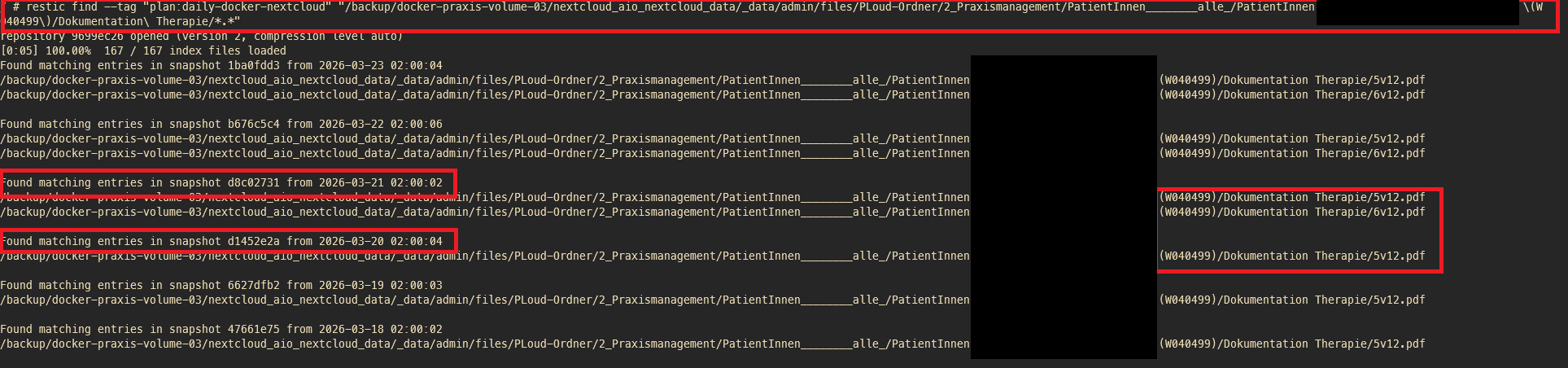
Dateien wiederherstellen
Wiederherstellen entweder über GUI direkt zum richtigen Snapshot navigieren und herunterladen
(siehe https://wiki.praxisluebberding.de/doc/backup-wiederherstellen-backrest-gui-w04w1wkGAJ )
oder im CLI:
restic restore b676c5c4 --target "/backrest-restored/mein-wiederhergesteller-ordner" --include "/backup/docker-praxis-volume-03/nextcloud_aio_nextcloud_data/_data/admin/files/.../Dokumentation Therapie"
# danach im ordner /mnt/backrest-restored nachsehen und auf Dateien zugreifen (evtl über mountain duck > sftp hz-03)Achtung, immer wenn über die Web-UI (GUI) wiederhegestellt wird, landen die restores auf hz-01 im Ordner /mnt/backrest-restored, weil dort der backrest container für https://backrest.praxisluebberding.de/ läuft.
Wenn man jedoch wie hier über die CLI wiederherstellt, gibt man einen lokalen Ordner an, zb auf hz-03 /mnt/backrest-restored
Backup wiederherstellen (Backrest GUI)
1) https://backrest.praxisluebberding.de öffnen
2) Backrest User & Passwort eingeben (in Bitwarden hinterlegt: https://bw.praxisluebberding.de)
3) Den Backup-Plan ‘daily_docker_backup‘ auswählen
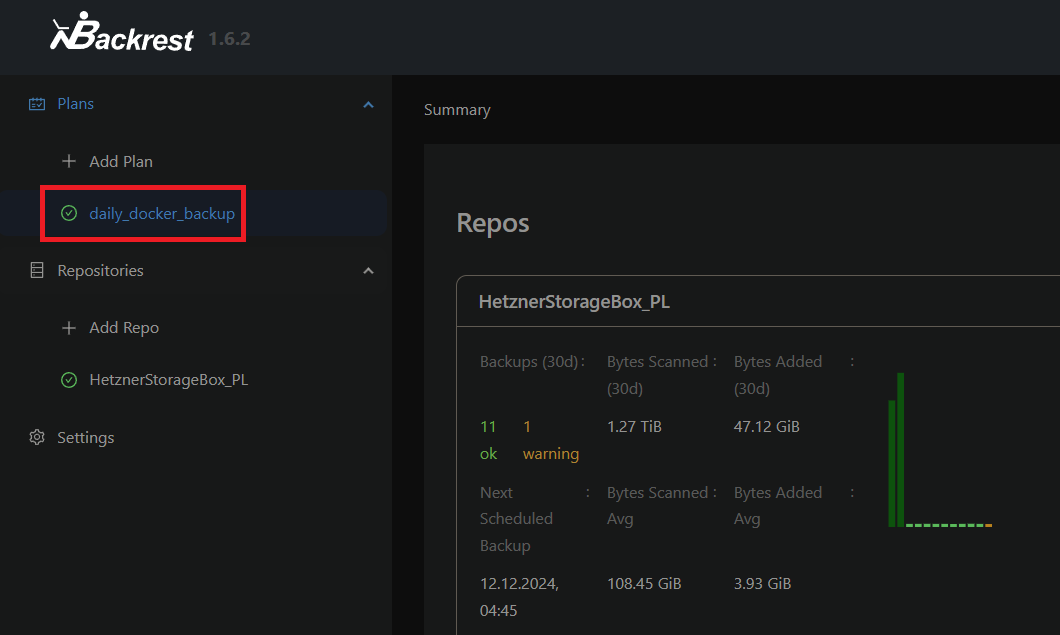
4) letztes erfolgreichen Snapshot auswählen (grünes Icon)
5) Rechts den Snapshot Browser ausklappen
6) Den gewünschten Ordner oder Datei suchen
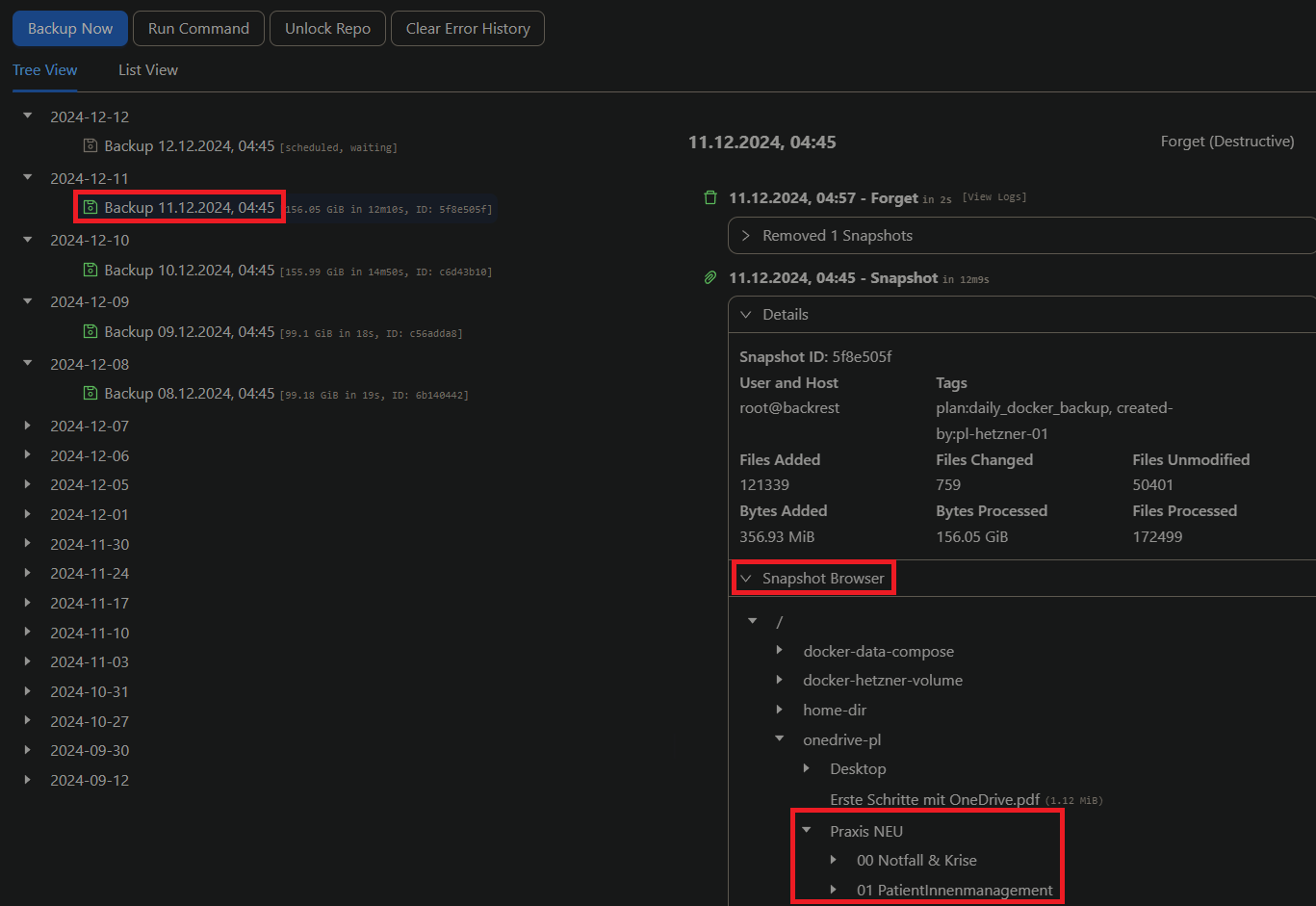
7) Restore to Path
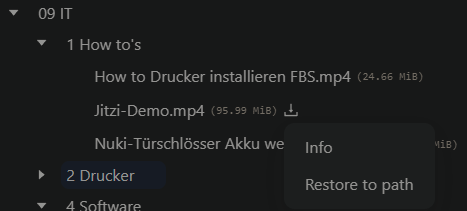
8) restore-pfad angeben:
/backrest-restored/NAME
zb /backrest-restored/2024-12-31_IT-HowTo-Restore
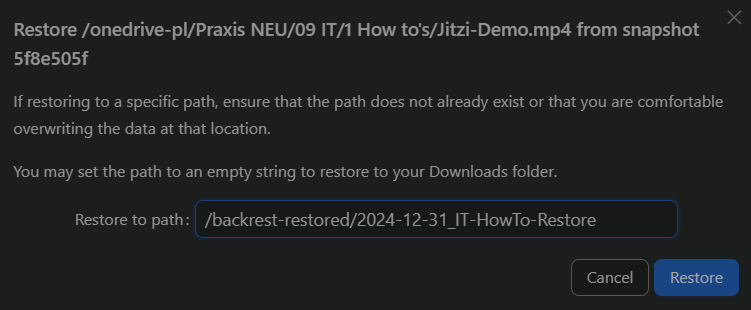
9) Zurück zur Übersicht, den Restore auswählen und auch Download Files drücken:
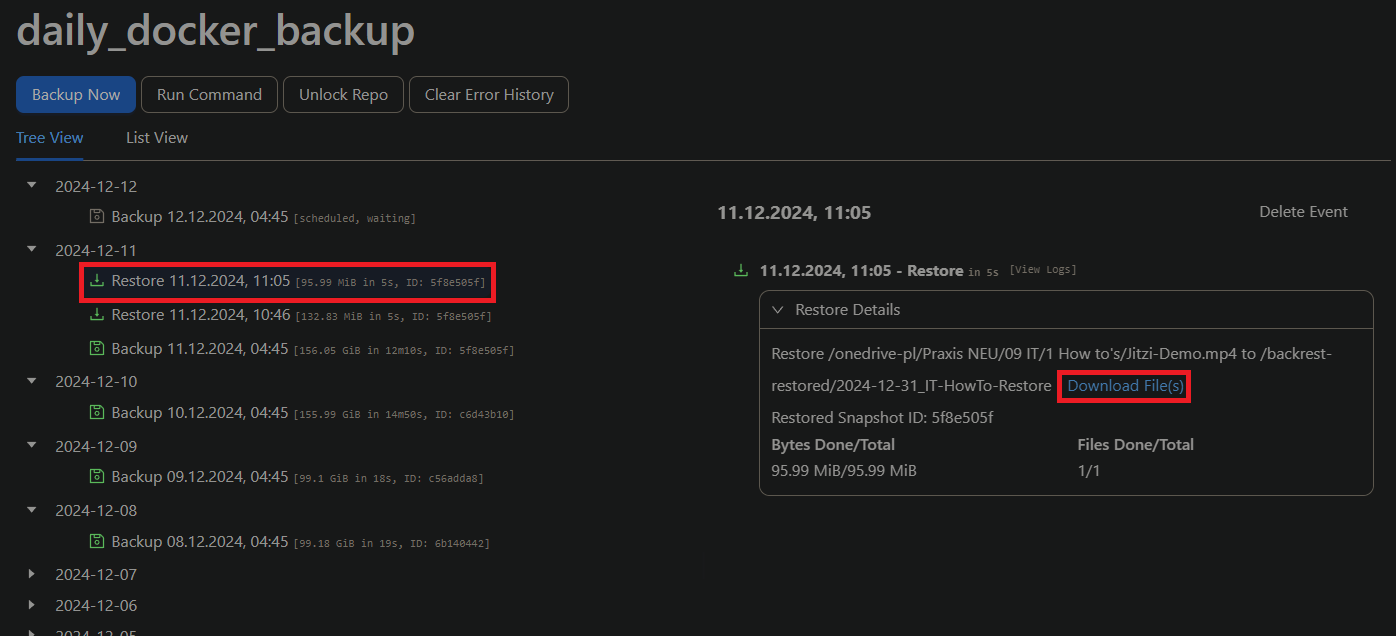
10) .tar.gz Datei herunterladen und entpacken
min.io (minio, S3 compatible Storage)
PL
version: '3.7'
services:
minio:
hostname: minio
image: quay.io/minio/minio:latest
command: server /data --console-address ":9001"
ports:
- "9000:9000"
- "9001:9001"
volumes:
- data:/data
environment:
MINIO_ROOT_USER: minio-admin
MINIO_ROOT_PASSWORD: Unmo..........tude0
healthcheck:
test: ["CMD", "mc", "ready", "local"]
interval: 5s
timeout: 5s
retries: 5
volumes:
data:das oben ist eine gekürzte Variante hiervon:
https://github.com/minio/minio/blob/master/docs/orchestration/docker-compose/docker-compose.yaml
also von
version: '3.7'
# Settings and configurations that are common for all containers
x-minio-common: &minio-common
image: quay.io/minio/minio:latest
command: server --console-address ":9001" http://minio{1...2}/data{1...2}
expose:
- "9000"
- "9001"
# environment:
# MINIO_ROOT_USER: minioadmin
# MINIO_ROOT_PASSWORD: minioadmin
healthcheck:
test: ["CMD", "mc", "ready", "local"]
interval: 5s
timeout: 5s
retries: 5
# starts 2 docker containers running minio server instances.
# using nginx reverse proxy, load balancing, you can access
# it through port 9000.
services:
minio1:
<<: *minio-common
hostname: minio1
volumes:
- data1-1:/data1
- data1-2:/data2
minio2:
<<: *minio-common
hostname: minio2
volumes:
- data2-1:/data1
- data2-2:/data2
# nginx:
# image: nginx:1.19.2-alpine
# hostname: nginx
# volumes:
# - ./nginx.conf:/etc/nginx/nginx.conf:ro
# ports:
# - "9000:9000"
# - "9001:9001"
# depends_on:
# - minio1
# - minio2
## By default this config uses default local driver,
## For custom volumes replace with volume driver configuration.
volumes:
data1-1:
data1-2:
data2-1:
data2-2:ALT:
https://min.io/docs/minio/container/index.html
https://hub.docker.com/r/bitnami/minio
version: '3.8'
services:
minio:
restart: unless-stopped
image: 'bitnami/minio:latest'
ports:
- '9000:9000'
- '9001:9001'
environment:
- MINIO_ROOT_USER=minio-admin
- MINIO_ROOT_PASSWORD=MEIN...PASSWORT
networks:
- praxistool-nw
volumes:
- buckets:/bitnami/minio/data
- data:/data
- certs:/certs
# myapp:
# image: 'YOUR_APPLICATION_IMAGE'
# networks:
# - app-tier
# environment:
# - MINIO_SERVER_ACCESS_KEY=minio-access-key
# - MINIO_SERVER_SECRET_KEY=minio-secret-key
volumes:
data:
certs:
buckets:
networks:
praxistool-nw:
driver: bridgeoder eine Variante, eine Hetzner Storage Box einzubinden:DIE FOLGENDE IST EINE ALTE VARIANTE! BESSER NICHT CIFS DIREKT IM CONTAINER MOUNTEN, SONDERN MIT FSTAB IM DOCKER HOST, SIEHE
https://wiki.folkerts.it/books/docker/page/hetzner-storage-box-uber-samba-einbinden
version: '3.8'
services:
minio:
restart: unless-stopped
image: 'bitnami/minio:latest'
ports:
- '9000:9000'
- '9001:9001'
environment:
- MINIO_ROOT_USER=admin
- MINIO_ROOT_PASSWORD=Unude0
networks:
- praxistool-nw
volumes:
- hetzner_storagebox_minio:/bitnami/minio/data
- data:/data
- certs:/certs
volumes:
data:
certs:
hetzner_storagebox_minio:
driver: local
driver_opts:
type: cifs
o: "username=u4b1,password=zpp,uid=1001,gid=1001,file_mode=0777,dir_mode=0777,vers=3.1.1,seal"
device: "//u4b1.your-storagebox.de/u4b1/dockervolume_minio"
networks:
praxistool-nw:
driver: bridgeauthentik
https://docs.goauthentik.io/docs/installation/docker-compose
https://www.youtube.com/watch?v=N5unsATNpJk
docker-compose.yml
wichtig:
- bei server einen hostnamen hinzufügen
- wenn möglich port 9000 belassen
- gleiches network wie der Nginx Proxy Manager Container nutzen (damit npm über den hostname auf den authentik server zugreifen kann, siehe 500 Internal Server Error weiter unten)
---
services:
postgresql:
image: docker.io/library/postgres:16-alpine
restart: unless-stopped
healthcheck:
test: ["CMD-SHELL", "pg_isready -d $${POSTGRES_DB} -U $${POSTGRES_USER}"]
start_period: 20s
interval: 30s
retries: 5
timeout: 5s
networks:
- reverseproxy_network
volumes:
- database:/var/lib/postgresql/data
environment:
POSTGRES_PASSWORD: ${PG_PASS}
POSTGRES_USER: ${PG_USER:-authentik}
POSTGRES_DB: ${PG_DB:-authentik}
env_file:
- stack.env
redis:
image: docker.io/library/redis:alpine
command: --save 60 1 --loglevel warning
restart: unless-stopped
healthcheck:
test: ["CMD-SHELL", "redis-cli ping | grep PONG"]
start_period: 20s
interval: 30s
retries: 5
timeout: 3s
networks:
- reverseproxy_network
volumes:
- redis:/data
server:
image: ${AUTHENTIK_IMAGE:-ghcr.io/goauthentik/server}:${AUTHENTIK_TAG:-2024.6.0}
restart: unless-stopped
hostname: authentik_server
command: server
ulimits:
nofile:
soft: 10240
hard: 10240
environment:
AUTHENTIK_REDIS__HOST: redis
AUTHENTIK_POSTGRESQL__HOST: postgresql
AUTHENTIK_POSTGRESQL__USER: ${PG_USER:-authentik}
AUTHENTIK_POSTGRESQL__NAME: ${PG_DB:-authentik}
AUTHENTIK_POSTGRESQL__PASSWORD: ${PG_PASS}
networks:
- reverseproxy_network
volumes:
- media:/media
- custom-templates:/templates#
env_file:
- stack.env
ports:
- "${COMPOSE_PORT_HTTP:-9000}:9000"
- "${COMPOSE_PORT_HTTPS:-9443}:9443"
depends_on:
- postgresql
- redis
worker:
image: ${AUTHENTIK_IMAGE:-ghcr.io/goauthentik/server}:${AUTHENTIK_TAG:-2024.6.0}
restart: unless-stopped
command: worker
ulimits:
nofile:
soft: 10240
hard: 10240
environment:
AUTHENTIK_REDIS__HOST: redis
AUTHENTIK_POSTGRESQL__HOST: postgresql
AUTHENTIK_POSTGRESQL__USER: ${PG_USER:-authentik}
AUTHENTIK_POSTGRESQL__NAME: ${PG_DB:-authentik}
AUTHENTIK_POSTGRESQL__PASSWORD: ${PG_PASS}
# `user: root` and the docker socket volume are optional.
# See more for the docker socket integration here:
# https://goauthentik.io/docs/outposts/integrations/docker
# Removing `user: root` also prevents the worker from fixing the permissions
# on the mounted folders, so when removing this make sure the folders have the correct UID/GID
# (1000:1000 by default)
user: root
networks:
- reverseproxy_network
volumes:
- /var/run/docker.sock:/var/run/docker.sock
- media:/media
- certs:/certs
- custom-templates:/templates
env_file:
- stack.env
depends_on:
- postgresql
- redis
volumes:
database:
driver: local
redis:
driver: local
media:
custom-templates:
certs:
networks:
reverseproxy_network:
name: reverseproxy_network
driver: bridgePG_PASS
openssl rand 36 | base64AUTHENTIK_SECRET_KEY
openssl rand 60 | base64Portainer env via advanced mode
PG_PASS=2jvp8Jmnf8cS
AUTHENTIK_SECRET_KEY="hxHHNgxf5PALhfX0FL69v"
AUTHENTIK_ERROR_REPORTING__ENABLED=true
AUTHENTIK_EMAIL__HOST=smtp.world4you.com
AUTHENTIK_EMAIL__PORT=587
AUTHENTIK_EMAIL__USERNAME=MEINE....@MY-MAIL.DE
AUTHENTIK_EMAIL__PASSWORD=MEIN.....MAIL-PW
AUTHENTIK_EMAIL__FROM=NO-REPLY@MY-MAIL.DE
AUTHENTIK_EMAIL__USE_TLS=true
COMPOSE_PORT_HTTP=9006
COMPOSE_PORT_HTTPS=9446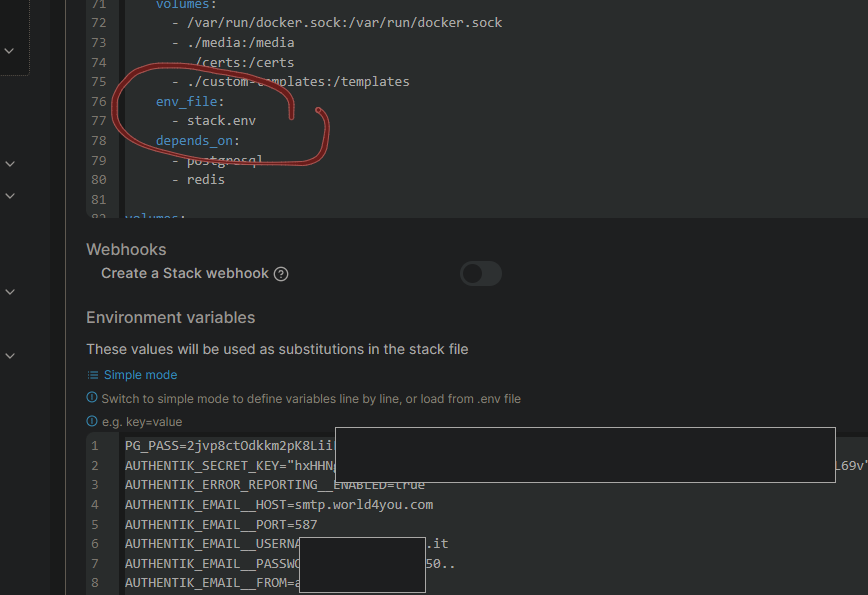
Danach noch das Initial-Setup durchführen, um ein Passwort zu setzen:
http://MEIN-HOSTNAME-ODER-IP:9000/if/flow/initial-setup
oder mit meiner cfg
http://MEIN-HOSTNAME-ODER-IP:9006/if/flow/initial-setup
Zusatzinfo
die Zeilen ulimits: nofile: soft: 10240 hard: 10240
in der docker-compose.yml habe ich eingefügt, weil ein Bug dazu führt, dass die CPU-Leistung des Docker Hosts auf 100% klettert und einige Stunden braucht, bis sie sich wieder erholt. Mehr Infos unter https://github.com/goauthentik/authentik/pull/7762 und
https://github.com/goauthentik/authentik/issues/7025, die Lösung stammt aus diesem Kommentar:
https://github.com/goauthentik/authentik/issues/7025#issuecomment-1868333903
Nextcloud Integration
benötigte Nextcloud App: https://apps.nextcloud.com/apps/user_oidc
Anleitung: https://docs.goauthentik.io/integrations/services/nextcloud/
Zusatz:
Befehl, um nur Anmeldung über Authentik zuzulassen:
sudo -u www-data php var/www/nextcloud/occ config:app:set --value=0 user_oidc allow_multiple_user_backendsbzw wenn man diesem Artikel folgt
docker exec -it -u 33 nextcloud-app-1 /bin/bashund dann
./occ config:app:set --value=0 user_oidc allow_multiple_user_backends
Wenn man sich dann trotzdem über den Direktlogin zb als Super-Admin einloggen möchte, geht das über
http://nextcloud.MEINEDOMAIN.de/login?direct=1
Branding (eigene Marke)
IMG-UPLOAD NEU SEIT 2025.4, dieser Upload ist obsolet! In neueren Versionen einfach unter Authentik Admin-Console > Anpassung > Files hochladen, bzw. unter docker volume authentik_media und dann relativen Pfad in Branding angeben:
uploadpfad auf docker zb
/var/lib/docker/volumes/authentik_media/_data/public/Eikes-Upload/Wallpaper
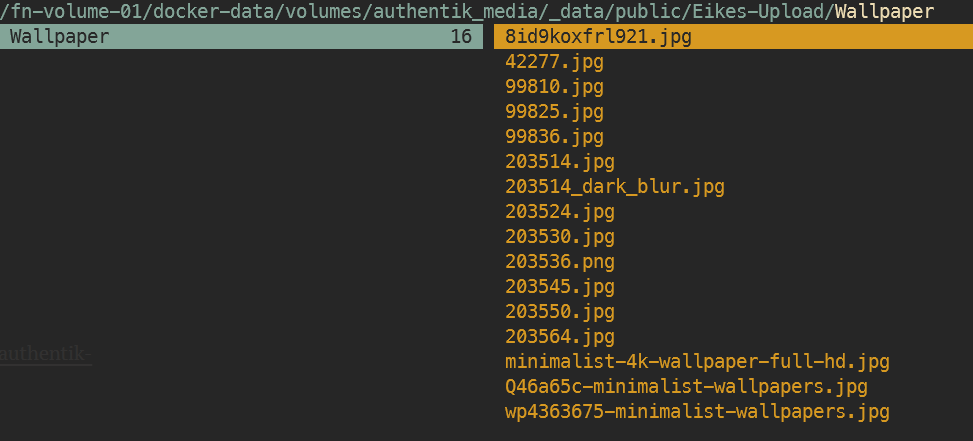
Pfad dann relativ unter Branding:
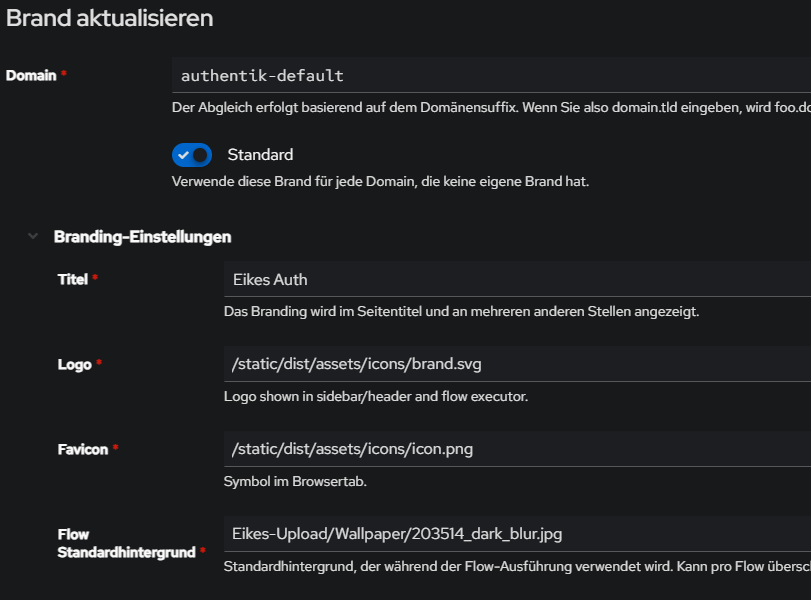
Ab hier alte Anleitung
# default bg und icon:
/static/dist/assets/icons/icon_left_brand.svg
/static/dist/assets/icons/icon.pnghttps://www.youtube.com/watch?v=YawgyM509ng
https://www.youtube.com/watch?v=3oIRY0NWPr8
Eigene Backgrounds und Icons
1) media-volume muss in der docker-compose.yml bei server, worker und als volume vorhanden sein:
...
server:
image: ${AUTHENTIK_IMAGE:-ghcr.io/goauthentik/server}:${AUTHENTIK_TAG:-2024.6.1}
...
volumes:
- media:/media # <------------ HIER
- custom-templates:/templates#
env_file:
worker:
image: ${AUTHENTIK_IMAGE:-ghcr.io/goauthentik/server}:${AUTHENTIK_TAG:-2024.6.0}
...
user: root
volumes:
- /var/run/docker.sock:/var/run/docker.sock
- media:/media # <------------ HIER
- certs:/certs
- custom-templates:/templates
env_file:
...
volumes:
database:
driver: local
redis:
driver: local
media: # <------------ HIER
certs:
custom-templates:2) Bilddateien übertragen (mit WinSCP, CLI SCP oder MountainDuck, mir egal)
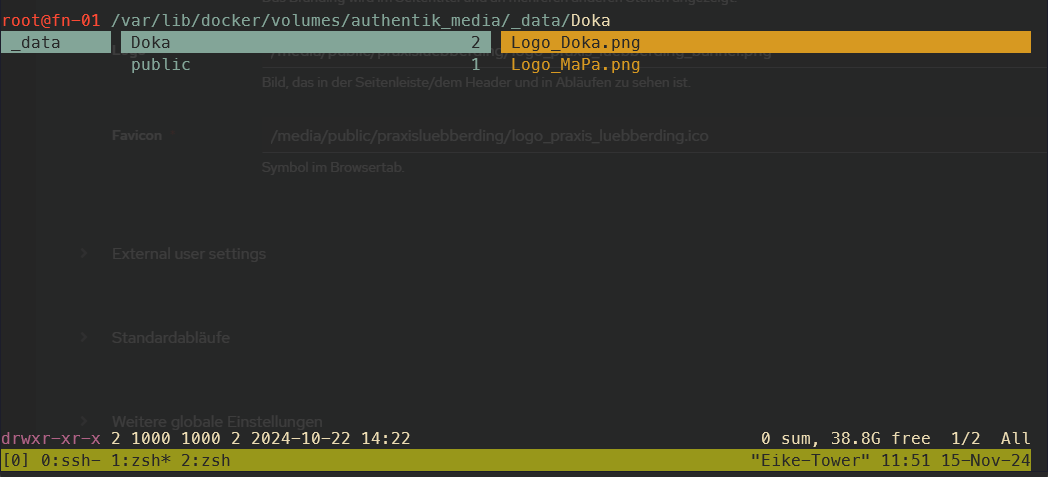
3) Authentik > System > Brands > edit default (Stiftsymbol) > Branding-Settings > Pfade eingeben:
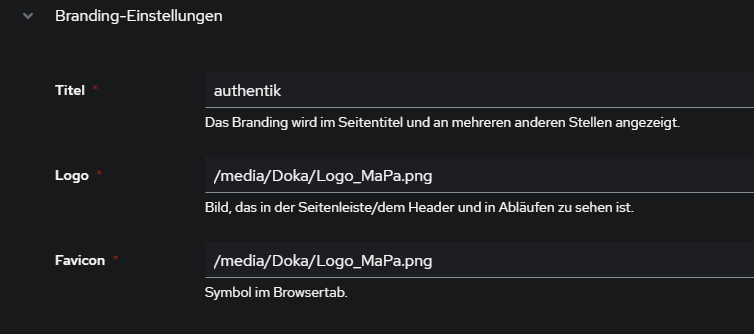
Custom Icons von walkxcode
Quelle: https://www.archy.net/cyberpunk-authentik-a-neon-glassmorphism-theme/
App Icons via CDN:
Since Font Awesome doesn't play, grab SVGs from the awesome dashboard-icons project. Set them in Admin > Applications > Edit > Icon URL:
https://cdn.jsdelivr.net/gh/walkxcode/dashboard-icons/svg/grafana.svg
https://cdn.jsdelivr.net/gh/walkxcode/dashboard-icons/svg/gitlab.svg
https://cdn.jsdelivr.net/gh/walkxcode/dashboard-icons/svg/proxmox.svg
https://cdn.jsdelivr.net/gh/walkxcode/dashboard-icons/svg/portainer.svgBrowse all icons at github.com/walkxcode/dashboard-icons.
Custom CSS Theme "neon"
Quellen:
https://www.archy.net/cyberpunk-authentik-a-neon-glassmorphism-theme/
https://gitlab.raidho.fr/Stephane/authentik-neon
custom.css
@import url('https://fonts.googleapis.com/css2?family=Inter:wght@300;400;500;600&display=swap');
body { font-family: 'Inter', -apple-system, system-ui, sans-serif !important; }
.pf-c-page, .pf-v6-c-page {
background-image: url('YOUR_BACKGROUND_URL') !important;
background-size: cover !important;
background-position: center !important;
background-attachment: fixed !important;
}
.pf-c-page__main-section, .pf-v6-c-page__main-section { background: transparent !important; }
.ak-library-application {
background: linear-gradient(145deg, rgba(25,18,55,0.7), rgba(12,10,28,0.85)) !important;
backdrop-filter: blur(16px) !important;
border: 1px solid rgba(120,80,255,0.12) !important;
border-radius: 20px !important;
transition: all 0.4s cubic-bezier(0.4,0,0.2,1) !important;
box-shadow: 0 4px 24px rgba(0,0,0,0.4) !important;
position: relative !important;
}
.ak-library-application::before {
content: ''; position: absolute; top:0; left:20%; right:20%; height:1px;
background: linear-gradient(90deg, transparent, #a080ff, transparent);
opacity: 0.4; transition: all 0.4s ease;
}
.ak-library-application:hover {
border-color: rgba(120,80,255,0.4) !important;
box-shadow: 0 12px 50px rgba(120,80,255,0.12) !important;
transform: translateY(-6px) scale(1.02) !important;
}
.ak-library-application:hover::before { left:10%; right:10%; opacity:0.8; }
.pf-c-button.pf-m-primary, .pf-v6-c-button.pf-m-primary {
background: linear-gradient(135deg, #7850ff, #5030cc) !important;
border: none !important; border-radius: 10px !important;
box-shadow: 0 4px 18px rgba(120,80,255,0.35) !important;
}
.pf-c-form-control, .pf-v6-c-form-control {
background: rgba(15,12,35,0.6) !important;
border: 1px solid rgba(120,80,255,0.15) !important;
border-radius: 10px !important; color: #e8e2ff !important;
}
.pf-c-form-control:focus, .pf-v6-c-form-control:focus {
border-color: #7850ff !important;
box-shadow: 0 0 15px rgba(120,80,255,0.15) !important;
}
.pf-c-modal-box, .pf-v6-c-modal-box {
background: rgba(15,12,30,0.95) !important;
backdrop-filter: blur(30px) !important; border-radius: 20px !important;
}
.pf-c-backdrop, .pf-v6-c-backdrop {
background: rgba(0,0,0,0.6) !important; backdrop-filter: blur(4px) !important;
}
::-webkit-scrollbar { width: 5px; }
::-webkit-scrollbar-thumb { background: rgba(120,80,255,0.25); border-radius: 10px; }
::selection { background: rgba(120,80,255,0.3); color: white; }
.ak-flow-body .pf-c-login__main, .ak-flow-body .pf-v6-c-login__main {
background: rgba(12,10,25,0.75) !important;
backdrop-filter: blur(20px) !important; border-radius: 24px !important;
}
Custom CSS Theme "Glassmorphism"
Seit Version 2025.12 kann man die custom.css über das Admin-Panel editieren:
Admin-Oberfläche > System > Brands > Brand editieren > Branding-Einstellungen > Custom CSS:
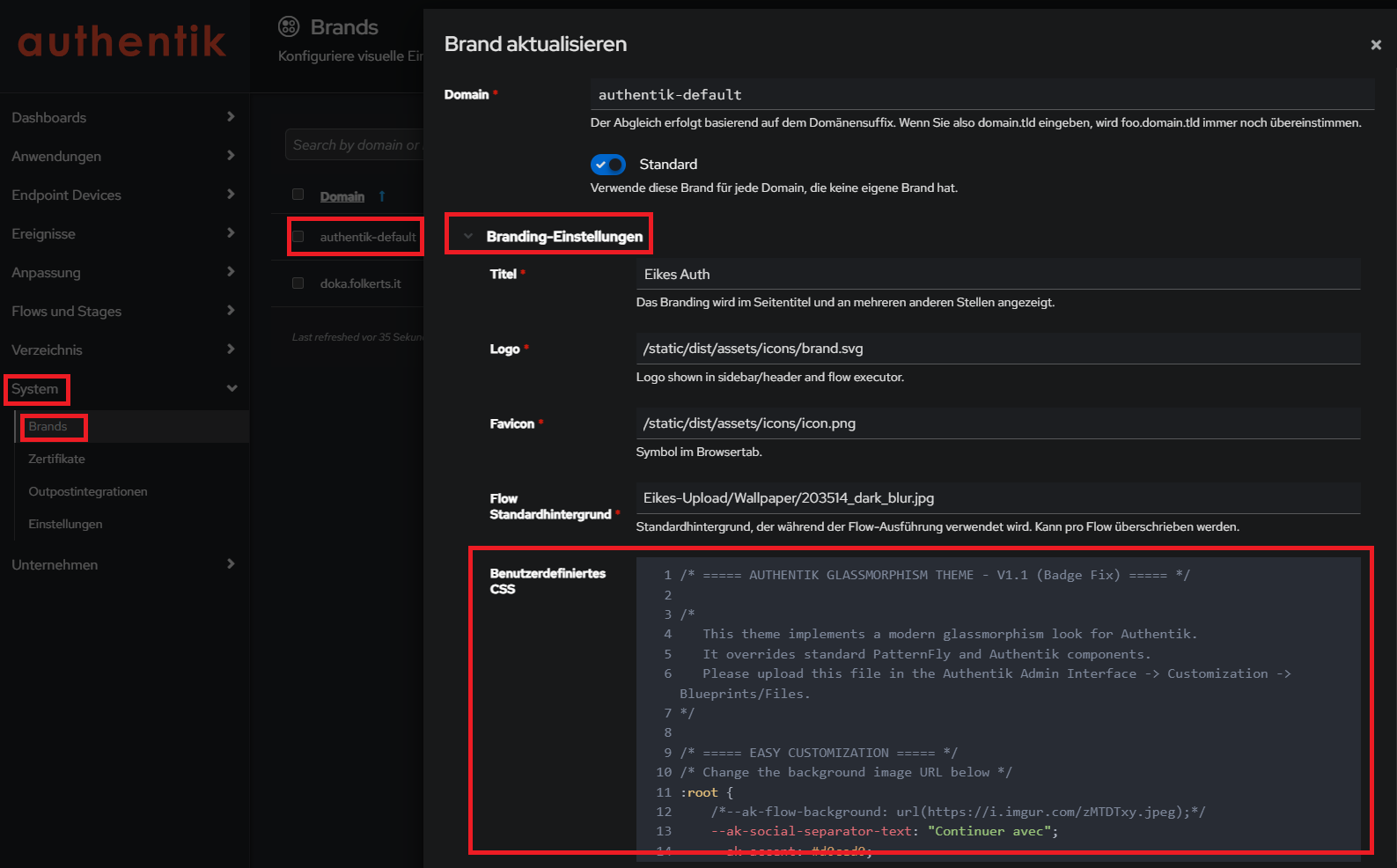
Neues glassmorphism Theme:
Quelle https://github.com/VULGA01/Authentik-Login-theme-Glassmorphism
mit bugfixes aus issue " broken in 2025.12.0": https://github.com/VULGA01/Authentik-Login-theme-Glassmorphism/issues/5
wichtiger Link, um Images direkt als URL (quasi CDN) zur Verfügung zu stellen:
https://wiki.folkerts.it/books/docker/page/nginx-proxy-manager-npm
custom.css:
/* ===== AUTHENTIK GLASSMORPHISM THEME - V1.1 (Badge Fix) ===== */
/*
This theme implements a modern glassmorphism look for Authentik.
It overrides standard PatternFly and Authentik components.
Please upload this file in the Authentik Admin Interface -> Customization -> Blueprints/Files.
*/
/* ===== EASY CUSTOMIZATION ===== */
/* Change the background image URL below */
:root {
--ak-flow-background: url("https://cdn.MEINEDOMAIN.de/images/dreamy-aesthetic-color-year-tones-nature-landscape4_dark_blur.png");
--ak-social-separator-text: "Continuer avec";
--ak-accent: #d0ced0;
}
/* ===== TOTP COPY BUTTON STYLE (NEUTRAL WHITE) ===== */
:host(ak-stage-authenticator-totp) .pf-c-button.pf-m-secondary {
background: rgba(255, 255, 255, 0.1) !important;
color: white !important;
border: 1px solid rgba(255, 255, 255, 0.2) !important;
backdrop-filter: blur(10px) !important;
border-radius: 12px !important;
padding: 8px 16px !important;
display: flex !important;
align-items: center !important;
justify-content: center !important;
gap: 8px !important;
font-size: 14px !important;
font-weight: 500 !important;
box-shadow: 0 4px 6px rgba(0, 0, 0, 0.1) !important;
transition: all 0.3s ease !important;
margin-top: 5px !important;
}
:host(ak-stage-authenticator-totp) .pf-c-button.pf-m-secondary:hover {
background: rgba(255, 255, 255, 0.2) !important;
border-color: rgba(255, 255, 255, 0.4) !important;
transform: translateY(-2px) !important;
box-shadow: 0 6px 15px rgba(0, 0, 0, 0.15) !important;
}
/* Remove reflection for this specific button to avoid glitches */
:host(ak-stage-authenticator-totp) .pf-c-button.pf-m-secondary::before,
:host(ak-stage-authenticator-totp) .pf-c-button.pf-m-secondary::after {
display: none !important;
content: none !important;
}
/* Fix icon positioning (it was absolute, causing overlap) */
:host(ak-stage-authenticator-totp) .pf-c-button.pf-m-secondary .pf-c-button__progress {
position: static !important;
transform: none !important;
display: inline-flex !important;
align-items: center !important;
}
:host(ak-stage-authenticator-totp) .qr-container {
width: 100% !important;
height: auto !important;
max-width: none !important;
background: transparent !important;
box-shadow: none !important;
display: flex !important;
flex-direction: column !important;
align-items: center !important;
justify-content: center !important;
margin: 10px 0 !important;
border-radius: 0 !important;
}
:host(ak-stage-authenticator-totp) qr-code {
/* Only the QR code gets the fixed white box */
max-width: 150px !important;
width: 150px !important;
height: 150px !important;
margin: 0 0 15px 0 !important;
/* Bottom margin to push button down */
display: flex !important;
justify-content: center !important;
align-items: center !important;
border-radius: 12px !important;
box-shadow: 0 4px 12px rgba(0, 0, 0, 0.2) !important;
background: white !important;
overflow: hidden !important;
}
:host(ak-stage-authenticator-totp) qr-code svg {
width: 100% !important;
height: 100% !important;
object-fit: contain !important;
}
/* Réduire la taille du texte explicatif sur la page TOTP */
:host(ak-stage-authenticator-totp) .pf-c-form__group:not([hidden]) p,
:host(ak-stage-authenticator-totp) .pf-c-form__group:not([hidden]) li {
font-size: 13px !important;
line-height: 1.4 !important;
opacity: 0.9 !important;
margin-bottom: 8px !important;
}
/* Réduire un peu le titre du QR code container si présent */
:host(ak-stage-authenticator-totp) .pf-c-form__group label {
font-size: 14px !important;
margin-bottom: 4px !important;
}
/* ===== FORCE DARK MODE ===== */
:root {
--pf-global--palette--black-50: oklab(0.9067 -0 0) !important;
--pf-global--palette--black-100: oklab(0.8292 -0.0007 -0.0016) !important;
--pf-global--palette--black-200: oklab(0.7407 -0.0007 -0.0017) !important;
--pf-global--palette--black-300: oklab(0.6232 -0.0003 -0.0032) !important;
--pf-global--palette--black-400: oklab(0.4602 -0.0003 -0.0034) !important;
--pf-global--palette--black-500: oklab(0.3906 0.0001 -0.0052) !important;
--pf-global--palette--black-600: oklab(0.3369 0.0001 -0.0054) !important;
--pf-global--palette--black-700: oklab(0.2795 -0.0021 -0.0083) !important;
--pf-global--palette--black-800: oklab(0.2303 -0.0008 -0.0083) !important;
--pf-global--palette--black-900: oklab(0.1798 -0.0034 -0.0053) !important;
--pf-global--palette--red-9999: oklab(0.6739 0.1853 0.1022) !important;
--pf-global--palette--red-8888: oklab(0.723 0.153 0.0784) !important;
--pf-v4-global--palette--blue-300: oklab(70.367% -0.07498 -0.139) !important;
--ak-global--palette--blue-300: oklab(67.552% -0.05374 -0.16817) !important;
--pf-global--palette--blue-300: var(--pf-v4-global--palette--blue-300) !important;
--pf-global--BackgroundColor--100: oklab(0.2303 -0.0008 -0.0083) !important;
--pf-global--BackgroundColor--150: oklab(0.2585 -0.0027 -0.0066) !important;
--pf-global--BackgroundColor--200: oklab(0.1798 -0.0034 -0.0053) !important;
--pf-global--BackgroundColor--300: oklab(0.2795 -0.0021 -0.0083) !important;
--pf-global--BackgroundColor--400: oklab(0.3369 0.0001 -0.0054) !important;
--pf-global--BackgroundColor--light-100: oklab(0.2303 -0.0008 -0.0083) !important;
--pf-global--BackgroundColor--light-200: oklab(0.1798 -0.0034 -0.0053) !important;
--pf-global--BackgroundColor--light-300: oklab(0.2795 -0.0021 -0.0083) !important;
--pf-global--BackgroundColor--dark-100: oklab(0.2303 -0.0008 -0.0083) !important;
--pf-global--BackgroundColor--dark-200: oklab(0.1798 -0.0034 -0.0053) !important;
--pf-global--BackgroundColor--dark-300: oklab(0.2795 -0.0021 -0.0083) !important;
--pf-global--BackgroundColor--dark-400: oklab(0.3369 0.0001 -0.0054) !important;
--pf-global--BorderColor--100: oklab(0.3906 0.0001 -0.0052) !important;
--pf-global--BorderColor--200: oklab(0.4602 -0.0003 -0.0034) !important;
--pf-global--BorderColor--300: oklab(0.3906 0.0001 -0.0052) !important;
--pf-global--BorderColor--400: oklab(0.7407 -0.0007 -0.0017) !important;
--pf-global--Color--100: oklab(0.9067 -0 0) !important;
--pf-global--Color--200: oklab(0.7407 -0.0007 -0.0017) !important;
--pf-global--active-color--100: var(--pf-v4-global--palette--blue-300) !important;
--pf-global--primary-color--300: oklab(0.522 -0.0434 -0.1717) !important;
--pf-global--primary-color--100: var(--pf-global--primary-color--300) !important;
--pf-global--link--Color: var(--pf-v4-global--palette--blue-300) !important;
--pf-global--link--Color--hover: oklab(0.7706 -0.0485 -0.1012) !important;
--pf-global--link--Color--visited: oklab(0.7137 0.0522 -0.151) !important;
--pf-global--disabled-color--100: oklab(0.4602 -0.0003 -0.0034) !important;
--pf-global--disabled-color--200: oklab(0.3906 0.0001 -0.0052) !important;
--pf-global--disabled-color--300: oklab(0.7407 -0.0007 -0.0017) !important;
--pf-global--icon--Color--light: oklab(0.7407 -0.0007 -0.0017) !important;
--pf-global--icon--Color--dark: oklab(0.7407 -0.0007 -0.0017) !important;
--pf-global--Color--dark-100: oklab(0.9067 -0 0) !important;
--pf-global--Color--dark-200: oklab(0.7407 -0.0007 -0.0017) !important;
--pf-global--Color--light-100: oklab(0.9067 -0 0) !important;
--pf-global--Color--light-200: oklab(0.7407 -0.0007 -0.0017) !important;
--pf-global--Color--light-300: oklab(0.3659 -0.0025 -0.0061) !important;
--pf-global--BorderColor--dark-100: oklab(0.3906 0.0001 -0.0052) !important;
--pf-global--BorderColor--light-100: oklab(0.3906 0.0001 -0.0052) !important;
--pf-global--primary-color--light-100: oklab(67.552% -0.05374 -0.16817) !important;
--pf-global--primary-color--dark-100: oklab(67.552% -0.05374 -0.16817) !important;
--pf-global--link--Color--light: var(--pf-v4-global--palette--blue-300) !important;
--pf-global--link--Color--light--hover: var(--pf-global--palette--blue-200) !important;
--pf-global--link--Color--dark: var(--pf-v4-global--palette--blue-300) !important;
--pf-global--link--Color--dark--hover: var(--pf-global--palette--blue-200) !important;
--pf-global--default-color--100: var(--pf-global--palette--cyan-100) !important;
--pf-global--default-color--300: var(--pf-global--palette--cyan-200) !important;
--pf-global--info-color--100: var(--pf-global--palette--blue-200) !important;
--pf-global--info-color--200: var(--pf-global--palette--blue-50) !important;
--pf-global--warning-color--100: oklab(0.7864 0.0298 0.1604) !important;
--pf-global--warning-color--200: oklab(0.8354 0.0112 0.1471) !important;
--pf-global--danger-color--100: var(--pf-global--palette--red-100) !important;
--pf-global--danger-color--200: var(--pf-global--palette--red-50) !important;
--pf-global--success-color--100: oklab(0.6488 -0.1066 0.0846) !important;
--pf-global--success-color--200: var(--pf-global--palette--green-50) !important;
/* Force browser to render standard controls in dark mode */
color-scheme: dark !important;
}
/* Ensure these variables are sticky even if the browser prefers light mode */
@media (prefers-color-scheme: light) {
:root {
--pf-global--BackgroundColor--100: oklab(0.2303 -0.0008 -0.0083) !important;
--pf-global--BackgroundColor--light-100: oklab(0.2303 -0.0008 -0.0083) !important;
--pf-global--Color--100: oklab(0.9067 -0 0) !important;
--pf-global--Color--light-100: oklab(0.9067 -0 0) !important;
--pf-global--Color--dark-100: oklab(0.9067 -0 0) !important;
/* Re-apply the full block if necessary, but usually overrides are enough */
}
}
/* ===== BOUTONS OUI/NON & ACTIONS ===== */
/* Container buttons */
.pf-c-login .pf-c-form__actions,
.pf-c-login .pf-c-form__group-control,
body:has(.pf-c-login) .pf-c-form__actions,
body:has(.pf-c-login) .pf-c-form__group-control {
display: flex !important;
gap: 15px !important;
margin-top: 25px !important;
justify-content: space-between !important;
overflow: visible !important;
padding: 5px !important;
}
/* Base button styles */
.pf-c-login .pf-c-form__actions button,
.pf-c-login .pf-c-form__group-control button,
body:has(.pf-c-login) .pf-c-form__actions button,
body:has(.pf-c-login) .pf-c-form__group-control button,
.pf-c-login button[type="button"],
body:has(.pf-c-login) button[type="button"],
:host(ak-stage-user-login) button[type="submit"] {
border-radius: 14px !important;
padding: 10px 20px !important;
font-weight: 600 !important;
font-size: 15px !important;
transition: all 0.3s cubic-bezier(0.25, 0.46, 0.45, 0.94) !important;
text-transform: none !important;
border: none !important;
backdrop-filter: blur(20px) saturate(130%) !important;
-webkit-backdrop-filter: blur(20px) saturate(130%) !important;
position: relative !important;
overflow: hidden !important;
box-sizing: border-box !important;
min-width: 120px !important;
cursor: pointer !important;
outline: none !important;
}
/* ========================================= */
/* LOGIN BUTTON - FORCE WHITE GLASSMORPHISM */
/* ========================================= */
/* Force white for identification login button */
.pf-c-login .pf-c-form__actions button:first-child,
.pf-c-login .pf-c-form__group-control button:first-child,
body:has(.pf-c-login) .pf-c-form__actions button:first-child,
body:has(.pf-c-login) .pf-c-form__group-control button:first-child,
.pf-c-login button[type="button"]:first-of-type,
body:has(.pf-c-login) button[type="button"]:first-of-type,
:host(ak-stage-identification) .pf-c-button.pf-m-primary,
:host(ak-stage-identification) button[type="submit"].pf-c-button.pf-m-primary {
background: rgba(255, 255, 255, 0.15) !important;
backdrop-filter: blur(10px) !important;
-webkit-backdrop-filter: blur(10px) !important;
border: 1px solid rgba(255, 255, 255, 0.3) !important;
color: white !important;
font-weight: 600 !important;
padding: 14px 24px !important;
border-radius: 14px !important;
transition: all 0.3s ease !important;
box-shadow: 0 6px 20px rgba(0, 0, 0, 0.15), 0 2px 8px rgba(255, 255, 255, 0.1) !important;
}
:host(ak-stage-identification) .pf-c-button.pf-m-primary:hover,
:host(ak-stage-identification) button[type="submit"].pf-c-button.pf-m-primary:hover {
background: rgba(255, 255, 255, 0.25) !important;
border-color: rgba(255, 255, 255, 0.4) !important;
transform: translateY(-2px) !important;
box-shadow: 0 10px 30px rgba(0, 0, 0, 0.2), 0 4px 12px rgba(255, 255, 255, 0.15) !important;
}
/* ========================================= */
/* STAY CONNECTED BUTTONS (USER LOGIN STAGE) */
/* ========================================= */
/* Neutralize 'Yes' and 'No' buttons to Standard Glass Style */
:host(ak-stage-user-login) .pf-c-button.pf-m-primary,
:host(ak-stage-user-login) .pf-c-button.pf-m-secondary {
background: rgba(255, 255, 255, 0.08) !important;
backdrop-filter: blur(10px) !important;
-webkit-backdrop-filter: blur(10px) !important;
border: 1px solid rgba(255, 255, 255, 0.2) !important;
color: white !important;
font-weight: 500 !important;
padding: 10px 24px !important;
border-radius: 14px !important;
transition: all 0.3s ease !important;
box-shadow: 0 4px 6px rgba(0, 0, 0, 0.1) !important;
margin: 0 !important;
/* Reset margins if inherited */
}
:host(ak-stage-user-login) .pf-c-button.pf-m-primary:hover,
:host(ak-stage-user-login) .pf-c-button.pf-m-secondary:hover {
background: rgba(255, 255, 255, 0.2) !important;
transform: translateY(-2px) !important;
box-shadow: 0 8px 15px rgba(0, 0, 0, 0.2) !important;
border-color: rgba(255, 255, 255, 0.4) !important;
}
/* Remove colored pseudo-elements/reflections for Stay Connected */
:host(ak-stage-user-login) .pf-c-button.pf-m-primary::before,
:host(ak-stage-user-login) .pf-c-button.pf-m-secondary::before {
display: none !important;
content: none !important;
}
/* ========================================= */
/* SHARED ANIMATIONS & FIXES */
/* ========================================= */
/* Reflection effect for Login Button ONLY */
:host(ak-stage-identification) .pf-c-button.pf-m-primary::before {
content: '';
position: absolute;
top: 0;
left: -100%;
width: 100%;
height: 100%;
background: linear-gradient(90deg,
transparent 0%,
rgba(255, 255, 255, 0.2) 50%,
transparent 100%);
transition: left 0.6s ease;
z-index: 1;
border-radius: 14px;
}
:host(ak-stage-identification) .pf-c-button.pf-m-primary:hover::before {
left: 100%;
}
/* Z-index fix for text */
:host(ak-stage-user-login) .pf-c-button.pf-m-primary *,
:host(ak-stage-user-login) .pf-c-button.pf-m-secondary *,
:host(ak-stage-identification) .pf-c-button.pf-m-primary *,
:host(ak-stage-identification) .pf-c-button.pf-m-secondary * {
position: relative !important;
z-index: 2 !important;
}
:host(ak-stage-user-login) .pf-c-button.pf-m-primary::after,
:host(ak-stage-user-login) .pf-c-button.pf-m-secondary::after,
:host(ak-stage-identification) .pf-c-button.pf-m-primary::after,
:host(ak-stage-identification) .pf-c-button.pf-m-secondary::after {
border: none !important;
display: none !important;
}
:host(ak-stage-user-login) .pf-c-button:focus,
:host(ak-stage-user-login) .pf-c-button:active,
:host(ak-stage-identification) .pf-c-button:focus,
:host(ak-stage-identification) .pf-c-button:active {
outline: none !important;
}
/* Button 'No' / Secondary */
:host(ak-stage-user-login) .pf-c-button.pf-m-secondary,
:host(ak-stage-identification) .pf-c-button.pf-m-secondary {
background: rgba(220, 53, 69, 0.15) !important;
color: rgba(255, 255, 255, 0.9) !important;
border: 1.5px solid rgba(220, 53, 69, 0.3) !important;
box-shadow:
0 4px 15px rgba(220, 53, 69, 0.1),
0 2px 8px rgba(0, 0, 0, 0.1),
inset 0 1px 0 rgba(255, 255, 255, 0.1) !important;
}
/* Reflection effect 'No' */
:host(ak-stage-user-login) .pf-c-button.pf-m-secondary::before,
:host(ak-stage-identification) .pf-c-button.pf-m-secondary::before {
content: '';
position: absolute;
top: 0;
left: -100%;
width: 100%;
height: 100%;
background: linear-gradient(90deg,
transparent 0%,
rgba(255, 255, 255, 0.15) 50%,
transparent 100%);
transition: left 0.6s ease;
z-index: 1;
border-radius: 14px;
}
:host(ak-stage-user-login) .pf-c-button.pf-m-secondary:hover::before,
:host(ak-stage-identification) .pf-c-button.pf-m-secondary:hover::before {
left: 100%;
}
:host(ak-stage-user-login) .pf-c-button.pf-m-secondary:hover,
:host(ak-stage-identification) .pf-c-button.pf-m-secondary:hover {
background: rgba(220, 53, 69, 0.25) !important;
border-color: rgba(220, 53, 69, 0.45) !important;
color: white !important;
transform: translateY(-1px) !important;
box-shadow:
0 8px 25px rgba(220, 53, 69, 0.2),
0 4px 12px rgba(0, 0, 0, 0.15),
inset 0 1px 0 rgba(255, 255, 255, 0.15) !important;
}
/* Z-index fix for text */
:host(ak-stage-user-login) .pf-c-button.pf-m-primary *,
:host(ak-stage-user-login) .pf-c-button.pf-m-secondary *,
:host(ak-stage-identification) .pf-c-button.pf-m-primary *,
:host(ak-stage-identification) .pf-c-button.pf-m-secondary * {
position: relative !important;
z-index: 2 !important;
}
/* ========================================= */
/* SOCIAL LOGIN BUTTONS (GLASSMORPHISM) */
/* ========================================= */
/* Base style for all social login buttons */
:host(ak-stage-identification) .source-button {
background: rgba(255, 255, 255, 0.08) !important;
border: 1px solid rgba(255, 255, 255, 0.2) !important;
color: white !important;
border-radius: 12px !important;
padding: 10px 20px !important;
transition: all 0.3s ease !important;
display: flex !important;
align-items: center !important;
justify-content: center !important;
text-decoration: none !important;
box-shadow: 0 4px 6px rgba(0, 0, 0, 0.1) !important;
position: relative !important;
font-weight: 600 !important;
font-size: 15px !important;
gap: 8px !important;
backdrop-filter: blur(10px) !important;
-webkit-backdrop-filter: blur(10px) !important;
overflow: hidden !important;
}
:host(ak-stage-identification) .source-button:hover {
background: rgba(255, 255, 255, 0.2) !important;
transform: translateY(-2px) scale(1.02) !important;
box-shadow: 0 8px 15px rgba(0, 0, 0, 0.2) !important;
border-color: rgba(255, 255, 255, 0.4) !important;
}
/* Discord-specific branding */
:host(ak-stage-identification) button[name*="discord"].source-button {
background: rgba(88, 101, 242, 0.25) !important;
border-color: rgba(88, 101, 242, 0.4) !important;
box-shadow:
0 4px 12px rgba(88, 101, 242, 0.2),
inset 0 1px 0 rgba(255, 255, 255, 0.1) !important;
}
:host(ak-stage-identification) button[name*="discord"].source-button:hover {
background: rgba(88, 101, 242, 0.35) !important;
border-color: rgba(88, 101, 242, 0.6) !important;
box-shadow:
0 8px 20px rgba(88, 101, 242, 0.35),
0 0 0 2px rgba(88, 101, 242, 0.2),
inset 0 1px 0 rgba(255, 255, 255, 0.15) !important;
}
/* Shine effect on hover for all social buttons */
:host(ak-stage-identification) .source-button:hover::before {
content: "";
position: absolute;
top: 0;
left: -70%;
width: 55%;
height: 100%;
background: linear-gradient(120deg, transparent 0%, rgba(255, 255, 255, 0.5) 60%, transparent 100%);
transform: skewX(-25deg);
animation: socialShine 0.65s linear 1;
pointer-events: none;
}
@keyframes socialShine {
100% {
left: 130%;
}
}
/* Icon styling within social buttons */
:host(ak-stage-identification) .source-button img,
:host(ak-stage-identification) .source-button span.pf-c-button__icon {
width: 18px !important;
height: 18px !important;
flex-shrink: 0;
}
/* Make Discord icon white */
:host(ak-stage-identification) button[name*="discord"].source-button img {
filter: brightness(0) invert(1);
}
/* Google-specific branding */
:host(ak-stage-identification) button[name*="google"].source-button {
background: rgba(66, 133, 244, 0.25) !important;
border-color: rgba(66, 133, 244, 0.4) !important;
}
:host(ak-stage-identification) button[name*="google"].source-button:hover {
background: rgba(66, 133, 244, 0.35) !important;
border-color: rgba(66, 133, 244, 0.6) !important;
box-shadow:
0 8px 20px rgba(66, 133, 244, 0.35),
0 0 0 2px rgba(66, 133, 244, 0.2) !important;
}
:host(ak-stage-user-login) .pf-c-button.pf-m-primary::after,
:host(ak-stage-user-login) .pf-c-button.pf-m-secondary::after {
border: none !important;
display: none !important;
}
:host(ak-stage-user-login) .pf-c-button:focus,
:host(ak-stage-user-login) .pf-c-button:active {
outline: none !important;
}
/* Responsive */
@media (max-width: 768px) {
.pf-c-login .pf-c-form__actions,
body:has(.pf-c-login) .pf-c-form__actions {
flex-direction: column !important;
gap: 12px !important;
}
:host(ak-stage-user-login) .pf-c-button.pf-m-primary,
:host(ak-stage-user-login) .pf-c-button.pf-m-secondary {
width: 100% !important;
min-width: auto !important;
padding: 14px 28px !important;
}
}
/* ===== RADIO & CHECKBOX (REMEMBER ME) ===== */
.pf-c-login .pf-c-check,
.pf-c-login .pf-c-switch,
body:has(.pf-c-login) .pf-c-check,
body:has(.pf-c-login) .pf-c-switch {
margin: 20px 0 !important;
display: flex !important;
align-items: center !important;
gap: 6px !important;
}
.pf-c-login .pf-c-check__input,
.pf-c-login .pf-c-switch__input,
.pf-c-login input[type="checkbox"],
body:has(.pf-c-login) .pf-c-check__input,
body:has(.pf-c-login) .pf-c-switch__input,
body:has(.pf-c-login) input[type="checkbox"],
input[id*="authentik-remember-me"],
input[name*="remember"] {
appearance: none !important;
-webkit-appearance: none !important;
width: 16px !important;
height: 16px !important;
background: rgba(255, 255, 255, 0.08) !important;
border: 2px solid rgba(255, 255, 255, 0.3) !important;
border-radius: 5px !important;
margin-right: 8px !important;
position: relative !important;
vertical-align: middle !important;
transition: all 0.3s cubic-bezier(0.25, 0.46, 0.45, 0.94) !important;
backdrop-filter: blur(20px) !important;
-webkit-backdrop-filter: blur(20px) !important;
box-shadow:
0 4px 15px rgba(0, 0, 0, 0.15),
inset 0 1px 0 rgba(255, 255, 255, 0.1) !important;
cursor: pointer !important;
}
.pf-c-login .pf-c-check__input:checked,
.pf-c-login .pf-c-switch__input:checked,
.pf-c-login input[type="checkbox"]:checked,
body:has(.pf-c-login) .pf-c-check__input:checked,
body:has(.pf-c-login) .pf-c-switch__input:checked,
body:has(.pf-c-login) input[type="checkbox"]:checked,
input[id*="authentik-remember-me"]:checked,
input[name*="remember"]:checked {
background: rgba(102, 126, 234, 0.7) !important;
border-color: rgba(102, 126, 234, 0.8) !important;
box-shadow:
0 0 0 2px rgba(102, 126, 234, 0.2),
0 6px 20px rgba(102, 126, 234, 0.3),
inset 0 1px 0 rgba(255, 255, 255, 0.2) !important;
}
.pf-c-login .pf-c-check__input:checked::after,
.pf-c-login .pf-c-switch__input:checked::after,
.pf-c-login input[type="checkbox"]:checked::after,
body:has(.pf-c-login) .pf-c-check__input:checked::after,
body:has(.pf-c-login) .pf-c-switch__input:checked::after,
body:has(.pf-c-login) input[type="checkbox"]:checked::after,
input[id*="authentik-remember-me"]:checked::after,
input[name*="remember"]:checked::after {
content: '✓' !important;
position: absolute !important;
left: 50% !important;
top: 50% !important;
transform: translate(-50%, -50%) !important;
color: white !important;
font-size: 10px !important;
font-weight: bold !important;
text-shadow: 0 1px 2px rgba(0, 0, 0, 0.5) !important;
}
.pf-c-login .pf-c-check__label,
.pf-c-login .pf-c-switch__label {
color: rgba(255, 255, 255, 0.9) !important;
font-weight: 400 !important;
font-size: 14px !important;
text-shadow: 0 1px 3px rgba(0, 0, 0, 0.3) !important;
}
/* ===== HIDE 'Powered by authentik' ===== */
/* If text is in a span */
span:contains("Propulsé par"),
span:contains("Powered by") {
display: none !important;
visibility: hidden !important;
font-size: 0 !important;
line-height: 0 !important;
}
/* If it's in a <ul> list in footer */
.pf-c-login__footer .pf-c-list.pf-m-inline,
ul.pf-c-list.pf-m-inline li span:contains("authentik") {
display: none !important;
visibility: hidden !important;
}
/* Fallback selector: hide all brand links elements */
ak-brand-links,
.pf-c-login__footer .pf-c-login__footer .pf-c-list li:last-child,
*[data-ouia-component-type="PF4/Footer"],
ul.pf-c-list.pf-m-inline,
.pf-c-list.pf-m-inline {
display: none !important;
visibility: hidden !important;
}
/* ===== LOGIN PAGE MODERN DESIGN ===== */
/* Page Background */
.pf-c-login .pf-c-page,
body:has(.pf-c-login) .pf-c-page {
/* Fixed background workaround for iOS */
position: relative !important;
min-height: 100vh !important;
min-height: 100dvh !important;
z-index: 0 !important;
}
.pf-c-login .pf-c-page::before,
body:has(.pf-c-login) .pf-c-page::before,
body::before {
content: "" !important;
position: fixed !important;
top: 0 !important;
left: 0 !important;
width: 100% !important;
height: 100% !important;
background-image: var(--ak-flow-background) !important;
background-size: cover !important;
background-position: center !important;
background-repeat: no-repeat !important;
z-index: -1 !important;
pointer-events: none !important;
}
/* Login page wrapper */
.pf-c-login,
body:has(.pf-c-login) {
position: relative !important;
min-height: 100vh !important;
/* SAFEST CENTER ALIGNMENT */
display: flex !important;
flex-direction: column !important;
align-items: center !important;
/* justify-content: center REMOVED: prevents top clipping */
overflow-y: auto !important;
padding: 20px !important;
}
/* Login Container with Glass effect */
.pf-c-login .pf-c-login__container,
ak-flow-executor.pf-c-login {
background:
rgba(255, 255, 255, 0.03),
url("data:image/svg+xml,%3Csvg viewBox='0 0 400 400' xmlns='http://www.w3.org/2000/svg'%3E%3Cfilter id='noiseFilter'%3E%3CfeTurbulence type='fractalNoise' baseFrequency='0.85' numOctaves='4' stitchTiles='stitch'/%3E%3C/filter%3E%3Crect width='100%25' height='100%25' filter='url(%23noiseFilter)' opacity='0.1'/%3E%3C/svg%3E") !important;
backdrop-filter: blur(40px) !important;
-webkit-backdrop-filter: blur(40px) !important;
border: 1px solid rgba(255, 255, 255, 0.1) !important;
border-radius: 24px !important;
box-shadow:
0 8px 32px rgba(0, 0, 0, 0.15),
inset 0 1px 0 rgba(255, 255, 255, 0.1) !important;
padding: 40px !important;
/* Reduced padding */
/* Desktop default: 450px min-width */
min-width: 450px !important;
/* Combined with max-width for responsiveness */
width: 100% !important;
max-width: 700px !important;
transition: all 0.3s ease !important;
position: relative !important;
/* THE MAGICAL FIX: Safe Centering */
margin: auto !important;
/* STRICT SIZING: Prevent stretching */
height: auto !important;
flex-grow: 0 !important;
flex-shrink: 0 !important;
flex-basis: auto !important;
max-height: none !important;
overflow: visible !important;
display: flex !important;
flex-direction: column !important;
justify-content: center !important;
/* NUCLEAR SAFEGUARD */
align-self: center !important;
justify-self: center !important;
}
/* ===== SHADOW DOM LAYOUT FIXES (v2025.12+) ===== */
/* Fix 1: Remove BOTH ::before and ::after spacers that cause vertical gap */
.pf-c-login::before,
.pf-c-login::after,
ak-flow-executor.pf-c-login::before,
ak-flow-executor.pf-c-login::after,
body:has(.pf-c-login) .pf-c-login::before,
body:has(.pf-c-login) .pf-c-login::after {
display: none !important;
content: none !important;
height: 0 !important;
}
/* Fix 2: Remove double card effect - strip glassmorphism from outer container */
ak-flow-executor.pf-c-login {
background: transparent !important;
backdrop-filter: none !important;
-webkit-backdrop-filter: none !important;
border: none !important;
box-shadow: none !important;
padding: 0 !important;
min-height: 100vh !important;
margin: 0 !important;
/* Fix grid layout for perfect centering */
display: grid !important;
align-content: center !important;
justify-items: center !important;
grid-template-rows: auto !important;
gap: 20px !important;
}
/* Fix 3: Ensure body centers content without overflow */
body:has(.pf-c-login) {
display: flex !important;
align-items: center !important;
justify-content: center !important;
overflow-y: auto !important;
min-height: 100vh !important;
}
/* Login Content */
.pf-c-login .pf-c-login__main,
ak-flow-executor::part(main) {
box-sizing: border-box;
background: transparent !important;
backdrop-filter: blur(20px) !important;
-webkit-backdrop-filter: blur(20px) !important;
border: 1px solid rgba(255, 255, 255, 0.08) !important;
border-radius: 66px !important;
box-shadow: rgba(0, 0, 0, 0.1) 0px 4px 16px, rgba(255, 255, 255, 0.05) 0px 1px 0px inset !important;
padding: 45px !important;
position: relative !important;
z-index: 10 !important;
/* NUCLEAR SIZING on the ACTUAL BOX */
height: fit-content !important;
min-height: 0 !important;
flex-grow: 0 !important;
/* Allow box to grow with content */
overflow-y: visible !important;
min-width: auto !important;
max-height: none !important;
width: 100% !important;
/* iOS Fix: width 100% instead of 54vh */
max-width: 570px !important;
/* iOS Fix: max-width px instead of vh */
margin: auto !important;
height: fit-content !important;
/* Ensure it shrinks to content */
}
/* Hide empty social links container to prevent spacing issues */
.pf-c-login__main-footer-links:empty,
ak-brand-links:empty {
display: none !important;
margin: 0 !important;
padding: 0 !important;
}
/* Agrandissement exceptionnel pour le stage TOTP */
.pf-c-login .pf-c-login__main:has(ak-stage-authenticator-totp),
body:has(.pf-c-login) .pf-c-login__main:has(ak-stage-authenticator-totp) {
max-height: 90vh !important;
max-width: 600px !important;
width: auto !important;
padding-top: 30px !important;
padding-bottom: 30px !important;
}
/* Overlay de chargement avec le même arrondi */
ak-loading-overlay {
border-radius: 66px !important;
overflow: hidden !important;
}
/* Force White Text in Login Container - Shadow DOM Compatible */
:host(ak-flow-executor) .pf-c-title,
:host(ak-flow-executor) h1,
:host(ak-flow-executor) h2,
:host(ak-flow-executor) h3,
:host(ak-flow-executor) p,
:host(ak-flow-executor) span,
:host(ak-flow-executor) div,
:host(ak-flow-executor) label,
:host(ak-flow-executor) .pf-c-form__label,
:host(ak-stage-identification) label,
:host(ak-stage-password) label,
:host(ak-stage-identification) .pf-c-title,
:host(ak-stage-password) .pf-c-title,
:host(ak-stage-consent) .pf-c-title,
:host(ak-stage-authenticator-validate) .pf-c-title,
:host(ak-stage-authenticator-validate) label,
:host(ak-stage-authenticator-validate-code) .pf-c-title,
:host(ak-stage-authenticator-validate-code) label,
:host(ak-stage-authenticator-validate-duo) .pf-c-title,
:host(ak-stage-authenticator-validate-duo) label,
:host(ak-user-settings) .pf-c-title,
:host(ak-user-settings) label,
:host(ak-user-settings) .pf-c-card__title,
:host(ak-user-settings-flow-executor) .pf-c-card__title,
:host(ak-user-settings-password) .pf-c-card__title,
:host(ak-form-element-horizontal) label,
:host(ak-form-element-horizontal) .pf-c-form__label,
:host(ak-user-stage-prompt) label,
:host(ak-user-stage-prompt) .pf-c-title,
:host(ak-stage-prompt) label,
:host(ak-stage-prompt) .pf-c-title {
color: white !important;
text-shadow: 0 1px 2px rgba(0, 0, 0, 0.5) !important;
}
/* Links in Login */
.pf-c-login a {
color: rgba(255, 255, 255, 0.9) !important;
text-decoration: none !important;
transition: all 0.2s ease !important;
}
.pf-c-login a:hover {
color: white !important;
text-shadow: 0 0 8px rgba(255, 255, 255, 0.6) !important;
text-decoration: underline !important;
}
/* Form Inputs - Shadow DOM targeted */
:host(ak-stage-identification) .pf-c-form-control,
:host(ak-stage-password) .pf-c-form-control,
:host(ak-flow-executor) .pf-c-form-control,
:host(ak-stage-identification) input:not([type="checkbox"]),
:host(ak-stage-password) input:not([type="checkbox"]),
:host(ak-stage-authenticator-validate) .pf-c-form-control,
:host(ak-stage-authenticator-validate) input:not([type="checkbox"]),
:host(ak-stage-authenticator-validate-code) .pf-c-form-control,
:host(ak-stage-authenticator-validate-code) input:not([type="checkbox"]),
:host(ak-stage-authenticator-totp) .pf-c-form-control,
:host(ak-stage-authenticator-totp) input:not([type="checkbox"]),
:host(ak-user-settings) .pf-c-form-control,
:host(ak-user-settings-flow-executor) .pf-c-form-control,
:host(ak-user-settings-password) .pf-c-form-control,
:host(ak-form-element-horizontal) .pf-c-form-control,
:host(ak-form-element-horizontal) input,
:host(ak-form-element-horizontal) select,
:host(ak-user-stage-prompt) .pf-c-form-control,
:host(ak-user-stage-prompt) input,
:host(ak-user-stage-prompt) select,
:host(ak-stage-prompt) .pf-c-form-control,
:host(ak-stage-prompt) input,
:host(ak-stage-prompt) select {
background-color: rgba(255, 255, 255, 0.06) !important;
border: 1.5px solid rgba(255, 255, 255, 0.2) !important;
border-radius: 14px !important;
padding: 10px 15px !important;
font-size: 16px !important;
color: white !important;
height: auto !important;
min-height: 40px !important;
transition: all 0.3s cubic-bezier(0.4, 0, 0.2, 1) !important;
backdrop-filter: blur(20px) saturate(130%) !important;
-webkit-backdrop-filter: blur(20px) saturate(130%) !important;
box-shadow: 0 4px 15px rgba(0, 0, 0, 0.2), inset 0 1px 0 rgba(255, 255, 255, 0.08) !important;
}
/* Ensure dropdown options are readable and select text is visible */
:host(ak-form-element-horizontal) select,
:host(ak-user-stage-prompt) select,
:host(ak-stage-prompt) select {
color: white !important;
background-color: rgba(255, 255, 255, 0.1) !important;
}
:host(ak-form-element-horizontal) select option,
:host(ak-user-stage-prompt) select option,
:host(ak-stage-prompt) select option {
background-color: #1f1f1f !important;
color: white !important;
text-shadow: none !important;
}
:host(ak-stage-identification) .pf-c-form-control:focus,
:host(ak-stage-password) .pf-c-form-control:focus,
:host(ak-flow-executor) .pf-c-form-control:focus,
:host(ak-stage-identification) input:not([type="checkbox"]):focus,
:host(ak-stage-password) input:not([type="checkbox"]):focus,
:host(ak-stage-authenticator-validate) .pf-c-form-control:focus,
:host(ak-stage-authenticator-validate) input:not([type="checkbox"]):focus,
:host(ak-stage-authenticator-validate-code) .pf-c-form-control:focus,
:host(ak-stage-authenticator-validate-code) input:not([type="checkbox"]):focus,
:host(ak-user-settings) .pf-c-form-control:focus,
:host(ak-user-settings-flow-executor) .pf-c-form-control:focus,
:host(ak-user-settings-password) .pf-c-form-control:focus,
:host(ak-form-element-horizontal) .pf-c-form-control:focus,
:host(ak-form-element-horizontal) input:focus,
:host(ak-form-element-horizontal) select:focus,
:host(ak-user-stage-prompt) .pf-c-form-control:focus,
:host(ak-user-stage-prompt) input:focus,
:host(ak-user-stage-prompt) select:focus,
:host(ak-stage-prompt) .pf-c-form-control:focus,
:host(ak-stage-prompt) input:focus,
:host(ak-stage-prompt) select:focus {
background-color: rgba(255, 255, 255, 0.08) !important;
border-color: rgba(102, 126, 234, 0.5) !important;
border-width: 1.5px !important;
outline: none !important;
box-shadow: 0 4px 15px rgba(0, 0, 0, 0.2), inset 0 1px 0 rgba(255, 255, 255, 0.08) !important;
}
/* Primary Button Login - Shadow DOM targeted */
:host(ak-stage-identification) .pf-c-button.pf-m-primary,
:host(ak-stage-password) .pf-c-button.pf-m-primary,
:host(ak-stage-consent) .pf-c-button.pf-m-primary,
:host(ak-stage-identification) button.pf-m-primary,
:host(ak-stage-password) button.pf-m-primary,
:host(ak-stage-authenticator-validate) .pf-c-button.pf-m-primary,
:host(ak-stage-authenticator-validate-code) .pf-c-button.pf-m-primary,
:host(ak-stage-authenticator-totp) .pf-c-button.pf-m-primary,
:host(ak-stage-authenticator-validate-duo) .pf-c-button.pf-m-primary,
:host(ak-stage-authenticator-validate-webauthn) .pf-c-button.pf-m-primary,
:host(ak-user-settings) .pf-c-button.pf-m-primary,
:host(ak-user-settings-flow-executor) .pf-c-button.pf-m-primary,
:host(ak-user-settings-password) .pf-c-button.pf-m-primary,
:host(ak-user-stage-prompt) .pf-c-button.pf-m-primary,
:host(ak-form-element-horizontal) .pf-c-button.pf-m-primary,
:host(ak-stage-authenticator-static) .pf-c-button.pf-m-primary,
:host(ak-stage-prompt) .pf-c-button.pf-m-primary,
/* FIX: Connect Button in User Settings */
:host(ak-user-settings-source-oauth) .pf-c-button.pf-m-primary {
background: rgba(255, 255, 255, 0.15) !important;
color: white !important;
border: 1px solid rgba(255, 255, 255, 0.3) !important;
border-radius: 14px !important;
box-shadow:
0 6px 20px rgba(0, 0, 0, 0.15),
0 2px 8px rgba(255, 255, 255, 0.1),
inset 0 1px 0 rgba(255, 255, 255, 0.2) !important;
backdrop-filter: blur(20px) !important;
-webkit-backdrop-filter: blur(20px) !important;
transition: all 0.3s ease !important;
text-transform: none !important;
font-weight: 600 !important;
font-size: 16px !important;
/* Force height */
padding-top: 12px !important;
padding-bottom: 12px !important;
padding-top: 12px !important;
padding-bottom: 12px !important;
}
/* FIX: Disconnect Button (Danger) in User Settings */
:host(ak-user-settings-source-oauth) .pf-c-button.pf-m-danger {
background: rgba(220, 20, 60, 0.25) !important;
/* Red tint */
color: white !important;
border: 1px solid rgba(255, 100, 100, 0.3) !important;
border-radius: 14px !important;
box-shadow: 0 4px 15px rgba(0, 0, 0, 0.15) !important;
backdrop-filter: blur(20px) !important;
-webkit-backdrop-filter: blur(20px) !important;
transition: all 0.3s ease !important;
font-weight: 600 !important;
font-size: 14px !important;
/* Slightly smaller than primary */
text-transform: none !important;
}
:host(ak-user-settings-source-oauth) .pf-c-button.pf-m-danger:hover {
background: rgba(220, 20, 60, 0.4) !important;
/* Brighter red on hover */
border-color: rgba(255, 100, 100, 0.6) !important;
transform: translateY(-2px) !important;
box-shadow: 0 6px 20px rgba(0, 0, 0, 0.25) !important;
color: white !important;
}
/* Secondary Button (Security Key, WebAuthn, etc.) - Glassmorphism */
:host(ak-stage-identification) .pf-c-button.pf-m-secondary,
:host(ak-stage-password) .pf-c-button.pf-m-secondary,
:host(ak-stage-authenticator-validate) .pf-c-button.pf-m-secondary,
:host(ak-stage-authenticator-validate-code) .pf-c-button.pf-m-secondary,
:host(ak-stage-authenticator-webauthn) .pf-c-button.pf-m-secondary,
:host(ak-flow-executor) .pf-c-button.pf-m-secondary {
background: rgba(255, 255, 255, 0.08) !important;
color: white !important;
border: 1px solid rgba(255, 255, 255, 0.2) !important;
border-radius: 14px !important;
box-shadow: 0 4px 15px rgba(0, 0, 0, 0.1) !important;
backdrop-filter: blur(20px) !important;
-webkit-backdrop-filter: blur(20px) !important;
transition: all 0.3s ease !important;
font-weight: 500 !important;
margin-top: 10px !important;
display: block !important;
width: 100% !important;
text-align: center !important;
}
:host(ak-stage-identification) .pf-c-button.pf-m-secondary:hover,
:host(ak-stage-password) .pf-c-button.pf-m-secondary:hover,
:host(ak-stage-authenticator-validate) .pf-c-button.pf-m-secondary:hover,
:host(ak-stage-authenticator-validate-code) .pf-c-button.pf-m-secondary:hover,
:host(ak-stage-authenticator-webauthn) .pf-c-button.pf-m-secondary:hover,
:host(ak-flow-executor) .pf-c-button.pf-m-secondary:hover {
background: rgba(255, 255, 255, 0.15) !important;
border-color: rgba(255, 255, 255, 0.4) !important;
transform: translateY(-2px) !important;
box-shadow: 0 6px 20px rgba(0, 0, 0, 0.2) !important;
color: white !important;
color: white !important;
}
/* KEY ICON & GLITCH FIX */
/* Repurpose ::before to be a Key Icon instead of a glitchy bar */
:host(ak-stage-identification) .pf-c-button.pf-m-secondary::before,
:host(ak-stage-password) .pf-c-button.pf-m-secondary::before,
:host(ak-stage-authenticator-validate) .pf-c-button.pf-m-secondary::before,
:host(ak-flow-executor) .pf-c-button.pf-m-secondary::before {
content: "" !important;
display: inline-block !important;
width: 16px !important;
height: 16px !important;
margin-right: 8px !important;
/* Font Awesome Key Icon (White) */
background-image: url("data:image/svg+xml,%3Csvg xmlns='http://www.w3.org/2000/svg' viewBox='0 0 512 512' fill='white'%3E%3Cpath d='M336 352c97.2 0 176-78.8 176-176S433.2 0 336 0S160 78.8 160 176c0 18.7 2.9 36.6 8.3 53.7L7 391c-4.5 4.5-7 10.6-7 17v80c0 13.3 10.7 24 24 24h80c13.3 0 24-10.7 24-24V448h40c13.3 0 24-10.7 24-24V384h40c6.4 0 12.5-2.5 17-7l33.3-33.3c16.9 5.2 38.6 352zM336 96a80 80 0 1 1 0 160 80 80 0 1 1 0-160z'/%3E%3C/svg%3E") !important;
background-repeat: no-repeat !important;
background-position: center !important;
background-size: contain !important;
/* Reset any glitchy borders/backgrounds from previous states */
border: none !important;
background-color: transparent !important;
position: static !important;
transform: none !important;
}
:host(ak-stage-identification) .pf-c-button.pf-m-primary:hover,
:host(ak-stage-password) .pf-c-button.pf-m-primary:hover,
:host(ak-stage-identification) button.pf-m-primary:hover,
:host(ak-stage-password) button.pf-m-primary:hover,
:host(ak-stage-authenticator-validate) .pf-c-button.pf-m-primary:hover,
:host(ak-stage-authenticator-validate-code) .pf-c-button.pf-m-primary:hover,
:host(ak-stage-authenticator-validate-duo) .pf-c-button.pf-m-primary:hover,
:host(ak-stage-authenticator-validate-webauthn) .pf-c-button.pf-m-primary:hover,
:host(ak-user-settings) .pf-c-button.pf-m-primary:hover,
:host(ak-user-settings-flow-executor) .pf-c-button.pf-m-primary:hover,
:host(ak-user-settings-password) .pf-c-button.pf-m-primary:hover,
:host(ak-user-stage-prompt) .pf-c-button.pf-m-primary:hover,
:host(ak-form-element-horizontal) .pf-c-button.pf-m-primary:hover,
:host(ak-stage-authenticator-static) .pf-c-button.pf-m-primary:hover,
:host(ak-stage-prompt) .pf-c-button.pf-m-primary:hover,
:host(ak-user-settings-source-oauth) .pf-c-button.pf-m-primary:hover {
background: rgba(255, 255, 255, 0.25) !important;
border-color: rgba(255, 255, 255, 0.4) !important;
transform: translateY(-2px) !important;
box-shadow:
0 10px 30px rgba(0, 0, 0, 0.2),
0 4px 12px rgba(255, 255, 255, 0.15),
inset 0 1px 0 rgba(255, 255, 255, 0.25) !important;
}
/* Remove default PatternFly after element on buttons inside specific hosts */
:host(ak-stage-identification) .pf-c-button::after,
:host(ak-stage-password) .pf-c-button::after,
:host(ak-stage-consent) .pf-c-button::after {
display: none !important;
content: none !important;
}
/* Footer "Forgot Password" Band */
.pf-c-login__main-footer-band {
background: transparent !important;
backdrop-filter: none !important;
border: none !important;
box-shadow: none !important;
margin-top: 10px !important;
display: flex !important;
justify-content: center !important;
}
.pf-c-login__main-footer-band a {
color: rgba(255, 255, 255, 0.6) !important;
text-decoration: none !important;
font-size: 14px !important;
transition: all 0.2s ease !important;
}
.pf-c-login__main-footer-band a:hover {
color: white !important;
text-decoration: underline !important;
text-shadow: 0 0 5px rgba(255, 255, 255, 0.5) !important;
}
/* ===== UI GLOBAL (SCROLLBAR) ===== */
:root {
--sb-size: 10px;
--sb-radius: 12px;
--sb-track: rgba(255, 255, 255, 0.06);
--sb-thumb: rgba(255, 255, 255, 0.28);
--sb-thumb-hover: rgba(255, 255, 255, 0.42);
--sb-thumb-active: rgba(255, 255, 255, 0.55);
}
*::-webkit-scrollbar {
width: var(--sb-size);
height: var(--sb-size);
}
*::-webkit-scrollbar-track {
background: var(--sb-track);
border-radius: var(--sb-radius);
margin: 4px;
}
*::-webkit-scrollbar-thumb {
background-color: var(--sb-thumb);
border-radius: var(--sb-radius);
border: 2px solid transparent;
background-clip: padding-box;
}
/* ===== APPS & DASHBOARD ===== */
/* Application Cards & User Settings Cards */
.pf-c-card.pf-m-compact,
.pf-c-expandable-section.pf-m-display-lg,
:host(ak-user-settings) .pf-c-card,
:host(ak-user-settings-flow-executor) .pf-c-card,
:host(ak-user-settings-password) .pf-c-card,
:host(ak-user-settings-mfa) .pf-c-card,
:host(ak-user-settings-source) .pf-c-card {
position: relative;
overflow: hidden;
border-radius: 20px !important;
background: rgba(255, 255, 255, 0.05) !important;
backdrop-filter: blur(20px) saturate(130%) !important;
-webkit-backdrop-filter: blur(20px) saturate(130%) !important;
border: 1px solid rgba(255, 255, 255, 0.15) !important;
transition: all 0.3s ease-in-out !important;
box-shadow:
0 4px 16px rgba(0, 0, 0, 0.4),
inset 0 1px 0 rgba(255, 255, 255, 0.05) !important;
}
.pf-c-card.pf-m-compact:hover,
:host(ak-user-settings) .pf-c-card:hover,
:host(ak-user-settings-flow-executor) .pf-c-card:hover,
:host(ak-user-settings-password) .pf-c-card:hover {
transform: translateY(-3px) scale(1.01) !important;
box-shadow:
0 8px 32px rgba(102, 126, 234, 0.25),
0 4px 12px rgba(118, 75, 162, 0.2) !important;
border-color: rgba(102, 126, 234, 0.4) !important;
}
/* User Settings Tabs - Shadow DOM */
:host(ak-user-settings) .pf-c-tabs,
:host(ak-user-settings) .pf-c-tabs__list {
background: transparent !important;
border-bottom-color: rgba(255, 255, 255, 0.1) !important;
}
:host(ak-user-settings) .pf-c-tabs__button {
color: rgba(255, 255, 255, 0.7) !important;
}
:host(ak-user-settings) .pf-c-tabs__link.pf-m-current,
:host(ak-user-settings) .pf-c-tabs__item.pf-m-current .pf-c-tabs__button {
color: white !important;
background: rgba(255, 255, 255, 0.1) !important;
border-radius: 10px 10px 0 0 !important;
}
:host(ak-user-settings) .pf-c-tabs__item.pf-m-current::after {
border-bottom-color: #667eea !important;
border-bottom-width: 3px !important;
}
/* Sidebar */
.pf-c-page__sidebar {
background: rgba(19, 19, 19, 0.4) !important;
backdrop-filter: blur(20px) saturate(120%) !important;
-webkit-backdrop-filter: blur(20px) saturate(120%) !important;
border-right: 1px solid rgba(255, 255, 255, 0.08) !important;
}
/* Header */
.pf-c-page__header,
.pf-c-page__header-tools {
background: transparent !important;
border-bottom: none !important;
box-shadow: none !important;
}
.pf-c-page>.pf-c-page__header {
background: rgba(0, 0, 0, 0.4) !important;
backdrop-filter: blur(18px) !important;
-webkit-backdrop-filter: blur(18px) !important;
border-bottom: 1px solid rgba(255, 255, 255, 0.1) !important;
}
/* IOS/Mobile Fix: .pf-c-page needs relative positioning, fixed bg moved to ::before */
.pf-c-page {
/* iOS Fix: moved to pseudo-element to preventing scrolling glitch */
/* background-image removed from here, handled via ::before on specific pages or globally if needed */
position: relative !important;
background: transparent !important;
background-color: transparent !important;
}
/* Ensure inner page containers are transparent so the background shows through */
:host(ak-library-impl) .pf-c-page,
:host(ak-library-impl) .pf-c-page__main,
.pf-c-page__main,
.pf-c-page__main-section,
.pf-c-page__drawer,
.pf-c-drawer__content,
.pf-c-drawer__main,
:host(ak-library-impl) .pf-l-gallery {
background: transparent !important;
background-color: transparent !important;
}
/* Global Background: ONLY apply outside of Admin Interface */
/* This prevents the background from leaking into the admin panel */
/* Global Background: Applied generally, but hidden in specific contexts below */
/* OPT-IN BACKGROUND STRATEGY */
/* Only apply the fixed background to User Interface and Login flows */
/* This automatically excludes the Admin Interface */
/* REF-INSPIRED BACKGROUND STRATEGY */
/* Apply background directly to the page wrapper, like in theme-ref-icon.css */
.pf-c-page {
background-image: var(--ak-flow-background) !important;
background-size: cover !important;
background-position: center !important;
background-repeat: no-repeat !important;
background-attachment: fixed !important;
}
/* HIJACK ADMIN PANEL: Remove background image in admin interface */
:host(ak-interface-admin) .pf-c-page {
background-image: none !important;
background-color: var(--pf-global--BackgroundColor--100) !important;
}
/* DASHBOARD TRANSPARENCY FIX */
/* Force variables to transparent inside the library/dashboard host AND user interface wrapper */
:host(ak-library-impl),
:host(ak-interface-user) {
--pf-global--BackgroundColor--100: transparent !important;
--pf-c-page--BackgroundColor: transparent !important;
--pf-c-page__main-section--BackgroundColor: transparent !important;
}
/* DASHBOARD TRANSPARENCY FIX */
/* Force variables to transparent inside the library/dashboard host AND user interface wrapper */
:host(ak-library-impl),
:host(ak-interface-user) {
--pf-global--BackgroundColor--100: transparent !important;
--pf-c-page--BackgroundColor: transparent !important;
--pf-c-page__main-section--BackgroundColor: transparent !important;
}
/* Force specific containers to be transparent in dashboard */
:host(ak-library-impl) .pf-c-page,
:host(ak-library-impl) .pf-c-page__main,
:host(ak-library-impl) .pf-c-page__main-section,
:host(ak-library-impl) .pf-c-drawer__content,
:host(ak-library-impl) .pf-c-drawer__main,
:host(ak-interface-user) .pf-c-page,
:host(ak-interface-user) .pf-c-page__main {
background: transparent !important;
background-color: transparent !important;
}
/* ========================================= */
/* === FORM INPUTS & PASSWORD TOGGLE FIX === */
/* ========================================= */
/* Fix Input Group Position to allow absolute button */
.pf-c-input-group {
position: relative !important;
display: flex !important;
width: 100% !important;
}
/* Position the "Show Password" button inside the input */
.pf-c-button.pf-m-control {
position: absolute !important;
top: 50% !important;
right: 5px !important;
transform: translateY(-50%) !important;
background: transparent !important;
border: none !important;
box-shadow: none !important;
/* Very high z-index to stay above focused inputs */
z-index: 9999 !important;
padding: 5px !important;
margin: 0 !important;
height: auto !important;
min-width: 0 !important;
width: 30px !important;
display: flex !important;
align-items: center !important;
justify-content: center !important;
cursor: pointer !important;
pointer-events: auto !important;
}
/* Hover effect */
.pf-c-button.pf-m-control:hover {
background: rgba(255, 255, 255, 0.1) !important;
border-radius: 50% !important;
}
/* Remove borders */
.pf-c-button.pf-m-control::after,
.pf-c-button.pf-m-control::before {
display: none !important;
content: none !important;
}
/* Ensure input has space */
.pf-c-form-control {
padding-right: 40px !important;
}
/* ===== ADMIN INTERFACE PRESERVATION ===== */
/* Reset sensitive admin elements to avoid breaking them */
[data-ak-interface-root="ak-interface-admin"] .pf-c-button.pf-m-plain,
[data-ak-interface-root="ak-interface-admin"] .pf-c-button.pf-m-secondary,
[data-ak-interface-root="ak-interface-admin"] .pf-c-button.pf-m-primary {
width: auto !important;
min-width: 0 !important;
height: auto !important;
transform: none !important;
background: var(--pf-c-button--m-plain--BackgroundColor, transparent) !important;
border: none !important;
box-shadow: none !important;
color: var(--pf-c-button--m-plain--Color, inherit) !important;
}
[data-ak-interface-root="ak-interface-admin"] .pf-c-select__toggle,
[data-ak-interface-root="ak-interface-admin"] .pf-c-form-control {
height: auto !important;
min-height: 0 !important;
padding: initial !important;
background: var(--pf-c-form-control--BackgroundColor, #fff) !important;
border: 1px solid var(--pf-c-form-control--BorderColor, #ccc) !important;
border-radius: var(--pf-c-form-control--BorderRadius, 3px) !important;
backdrop-filter: none !important;
box-shadow: none !important;
color: var(--pf-c-form-control--Color, initial) !important;
}
/* ===== ADMIN BUTTON STYLING ===== */
:host(ak-interface-user) a[href*="/if/admin/"],
:host(ak-interface-user-presentation) a[href*="/if/admin/"],
:host(ak-interface-user) .pf-c-page__header-tools-item a.pf-c-button.pf-m-secondary,
:host(ak-interface-user-presentation) .pf-c-page__header-tools-item a.pf-c-button.pf-m-secondary {
border-radius: 50px !important;
border: none !important;
background: rgba(255, 255, 255, 0.15) !important;
backdrop-filter: blur(10px) !important;
-webkit-backdrop-filter: blur(10px) !important;
color: white !important;
padding: 8px 24px !important;
transition: all 0.3s ease !important;
box-shadow: 0 4px 15px rgba(0, 0, 0, 0.1), inset 0 1px 0 rgba(255, 255, 255, 0.1) !important;
text-transform: none !important;
font-weight: 500 !important;
}
/* Button 'Yes' / Primary */
:host(ak-stage-identification) .pf-c-button.pf-m-primary {
background: rgba(40, 167, 69, 0.25) !important;
backdrop-filter: blur(10px) !important;
-webkit-backdrop-filter: blur(10px) !important;
border: 1.5px solid rgba(40, 167, 69, 0.4) !important;
color: white !important;
font-weight: 600 !important;
padding: 10px 24px !important;
border-radius: 14px !important;
transition: all 0.4s cubic-bezier(0.175, 0.885, 0.32, 1.275) !important;
box-shadow:
0 4px 15px rgba(40, 167, 69, 0.15),
0 2px 8px rgba(0, 0, 0, 0.1),
inset 0 1px 0 rgba(255, 255, 255, 0.15) !important;
position: relative !important;
overflow: hidden !important;
margin-top: 4px !important;
/* Fix for hover clipping */
margin-bottom: 4px !important;
}
:host(ak-interface-user) a[href*="/if/admin/"]:hover,
:host(ak-interface-user-presentation) a[href*="/if/admin/"]:hover,
:host(ak-interface-user) .pf-c-page__header-tools-item a.pf-c-button.pf-m-secondary:hover,
:host(ak-interface-user-presentation) .pf-c-page__header-tools-item a.pf-c-button.pf-m-secondary:hover {
background: rgba(255, 255, 255, 0.25) !important;
transform: translateY(-2px) !important;
box-shadow: 0 8px 20px rgba(0, 0, 0, 0.2), inset 0 1px 0 rgba(255, 255, 255, 0.2) !important;
color: white !important;
text-decoration: none !important;
}
:host(ak-interface-user) a[href*="/if/admin/"]::after,
:host(ak-interface-user-presentation) a[href*="/if/admin/"]::after,
:host(ak-interface-user) .pf-c-page__header-tools-item a.pf-c-button.pf-m-secondary::after,
:host(ak-interface-user-presentation) .pf-c-page__header-tools-item a.pf-c-button.pf-m-secondary::after {
border: none !important;
display: none !important;
content: none !important;
}
:host(ak-interface-user) a[href*="/if/admin/"]:focus,
:host(ak-interface-user-presentation) a[href*="/if/admin/"]:focus,
:host(ak-interface-user) .pf-c-page__header-tools-item a.pf-c-button.pf-m-secondary:focus,
:host(ak-interface-user-presentation) .pf-c-page__header-tools-item a.pf-c-button.pf-m-secondary:focus {
box-shadow: 0 4px 15px rgba(0, 0, 0, 0.1) !important;
}
/* ===== DASHBOARD CARDS ===== */
:host(ak-library-impl) .pf-c-card.pf-m-hoverable {
background: rgba(255, 255, 255, 0.08) !important;
border: 1px solid rgba(255, 255, 255, 0.1) !important;
backdrop-filter: blur(10px) !important;
transition: all 0.2s cubic-bezier(0.4, 0, 0.2, 1) !important;
border-radius: 20px !important;
}
:host(ak-library-impl) .pf-c-card.pf-m-hoverable:hover {
background: rgba(255, 255, 255, 0.15) !important;
transform: translateY(-4px) !important;
box-shadow: 0 12px 24px rgba(0, 0, 0, 0.25), inset 0 1px 0 rgba(255, 255, 255, 0.15) !important;
border-color: rgba(255, 255, 255, 0.25) !important;
}
/* Remove PatternFly default hover flash/border */
:host(ak-library-impl) .pf-c-card.pf-m-hoverable::after,
:host(ak-library-impl) .pf-c-card.pf-m-hoverable::before,
:host(ak-library-impl) .pf-c-card.pf-m-hoverable:hover::after,
:host(ak-library-impl) .pf-c-card.pf-m-hoverable:hover::before {
display: none !important;
border: none !important;
content: none !important;
box-shadow: none !important;
}
:host(ak-library-impl) .pf-c-card__title,
:host(ak-library-impl) .pf-c-card__body {
color: white !important;
color: white !important;
text-shadow: 0 1px 2px rgba(0, 0, 0, 0.5) !important;
}
/* ===== DASHBOARD SEARCH BAR ===== */
/* Fix the red underline on hover/focus to be white instead */
:host(ak-library-impl) input[type="text"],
:host(ak-library-impl) input[type="search"],
:host(ak-library-impl) .pf-c-form-control {
border-bottom-color: rgba(255, 255, 255, 0.3) !important;
}
:host(ak-library-impl) input[type="text"]:hover,
:host(ak-library-impl) input[type="search"]:hover,
:host(ak-library-impl) input[type="text"]:focus,
:host(ak-library-impl) input[type="search"]:focus,
:host(ak-library-impl) .pf-c-form-control:hover,
:host(ak-library-impl) .pf-c-form-control:focus {
border-bottom-color: white !important;
border-color: rgba(255, 255, 255, 0.5) !important;
}
/* ===== DISABLE HOVER ON SETTINGS CARDS ===== */
/* These cards should be static containers, not interactive */
:host(ak-user-settings) .pf-c-card:hover,
:host(ak-user-settings-flow-executor) .pf-c-card:hover,
:host(ak-user-settings-password) .pf-c-card:hover {
transform: none !important;
background: rgba(255, 255, 255, 0.08) !important;
box-shadow: 0 4px 15px rgba(0, 0, 0, 0.1) !important;
border-color: rgba(255, 255, 255, 0.1) !important;
}
:host(ak-user-settings) .pf-c-card.pf-m-hoverable::after,
:host(ak-user-settings) .pf-c-card.pf-m-hoverable::before,
:host(ak-user-settings) .pf-c-card:hover::after,
:host(ak-user-settings) .pf-c-card:hover::before,
:host(ak-user-settings-flow-executor) .pf-c-card:hover::after,
:host(ak-user-settings-flow-executor) .pf-c-card:hover::before,
:host(ak-user-settings-password) .pf-c-card:hover::after,
:host(ak-user-settings-password) .pf-c-card:hover::before {
display: none !important;
content: none !important;
border: none !important;
}
/* ===== USER SETTINGS TABLES TRANSPARENCY ===== */
/* Remove grey background from tables in user settings only */
:host(ak-user-session-list) .pf-c-table,
:host(ak-user-settings-mfa) .pf-c-table,
:host(ak-user-consent-list) .pf-c-table,
:host(ak-user-reputation-list) .pf-c-table,
:host(ak-user-token-list) .pf-c-table,
:host(ak-user-session-list) .pf-c-table tr,
:host(ak-user-settings-mfa) .pf-c-table tr,
:host(ak-user-consent-list) .pf-c-table tr,
:host(ak-user-reputation-list) .pf-c-table tr,
:host(ak-user-token-list) .pf-c-table tr {
background-color: transparent !important;
background: transparent !important;
--pf-c-table--BackgroundColor: transparent !important;
}
:host(ak-user-session-list) .pf-c-table tbody>tr>*,
:host(ak-user-settings-mfa) .pf-c-table tbody>tr>*,
:host(ak-user-consent-list) .pf-c-table tbody>tr>*,
:host(ak-user-reputation-list) .pf-c-table tbody>tr>*,
:host(ak-user-token-list) .pf-c-table tbody>tr>* {
--pf-c-table--cell--BackgroundColor: transparent !important;
border-bottom-color: rgba(255, 255, 255, 0.1) !important;
}
/* Remove card background if it wraps the table */
:host(ak-user-session-list) .pf-c-card,
:host(ak-user-settings-mfa) .pf-c-card,
:host(ak-user-consent-list) .pf-c-card,
:host(ak-user-reputation-list) .pf-c-card,
:host(ak-user-token-list) .pf-c-card {
background-color: transparent !important;
box-shadow: none !important;
}
/* Table Headers (Toolbar) and Footers (Pagination) */
:host(ak-user-session-list) .pf-c-toolbar,
:host(ak-user-settings-mfa) .pf-c-toolbar,
:host(ak-user-consent-list) .pf-c-toolbar,
:host(ak-user-reputation-list) .pf-c-toolbar,
:host(ak-user-token-list) .pf-c-toolbar,
:host(ak-user-session-list) .pf-c-pagination,
:host(ak-user-settings-mfa) .pf-c-pagination,
:host(ak-user-consent-list) .pf-c-pagination,
:host(ak-user-reputation-list) .pf-c-pagination,
:host(ak-user-token-list) .pf-c-pagination {
background-color: transparent !important;
background: transparent !important;
border: none !important;
box-shadow: none !important;
--pf-c-toolbar--BackgroundColor: transparent !important;
}
/* Toolbar Buttons (Refresh, Delete) */
:host(ak-user-session-list) .pf-c-toolbar .pf-c-button,
:host(ak-user-settings-mfa) .pf-c-toolbar .pf-c-button,
:host(ak-user-consent-list) .pf-c-toolbar .pf-c-button,
:host(ak-user-reputation-list) .pf-c-toolbar .pf-c-button,
:host(ak-user-token-list) .pf-c-toolbar .pf-c-button,
/* Fix specifically for ak-spinner-button which wraps the button */
:host(ak-user-session-list) ak-spinner-button .pf-c-button,
:host(ak-user-settings-mfa) ak-spinner-button .pf-c-button,
:host(ak-user-consent-list) ak-spinner-button .pf-c-button,
:host(ak-user-reputation-list) ak-spinner-button .pf-c-button,
:host(ak-user-token-list) ak-spinner-button .pf-c-button,
/* Target the shadow DOM part for spinner buttons */
:host(ak-user-session-list) ak-spinner-button::part(spinner-button),
:host(ak-user-settings-mfa) ak-spinner-button::part(spinner-button),
:host(ak-user-consent-list) ak-spinner-button::part(spinner-button),
:host(ak-user-reputation-list) ak-spinner-button::part(spinner-button),
:host(ak-user-token-list) ak-spinner-button::part(spinner-button) {
background: rgba(255, 255, 255, 0.1) !important;
border: 1px solid rgba(255, 255, 255, 0.2) !important;
color: white !important;
backdrop-filter: blur(5px);
border-radius: 6px !important;
}
/* Fix pseudo-elements that cause the blue border in PatternFly */
:host(ak-user-session-list) ak-spinner-button::part(spinner-button)::after,
:host(ak-user-settings-mfa) ak-spinner-button::part(spinner-button)::after,
:host(ak-user-consent-list) ak-spinner-button::part(spinner-button)::after,
:host(ak-user-reputation-list) ak-spinner-button::part(spinner-button)::after,
:host(ak-user-token-list) ak-spinner-button::part(spinner-button)::after {
border: none !important;
border-color: transparent !important;
}
/* Secondary Actions in Token List (Create, etc) */
:host(ak-user-token-list) .pf-c-button.pf-m-secondary {
background: rgba(255, 255, 255, 0.1) !important;
border: 1px solid rgba(255, 255, 255, 0.2) !important;
color: white !important;
}
:host(ak-user-token-list) .pf-c-button.pf-m-secondary::after {
border: none !important;
border-color: transparent !important;
}
/* Specific fix for "Enroll" dropdown toggle */
:host(ak-user-settings-mfa) .pf-c-dropdown__toggle.pf-m-primary {
background: rgba(255, 255, 255, 0.1) !important;
border: 1px solid rgba(255, 255, 255, 0.2) !important;
color: white !important;
}
:host(ak-user-settings-mfa) .pf-c-dropdown__toggle.pf-m-primary:after {
border: none !important;
}
/* Search Bar Styling */
:host(ak-table-search) .pf-c-form-control,
:host(ak-table-search) input[type="search"] {
background-color: rgba(255, 255, 255, 0.08) !important;
border: 1px solid rgba(255, 255, 255, 0.2) !important;
color: white !important;
border-radius: 6px !important;
}
/* Search Bar Hover - Use accent color */
:host(ak-table-search) .pf-c-form-control:hover,
:host(ak-table-search) input[type="search"]:hover {
border-color: var(--ak-accent) !important;
}
/* ========================================= */
/* GLOBAL CHIP / BADGE FIX */
/* ========================================= */
/* ========================================= */
/* ========================================= */
/* SPECIFIC HOST CHIP FIX (USER INTERFACE) */
/* ========================================= */
/* Target ak-chip ONLY within specific User Interface components */
/* This ensures Admin Interface chips are NEVER touched */
:host(ak-user-consent-list) ak-chip,
:host(ak-user-consent-list) ak-chip[theme="dark"],
:host(ak-user-token-list) ak-chip,
:host(ak-user-token-list) ak-chip[theme="dark"],
:host(ak-user-settings-mfa) ak-chip,
:host(ak-user-settings-mfa) ak-chip[theme="dark"],
:host(ak-user-session-list) ak-chip,
:host(ak-user-session-list) ak-chip[theme="dark"],
:host(ak-user-reputation-list) ak-chip,
:host(ak-user-reputation-list) ak-chip[theme="dark"],
/* FIX: Permission Chips */
:host(ak-user-consent-list) .pf-c-chip,
.pf-c-chip,
ak-chip {
--pf-c-chip--BackgroundColor: #333333 !important;
--pf-c-chip__text--Color: white !important;
--pf-c-chip--Color: white !important;
color: white !important;
}
:host(ak-user-consent-list) ak-chip::part(chip),
:host(ak-user-token-list) ak-chip::part(chip),
:host(ak-user-settings-mfa) ak-chip::part(chip),
:host(ak-user-session-list) ak-chip::part(chip),
:host(ak-user-reputation-list) ak-chip::part(chip) {
background: #333333 !important;
background-color: #333333 !important;
background-image: none !important;
color: white !important;
border: 1px solid rgba(255, 255, 255, 0.2) !important;
border-radius: 12px !important;
}
:host(ak-user-consent-list) ak-chip::part(chip)::before,
:host(ak-user-consent-list) ak-chip::part(chip)::after,
:host(ak-user-token-list) ak-chip::part(chip)::before,
:host(ak-user-token-list) ak-chip::part(chip)::after,
:host(ak-user-settings-mfa) ak-chip::part(chip)::before,
:host(ak-user-settings-mfa) ak-chip::part(chip)::after,
:host(ak-user-session-list) ak-chip::part(chip)::before,
:host(ak-user-session-list) ak-chip::part(chip)::after,
:host(ak-user-reputation-list) ak-chip::part(chip)::before,
:host(ak-user-reputation-list) ak-chip::part(chip)::after {
display: none !important;
content: none !important;
}
:host(ak-user-consent-list) ak-chip::part(chip):hover,
:host(ak-user-token-list) ak-chip::part(chip):hover,
:host(ak-user-settings-mfa) ak-chip::part(chip):hover,
:host(ak-user-session-list) ak-chip::part(chip):hover,
:host(ak-user-reputation-list) ak-chip::part(chip):hover {
background-color: rgba(255, 255, 255, 0.2) !important;
}
:host(ak-user-session-list) .pf-c-toolbar .pf-c-button:hover,
:host(ak-user-settings-mfa) .pf-c-toolbar .pf-c-button:hover,
:host(ak-user-consent-list) .pf-c-toolbar .pf-c-button:hover,
:host(ak-user-reputation-list) .pf-c-toolbar .pf-c-button:hover,
:host(ak-user-token-list) .pf-c-toolbar .pf-c-button:hover,
:host(ak-user-session-list) ak-spinner-button .pf-c-button:hover,
:host(ak-user-settings-mfa) ak-spinner-button .pf-c-button:hover,
:host(ak-user-consent-list) ak-spinner-button .pf-c-button:hover,
:host(ak-user-reputation-list) ak-spinner-button .pf-c-button:hover,
:host(ak-user-token-list) ak-spinner-button .pf-c-button:hover,
:host(ak-user-session-list) ak-spinner-button::part(spinner-button):hover,
:host(ak-user-settings-mfa) ak-spinner-button::part(spinner-button):hover,
:host(ak-user-consent-list) ak-spinner-button::part(spinner-button):hover,
:host(ak-user-reputation-list) ak-spinner-button::part(spinner-button):hover,
:host(ak-user-token-list) ak-spinner-button::part(spinner-button):hover,
:host(ak-user-settings-mfa) .pf-c-dropdown__toggle.pf-m-primary:hover,
:host(ak-user-token-list) .pf-c-button.pf-m-secondary:hover,
:host(ak-user-consent-list) ak-chip:hover {
background: rgba(255, 255, 255, 0.2) !important;
transform: translateY(-2px);
box-shadow: 0 4px 12px rgba(0, 0, 0, 0.2);
}
:host(ak-user-consent-list) ak-chip::part(chip):hover {
background-color: rgba(255, 255, 255, 0.2) !important;
}
/* ========================================= */
/* DASHBOARD APP ICONS REFINEMENT */
/* ========================================= */
/* Reduce the size of large icons (User Dashboard) */
ak-app-icon[size="pf-m-lg"] {
--icon-height: 3rem !important;
/* Reduced from 4rem */
}
/* Rounded corners for App Icons to prevent sharp rectangles */
ak-app-icon::part(icon) {
border-radius: 15px !important;
overflow: hidden !important;
}
/* Ensure images cover the area nicely if they have backgrounds */
ak-app-icon::part(icon image) {
border-radius: 15px !important;
}
.pf-c-label.pf-m-green {
--pf-c-label--BackgroundColor: #1c1c1c !important;
--pf-c-label__icon--Color: #4d9144;
--pf-c-label__content--before--BorderColor: #474747 !important;
--pf-c-label__content--Color: var(--pf-c-label--m-green__content--Color);
--pf-c-label__content--before--BorderColor: var(--pf-c-label--m-green__content--before--BorderColor);
--pf-c-label__content--link--hover--before--BorderColor: var(--pf-c-label--m-green__content--link--hover--before--BorderColor);
--pf-c-label__content--link--focus--before--BorderColor: var(--pf-c-label--m-green__content--link--focus--before--BorderColor);
--pf-c-label--m-outline__content--Color: var(--pf-c-label--m-outline--m-green__content--Color);
--pf-c-label--m-outline__content--before--BorderColor: #3f453f !important;
/* --pf-c-label--m-outline__content--link--hover--before--BorderColor: var(--pf-c-label--m-outline--m-green__content--link--hover--before--BorderColor); */
--pf-c-label--m-outline__content--link--focus--before--BorderColor: var(--pf-c-label--m-outline--m-green__content--link--focus--before--BorderColor);
--pf-c-label--m-editable__content--before--BorderColor: var(--pf-c-label--m-green__content--before--BorderColor);
--pf-c-label--m-editable__content--hover--before--BorderColor: var(--pf-c-label--m-green__content--before--BorderColor);
--pf-c-label--m-editable__content--focus--before--BorderColor: var(--pf-c-label--m-green__content--before--BorderColor);
}
.pf-c-label.pf-m-gray {
--pf-c-label--BackgroundColor: #1a1a1a !important;
--pf-c-label__icon--Color: #d91e1e !important;
--pf-c-label__content--Color: var(--pf-c-label--m-gray__content--Color);
--pf-c-label__content--before--BorderColor: var(--pf-c-label--m-gray__content--before--BorderColor);
--pf-c-label__content--link--hover--before--BorderColor: var(--pf-c-label--m-gray__content--link--hover--before--BorderColor);
--pf-c-label__content--link--focus--before--BorderColor: var(--pf-c-label--m-gray__content--link--focus--before--BorderColor);
}
/* ========================================= */
/* SOCIAL LOGIN BUTTONS (EXTERNAL IDP) */
/* ========================================= */
.pf-c-login__main-footer-links {
margin-top: 0 !important;
position: relative !important;
display: flex !important;
justify-content: center !important;
/* Ensure separator is full width on top */
flex-wrap: wrap !important;
}
/* Custom CSS-only Separator "Ou" */
.pf-c-login__main-footer-links::before {
content: var(--ak-social-separator-text) !important;
display: block !important;
width: 100% !important;
text-align: center !important;
font-size: 15px !important;
color: #ffffff !important;
opacity: 1 !important;
margin-bottom: 20px !important;
margin-top: 10px !important;
font-weight: 400 !important;
/* The Line Trick: Solid White & Balanced Gap for "Continuer avec" */
background: linear-gradient(to right,
rgba(255, 255, 255, 1) 0%,
rgba(255, 255, 255, 1) 32%,
transparent 32%,
transparent 68%,
rgba(255, 255, 255, 1) 68%,
rgba(255, 255, 255, 1) 100%) !important;
background-size: 100% 1px !important;
background-position: center !important;
background-repeat: no-repeat !important;
}
.pf-c-login__main-footer-links-item-link {
background: rgba(255, 255, 255, 0.08) !important;
border: 1px solid rgba(255, 255, 255, 0.2) !important;
color: white !important;
border-radius: 12px !important;
padding: 10px 20px !important;
transition: all 0.3s ease !important;
display: flex !important;
align-items: center !important;
justify-content: center !important;
text-decoration: none !important;
box-shadow: 0 4px 6px rgba(0, 0, 0, 0.1) !important;
}
/* Resize the icon (FontAwesome or SVG) */
.pf-c-login__main-footer-links-item-link i,
.pf-c-login__main-footer-links-item-link svg {
/* Revert to slightly larger icon since text is gone */
font-size: 24px !important;
width: 24px !important;
height: 24px !important;
text-align: center !important;
display: flex !important;
align-items: center !important;
justify-content: center !important;
}
/* If no match found, fallback to aria-label or just blank */
content: attr(aria-label);
font-size: 14px !important;
font-weight: 500 !important;
color: rgba(255, 255, 255, 0.9) !important;
white-space: nowrap !important;
display: block !important;
text-transform: capitalize !important;
}
/* Ensure nice casing */
}
/* Resize the icon (FontAwesome or SVG) */
.pf-c-login__main-footer-links-item-link i,
.pf-c-login__main-footer-links-item-link svg {
font-size: 18px !important;
/* Reduce specific icon size */
width: 18px !important;
height: 18px !important;
text-align: center !important;
display: flex !important;
align-items: center !important;
justify-content: center !important;
}
.pf-c-login__main-footer-links-item-link:hover {
background: rgba(255, 255, 255, 0.2) !important;
transform: translateY(-2px) !important;
box-shadow: 0 8px 15px rgba(0, 0, 0, 0.2) !important;
border-color: rgba(255, 255, 255, 0.4) !important;
}
/* Ensure no default underlined link style */
.pf-c-login__main-footer-links-item-link:active,
.pf-c-login__main-footer-links-item-link:visited {
color: white !important;
text-decoration: none !important;
}
/* Specific fix for images inside social buttons */
.pf-c-login__main-footer-links-item-link img {
margin-right: 8px !important;
max-height: 20px !important;
}
/* ===== SOCIAL BUTTONS IN FOOTER (Discord, Google, etc.) ===== */
/* Horizontal layout with white glassmorphism matching login button */
/* Container for horizontal layout */
.pf-c-login__main-footer-links {
display: flex !important;
flex-direction: row !important;
flex-wrap: wrap !important;
justify-content: center !important;
align-items: center !important;
gap: 12px !important;
margin-top: 10px !important;
}
.pf-c-login__main-footer-links-item {
display: inline-flex !important;
width: auto !important;
}
.pf-c-login__main-footer-links-item button {
background: rgba(255, 255, 255, 0.15) !important;
backdrop-filter: blur(10px) !important;
-webkit-backdrop-filter: blur(10px) !important;
border: 1px solid rgba(255, 255, 255, 0.3) !important;
color: white !important;
font-weight: 600 !important;
border-radius: 12px !important;
padding: 10px 16px !important;
font-size: 14px !important;
display: flex !important;
align-items: center !important;
justify-content: center !important;
gap: 6px !important;
min-width: 100px !important;
max-width: 120px !important;
height: auto !important;
transition: all 0.3s ease !important;
box-shadow: 0 6px 20px rgba(0, 0, 0, 0.15), 0 2px 8px rgba(255, 255, 255, 0.1) !important;
position: relative;
overflow: hidden;
margin: 0 !important;
flex: 0 0 auto !important;
}
.pf-c-login__main-footer-links-item button img {
width: 18px !important;
height: 18px !important;
margin-right: 0 !important;
flex-shrink: 0;
display: inline-block;
}
/* Remove specific Discord/Google colors - use white glassmorphism for all */
.pf-c-login__main-footer-links-item button:has(img[src*="discord"]),
.pf-c-login__main-footer-links-item button:has(img[src*="google"]) {
background: rgba(255, 255, 255, 0.15) !important;
border-color: rgba(255, 255, 255, 0.3) !important;
}
/* Make Discord icon white */
.pf-c-login__main-footer-links-item button:has(img[src*="discord"]) img {
filter: brightness(0) invert(1);
}
/* Hover effect - identical to login button */
.pf-c-login__main-footer-links-item button:hover {
background: rgba(255, 255, 255, 0.25) !important;
border-color: rgba(255, 255, 255, 0.4) !important;
transform: translateY(-2px) !important;
box-shadow: 0 10px 30px rgba(0, 0, 0, 0.2), 0 4px 12px rgba(255, 255, 255, 0.15) !important;
cursor: pointer;
}
/* Separator "ou" above buttons */
.pf-c-login__main-footer-links::before {
content: "──────── ou ────────";
display: block;
width: 100%;
color: #b8bbc2;
text-align: center;
font-size: 14px;
font-weight: 500;
margin: 10px 0 15px 0;
letter-spacing: 0.4px;
opacity: 0.8;
}
/* ===== RESPONSIVE MOBILE ===== */
@media (max-width: 768px) {
/* Force le background de la page sur mobile */
.pf-c-page,
body,
.pf-c-login .pf-c-page,
body:has(.pf-c-login) .pf-c-page {
background: transparent !important;
background-color: transparent !important;
position: fixed !important;
top: 0 !important;
left: 0 !important;
right: 0 !important;
bottom: 0 !important;
width: 100vw !important;
height: 100vh !important;
margin: 0 !important;
padding: 0 !important;
overflow: hidden !important;
}
/* Background flouté sur un pseudo-élément */
.pf-c-page::before,
body::before,
.pf-c-login .pf-c-page::before,
body:has(.pf-c-login)::before {
content: '' !important;
position: fixed !important;
top: -10px !important;
left: -10px !important;
right: -10px !important;
bottom: -10px !important;
width: calc(100vw + 20px) !important;
height: calc(100vh + 20px) !important;
background: linear-gradient(135deg, #667eea 0%, #764ba2 100%) !important;
background-image: var(--ak-flow-background) !important;
background-size: cover !important;
background-position: center !important;
background-repeat: no-repeat !important;
filter: blur(8px) !important;
-webkit-filter: blur(8px) !important;
z-index: -1 !important;
}
/* Force .pf-c-login à prendre toute la largeur sur mobile */
.pf-c-login {
width: 100vw !important;
max-width: 100vw !important;
min-width: 100vw !important;
height: 100vh !important;
min-height: 100vh !important;
padding: 0 !important;
margin: 0 !important;
position: fixed !important;
top: 0 !important;
left: 0 !important;
right: 0 !important;
bottom: 0 !important;
overflow-x: hidden !important;
overflow-y: auto !important;
}
/* Supprime le scroll et margin en bas */
body,
html {
overflow-x: hidden !important;
margin: 0 !important;
padding: 0 !important;
width: 100vw !important;
height: 100vh !important;
}
/* Box login plein écran sur mobile - TRANSPARENTE */
.pf-c-login .pf-c-login__container,
body .pf-c-login .pf-c-login__container,
body:has(.pf-c-login) .pf-c-login__container {
width: 100% !important;
max-width: 100% !important;
min-width: 100% !important;
box-sizing: border-box !important;
/* Mobile Centering Fix: Stop forcing full height/fixed pos */
height: auto !important;
min-height: 0 !important;
position: relative !important;
margin: auto !important;
/* Enable centering */
border-radius: 0 !important;
border: none !important;
padding: 20px !important;
background: transparent !important;
backdrop-filter: none !important;
-webkit-backdrop-filter: none !important;
box-shadow: none !important;
/* Reset Fixed positioning props */
top: auto !important;
left: auto !important;
right: auto !important;
bottom: auto !important;
z-index: 1 !important;
overflow-y: visible !important;
}
.pf-c-login .pf-c-login__main,
body .pf-c-login .pf-c-login__main,
body:has(.pf-c-login) .pf-c-login__main {
width: 100% !important;
max-width: 100% !important;
box-sizing: border-box !important;
border-radius: 0 !important;
border: none !important;
padding: 30px 20px !important;
min-height: auto !important;
max-height: none !important;
/* Complètement transparent - juste le contenu */
background: transparent !important;
backdrop-filter: none !important;
-webkit-backdrop-filter: none !important;
box-shadow: none !important;
position: relative !important;
z-index: 2 !important;
/* FIX: Reset potential PatternFly margins that push it down */
margin: auto !important;
margin-top: auto !important;
margin-bottom: auto !important;
}
/* Supprime les espaces du footer */
.pf-c-login__footer,
.pf-c-login__main-footer {
padding-bottom: 0 !important;
margin-bottom: 0 !important;
}
/* Boutons plus grands sur mobile */
.pf-c-login .pf-c-form__actions button:first-child,
.pf-c-login .pf-c-form__group-control button:first-child,
:host(ak-stage-identification) .pf-c-button.pf-m-primary,
:host(ak-stage-identification) button[type="submit"].pf-c-button.pf-m-primary {
width: 100% !important;
padding: 16px 24px !important;
font-size: 16px !important;
}
/* Inputs plus grands */
:host(ak-stage-identification) .pf-c-form-control,
:host(ak-stage-password) .pf-c-form-control,
:host(ak-stage-identification) input:not([type="checkbox"]),
:host(ak-stage-password) input:not([type="checkbox"]) {
padding: 14px 16px !important;
font-size: 16px !important;
min-height: 50px !important;
}
/* Boutons sociaux alignés horizontalement (max 4 par ligne) */
.pf-c-login__main-footer-links {
flex-direction: row !important;
flex-wrap: wrap !important;
justify-content: center !important;
gap: 10px !important;
}
.pf-c-login__main-footer-links-item button {
/* Compact buttons for row of 4 */
width: auto !important;
min-width: 60px !important;
/* Ensure touch target */
flex: 1 1 auto !important;
/* Grow slightly to fill row */
max-width: 80px !important;
/* Don't get too big */
font-size: 15px !important;
padding: 10px 10px !important;
/* Reduced padding */
}
.pf-c-login__main-footer-links-item button img {
width: 18px !important;
height: 18px !important;
}
/* Overlay de chargement plein écran sur mobile */
ak-loading-overlay {
border-radius: 0 !important;
}
/* ========================================= */
/* === FIX DASHBOARD MOBILE (Background) === */
/* ========================================= */
/* ========================================= */
/* === FIX DASHBOARD MOBILE (Background) === */
/* ========================================= */
/* ========================================= */
/* === FIX DASHBOARD MOBILE (Background) === */
/* ========================================= */
/* Force l'image de fond visible sur html/body/dashboard */
html,
body,
:host(ak-interface-user),
:host(ak-library-impl),
.pf-c-page {
background-color: #151515 !important;
/* fallback */
background-image: var(--ak-flow-background) !important;
background-size: cover !important;
background-position: center !important;
background-repeat: no-repeat !important;
/* iOS Fix: Mobile scroll behavior to avoid jitter/locks */
background-attachment: scroll !important;
min-height: 100dvh !important;
position: relative !important;
}
/* Fix Login Container Padding on Mobile */
.pf-c-login .pf-c-login__container {
padding: 10px 15px 20px 15px !important;
min-width: auto !important;
width: 100% !important;
border: none !important;
box-shadow: none !important;
}
.pf-c-login .pf-c-login__main {
padding: 25px 20px !important;
width: 100% !important;
border-radius: 20px !important;
}
/* Mais garde la transparence sur les conteneurs intermédiaires */
:host(ak-library-impl) .pf-c-page,
:host(ak-library-impl) .pf-c-page__main,
.pf-c-page__main,
.pf-c-page__main-section,
.pf-c-page__drawer,
.pf-c-drawer__content,
.pf-c-drawer__main,
:host(ak-library-impl) .pf-l-gallery {
background: transparent !important;
background-color: transparent !important;
}
/* ========================================= */
/* === FIX DASHBOARD MOBILE (Grid 2 cols) == */
/* ========================================= */
/* Force 2 colonnes pour la grille d'apps sur mobile */
:host(ak-library-impl) .pf-l-gallery {
display: grid !important;
grid-template-columns: repeat(2, 1fr) !important;
gap: 10px !important;
}
/* Ajuste la taille des cartes pour qu'elles rentrent */
:host(ak-library-impl) .pf-c-card.pf-m-hoverable {
min-height: 120px !important;
padding: 10px !important;
width: 100% !important;
max-width: 100% !important;
}
/* Réduit un peu la taille de l'icône dans la carte si nécessaire */
:host(ak-library-impl) .pf-c-card__body img {
max-width: 40px !important;
max-height: 40px !important;
}
}
:host(ak-interface-user) > div > div > div {
background: transparent !important;
background-color: transparent !important;
}Custom CSS Theme ALT
custom.css (zb Farben ändern oder Hintergrund auf allen Flows)
Quelle: https://github.com/goauthentik/authentik/discussions/4831
docker-compose.yml:
# docker-compose.yml bei server: und worker:
...
volumes:
- media:/media
- custom-templates:/templates#
- /mnt/praxis-volume-01/docker-data/volumes/authentik_media/_data/public/praxis/custom.css:/web/dist/custom.css
# oder
- ./my-css-file.css:/web/dist/custom.css
env_file:
...custom.css:
/*** global ***/
:root {
--ak-accent: #344c4a;
--pf-global--Color--100: #5f7271;
--pf-global--Color--200: #5f7271;
--pf-global--primary-color--100: #8DAAA8;
--pf-global--primary-color--200: #5f7271;
--pf-global--primary-color--400: var(--ak-accent);
}
.pf-c-background-image {
/*--ak-flow-background: url(https://picsum.photos/1920/1080) !important;*/
--ak-flow-background: url("/media/public/praxis/dreamy_dark.png") !important;
}
.pf-c-login__main,
.pf-c-login__footer .pf-c-list,
.pf-c-page__sidebar {
background-color: transparent !important;
/* background-color: #2e2e2e6b !important; */
backdrop-filter: blur(25px);
}
.pf-c-login__main::before,
.pf-c-login__footer .pf-c-list::before,
.pf-c-page__sidebar::before {
content: "";
position: absolute;
left: 0;
top: 0;
width: 100%;
height: 100%;
z-index: -1;
background-color: rgba(245, 0, 0, 1.0);
opacity: 0.1;
}
/*** flows ***/
.pf-c-background-image {
--pf-c-background-image--Filter: none;
}
.ak-login-container {
/* fix #4830 */
justify-content: initial;
}
.pf-c-login__header {
margin-top: 10px;
}
/* give both the blur and color same radius */
.pf-c-login__main,
.pf-c-login__main::before {
border-radius: 3px 3px 0 0;
}
.pf-c-login__footer .pf-c-list,
.pf-c-login__footer .pf-c-list::before {
border-radius: 0 0 3px 3px;
}
.pf-c-login__main::before,
.pf-c-login__footer .pf-c-list::before {
background-color: var(--pf-c-login__main--BackgroundColor);
}
.pf-c-login__footer {
/* unset inverted colorscheme on footer since we're adding bg */
--pf-global--Color--100: inherit;
--pf-global--Color--200: inherit;
--pf-global--BorderColor--100: inherit;
--pf-global--primary-color--100: inherit;
--pf-global--link--Color: inherit;
--pf-global--link--Color--hover: inherit;
--pf-global--BackgroundColor--100: inherit;
display: none;
/* For removing footer with Powered by Authentik link */
}
.pf-c-login__footer .pf-c-list {
padding-top: var(--pf-c-login__footer--c-list--PaddingTop);
padding-bottom: var(--pf-c-login__footer--c-list--PaddingTop);
}
@media (prefers-color-scheme: dark) {
.pf-c-login__main::before,
.pf-c-login__footer .pf-c-list::before {
background-color: var(--ak-dark-background);
}
}
/*** user interface ***/
.header input {
border-bottom-color: var(--pf-global--primary-color--100);
}
/*** admin interface ***/
.pf-c-page__sidebar {
backdrop-filter: blur(10px);
}
.pf-c-page__sidebar::before {
background-color: var(--pf-global--BackgroundColor--dark-300);
}
@media (prefers-color-scheme: dark) {
.pf-c-page__sidebar::before {
background-color: var(--ak-dark-background-light);
}
.pf-c-nav {
background-color: transparent;
}
}
.pf-c-nav__link.pf-m-current::after,
.pf-c-nav__link.pf-m-current:hover::after,
.pf-c-nav__item.pf-m-current:not(.pf-m-expanded) .pf-c-nav__link::after {
--pf-c-nav__link--m-current--after--BorderColor: var(--ak-accent) !important;
}Proxy Provider
nach Anleitung von https://geekscircuit.com/set-up-authentik-sso-with-nginx-proxy-manager/
Wenn man eine Seite mit Authentik sichern möchte, die kein Userlogin hat (zb gethomepage/homepage dashboard)
https://www.youtube.com/watch?v=Nh1qiqCYDt4
1. Authentik Domain in authentik Embedded Outpost ändern
um die eigene Domain festzulegen. Ist zb wichtig im Falle von Emails und Links, die versendet werden.
Anwendungen > Outpost > authentik Embedded Outpost > bearbeiten > Erweiterte Einstellungen > Konfiguration > authentik_host auf eigene Domain umstellen:
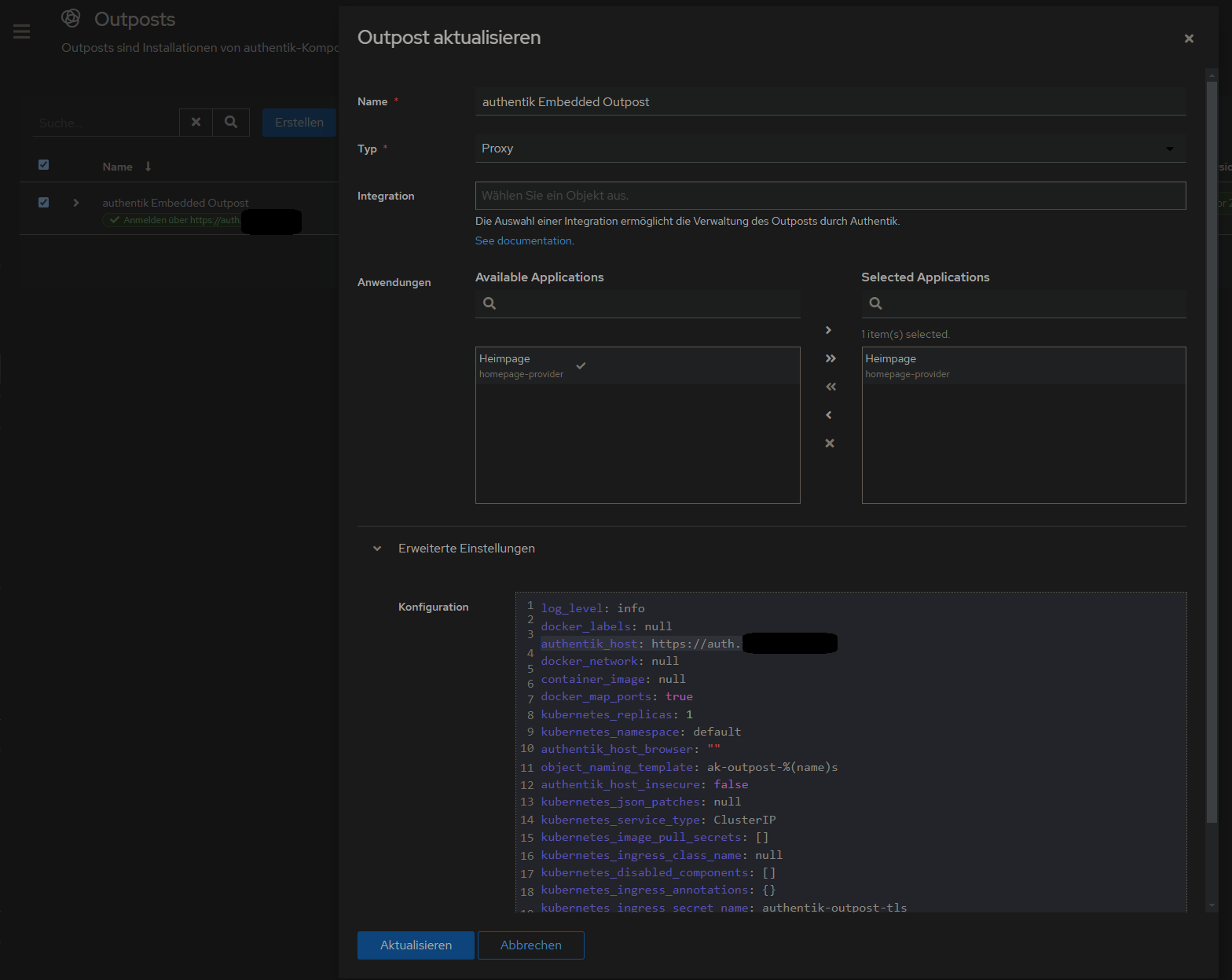
2. Proxy Provider erstellen
Applications > Provider > new Proxy Provider > Forward Auth (single application) > externer host eingeben
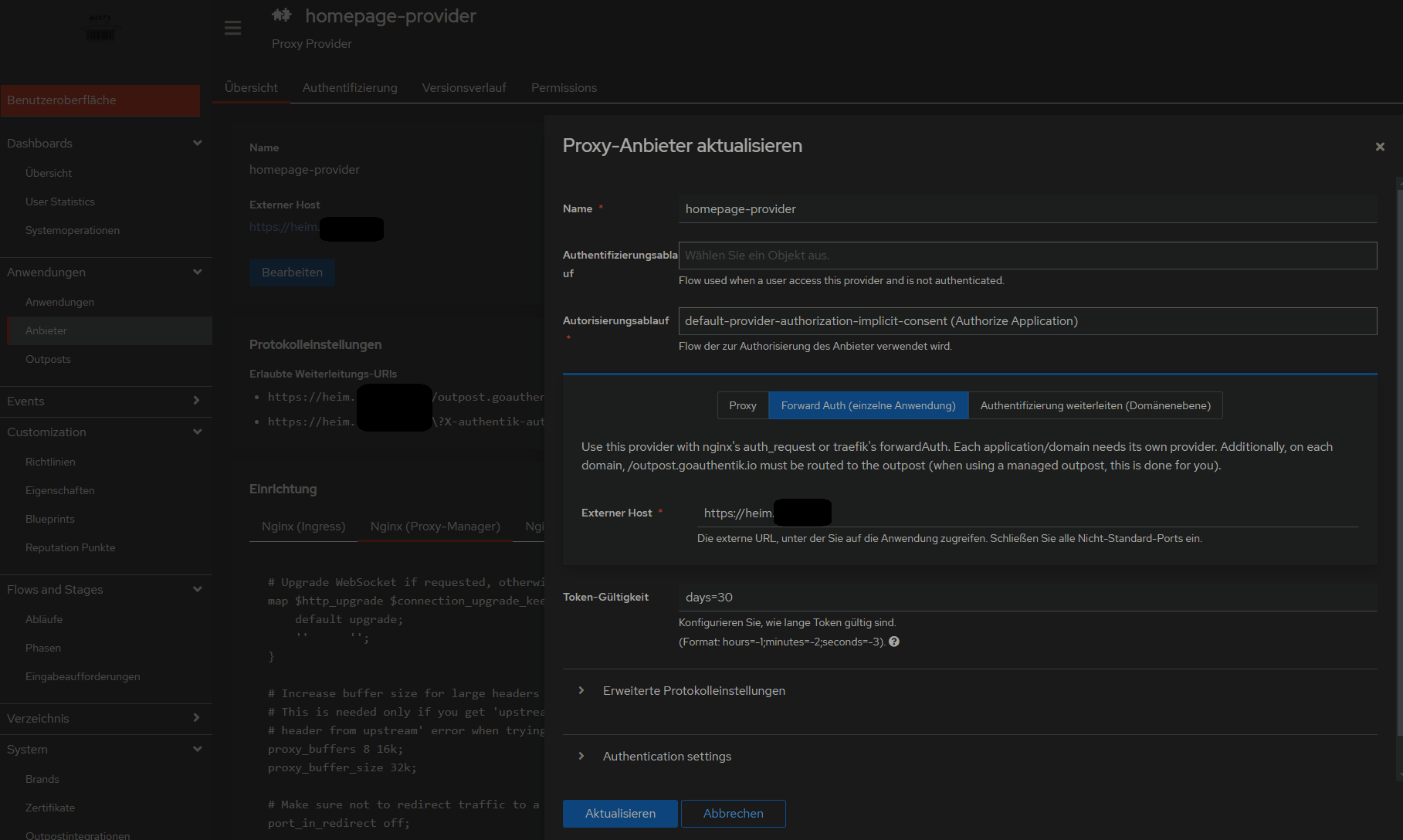
3. Anwendung mit dem erstellten Provider erstellen
...
danach weiter wie beim 500 Internal Server Error vorgehen, also NPM mit custom configuration und alle Container in gleiches Docker-Network legen:
500 Internal Server Error
Lösung auf github gepostet: https://github.com/vineethmn/geekscomments/issues/1#issuecomment-2436487499
#### TLDR:
- add NPM and Authentik to the same docker network
- use the Authentik server dockercontainer INTERNAL Port in NPM > advanced > custom config and not the one you exposed (when you chose to use for example 9006:9000 in your docker-compose.yml then redirect to 9000 anyway. I dont know why 9006 is not working)
#### LDR:
First I added the NPM and Authentik containers in the same docker network and added a hostname in my
authentik docker-compose.yml
...
server:
image: ${AUTHENTIK_IMAGE:-ghcr.io/goauthentik/server}:${AUTHENTIK_TAG:-2024.6.0}
hostname: authentik_server
ports:
- 9006:9000
- 9446:9443
networks:
- reverseproxy_network
volumes:
...
postgresql:
image: docker.io/library/postgres:16-alpine
networks:
- reverseproxy_network
volumes:
...
networks:
reverseproxy_network:
name: reverseproxy_network
driver: bridgeand
npm docker-compose.yml
services:
app:
image: 'jc21/nginx-proxy-manager:latest'
restart: always
ports:
- '80:80'
- '81:81'
- '443:443'
volumes:
- data:/data
- letsencrypt:/etc/letsencrypt
networks:
- reverseproxy_network
volumes:
data:
letsencrypt:
networks:
reverseproxy_network:
name: reverseproxy_network
driver: bridge
after that i used the NPM > Proxy Host > Advanced > Custom Nginx Configuration config by
https://geekscircuit.com/set-up-authentik-sso-with-nginx-proxy-manager
for my homepage proxy host:
(you only need to change proxy_pass if your authentik-server hostname does not match with mine 'hostname: authentik_server')
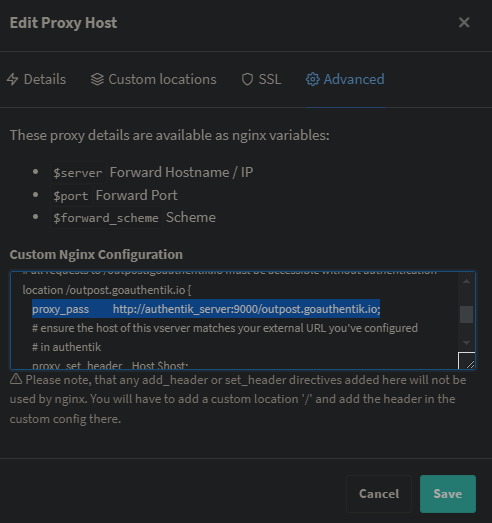
custom nginx configuration
# Increase buffer size for large headers
# This is needed only if you get 'upstream sent too big header while reading response
# header from upstream' error when trying to access an application protected by goauthentik
proxy_buffers 8 16k;
proxy_buffer_size 32k;
location / {
# Put your proxy_pass to your application here
proxy_pass $forward_scheme://$server:$port;
# authentik-specific config
auth_request /outpost.goauthentik.io/auth/nginx;
error_page 401 = @goauthentik_proxy_signin;
auth_request_set $auth_cookie $upstream_http_set_cookie;
add_header Set-Cookie $auth_cookie;
# translate headers from the outposts back to the actual upstream
auth_request_set $authentik_username $upstream_http_x_authentik_username;
auth_request_set $authentik_groups $upstream_http_x_authentik_groups;
auth_request_set $authentik_email $upstream_http_x_authentik_email;
auth_request_set $authentik_name $upstream_http_x_authentik_name;
auth_request_set $authentik_uid $upstream_http_x_authentik_uid;
proxy_set_header X-authentik-username $authentik_username;
proxy_set_header X-authentik-groups $authentik_groups;
proxy_set_header X-authentik-email $authentik_email;
proxy_set_header X-authentik-name $authentik_name;
proxy_set_header X-authentik-uid $authentik_uid;
}
# all requests to /outpost.goauthentik.io must be accessible without authentication
location /outpost.goauthentik.io {
proxy_pass http://authentik_server:9000/outpost.goauthentik.io; # <<<< CHANGE HERE <<<<
# ensure the host of this vserver matches your external URL you've configured
# in authentik
proxy_set_header Host $host;
proxy_set_header X-Original-URL $scheme://$http_host$request_uri;
add_header Set-Cookie $auth_cookie;
auth_request_set $auth_cookie $upstream_http_set_cookie;
# required for POST requests to work
proxy_pass_request_body off;
proxy_set_header Content-Length "";
}
# Special location for when the /auth endpoint returns a 401,
# redirect to the /start URL which initiates SSO
location @goauthentik_proxy_signin {
internal;
add_header Set-Cookie $auth_cookie;
return 302 /outpost.goauthentik.io/start?rd=$request_uri;
# For domain level, use the below error_page to redirect to your authentik server with the full redirect path
# return 302 https://authentik.company/outpost.goauthentik.io/start?rd=$scheme://$http_host$request_uri;
}
i also did not have to change anything on my authentik outpost:
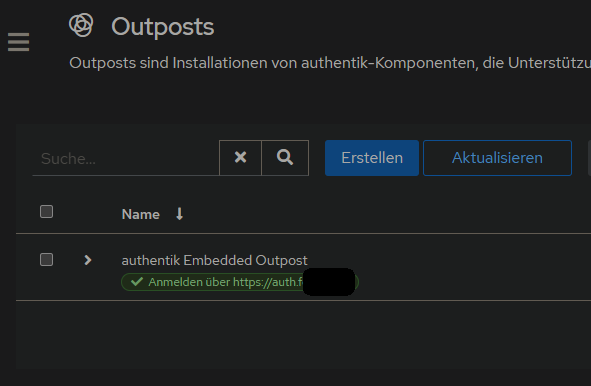
Andere mit dem gleichen Problem:
https://geekscircuit.com/set-up-authentik-sso-with-nginx-proxy-manager/
https://github.com/goauthentik/authentik/issues/10010
https://www.reddit.com/r/selfhosted/comments/vs12ug/sso_with_authentik_and_nginx_proxy_manager/?tl=de
https://www.youtube.com/watch?v=Nh1qiqCYDt4&list=PLH73rprBo7vSkDq-hAuXOoXx2es-1ExOP
Einladungen per Mail
User-Enrollment kann mit mit Flows aus dem Anhang dieses Artikels realisiert werden.
Quelle: https://www.youtube.com/watch?v=mGOTpRfulfQ
https://docs.goauthentik.io/docs/add-secure-apps/flows-stages/flow/examples/flows (Enrollment-2-Stage.yaml in Abläufe importieren)
Flows

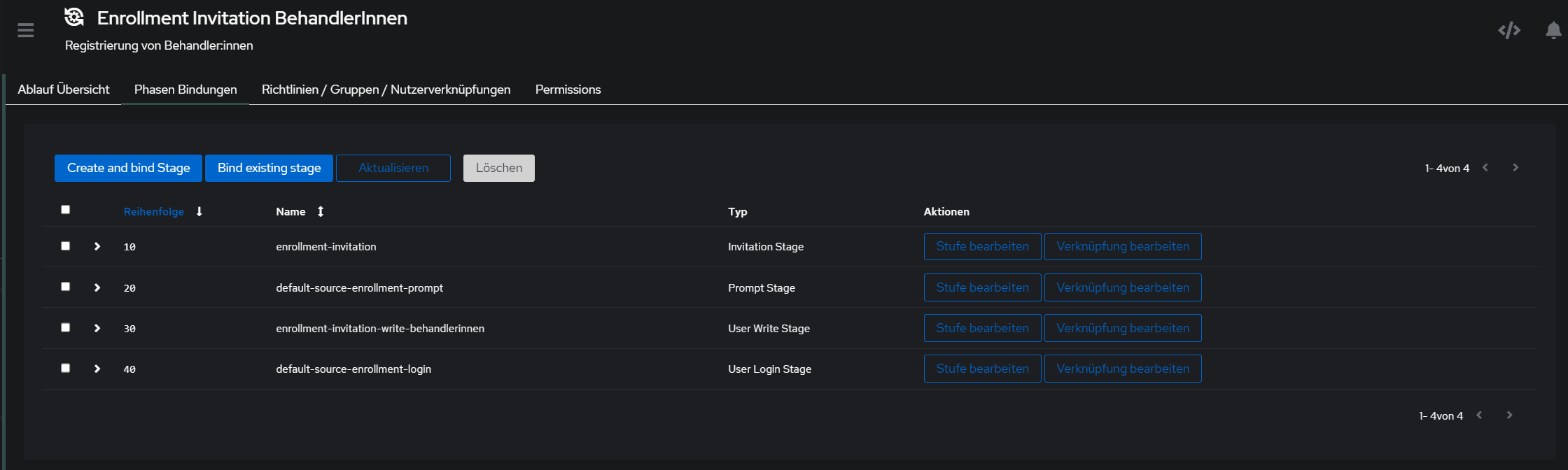
^ auf Reiehnfolge der Fields achten, damit username, Name, Email, Pw, pw nochmal richtig sortiert sind
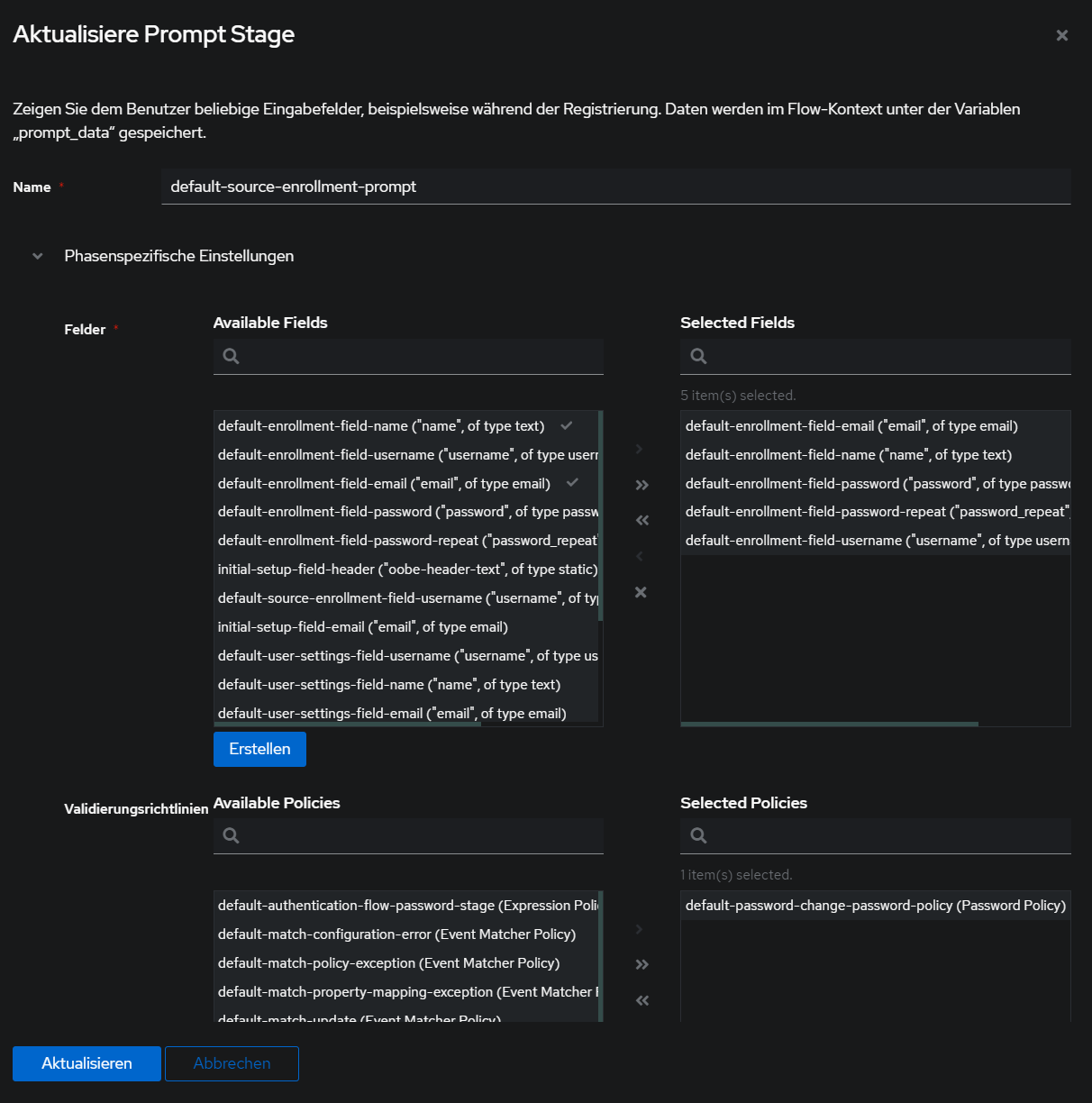
Phasen

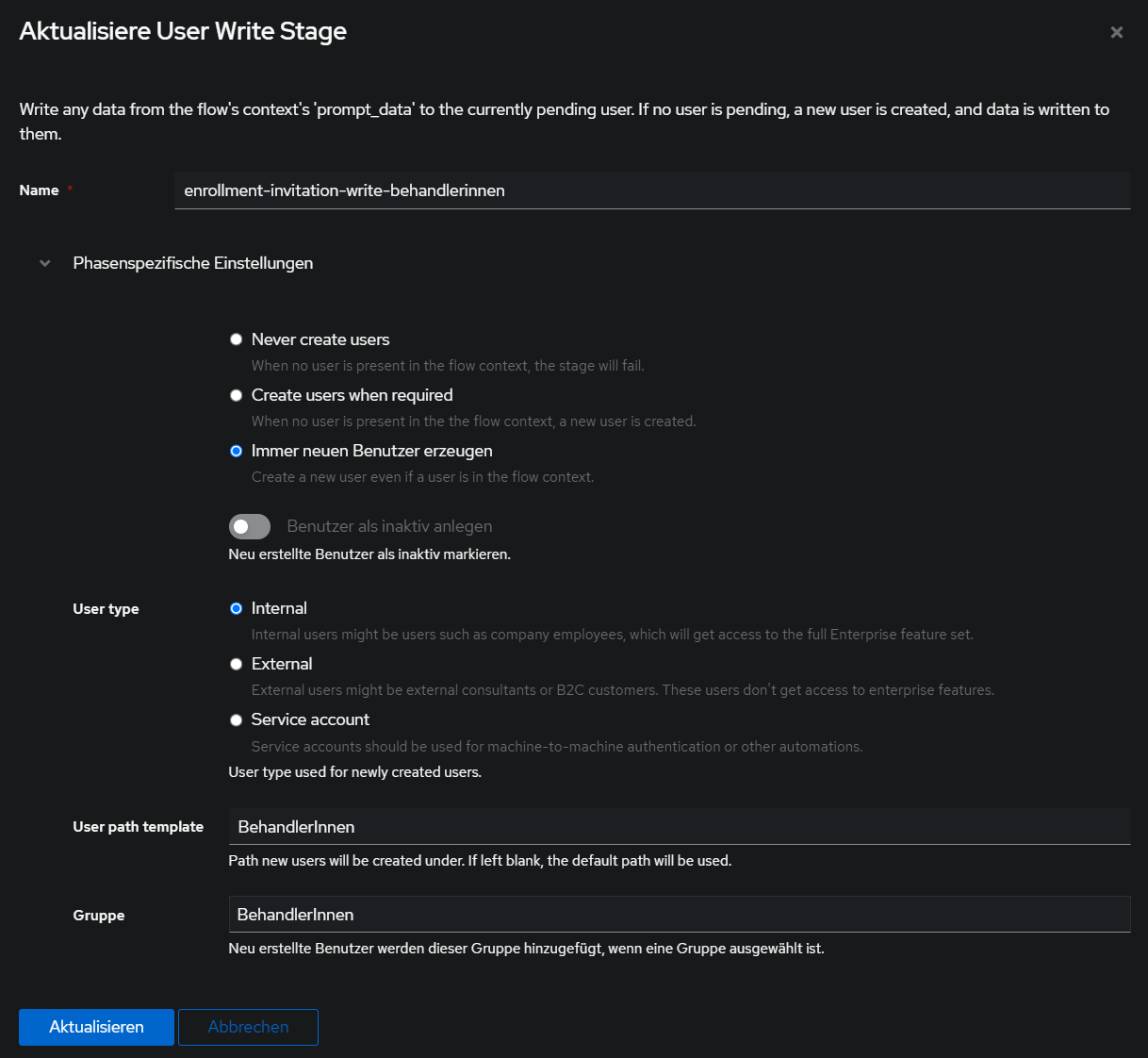
Danach auf Verzeichnis > Einladungen > Erstellen klicken und mit dem Flow einen Einladungslink erzeugen:
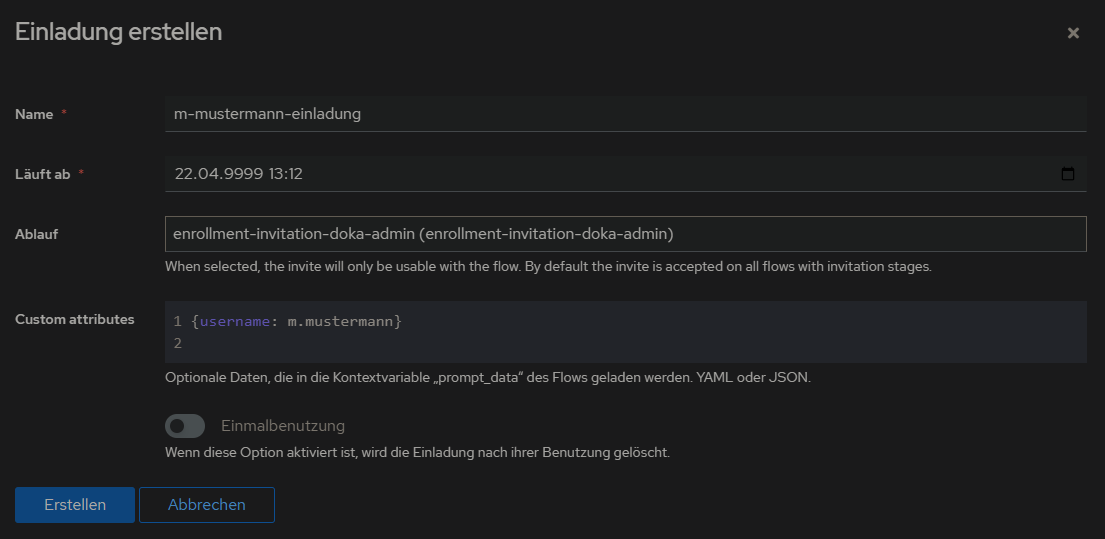
den Eintrag ausklappen, um den Link zu kopieren:

Netbird (VPN IT Infrastructure mit Wireguard und authentik)
Als Client am Beispiel mit Paperless-AI:
services:
paperless-ai:
image: clusterzx/paperless-ai:3.0.9
container_name: paperless-ai
#network_mode: host
depends_on:
- netbird
restart: unless-stopped
cap_drop:
- ALL
security_opt:
- no-new-privileges=true
environment:
- PUID=1000
- PGID=1000
- PAPERLESS_AI_PORT=${PAPERLESS_AI_PORT:-3000}
- RAG_SERVICE_URL=http://localhost:8000
- RAG_SERVICE_ENABLED=true
- PAPERLESS_URL=https://paperless-ai.MEINEDOMAIN.de
ports:
- "3057:${PAPERLESS_AI_PORT:-3000}"
volumes:
- data:/app/data
netbird:
image: netbirdio/netbird:latest
container_name: paperless-ai-netbird
hostname: fn-paperless-ai
privileged: true
#network_mode: host
cap_add:
- NET_ADMIN
- SYS_ADMIN
- SYS_RESOURCE
volumes:
#- /var/run/netbird:/var/run/netbird
- nb-var-lib:/var/lib/netbird
- nb-cfg:/etc/netbird
environment:
- NB_SETUP_KEY=FFE.........AA49
restart: unless-stopped
volumes:
data:
nb-cfg:
nb-var-lib:Falls netbird up nicht richtig connectet:
sudo systemctl stop netbird
sudo systemctl disable netbird
sudo rm -rf /usr/local/bin/netbird
sudo rm -rf /etc/netbird
sudo rm -rf /var/lib/netbird
sudo apt remove netbird -y
curl -fsSL https://pkgs.netbird.io/install.sh | sudo bash
sudo apt update
sudo apt install netbird -y
# netbird up --allow-server-ssh --enable-ssh-root --setup-key ABC-123-DEF-456ohne sudo
systemctl stop netbird
systemctl disable netbird
rm -rf /usr/local/bin/netbird
rm -rf /etc/netbird
rm -rf /var/lib/netbird
apt remove netbird -y
curl -fsSL https://pkgs.netbird.io/install.sh | bash
apt update
apt install netbird -y
# netbird up
# netbird up --allow-server-ssh --enable-ssh-root --setup-key ABC-123-DEF-456
Troubleshooting
Fremdes Subnetz nicht erreichbar
Falls eine IP-Adresse aus einem anderen Subnetz nicht erreichbar ist, kann es daran liegen, dass eine Docker-Bridge mit diesem Subnetz vorhanden ist.
Beispiel: Von einem Hetzner Server möchte ich das Subnetz 192.168.5.0/24 erreichen. Der Ping klappt nicht.
Debuggen mit
ip route get 192.168.5.55ergibt zb
root@fn-01:~# ip route get 192.168.5.55
192.168.5.55 dev br-ebe13ac6d23b src 192.168.0.1 uid 0 cache
weiteres debugging:
# Netbird Status
netbird status --detail
# Routing-Tabelle analysieren
ip route show
ip route get 192.168.5.55
# ergibt zb
# root@fn-01:~# ip route get 192.168.5.55
# 192.168.5.55 dev br-ebe13ac6d23b src 192.168.0.1 uid 0 cache
# ^^^^ DA IST DER FEHLER, die Docker-Netzwerk-Bridge br-ebe13ac6d23b sorgt für das Routing und schlägt damit fehl
# Netbird Interface prüfen
ip addr show wt0
sudo iptables -L -v -n | grep -A 10 wt0
# Netbird logs
sudo journalctl -u netbird -f
sudo systemctl status netbird
# Ping mit Details
ping -I wt0 192.168.5.55
traceroute 192.168.5.55
docker network lsergibt
root@fn-01:~# docker network ls
NETWORK ID NAME DRIVER SCOPE
396e4a7a02a8 backrest_default bridge local
9f3a5b5f9017 beszel_default bridge local
7ff0d869b3a9 bitwarden_default bridge local
944ac8eea6b1 bridge bridge local
8a7ecea723cd bs_default bridge local
56847cda68c7 heimdall_default bridge local
23c9d0945209 host host local
dc6107d2a414 nextcloud-aio bridge local
10cf7e670c62 nextcloud_default bridge local
4918f3559a98 nginx_lowqart_default bridge local
1e7aaa5ae6b2 none null local
6703ef3d8a62 ollama_default bridge local
15659627c007 paperless-ai_default bridge local
f02f912a0898 paperless_default bridge local
e29d199145fc reverseproxy_network bridge local
9e294e453ecb semaphore_default bridge local
f1dde6f30b1f shlink_default bridge local
c7750a87eef4 syncthing_default bridge local
f0e08f4a4c7c uptimekuma_default bridge local
c85d048db1b1 vikunja_default bridge local
57cd332f96b1 windmill_default bridge local
ebe13ac6d23b zerobyte_default bridge local
# ^^^ fehlerhafte bridgedocker network inspect ebe13ac6d23bergebnis: die docker network bridge nimmt 192.168.0.0/20 als subnet, was 192.168.5.0/24 inkludiert.
lösung für die Problem-Bridge:
docker-compose von zb zerobyte
...
- /var/lib/docker:/backup-var-lib
- /mnt/fn-volume-01:/backup-fn-volume-01
networks:
- zerobyte_network # <<< wichtig
volumes:
app:
networks:
zerobyte_network:
driver: bridge
ipam:
config:
- subnet: 172.69.19.0/24
gateway: 172.69.19.1danach wird die alte bridge mit 192.168.0.0/20 gelöscht und eine neue mit subnet 172.69.19.0/24 erstellt.
Dauerhafte lösung: siehe https://wiki.folkerts.it/books/docker/page/ip-kollidierung-bei-netbird-verhindern-192168x-und-101x
nano /etc/docker/daemon.json
{
"default-address-pools": [
{
"base": "172.16.0.0/12",
"size": 20
}
],
"data-root": "/mnt/fn-volume-01/docker-data",
"log-opts": {
"max-size": "100m",
"max-file": "5"
}
}sudo systemctl restart dockerNetbird Cloud auf Unifi-Gateway installieren
https://git.shivering-isles.com/-/snippets/22
install.sh
#!/bin/bash
set -e
if test $(ubnt-device-info firmware) \< "3.0.0"; then
echo "Try the other UDM setup script for 1.x: https://git.shivering-isles.com/-/snippets/19" >&2
exit 1
fi
mkdir -p /data/netbird
cd /data/netbird
if [[ -e ./netbird ]]; then
mv ./netbird ./netbird.old
fi
NETBIRD_VERSION="$(curl -s https://api.github.com/repos/netbirdio/netbird/releases/latest | jq -r ".tag_name")"
curl -L https://github.com/netbirdio/netbird/releases/download/${NETBIRD_VERSION}/netbird_${NETBIRD_VERSION//v}_linux_arm64.tar.gz | tar xvzf -
./netbird service install || true # ignore error since it'll fail if it's already installed
# Due to outdated kernels by unifi, this is required otherwise newer versions of netbird fail to start
mkdir -p /etc/systemd/system/netbird.service.d/
cat >/etc/systemd/system/netbird.service.d/legacy.conf <<EOF
[Service]
Environment="NB_USE_LEGACY_ROUTING=true"
Environment="NB_DISABLE_CUSTOM_ROUTING=true"
EOF
systemctl daemon-reload
if systemctl is-active netbird.service; then
systemctl restart netbird.service
fi
if ! systemctl is-enabled netbird.service; then
systemctl enable --now netbird.service
fi
danach
chmod +x install.sh
./install.sh
curl -fsSL https://pkgs.netbird.io/install.sh | sh
/data/netbird/netbird -k <setup key> upNetbird als Management-Server selbst hosten
Dieses Tutorial funktioniert noch nicht zu 100%. Ich bleibe immer bei netbird.domain.de/peers mit Ladeloop hängen
Links zum Problem:
https://github.com/netbirdio/netbird/issues/3110 Client failed to connect to Self-Hosted NetBird server: failed while getting Management Service public key
https://github.com/netbirdio/netbird/issues/3007 Stuck on loading screen on "/peers" (Authentik)
https://github.com/netbirdio/netbird/issues/3007#issuecomment-2764264829 < hat geholfen
https://github.com/netbirdio/netbird/issues/3007#issuecomment-2564843380 < nginx-pm cfg
https://github.com/netbirdio/netbird/issues/2941 Request failed with status code 401 (Authentik) < scope api access & redirects
https://github.com/netbirdio/netbird/issues/2515 Unable to authenticate with Authentik SSO
https://github.com/netbirdio/netbird/issues/2510 Netbird with NGiNX Proxy Manager and Authentik
https://github.com/netbirdio/netbird/issues/2338 Can't access dashboard - Token Invalid, Authentik
https://github.com/netbirdio/netbird/issues/2043 error: failed while getting Management Service public key
https://github.com/netbirdio/netbird/issues/2043#issuecomment-2384470230 < nginx-pm cfg
https://github.com/netbirdio/netbird/issues/1962 netbird dashboard does not open properly
https://github.com/netbirdio/netbird/issues/1742 NGINX reverse proxy question
https://github.com/netbirdio/netbird/issues/1250 Authentik login not working: Login Error: User state: Unauthenticated
https://github.com/netbirdio/netbird/issues/536 Run netbird behind reverse proxy
https://docs.netbird.io/selfhosted/selfhosted-guide#step-2-prepare-configuration-files
https://docs.netbird.io/selfhosted/identity-providers#authentik
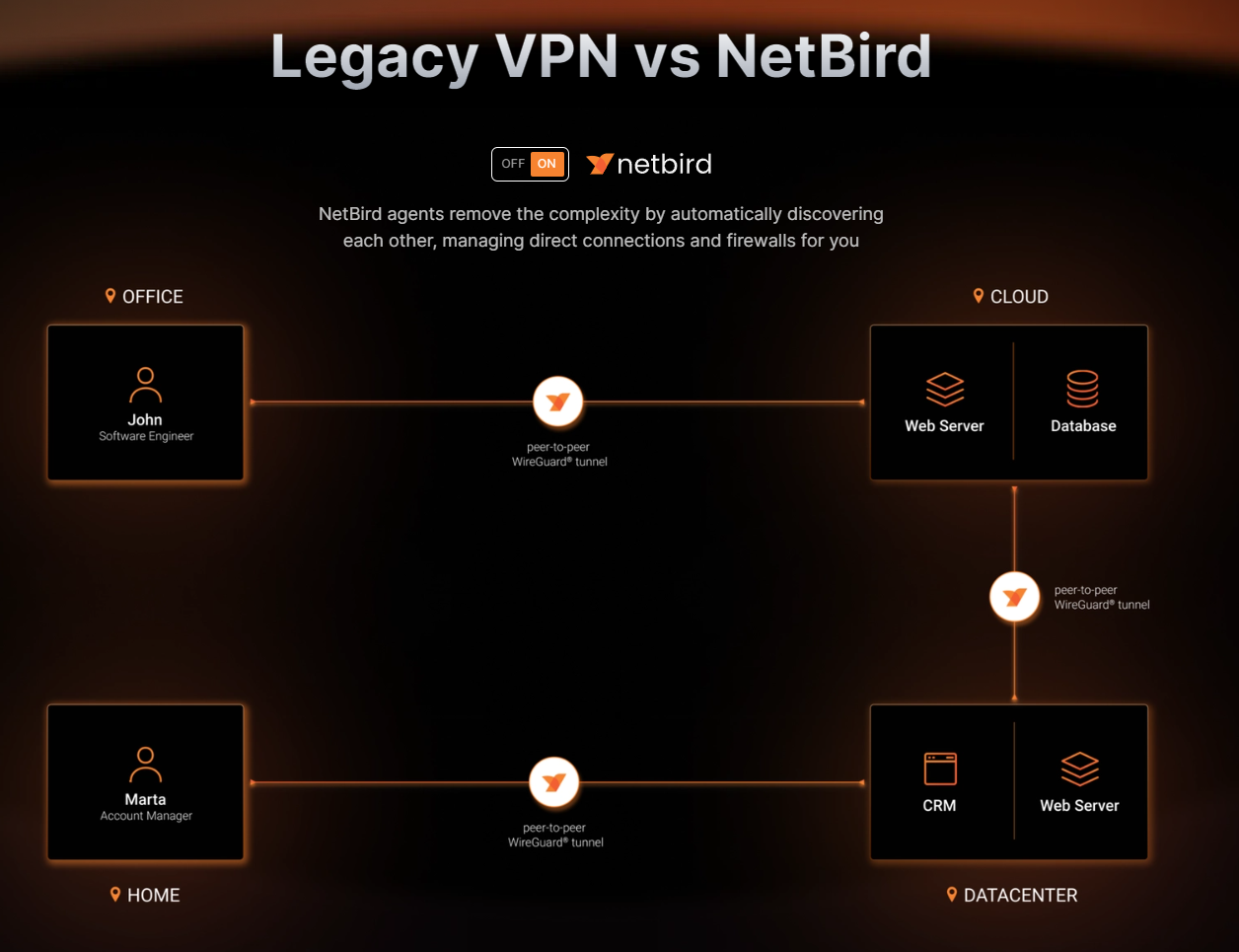
Folge dieser Anleitung: https://docs.netbird.io/selfhosted/selfhosted-guide
Es wird ein Skript zur Verfügung gestellt, mit dem man eine docker-compose.yml nach eigenen Wünschen aus template Dateien erzeugen kann.
Anleitung ganz genau lesen!
VIDEO DAZU: https://www.youtube.com/watch?v=QQaRB1vL6Q8
Vorschlag für NGINX Proxy Manager Advanced cfg aus gh issue https://github.com/netbirdio/netbird/issues/3110#issuecomment-2567362588
# This is necessary so that grpc connections do not get closed early
# see https://stackoverflow.com/a/67805465
client_header_timeout 1d;
client_body_timeout 1d;
proxy_set_header X-Real-IP $remote_addr;
proxy_set_header X-Forwarded-For $proxy_add_x_forwarded_for;
proxy_set_header X-Scheme $scheme;
proxy_set_header X-Forwarded-Proto https;
proxy_set_header X-Forwarded-Host $host;
grpc_set_header X-Forwarded-For $proxy_add_x_forwarded_for;
proxy_set_header Authorization $http_authorization;
grpc_set_header Authorization $http_authorization;
# Proxy dashboard
location / {
proxy_pass http://nb-dashboard:80;
}
# Proxy Signal
location /signalexchange.SignalExchange/ {
grpc_pass grpc://nb-signal:80;
grpc_set_header Authorization $http_authorization;
grpc_ssl_verify off;
grpc_read_timeout 1d;
grpc_send_timeout 1d;
grpc_socket_keepalive on;
}
# Proxy Management http endpoint
location /api {
proxy_pass http://nb-management:443;
}
# Proxy Management grpc endpoint
location /management.ManagementService/ {
grpc_pass grpc://nb-management:443;
grpc_set_header Authorization $http_authorization;
grpc_ssl_verify off;
grpc_read_timeout 1d;
grpc_send_timeout 1d;
grpc_socket_keepalive on;
}Collabora (Nextcloud Office)
services:
collabora:
image: collabora/code:24.04.9.2.1
container_name: collabora
environment:
- aliasgroup1=https://nextcloud.DOMAIN.de
- aliasgroup2=https://another.DOMAIN.de
- aliasgroup3=https://another.DOMAIN.de
#- server_name=collabora.DOMAIN.de
- username=MYUSERNAME
- password=MYPASSWORD
ports:
- '9980:9980'
restart: unless-stoppedReverse Proxy Einstellung NPM
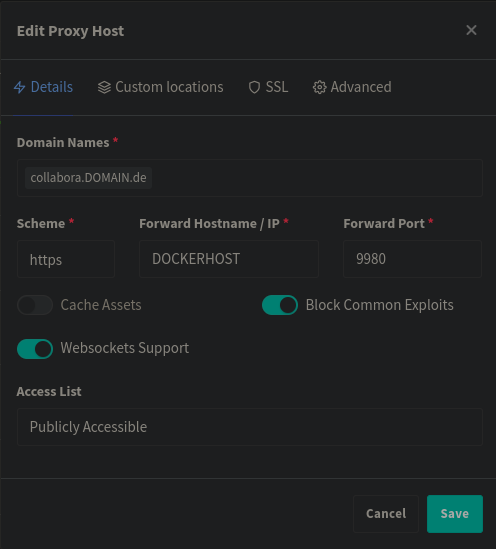
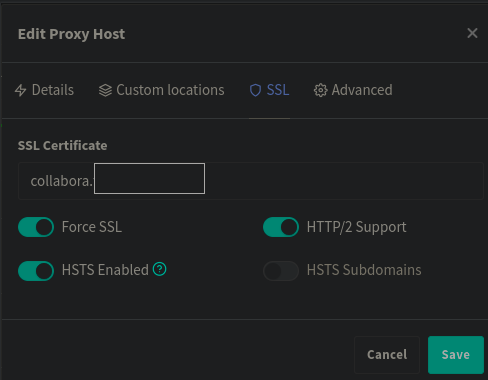
danach http://DOCKERHOST:9980/browser/dist/admin/admin.html
oder https://collabora.DOMAIN.de/browser/dist/admin/admin.html nach reverse-proxy aktivierung
dann in der Nextcloud als App "Nextcloud Office" installieren: https://apps.nextcloud.com/apps/richdocuments
und dann unter Profilbild > Administratoreinstellungen > Verwaltung (linke Sidebar) > Office (die Domain dafuer ist zb https://nextcloud.DOMAIN.de/settings/admin/richdocuments ) die Collabora-URL eingeben
Quellen:
https://goneuland.de/collabora-office-online-mit-docker-compose-und-traefik-installieren/
https://www.erikdonner.dev/2024/02/08/online-office-collabora-fuer-nextcloud-mit-docker/
Outline (Wiki, Confluence Alternative)
outline docker-compose.yaml
https://docs.getoutline.com/s/hosting/doc/docker-7pfeLP5a8t
version: "3.2"
services:
outline:
restart: unless-stopped
image: outlinewiki/outline:1.4.0
env_file: stack.env
ports:
- "3000:3000"
volumes:
- storage:/var/lib/outline/data
depends_on:
- postgres
- redis
redis:
restart: unless-stopped
image: redis
env_file: stack.env
ports:
- "6379:6379"
volumes:
- ./redis.conf:/redis.conf
command: ["redis-server", "/redis.conf"]
healthcheck:
test: ["CMD", "redis-cli", "ping"]
interval: 10s
timeout: 30s
retries: 3
postgres:
restart: unless-stopped
image: postgres:18
env_file: stack.env
ports:
- "5432:5432"
volumes:
- db:/var/lib/postgresql
healthcheck:
test: ["CMD", "pg_isready", "-d", "outline", "-U", "user"]
interval: 30s
timeout: 20s
retries: 3
environment:
POSTGRES_USER: 'user'
POSTGRES_PASSWORD: 'pass'
POSTGRES_DB: 'outline'
# https-portal:
# image: steveltn/https-portal
# env_file: stack.env
# ports:
# - '80:80'
# - '443:443'
# links:
# - outline
# restart: always
# volumes:
# - https-portal-data:/var/lib/https-portal
# healthcheck:
# test: ["CMD", "service", "nginx", "status"]
# interval: 30s
# timeout: 20s
# retries: 3
# environment:
# DOMAINS: 'docs.mycompany.com -> http://outline:3000'
# STAGE: 'production'
# WEBSOCKET: 'true'
# CLIENT_MAX_BODY_SIZE: '0'
volumes:
#https-portal-data:
storage:
db:stack.env (env-vars in portainer immer mit stack.env einbinden (siehe oben))
.env mit Authentik als OIDC
APP_NAME='MEIN WIKI'
NODE_ENV=production
SECRET_KEY=040..........65dba72 (openssl rand -hex 32 oder openssl rand 24 -base64)
UTILS_SECRET=7367ab...........e5e9ca (openssl rand -hex 32 oder openssl rand 24 -base64)
DATABASE_URL=postgres://pladmin:gi5ll.........tch@postgres:5432/outline #< PW AUS docker-compose.yml ÜBERNEHMEN!
PGSSLMODE=disable
POSTGRES_USER='pladmin'
POSTGRES_PASSWORD='gi.......tch'
POSTGRES_DB='outline'
REDIS_URL=redis://redis:6379
URL=https://wiki.MEINEDOMAIN.DE
PORT=3000
COLLABORATION_URL=
FILE_STORAGE=local
FILE_STORAGE_LOCAL_ROOT_DIR=/var/lib/outline/data
FILE_STORAGE_UPLOAD_MAX_SIZE=262144000
FORCE_HTTPS=true
ENABLE_UPDATES=true
WEB_CONCURRENCY=1
DEBUG=http
LOG_LEVEL=info
OIDC_CLIENT_ID=v7xa.......8L6T8
OIDC_CLIENT_SECRET=uSVUg...............................pVFVtuxYSJ7QPBNNN44S2LnLjMMxQxcZ8jjEj
OIDC_AUTH_URI=https://auth.MEINEDOMAIN.DE/application/o/authorize/
OIDC_TOKEN_URI=https://auth.MEINEDOMAIN.DE/application/o/token/
OIDC_USERINFO_URI=https://auth.MEINEDOMAIN.DE/application/o/userinfo/
OIDC_LOGOUT_URI=https://auth.MEINEDOMAIN.DE/application/o/wiki/end-session/
OIDC_USERNAME_CLAIM=preferred_username
OIDC_DISPLAY_NAME=authentik
OIDC_SCOPES=openid profile email
DEFAULT_LANGUAGE=de_DE
SMTP_HOST=smtp.strato.de
SMTP_PORT=465
SMTP_USERNAME=info@MEINEDOMAIN.DE
SMTP_PASSWORD=MEIN........MAILPW
SMTP_FROM_EMAIL=info@MEINEDOMAIN.DE
SMTP_SECURE=trueGruppen zwischen Outline und Authentik synchronisieren
https://github.com/burritosoftware/Outline-Authentik-Connector
aktuell ist das Docker-Image nur für amd64 und nicht für ARM, man kann aber auch einfach n8n für die Automation anlegen, wenn man die webhooks von outline übernimmt
siehe github repo für Anleitung
outline-authentik-connector docker-compose.yml
name: outline-authentik-connector
services:
outline-authentik-connector:
image: burritosoftware/outline-authentik-connector:1.1
build:
context: .
dockerfile: Dockerfile
ports:
- 8430:80
env_file: "stack.env".env
AUTHENTIK_URL=https://auth.MEINEDOMAIN.DE
AUTHENTIK_TOKEN=8lnL6Ke7u.................t7vmVYvEPJoe
OUTLINE_URL=https://wiki.MEINEDOMAIN.DE
OUTLINE_TOKEN=ol_api_UWBWl..................cKtMLIopMebfTks7
OUTLINE_WEBHOOK_SECRET=ol_whs_kMP....................1y3ORBL6E2K
DEBUG=False
# Seit v1.1 werden Gruppen mit dieser var automatisch hinzugefügt, wenn sie in Outline fehlen:
AUTO_CREATE_GROUPS=TrueAnhang
sample.env für alle outline settings https://github.com/outline/outline/blob/main/.env.sample
NODE_ENV=production
# This URL should point to the fully qualified, publicly accessible, URL. If using a
# proxy this will be the proxy's URL.
URL=
# The port to expose the Outline server on, this should match what is configured
# in your docker-compose.yml
PORT=3000
# See [documentation](docs/SERVICES.md) on running a separate collaboration
# server, for normal operation this does not need to be set.
COLLABORATION_URL=
# If using a Cloudfront/Cloudflare distribution or similar it can be set below.
# This will cause paths to javascript, stylesheets, and images to be updated to
# the hostname defined in CDN_URL. In your CDN configuration the origin server
# should be set to the same as URL.
CDN_URL=
# How many processes should be spawned. As a reasonable rule divide your servers
# available memory by 512 for a rough estimate
WEB_CONCURRENCY=1
# Generate a hex-encoded 32-byte random key. Use `openssl rand -hex 32` in your
# terminal to generate a random value.
SECRET_KEY=generate_a_new_key
# Generate a unique random key. The format is not important but you could still use
# `openssl rand -hex 32` in your terminal to generate a random value.
UTILS_SECRET=generate_a_new_key
# The default interface language. See translate.getoutline.com for a list of
# available language codes and their rough percentage translated.
DEFAULT_LANGUAGE=en_US
# ––––––––––––––––––––––––––––––––––––––
# ––––––––––––– DATABASE –––––––––––––
# ––––––––––––––––––––––––––––––––––––––
# The database URL for your production database, including username, password, and database name.
DATABASE_URL=postgres://user:pass@postgres:5432/outline
# The in-memory database pool per-process settings. Ensure that the pool size that will not exceed
# the maximum number of connections allowed by your database. Defaults to 0 and 5.
DATABASE_CONNECTION_POOL_MIN=
DATABASE_CONNECTION_POOL_MAX=
# Uncomment this line if you will not use SSL for connecting to Postgres. This is acceptable
# if the database and the application are on the same machine.
# PGSSLMODE=disable
# ––––––––––––––––––––––––––––––––––––––
# –––––––––––––– REDIS –––––––––––––––
# ––––––––––––––––––––––––––––––––––––––
# The Redis URL for your environment you can either specify an ioredis compatible url or a Base64
# encoded configuration object.
# DOCS: https://docs.getoutline.com/s/hosting/doc/redis-LGM4BFXYp4
REDIS_URL=redis://redis:6379
# To enable horizontal scaling of the collaboration service you must provide a Redis URL, it may
# be the same as above, or a different server.
# DOCS: https://docs.getoutline.com/s/hosting/doc/horizontal-scaling-hkfU5Stao7
REDIS_COLLABORATION_URL=
# ––––––––––––––––––––––––––––––––––––––
# ––––––––––– FILE STORAGE –––––––––––
# ––––––––––––––––––––––––––––––––––––––
# Specify what storage system to use. Possible value is one of "s3" or "local".
# For "local" images and document attachments will be saved on local disk, for "s3" they
# will be stored in an S3-compatible network store.
# DOCS: https://docs.getoutline.com/s/hosting/doc/file-storage-N4M0T6Ypu7
FILE_STORAGE=local
# If "local" is configured for FILE_STORAGE above, then this sets the parent directory under
# which all attachments/images are stored. Make sure that the process has permissions to
# create this path and also to write files to it.
FILE_STORAGE_LOCAL_ROOT_DIR=/var/lib/outline/data
# Maximum allowed size for the uploaded attachment.
FILE_STORAGE_UPLOAD_MAX_SIZE=262144000
# Override the maximum size of document imports, generally this should be lower
# than the document attachment maximum size.
FILE_STORAGE_IMPORT_MAX_SIZE=
# Override the maximum size of workspace imports, these can be especially large
# and the files are temporary being automatically deleted after a period of time.
FILE_STORAGE_WORKSPACE_IMPORT_MAX_SIZE=
# To support uploading of images for avatars and document attachments in a distributed
# architecture, an s3-compatible storage can be configured if FILE_STORAGE=s3 above.
AWS_ACCESS_KEY_ID=get_a_key_from_aws
AWS_SECRET_ACCESS_KEY=get_the_secret_of_above_key
AWS_REGION=xx-xxxx-x
AWS_S3_ACCELERATE_URL=
AWS_S3_UPLOAD_BUCKET_URL=http://s3:4569
AWS_S3_UPLOAD_BUCKET_NAME=bucket_name_here
AWS_S3_FORCE_PATH_STYLE=true
AWS_S3_ACL=private
# ––––––––––––––––––––––––––––––––––––––
# –––––––––––––––– SSL –––––––––––––––
# ––––––––––––––––––––––––––––––––––––––
# Base64 encoded private key and certificate for HTTPS termination. This is one
# of three ways to configure SSL and can be left empty.
# DOCS: https://docs.getoutline.com/s/hosting/doc/ssl-pzk7WO8d1n
SSL_KEY=
SSL_CERT=
# Auto-redirect to https in production. The default is true but you may set to
# false if you can be sure that SSL is terminated at an external loadbalancer.
FORCE_HTTPS=true
# ––––––––––––––––––––––––––––––––––––––
# –––––––––– AUTHENTICATION ––––––––––
# ––––––––––––––––––––––––––––––––––––––
# Third party signin credentials, at least ONE OF EITHER Google, Slack,
# Discord, or Microsoft is required for a working installation or you'll
# have no sign-in options.
# Slack sign-in provider
# DOCS: https://docs.getoutline.com/s/hosting/doc/slack-sgMujR8J9J
SLACK_CLIENT_ID=get_a_key_from_slack
SLACK_CLIENT_SECRET=get_the_secret_of_above_key
# Google sign-in provider
# DOCS: https://docs.getoutline.com/s/hosting/doc/google-hOuvtCmTqQ
GOOGLE_CLIENT_ID=
GOOGLE_CLIENT_SECRET=
# Microsoft Entra / Azure AD sign-in provider
# DOCS: https://docs.getoutline.com/s/hosting/doc/microsoft-entra-UVz6jsIOcv
AZURE_CLIENT_ID=
AZURE_CLIENT_SECRET=
AZURE_RESOURCE_APP_ID=
# Discord sign-in provider
# DOCS: https://docs.getoutline.com/s/hosting/doc/discord-g4JdWFFub6
DISCORD_CLIENT_ID=
DISCORD_CLIENT_SECRET=
DISCORD_SERVER_ID=
DISCORD_SERVER_ROLES=
# Generic OIDC provider
# DOCS: https://docs.getoutline.com/s/hosting/doc/oidc-8CPBm6uC0I
OIDC_CLIENT_ID=
OIDC_CLIENT_SECRET=
OIDC_AUTH_URI=
OIDC_TOKEN_URI=
OIDC_USERINFO_URI=
OIDC_LOGOUT_URI=
# Specify which claims to derive user information from
# Supports any valid JSON path with the JWT payload
OIDC_USERNAME_CLAIM=preferred_username
# Display name for OIDC authentication
OIDC_DISPLAY_NAME=OpenID Connect
# Space separated auth scopes.
OIDC_SCOPES=openid profile email
# ––––––––––––––––––––––––––––––––––––––
# –––––––––––––– EMAIL –––––––––––––––
# ––––––––––––––––––––––––––––––––––––––
# To support sending outgoing transactional emails such as "document updated" or
# email sign-in you'll need to connect an SMTP server. Service can be configured
# with any service from this list: https://community.nodemailer.com/2-0-0-beta/setup-smtp/well-known-services/
# DOCS: https://docs.getoutline.com/s/hosting/doc/smtp-cqCJyZGMIB
SMTP_SERVICE=
SMTP_USERNAME=
SMTP_PASSWORD=
SMTP_FROM_EMAIL=
# ––––––––––––––––––––––––––––––––––––––
# –––––––––– RATE LIMITER ––––––––––––
# ––––––––––––––––––––––––––––––––––––––
# Whether the rate limiter is enabled or not
RATE_LIMITER_ENABLED=true
# Individual endpoints have hardcoded rate limits that are enabled
# with the above setting, however this is a global rate limiter
# across all requests
RATE_LIMITER_REQUESTS=1000
RATE_LIMITER_DURATION_WINDOW=60
# ––––––––––––––––––––––––––––––––––––––
# ––––––––––– INTEGRATIONS –––––––––––
# ––––––––––––––––––––––––––––––––––––––
# GitHub integration allows previewing issue and pull request links
# DOCS: https://docs.getoutline.com/s/hosting/doc/github-GchT3NNxI9
GITHUB_CLIENT_ID=
GITHUB_CLIENT_SECRET=
GITHUB_WEBHOOK_SECRET=
GITHUB_APP_NAME=
GITHUB_APP_ID=
GITHUB_APP_PRIVATE_KEY=
# Linear integration allows previewing issue links as rich mentions
LINEAR_CLIENT_ID=
LINEAR_CLIENT_SECRET=
# For a complete Slack integration with search and posting to channels the
# following configs are also needed in addition to Slack authentication:
# DOCS: https://docs.getoutline.com/s/hosting/doc/slack-G2mc8DOJHk
SLACK_VERIFICATION_TOKEN=your_token
SLACK_APP_ID=A0XXXXXXX
SLACK_MESSAGE_ACTIONS=true
# Figma integration allows previewing design files as rich mentions
FIGMA_CLIENT_ID=
FIGMA_CLIENT_SECRET=
# For Dropbox integration, follow these instructions to get the key https://www.dropbox.com/developers/embedder#setup
# and do not forget to whitelist your domain name in the app settings
DROPBOX_APP_KEY=
# Optionally enable Sentry (sentry.io) to track errors and performance,
# DOCS: https://docs.getoutline.com/s/hosting/doc/sentry-jxcFttcDl5
SENTRY_DSN=
SENTRY_TUNNEL=
# Enable importing pages from a Notion workspace
# DOCS: https://docs.getoutline.com/s/hosting/doc/notion-2v6g7WY3l3
NOTION_CLIENT_ID=
NOTION_CLIENT_SECRET=
# The Iframely integration allows previews of third-party content within Outline.
# For example, hovering over an external link will show a preview.
# DOCS: https://docs.getoutline.com/s/hosting/doc/iframely-HwLF1EZ9mo
IFRAMELY_URL=
IFRAMELY_API_KEY=
# ––––––––––––––––––––––––––––––––––––––
# ––––––––––––– DEBUGGING ––––––––––––
# ––––––––––––––––––––––––––––––––––––––
# Have the installation check for updates by sending anonymized statistics to
# the maintainers
ENABLE_UPDATES=true
# Debugging categories to enable – you can remove the default "http" value if
# your proxy already logs incoming http requests and this ends up being duplicative
DEBUG=http
# Configure lowest severity level for server logs. Should be one of
# error, warn, info, http, verbose, debug, or silly
LOG_LEVEL=infoVikunja
docker-compose.yml
version: '3'
services:
vikunja:
image: vikunja/vikunja:0.24.6
environment:
VIKUNJA_SERVICE_PUBLICURL: https://vikunja.MEINEDOMAIN.DE
VIKUNJA_DATABASE_HOST: db
VIKUNJA_DATABASE_PASSWORD: MEINDB-PW-123 (gleiches wie unten)
VIKUNJA_DATABASE_TYPE: postgres
VIKUNJA_DATABASE_USER: vikunja
VIKUNJA_DATABASE_DATABASE: vikunja
VIKUNJA_SERVICE_JWTSECRET: GCP.........bjd ("openssl rand 32 -base64" in shell eingeben)
#EMAIL-Settings
#VIKUNJA_MAILER_AUTHTYPE: plain
#VIKUNJA_MAILER_SKIPTLSVERIFY: 1
#VIKUNJA_MAILER_FORCESSL: 1
VIKUNJA_SERVICE_ENABLEEMAILREMINDERS: 1
VIKUNJA_MAILER_ENABLED: 1
VIKUNJA_MAILER_HOST: smtp.MAILSERVER.DE
VIKUNJA_MAILER_PORT: 587
VIKUNJA_MAILER_USERNAME: USER@DOMAIN.DE
VIKUNJA_MAILER_PASSWORD: MEINMAILPW123
VIKUNJA_MAILER_FROMEMAIL: USER@DOMAIN.DE
#Allow New User Registration (Für ersten User auf true setzen, User anlegen und danach wieder auf false)
VIKUNJA_SERVICE_ENABLEREGISTRATION: true
#JWT Token Expiration in Seconds (2592000 = 30 days, default is 3 days = 259200)
VIKUNJA_SERVICE_JWTTTL: 2592000
#Defaultsettings https://vikunja.io/docs/config-options/
VIKUNJA_DEFAULTSETTINGS_EMAIL_REMINDERS_ENABLED: true
VIKUNJA_DEFAULTSETTINGS_DISCOVERABLE_BY_NAME: true
VIKUNJA_DEFAULTSETTINGS_DISCOVERABLE_BY_EMAIL: true
VIKUNJA_DEFAULTSETTINGS_OVERDUE_TASKS_REMINDERS_ENABLED: true
VIKUNJA_DEFAULTSETTINGS_WEEK_START: 1 #0=Sunday, 1=Monday, etc...
VIKUNJA_DEFAULTSETTINGS_LANGUAGE: de-DE
#Trello import
VIKUNJA_MIGRATION_TRELLO_ENABLE: true
VIKUNJA_MIGRATION_TRELLO_KEY: xxx
#Prometheus Metrics (.../api/v1/metrics)
VIKUNJA_METRICS_ENABLED: true
#OIDC Usersearch
VIKUNJA_SERVICE_ENABLEOPENIDTEAMUSERSEARCH: true
#Weiteres
VIKUNJA_SERVICE_CUSTOMLOGOURL: https://auth.MEINEAUTHENTIKDOMAIN.de/media/public/pr...ng/PL-Logo.png
ports:
- 3456:3456
volumes:
- app:/app/vikunja/files
- config:/etc/vikunja/
depends_on:
db:
condition: service_healthy
restart: unless-stopped
db:
image: postgres:16
environment:
POSTGRES_PASSWORD: MEINDB-PW-123 (gleiches wie oben)
POSTGRES_USER: vikunja
volumes:
- db:/var/lib/postgresql/data
restart: unless-stopped
healthcheck:
test: ["CMD-SHELL", "pg_isready -h localhost -U $$POSTGRES_USER"]
interval: 2s
volumes:
app:
db:
config:Schreibrechte für files erteilen
(default ist root user mit uid 1000 für den container)
Für Schreibrechte muss man noch den root user 1000 für das App-Volume berechtigen:
chown 1000 $PWD/fileszb in ranger mit Shortcut s um ein Shell-cmd einzugeben:
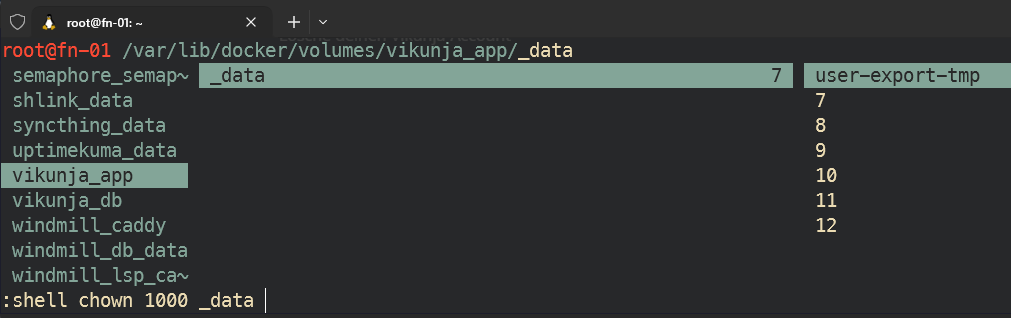
sieht danach so aus:
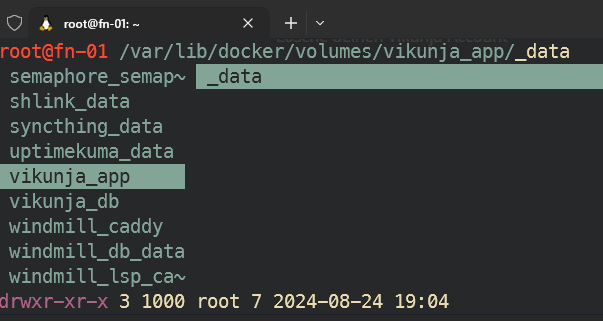
Account anlegen
dann die subdomain anlegen, Reverserproxy konfigurieren und domain aufrufen:
auf 'Account erstellen' und ersten bzw weitere Accounts erstellen.
Danach im Stack die env
VIKUNJA_SERVICE_ENABLEREGISTRATION=falsesetzen, um weitere Anmeldungen zu verhindern.
Authentik verknüpfen
OBACHT: Mit dem aktuellsten unstable Release ändert sich die OIDC Syntax in der config.yml von Vikunja. Die alte Version für Vikunja 0.24.6 findest du weiter unten!
für die config.yml, das volume config: verwenden und dort eine config.yml anlegen:
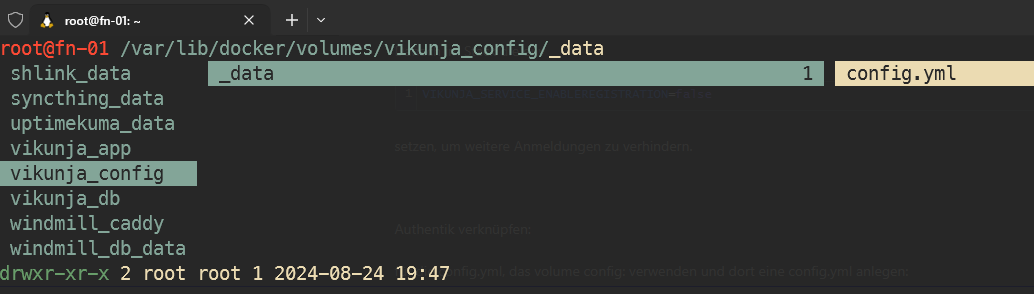
mit dem inhalt:
ACHTUNG! SYNTAX IST FÜR NEUE UNSTABLE VERSION NACH 0.24.6! ALTE CONFIG WEITER UNTEN
# neue Syntax für unstable release nach 0.24.6
# https://vikunja.io/docs/openid/#step-2-configure-vikunja
auth:
local:
enabled: false
openid:
enabled: true
redirecturl: https://vikunja.MEINEDOMAIN.DE/auth/openid/ #SLASH AM ENDE IST WICHTIG
providers:
AUTHENTIK:
name: "Authentik"
authurl: https://auth.MEINEDOMAIN.DE/application/o/vikunja/ #SLASH AM ENDE IST WICHTIG
clientid: Bes........Hzg
clientsecret: giQY...................A1b6XW
scope: openid profile email vikunja_scope
forceuserinfo: false # Optional: Set to true to always use UserInfo endpoint instead of ID token claims, defaults to falseALTE SYNTAX zB FÜR VERSION 0.24.6:
auth:
# Local authentication will let users log in and register (if enabled) through the db.
# This is the default auth mechanism and does not require any additional configuration.
local:
# Enable or disable local authentication
enabled: true
# OpenID configuration will allow users to authenticate through a third-party OpenID Connect compatible provider.<br/>
# The provider needs to support the `openid`, `profile` and `email` scopes.<br/>
# **Note:** Some openid providers (like gitlab) only make the email of the user available through openid claims if they have set it to be publicly vis> # If the email > # **Note 2:** The frontend expects to be redirected after authentication by the third party
# to <frontend-url>/auth/openid/<auth key>. Please make sure to configure the redirect url with your third party
# auth service accordingly if you're using the default Vikunja frontend.
# Take a look at the [default config file](https://github.com/go-vikunja/api/blob/main/config.yml.sample) for more information about how to configure > openid:
openid:
# Enable or disable OpenID Connect authentication
enabled: true
# A list of enabled providers
providers:
# The name of the provider as it will appear in the frontend.
- name: "authentik Login"
# The auth url to send users to if they want to authenticate using OpenID Connect.
authurl: https://auth.MEINEDOMAIN.DE/application/o/vikunja/
# The client ID used to authenticate Vikunja at the OpenID Connect provider.
clientid: x8GYDQBG8..........WPiN0n
# The client secret used to authenticate Vikunja at the OpenID Connect provider.
clientsecret: vdciH0h1L..........................................................dPHA9WBP6tGLD
# https://vikunja.io/docs/openid#setup-in-authentik
logouturl: https://auth.MEINEDOMAIN.DE/application/o/vikunja/end-session/"
scope: openid email profile vikunja_scopeweiteres unter
https://docs.goauthentik.io/integrations/services/vikunja/
und um teams / groups zu syncen:
https://vikunja.io/docs/openid#setup-in-authentik
easyVerein als IdP
Konfiguration bei easyVerein:
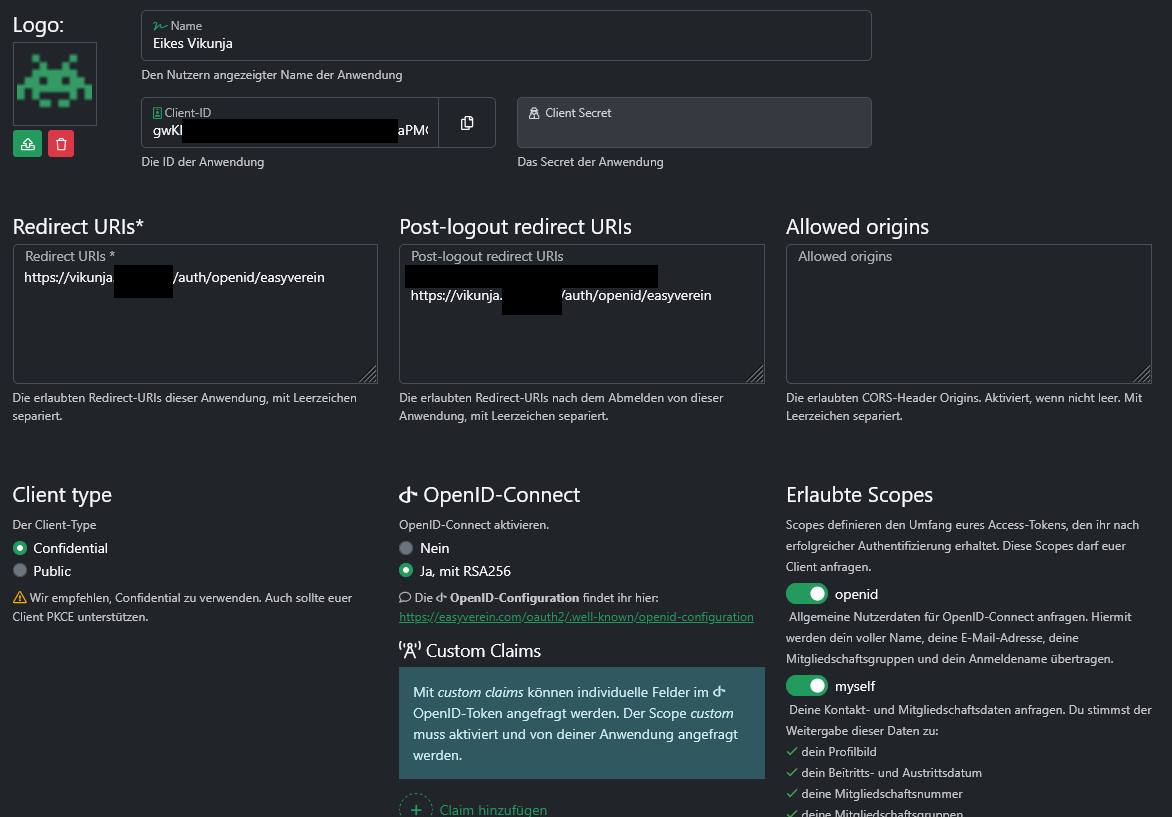
config.yml vom Vikunja Docker Volume config:
(NEUE SYNTAX!, siehe oben)
auth:
local:
enabled: false
openid:
enabled: true
redirecturl: https://vikunja.folkerts.it/auth/openid/
providers:
AUTHENTIK:
name: "Authentik"
authurl: https://auth.folkerts.it/application/o/vikunja/
clientid: Bes4h...fMRnMHzg
clientsecret: giQYk.....................QUvSVtXIWCw3polnJw
scope: openid profile email vikunja_scope
forceuserinfo: false # Optional: Set to true to always use UserInfo endpoint instead of ID token claims, defaul>
easyVerein:
name: "easyVerein"
# authurl: "https://easyverein.com/oauth2/authorize"
authurl: https://easyverein.com/oauth2
clientid: gwKKKZn7T......U7W4lt
clientsecret: Z6jug02E2t9WDzmXXoZ....................rfi5iiOo1T88KDYs
scope: openid myself custom
forceuserinfo: false
teamsclaim: groups # Der Claim-Name für Gruppen
teamcreateproperty: name # Property für Teamnamen
teamsyncenabled: true # Teams automatisch synchronisierenVikunja Teams aus Authentik übernehmen
https://vikunja.io/docs/openid#setup-in-authentik
in der config.yml (siehe oben) ist dafür bereits der scope vikunja_scope eingestellt. Der Custom Scope muss nun noch in Authentik angelegt werden:
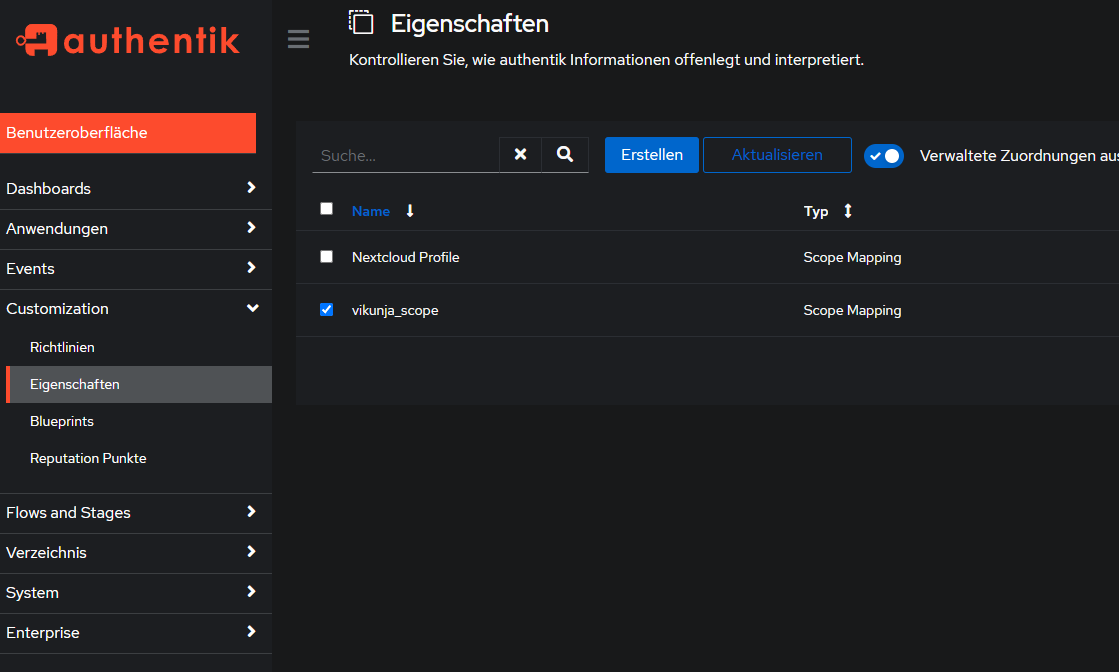
neuer scope unter Customization > Eigenschaften (Properties auf eng?) > Erstellen > Scope Mapping >
Name: vikunja_scope
Bereichsname: vikunja_scope (?)
Ausdruck:
groupsDict = {"vikunja_groups": []}
for group in request.user.ak_groups.all():
groupsDict["vikunja_groups"].append({"name": group.name, "oidcID": group.num_pk})
return groupsDict> Fertig
Danach unter Anwendungen > Anbieter (Provider auf eng.) > Vikunja > Erweiterte Protokolleinstellungen > email, openid, profile, vikunja_scope mit gedrückter STRG-Taste und Mausklick auswählen:
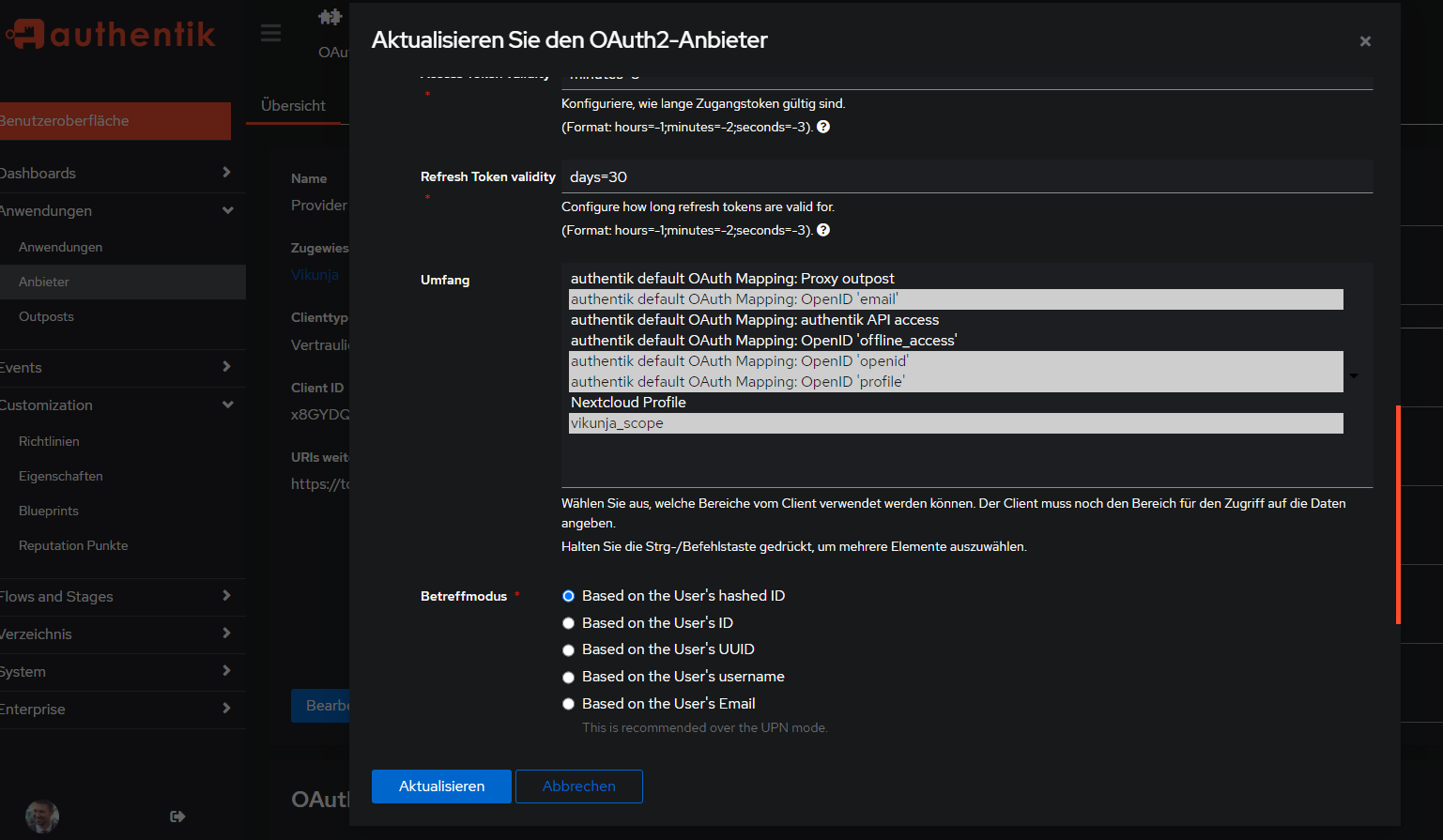
> Aktualisieren
Vikunja Container neustarten, nochmal aus- und einloggen mit Authentik bei Vikunja, dann sollten die Teams (Gruppen) aus Authentik übernommen worden sein:
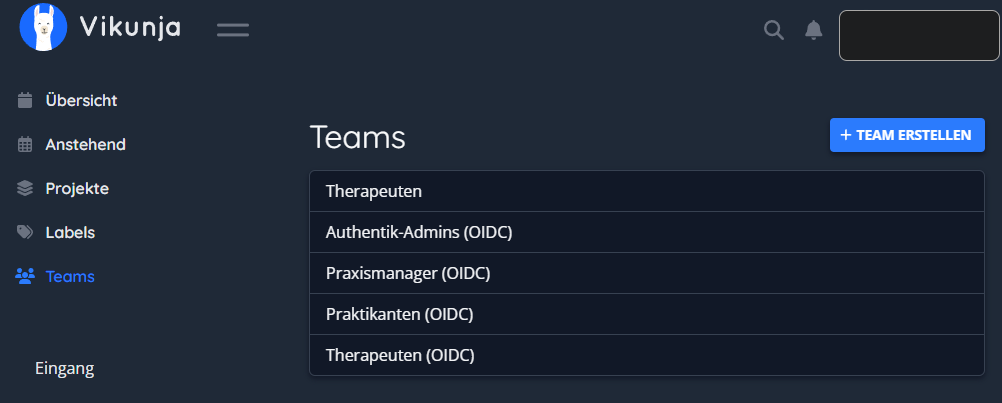
Jitsi Meet
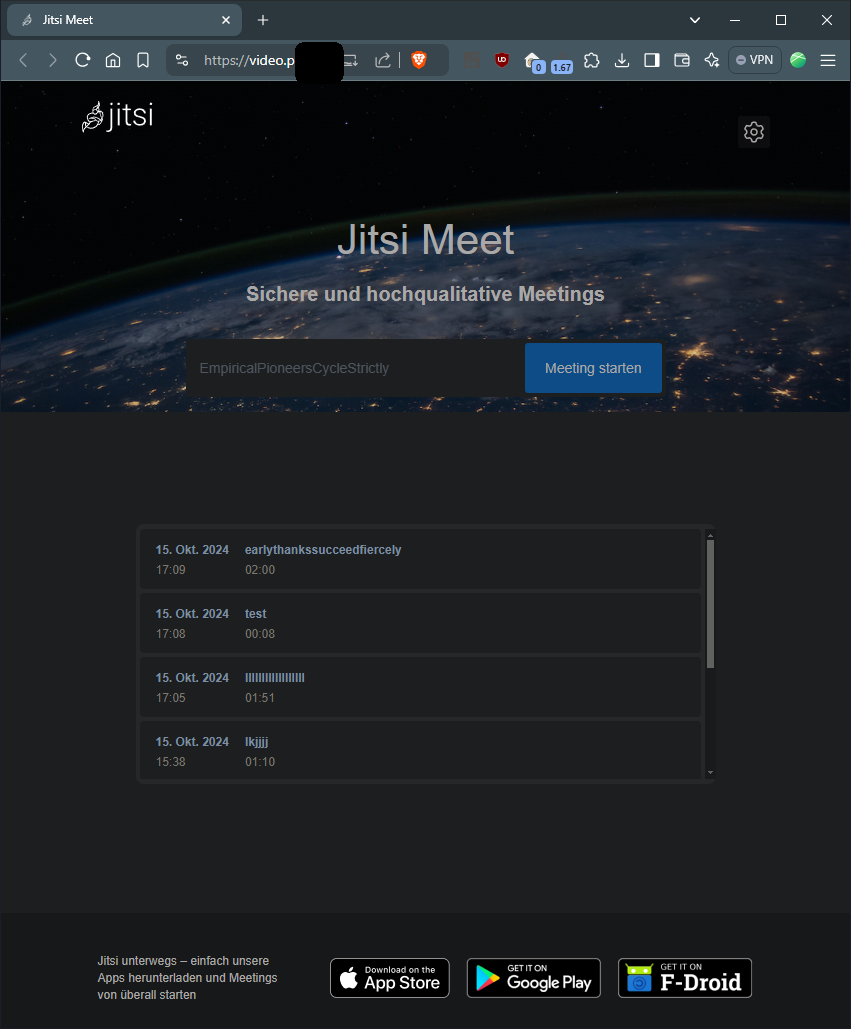
https://jitsi.support/wiki/install-jitsi-meet-docker/#step-2-download-jitsi-meet-docker-files
oder
https://jitsi.github.io/handbook/docs/devops-guide/devops-guide-docker
Installation
Jitsi Meet sollte nicht in Portainer installiert werden, weil ein Skript zur Passworderstellung benutzt und damit eine eigene .env erzeugt wird.
Git Repo Klonen
git clone https://github.com/jitsi/docker-jitsi-meet
cd docker-jitsi-meet.env kopieren
cp env.example .envPasswörter autogenerieren
./gen-passwords.shdocker-compose.yml anpassen
ein paar kleine Änderungen habe ich für die yml gemacht:
#......
web:
image: jitsi/web:${JITSI_IMAGE_VERSION:-unstable}
restart: ${RESTART_POLICY:-unless-stopped}
ports:
- '${HTTP_PORT}:80'
- '${HTTPS_PORT}:443'
volumes:
- ${CONFIG}/web:/config:Z
- ${CONFIG}/web/crontabs:/var/spool/cron/crontabs:Z
- ${CONFIG}/transcripts:/usr/share/jitsi-meet/transcripts:Z
- ${CONFIG}/web/load-test:/usr/share/jitsi-meet/load-test:Z
- ${CONFIG}/web/images:/usr/share/jitsi-meet/images:Z # um zb das watermark.svg zu ersetzen
labels:
#......
# XMPP server
prosody:
image: jitsi/prosody:${JITSI_IMAGE_VERSION:-stable-10008}
restart: ${RESTART_POLICY:-unless-stopped}
expose:
- '${XMPP_PORT:-5222}'
- '${PROSODY_S2S_PORT:-5269}'
- '5347'
- '${PROSODY_HTTP_PORT:-5280}'
ports:
- '5222:5222' # Ports weitergeleitet, damit eine zweite JVB auf Port 5222 zugreifen kann
- '5347:5347'
container_name: jitsi-prosody
labels:
#............env anpassen
# shellcheck disable=SC2034
################################################################################
################################################################################
# Welcome to the Jitsi Meet Docker setup!
#
# This sample .env file contains some basic options to get you started.
# The full options reference can be found here:
# https://jitsi.github.io/handbook/docs/devops-guide/devops-guide-docker
################################################################################
################################################################################
#
# Basic configuration options
#
# Directory where all configuration will be stored
#CONFIG=~/.jitsi-meet-cfg
CONFIG=/var/lib/docker/volumes/jitsimeet
# ^ wähle hier das Standardverzeichnis für deine Docker Volumes, ansonsten werden alle Volumes im Root-Nutzerverzeichnis des Servers (~/.jitsi-meet-cfg) erstellt (welches meistens bei Backups ignoriert wird).
#Falls ein Hetzner-Volume auf dem Server eingehängt ist, kann zb das als Config-Directory verwendet werden:
#CONFIG=/mnt/praxis-volume-01/docker-data/volumes/jitsimeet
# Exposed HTTP port (will redirect to HTTPS port)
HTTP_PORT=8043
# Exposed HTTPS port
HTTPS_PORT=8443
# System time zone
TZ=Europe/Berlin
# Public URL for the web service (required)
# Keep in mind that if you use a non-standard HTTPS port, it has to appear in the public URL
PUBLIC_URL=https://jitsi.MEINE-DOMAIN.de
# Media IP addresses to advertise by the JVB
# This setting deprecates DOCKER_HOST_ADDRESS, and supports a comma separated list of IPs
# See the "Running behind NAT or on a LAN environment" section in the Handbook:
# https://jitsi.github.io/handbook/docs/devops-guide/devops-guide-docker#running-behind-nat-or-on-a-lan-environment
#JVB_ADVERTISE_IPS=192.168.1.1,1.2.3.4
JVB_ADVERTISE_IPS=116.xxx.xxx.143 #Public IP zb vom Hetzner Server, auf dem die JVB läuft
# oder
JVB_ADVERTISE_IPS=116.xxx.xxx.143, 10.20.0.5 #Public IP zb vom Hetzner Server, auf dem die JVB läuft PLUS zweiter Server mit JVB
#https://jitsi.github.io/handbook/docs/devops-guide/devops-guide-docker/#turn-server-configuration
#JVB_STUN_SERVERS=meet-jit-si-turnrelay.jitsi.net:443, stun.l.google.com:19302, stun1.l.google.com:19302, stun2.l.google.com:19302
JVB_STUN_SERVERS=turn.MEINEDOMAIN.de:443
TURN_CREDENTIALS=rqjmfcGhY
TURN_HOST=turn.MEINEDOMAIN.de
TURN_PORT=443
#TURNS_HOST=turn.praxisluebberding.de
#TURNS_PORT=443
TURN_TRANSPORT=tcp
ENABLE_TURN=1
ENABLE_P2P=1
# Beim starten mit docker compose -f docker-compose.yml -f log-analyser.yml -f prometheus.yml -f grafana.yml up -d
PROSODY_ENABLE_METRICS = true
#https://github.com/jitsi/docker-jitsi-meet/issues/992#issuecomment-811373266
#https://jitsi.github.io/handbook/docs/devops-guide/devops-guide-docker/#running-behind-a-reverse-proxy
#ENABLE_SCTP=1
#ENABLE_COLIBRI_WEBSOCKET=0
#ENABLE_XMPP_WEBSOCKET=0
#
# Memory limits for Java components
#
#JICOFO_MAX_MEMORY=3072m
#VIDEOBRIDGE_MAX_MEMORY=3072m
#
# JaaS Components (beta)
# https://jaas.8x8.vc
#
# Enable JaaS Components (hosted Jigasi)
# NOTE: if Let's Encrypt is enabled a JaaS account will be automatically created, using the provided email in LETSENCRYPT_EMAIL
#ENABLE_JAAS_COMPONENTS=0
#
# Let's Encrypt configuration
#
# Enable Let's Encrypt certificate generation
#ENABLE_LETSENCRYPT=1
# Domain for which to generate the certificate
#LETSENCRYPT_DOMAIN=meet.example.com
# E-Mail for receiving important account notifications (mandatory)
#LETSENCRYPT_EMAIL=alice@atlanta.net
# Use the staging server (for avoiding rate limits while testing)
#LETSENCRYPT_USE_STAGING=1
#
# Etherpad integration (for document sharing)
#
# Set the etherpad-lite URL in the docker local network (uncomment to enable)
#ETHERPAD_URL_BASE=http://etherpad.meet.jitsi:9001
# Set etherpad-lite public URL, including /p/ pad path fragment (uncomment to enable)
#ETHERPAD_PUBLIC_URL=https://etherpad.my.domain/p/
#
# Whiteboard integration
#
# Set the excalidraw-backend URL in the docker local network (uncomment to enable)
WHITEBOARD_COLLAB_SERVER_URL_BASE=http://excalidraw.jitsi_meet.jitsi
# Set the excalidraw-backend public URL (uncomment to enable)
WHITEBOARD_COLLAB_SERVER_PUBLIC_URL=https://excalidraw.MEINEDOMAIN.de
#
# Basic Jigasi configuration options (needed for SIP gateway support)
#
# SIP URI for incoming / outgoing calls
#JIGASI_SIP_URI=test@sip2sip.info
# Password for the specified SIP account as a clear text
#JIGASI_SIP_PASSWORD=passw0rd
# SIP server (use the SIP account domain if in doubt)
#JIGASI_SIP_SERVER=sip2sip.info
# SIP server port
#JIGASI_SIP_PORT=5060
# SIP server transport
#JIGASI_SIP_TRANSPORT=UDP
#
# Authentication configuration (see handbook for details)
#
# Enable authentication (will ask for login and password to join the meeting)
ENABLE_AUTH=1
# Enable guest access (if authentication is enabled, this allows for users to be held in lobby until registered user lets them in)
ENABLE_GUESTS=1
# Select authentication type: internal, jwt, ldap or matrix
AUTH_TYPE=internal
#https://jitsi.github.io/handbook/docs/devops-guide/devops-guide-docker/#features-configuration-configjs
ENABLE_WELCOME_PAGE=0
# Prejoin Page deaktiviert, weil Teilnehmer manchmal beim Moderator-Login auf Abbrechen drücken und dann auf der Prejoin-Page vereinsamen, wo man seinen Namen eingibt
ENABLE_PREJOIN_PAGE=0
# Die Lobby aktiviert ein Moderator im Raum nach der Erföffnung über Sicherheitseinstellungen > Lobby aktivieren
ENABLE_LOBBY=1
ENABLE_CLOSE_PAGE=0
# JWT authentication
#
# Application identifier
#JWT_APP_ID=my_jitsi_app_id
# Application secret known only to your token generator
#JWT_APP_SECRET=my_jitsi_app_secret
# (Optional) Set asap_accepted_issuers as a comma separated list
#JWT_ACCEPTED_ISSUERS=my_web_client,my_app_client
# (Optional) Set asap_accepted_audiences as a comma separated list
#JWT_ACCEPTED_AUDIENCES=my_server1,my_server2
# LDAP authentication (for more information see the Cyrus SASL saslauthd.conf man page)
#
# LDAP url for connection
#LDAP_URL=ldaps://ldap.domain.com/
# LDAP base DN. Can be empty
#LDAP_BASE=DC=example,DC=domain,DC=com
# LDAP user DN. Do not specify this parameter for the anonymous bind
#LDAP_BINDDN=CN=binduser,OU=users,DC=example,DC=domain,DC=com
# LDAP user password. Do not specify this parameter for the anonymous bind
#LDAP_BINDPW=LdapUserPassw0rd
# LDAP filter. Tokens example:
# %1-9 - if the input key is user@mail.domain.com, then %1 is com, %2 is domain and %3 is mail
# %s - %s is replaced by the complete service string
# %r - %r is replaced by the complete realm string
#LDAP_FILTER=(sAMAccountName=%u)
# LDAP authentication method
#LDAP_AUTH_METHOD=bind
# LDAP version
#LDAP_VERSION=3
# LDAP TLS using
#LDAP_USE_TLS=1
# List of SSL/TLS ciphers to allow
#LDAP_TLS_CIPHERS=SECURE256:SECURE128:!AES-128-CBC:!ARCFOUR-128:!CAMELLIA-128-CBC:!3DES-CBC:!CAMELLIA-128-CBC
# Require and verify server certificate
#LDAP_TLS_CHECK_PEER=1
# Path to CA cert file. Used when server certificate verify is enabled
#LDAP_TLS_CACERT_FILE=/etc/ssl/certs/ca-certificates.crt
# Path to CA certs directory. Used when server certificate verify is enabled
#LDAP_TLS_CACERT_DIR=/etc/ssl/certs
# Wether to use starttls, implies LDAPv3 and requires ldap:// instead of ldaps://
# LDAP_START_TLS=1
#
# Security
#
# Set these to strong passwords to avoid intruders from impersonating a service account
# The service(s) won't start unless these are specified
# Running ./gen-passwords.sh will update .env with strong passwords
# You may skip the Jigasi and Jibri passwords if you are not using those
# DO NOT reuse passwords
#
# XMPP password for Jicofo client connections
JICOFO_AUTH_PASSWORD=
# XMPP password for JVB client connections
JVB_AUTH_PASSWORD=
# XMPP password for Jigasi MUC client connections
JIGASI_XMPP_PASSWORD=
# XMPP password for Jigasi transcriber client connections
JIGASI_TRANSCRIBER_PASSWORD=
# XMPP recorder password for Jibri client connections
JIBRI_RECORDER_PASSWORD=
# XMPP password for Jibri client connections
JIBRI_XMPP_PASSWORD=
#
# Docker Compose options
#
# Container restart policy
#RESTART_POLICY=unless-stopped
# Jitsi image version (useful for local development)
#JITSI_IMAGE_VERSION=latest
ENABLE_TRANSCRIPTIONS=0
Konfigurationsdateien anpassen
Für config.js und interface_config.js müssen eigene custom-Dateien angelegt werden. Mehr dazu unter
https://jitsi.github.io/handbook/docs/devops-guide/devops-guide-docker/#jitsi-meet-configuration
dazu werden im Docker Volume (CONFIG-Verzeichnis aus der .env siehe oben) zwei Dateien angelegt:
custom-config.js
config.defaultRemoteDisplayName= 'Teilnehmer';
config.defaultLocalDisplayName= 'Ich';custom-interface_config.js
interfaceConfig.JITSI_WATERMARK_LINK= 'https://MEINEDOMAIN.de';
interfaceConfig.APP_NAME= 'Mein-Jitsi';sieht dann so aus:
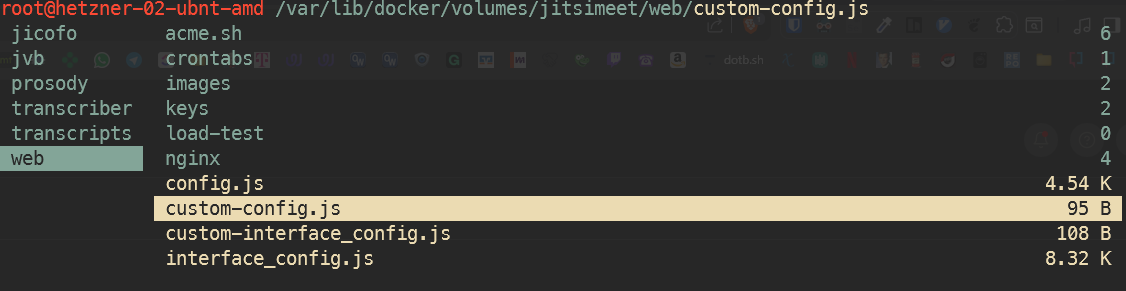
Container starten
docker-compose up -dMit Grafana, Prometheus, Loki und OpenTelemetry-Connector starten:
docker compose -f docker-compose.yml -f log-analyser.yml -f grafana.yml -f prometheus.yml -f transcriber.yml up -dMit OIDC-Connector (siehe unten)
docker compose -f jitsi-go-openid.yml -f docker-compose.yml -f log-analyser.yml -f grafana.yml -f prometheus.yml -f transcriber.yml up -dAnpassungen für grafana.yml, prometheus.yml usw: überall container_name: jitsi-prometheus hinzugefügt, damit alles einheitlich benannt ist. Außerderm bei log-analyser.yml den hostname: jitsi-otel hinzugefügt, damit prometheus den hostname erkennt:
also docker-compose.yml, grafana.yml, prometheus.yml usw:
web:
image: jitsi/web:${JITSI_IMAGE_VERSION:-stable-10008}
...
container_name: jitsi-web # <-- container_name in allen ymls hinzugefügt
labels:
service: "jitsi-web"
environment:
- AMPLITUDE_ID
- ANALYTICS_SCRIPT_URLS
...log-analyser.yml:
otel-collector:
image: otel/opentelemetry-collector-contrib
container_name: jitsi-otel
hostname: otel
volumes:
...Prometheus kontrollieren: http://DOCKER-HOST:9090/targets oder Prometheus > Status > Target health:
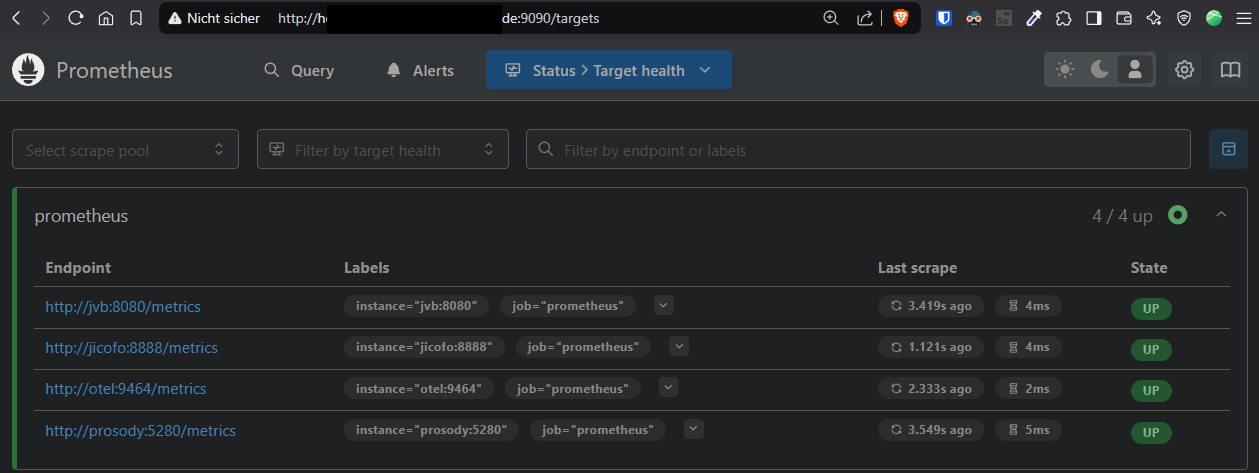
OIDC-Connector mit Authentik
https://github.com/mod242/jitsi-go-openid
unbedingt die .env anpassen, wenn OIDC verwendet werden soll:
ENABLE_AUTH=1
ENABLE_GUESTS=1
AUTH_TYPE=jwt
ENABLE_WELCOME_PAGE=0
ENABLE_PREJOIN_PAGE=0
ENABLE_LOBBY=1
ENABLE_CLOSE_PAGE=0
JWT_APP_ID=jitsi.MEINEDOMAIN.de
JWT_APP_SECRET=wAEJSlo........1qKMvdvxQKp
# benötigt und hardkodiert: jitsi
JWT_ACCEPTED_ISSUERS=jitsi
JWT_ACCEPTED_AUDIENCES=jitsi
TOKEN_AUTH_URL=https://jitsi-auth.MEINEDOMAIN.de/authenticate?state={state}&room={room}
JWT_AUTH_TYPE=token
JWT_TOKEN_AUTH_MODULE=token_verification
# wichtig für lobby automatisch aktivieren
XMPP_MUC_MODULES=lobby_autostart_on_ownerjitsi-go-openid.yml
services:
jitsi-go-openid:
image: mod242/jitsi-go-openid:latest
restart: unless-stopped
environment:
- 'JITSI_SECRET=wAEJSlo....vdvxQKp' # Must match the jwt_secret from your Jitsi configuration
- 'JITSI_URL=https://jitsi.MEINEDOMAIN.de/prefix-zb-kleines-passwort' # Base URL of your Jitsi instance
- 'JITSI_SUB=jitsi.MEINEDOMAIN.de' # Must match the JWT_APP_ID from your Jitsi configuration
- 'ISSUER_BASE_URL=https://authentik.MEINEDOMAIN.de/application/o/jitsi-auth/' # Base URL of your OpenID Connect provider
- 'BASE_URL=https://jitsi-auth.MEINEDOMAIN.de' # Public base URL of this application (should run behind a reverse proxy)
- 'CLIENT_ID=s5iM.......h2dy5d' # Client ID from your OAuth provider
- 'SECRET=hFiiaCEizhRZ......qffiDxxqhQve' # Client secret from your OAuth provider
- 'PREJOIN=false' # Whether the prejoin page should be displayed again after authentication
- 'DEEPLINK=false' # Whether the callback should use a deep link for redirect to ensure the originating client (Desktop, iOS, Android) is used
- 'NAME_KEY=name' # Key for the user's name from the OAuth token (defaults to 'name', but can be 'given_name' or any other key present in the token)
ports:
- "3001:3001"
expose:
- 3001
networks:
meet.jitsi: # -> Your Jitsi Network (if run co-located and exposed via Jitsi-Web)reverse proxy mit neuer subdomain (in diesem fall jitsi-auth.MEINEDOMAIN.de) noch auf port 3001 leiten
.env bearbeiten und Container neustarten
Wenn die .env bearbeitet wird, müssen die Container mit
docker compose down
docker compose up -dneugestartet werden.
❗ Wenn nur docker compose restart ausgeführt wird, wird die aktualisierte .env nicht erneut eingelesen!
Firewall: Ports freischalten
Port 80 & 443 werden über den Reverse Proxy Manager geregelt, zusätzlich muss aber Port 10000 UDP freigeschaltet werden!
https://jitsi.github.io/handbook/docs/devops-guide/devops-guide-docker/#external-ports ansonsten passiert es, dass nur zwei Teilnehmer miteinander videokonferenzen können und alle stummgeschaltet und deren Videos deaktiviert werden, sobald drei oder mehre Teilnehmer im Jitsi Raum sind.
Fehler im JVB (Jitsi Videobridge) Container:
BridgeSelectionStrategy.select#127: Existing bridge does not have a relay, will not consider other bridges.
https://github.com/jitsi/docker-jitsi-meet/issues/1735
Zweite JVB für Load-Balancer
auf einem anderen Server:
services:
jvb:
image: jitsi/jvb:stable
restart: unless-stopped
ports:
- '${JVB_PORT}:${JVB_PORT}/udp'
- '${JVB_COLIBRI_PORT}:${JVB_COLIBRI_PORT}'
volumes:
- ${CONFIG}/jvb:/config:Z
environment:
- DOCKER_HOST_ADDRESS
- XMPP_AUTH_DOMAIN
- XMPP_INTERNAL_MUC_DOMAIN
- XMPP_SERVER
- JVB_AUTH_USER
- JVB_AUTH_PASSWORD
- JVB_BREWERY_MUC
- JVB_PORT
- JVB_COLIBRI_PORT
- JVB_STUN_SERVERS
- TZ
networks:
meet.jitsi:
networks:
meet.jitsi:.env
DOCKER_HOST_ADDRESS=server-04.MEINEDOMAIN.de
CONFIG=/var/lib/docker/volumes/jitsimeet
XMPP_SERVER=10.0.0.3
XMPP_AUTH_DOMAIN=auth.meet.jitsi
XMPP_INTERNAL_MUC_DOMAIN=internal-muc.meet.jitsi
JVB_AUTH_USER=jvb
JVB_AUTH_PASSWORD=a054c......da0d # GLEICHES PW WIE AUF HAUPTSERVER IN .env
JVB_BREWERY_MUC=jvbbrewery
JVB_PORT=10000
JVB_COLIBRI_PORT=8080
JVB_STUN_SERVERS=turn.MEINEDOMAIN.de:443
TZ=Europe/BerlinModerator Account erstellen
https://jitsi.github.io/handbook/docs/devops-guide/devops-guide-docker#authentication
Wenn die Einstellungen aus meiner .env übernommen wurden, muss noch ein Moderator Account erstellt werden, um einen Jitsi Meet Raum eröffnen zu können. Dafür in die Shell des Containers "prosodyctl" gehen, entweder mit ctop, portainer (/bin/bash) oder über die docker cli:
docker compose exec prosody /bin/bashdanach in der shell des prosody containers:
Benutzer anlegen
prosodyctl --config /config/prosody.cfg.lua register <MODERATORNAME> meet.jitsi <MODERATORPASSWORT>meet.jitsi ist dabei der Name des Netzwerks aus der docker-compose.yml
Benutzer entfernen
prosodyctl --config /config/prosody.cfg.lua unregister <MODERATORNAME> meet.jitsiBenutzer auflisten
find /config/data/meet%2ejitsi/accounts -type f -exec basename {} .dat \;Nginx Proxy Manager Konfiguration
- an Jitsi HTTP Port aus .env weiterleiten, 8043 in meinem Fall
- Alles Checkboxes aktivieren (Websockets!)
- Custom Locations (nicht unter custom locations sondern im "Advanced" Tab! siehe unten)
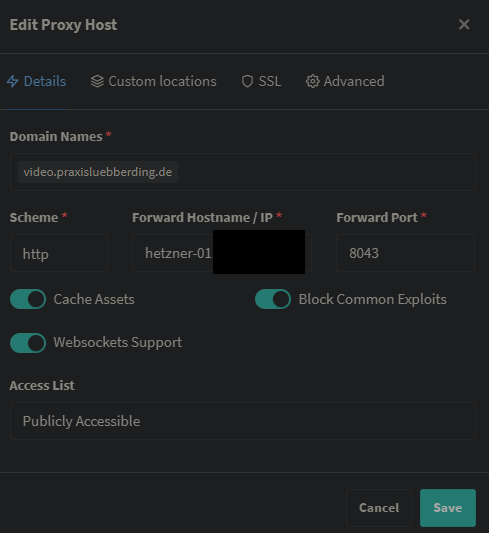
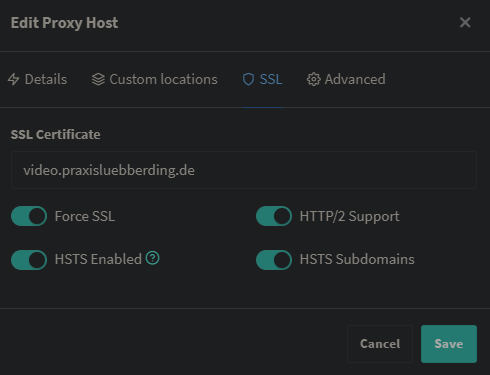
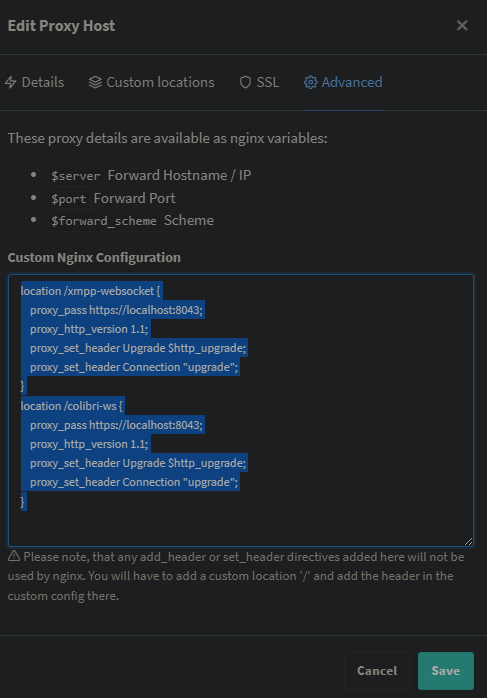
location /xmpp-websocket {
proxy_pass https://localhost:8043;
proxy_http_version 1.1;
proxy_set_header Upgrade $http_upgrade;
proxy_set_header Connection "upgrade";
}
location /colibri-ws {
proxy_pass https://localhost:8043;
proxy_http_version 1.1;
proxy_set_header Upgrade $http_upgrade;
proxy_set_header Connection "upgrade";
}
Whiteboard (ExcaliDraw) integrieren
https://discussion.scottibyte.com/t/add-a-whiteboard-to-jitsi-meet/320
https://github.com/jitsi/excalidraw-backend
git clone https://github.com/jitsi/excalidraw-backend.git
cd excalidraw-backend
touch docker-compose.ymldocker-compose.yml
version: "3.8"
services:
excalidraw:
build:
context: .
args:
- NODE_ENV=development
container_name: excalidraw
ports:
- "6421:80"
restart: unless-stopped
stdin_open: true
networks:
- jitsi_meet.jitsi
healthcheck:
disable: true
environment:
- NODE_ENV=development
volumes:
- ./:/opt/node_app/app:delegated
- ./package.json:/opt/node_app/package.json
- ./yarn.lock:/opt/node_app/yarn.lock
networks:
jitsi_meet.jitsi:
name: jitsi_meet.jitsi
external: true
driver: bridge
docker compose up --build -dNPM Reverse Proxy Eintrag für excalidraw anlegen:
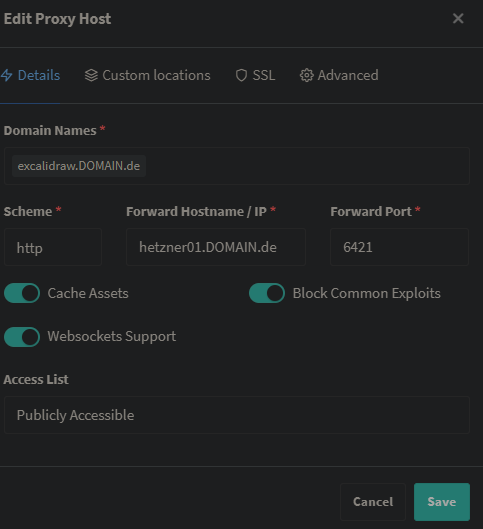
.env von Jitsi anpassen:
#
# Whiteboard integration
#
# Set the excalidraw-backend URL in the docker local network (uncomment to enable)
WHITEBOARD_COLLAB_SERVER_URL_BASE=http://excalidraw.jitsi_meet.jitsi
# Set the excalidraw-backend public URL (uncomment to enable)
WHITEBOARD_COLLAB_SERVER_PUBLIC_URL=https://excalidraw.DOMAIN.de
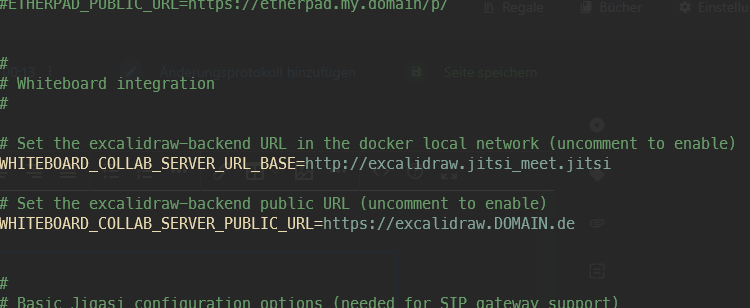
Obacht: damit die lokale URL funktioniert, müssen die jitsi container im gleichen Netzwerk wie excalidraw sein, daher auch in der docker-compose.yml von excalidraw das netzwerk von jitsi als external einpflegen. Am besten mit exec in den jitsi-web container gehen und prüfen, ob exclidraw erreichbar ist:
ping excalidraw -c 1
ping excalidraw.jitsi_meet.jitsi -c 1


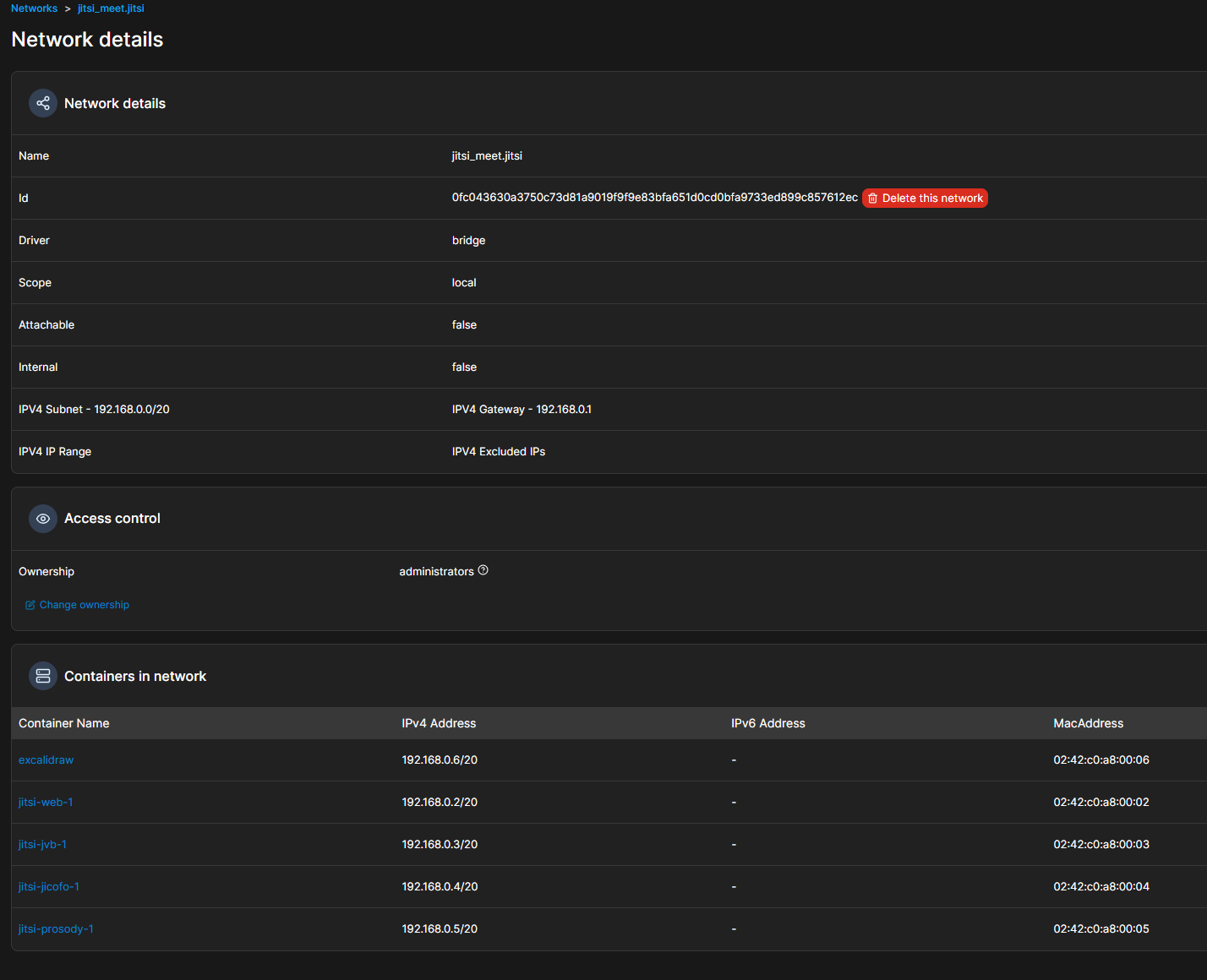
nachdem die .env mit URLs versorgt wurde, nochmal in den jitsi docker Ordner wechseln und
docker compose down
docker compose up -dTURN / STUN Server einrichten (Coturn)
Weil einige Firewalls auf der Clientseite verhindern, sich mit UDP Port 10000 zu verbinden, um WebRTC durchzuschleusen, sollte ein TURN Server aufgesetzt werden, über den dann der Verkehr geleitet wird. Wenn UDP Ports möglich sind, stellt der STUN Server eine Peer2Peer Verbinung her. Wenn nicht, wird der Traffic über Port 443 geleitet, was bei jedem restriktiven Netzwerk funktionieren sollte.
Mehr dazu hier im Eintrag Coturn: https://wiki.folkerts.it/books/docker/page/coturn-stun-turn-server-fur-jitsi-meet
⚠ Wichtig ⚠ Der TURN Server kann nicht ohne weiteres über einen Reverse Proxy geleitet werden, weil er nicht auf dem HTTP Protokoll beruht, sondern auf TCP und/oder TLS. Es sollte also am besten ein eigener Server sein, auf dem der Port 443 freigegeben werden kann, ohne auf einen Reverse Proxy zu zeigen.
Design anpassen
https://goneuland.de/jitsi-anpassungen-docker/
https://scheible.it/das-design-von-jitsi-meet-anpassen
Logo anpassen
web:
image: jitsi/web:${JITSI_IMAGE_VERSION:-stable-10008}
...
volumes:
...
- ${CONFIG}/web/load-test:/usr/share/jitsi-meet/load-test:Z
- ${CONFIG}/web/images/watermark.svg:/usr/share/jitsi-meet/images/watermark.svg:Z # <-- Logo als .svg hinzufügen
container_name: jitsi-web
...UDP Buffer auf Host anpassen
https://jitsi.github.io/handbook/docs/devops-guide/devops-guide-docker/#adjust-udp-buffers
If you are experiencing issues with UDP traffic, like synchronization issues, skipping frames and similar, or if you expect a high traffic and big conferences, you might want to adjust the UDP buffer sizes. You need to do that on the host system, that hosts the jvb container. To do so you can get this sysctl config file and save it in /etc/sysctl.d and load it via: sysctl --system.
also
nano /etc/sysctl.d/20-jvb-udp-buffers.confInhalt:
# this sets the max, so that we can bump the JVB UDP single port buffer size.
net.core.rmem_max=10485760
net.core.netdev_max_backlog=100000Danach laden und prüfen mit:
sysctl --systemTroubleshooting
Jitsi in Kubernetes, Port 10000 kann nicht freigeschaltet werden, stattdessen 30000 bis 32.000 irgendwas
https://stackoverflow.com/questions/71495351/how-to-setup-jitsi-meet-on-a-custom-kubernetes
InvoiceNinja
Neu auf x86
https://github.com/invoiceninja/dockerfiles
git clone https://github.com/invoiceninja/dockerfiles.git -b debian
cd dockerfiles/debian docker-compose.yml:
services:
app:
build:
context: .
image: invoiceninja/invoiceninja-debian:${TAG:-latest}
restart: unless-stopped
env_file:
- ./.env
volumes:
- ./php/php.ini:/usr/local/etc/php/conf.d/invoiceninja.ini:ro
- ./php/php-fpm.conf:/usr/local/etc/php-fpm.d/invoiceninja.conf:ro
- ./supervisor/supervisord.conf:/etc/supervisor/conf.d/supervisord.conf:ro
- public:/var/www/html/public
- storage:/var/www/html/storage
depends_on:
mysql:
condition: service_healthy
redis:
condition: service_healthy
healthcheck:
test: ["CMD", "php", "-v"]
interval: 10s
timeout: 5s
retries: 3
start_period: 60s
nginx:
image: nginx:alpine
restart: unless-stopped
ports:
- "8013:80"
volumes:
- ./nginx:/etc/nginx/conf.d:ro
- public:/var/www/html/public:ro
- storage:/var/www/html/storage:ro
depends_on:
app:
condition: service_healthy
mysql:
image: mysql:8
restart: unless-stopped
environment:
MYSQL_DATABASE: ${DB_DATABASE}
MYSQL_USER: ${DB_USERNAME}
MYSQL_PASSWORD: ${DB_PASSWORD}
MYSQL_ROOT_PASSWORD: ${DB_ROOT_PASSWORD}
volumes:
- mysql:/var/lib/mysql
healthcheck:
test:
[
"CMD",
"mysqladmin",
"ping",
"-h",
"localhost",
"-u${MYSQL_USER}",
"-p${MYSQL_PASSWORD}",
]
interval: 10s
timeout: 5s
retries: 5
start_period: 30s
redis:
image: redis:alpine
restart: unless-stopped
volumes:
- redis:/data
healthcheck:
test: ["CMD", "redis-cli", "ping"]
volumes:
public:
storage:
mysql:
redis:für .env die var APP_KEY erzeugen mit
# If you haven't started the containers yet:
docker run --rm -it invoiceninja/invoiceninja-debian php artisan key:generate --show
# Or if your containers are already running:
docker compose exec app php artisan key:generate --showCopy the entire string and insert in the .env file at APP_KEY=base64....=
! Außerdem noch IN_USER_EMAIL und IN_PASSWORD anpassen
.env
TAG=5.12.45
# IN application vars
#APP_URL=http://localhost:8012
APP_URL=https://invoiceninja.MEINEDOMAIN.it
APP_KEY=base64:+jpwe............EGPGKkG/fxkEU=
APP_ENV=production
APP_DEBUG=true
REQUIRE_HTTPS=false
PHANTOMJS_PDF_GENERATION=false
PDF_GENERATOR=snappdf
TRUSTED_PROXIES='*'
CACHE_DRIVER=redis
QUEUE_CONNECTION=redis
SESSION_DRIVER=redis
REDIS_HOST=redis
REDIS_PASSWORD=null
REDIS_PORT=6379
FILESYSTEM_DISK=debian_docker
# DB connection
DB_HOST=mysql
DB_PORT=3306
DB_DATABASE=ninja
DB_USERNAME=ninja
DB_PASSWORD=c94f68e.............6f0e9741
DB_ROOT_PASSWORD=d69f756............11207d
DB_CONNECTION=mysql
# Create initial user
# Default to these values if empty
IN_USER_EMAIL=admin@example.com
IN_PASSWORD=changeme!
# IN_USER_EMAIL=
# IN_PASSWORD=
# Mail options
MAIL_MAILER=log
MAIL_HOST=smtp.mailtrap.io
MAIL_PORT=2525
MAIL_USERNAME=null
MAIL_PASSWORD=null
MAIL_ENCRYPTION=null
MAIL_FROM_ADDRESS='user@example.com'
MAIL_FROM_NAME='Self Hosted User'
# MySQL
MYSQL_ROOT_PASSWORD=d69f756............11207d
MYSQL_USER=ninja
MYSQL_PASSWORD=c94f68e12d.............0e6f0e9741
MYSQL_DATABASE=ninja
# GoCardless/Nordigen API key for banking integration
NORDIGEN_SECRET_ID=
NORDIGEN_SECRET_KEY=
IS_DOCKER=true
SCOUT_DRIVER=null
#SNAPPDF_CHROMIUM_PATH=/usr/bin/google-chrome-stableAlt ab hier:
Erster Versuch auf Fernnetz
### AUF EIS GELEGT, PROBLEME MIT MYSQL ENVs?
services:
server:
image: nginx
restart: unless-stopped
#env_file: env
volumes:
# Vhost configuration
#- /var/lib/docker/volumes/invoiceninja/config/caddy/Caddyfile:/etc/caddy/Caddyfiledocker-com
- /var/lib/docker/volumes/invoiceninja/config/nginx/in-vhost.conf:/etc/nginx/conf.d/in-vhost.conf:ro
- /var/lib/docker/volumes/invoiceninja/docker/app/public:/var/www/app/public:ro
depends_on:
- app
# Run webserver nginx on port 80
# Feel free to modify depending what port is already occupied
ports:
- "8006:80"
#- "443:443"
networks:
- invoiceninja
extra_hosts:
- "in5.localhost:192.168.0.124 " #host and ip
app:
image: invoiceninja/invoiceninja:5.10
#env_file: env
restart: unless-stopped
volumes:
- /var/lib/docker/volumes/invoiceninja/config/hosts:/etc/hosts:ro
- /var/lib/docker/volumes/invoiceninja/docker/app/public:/var/www/app/public:rw,delegated
- /var/lib/docker/volumes/invoiceninja/docker/app/storage:/var/www/app/storage:rw,delegated
- /var/lib/docker/volumes/invoiceninja/config/php/php.ini:/usr/local/etc/php/php.ini
- /var/lib/docker/volumes/invoiceninja/config/php/php-cli.ini:/usr/local/etc/php/php-cli.ini
depends_on:
- db
networks:
- invoiceninja
extra_hosts:
- "in5.localhost:192.168.0.124 " #host and ip
db:
image: mysql:8
# When running on ARM64 use MariaDB instead of MySQL
# image: mariadb:10.4
# For auto DB backups comment out image and use the build block below
# build:
# context: ./config/mysql
restart: unless-stopped
#env_file: env
volumes:
- /var/lib/docker/volumes/invoiceninja/docker/mysql/data:/var/lib/mysql:rw,delegated
# remove comments for next 4 lines if you want auto sql backups
#- /var/lib/docker/volumes/invoiceninja/docker/mysql/bak:/backups:rw
#- /var/lib/docker/volumes/invoiceninja/config/mysql/backup-script:/etc/cron.daily/daily:ro
#- /var/lib/docker/volumes/invoiceninja/config/mysql/backup-script:/etc/cron.weekly/weekly:ro
#- /var/lib/docker/volumes/invoiceninja/config/mysql/backup-script:/etc/cron.monthly/monthly:ro
networks:
- invoiceninja
extra_hosts:
- "in5.localhost:192.168.0.124 " #host and ip
# THIS IS ONLY A VALID CONFIGURATION FOR IN 4. DO NOT USE FOR IN 5.
# cron:
# image: invoiceninja/invoiceninja:alpine-4
# volumes:
# - /var/lib/docker/volumes/invoiceninja/docker/app/public:/var/www/app/public:rw,delegated
# - /var/lib/docker/volumes/invoiceninja/docker/app/storage:/var/www/app/storage:rw,delegated
# - /var/lib/docker/volumes/invoiceninja/docker/app/public/logo:/var/www/app/public/logo:rw,delegated
# entrypoint: |
# /bin/sh -c 'sh -s <<EOF
# trap "break;exit" SIGHUP SIGINT SIGTERM
# sleep 300s
# while /bin/true; do
# ./artisan ninja:send-invoices
# ./artisan ninja:send-reminders
# sleep 1d
# done
# EOF'
# networks:
# - invoiceninja
#
networks:
invoiceninja:Zweiter Versuch auf Heimnetz
### AUF EIS GELEGT, PROBLEME MIT VOLUMEs FÜR DATEIEN (zb hosts)
services:
server:
image: nginx
restart: unless-stopped
#env_file: env
volumes:
# Vhost configuration
#- /var/lib/docker/volumes/invoiceninja/config/caddy/Caddyfile:/etc/caddy/Caddyfiledocker-com
- /var/lib/docker/volumes/invoiceninja/config/nginx/in-vhost.conf:/etc/nginx/conf.d/in-vhost.conf:ro
- /var/lib/docker/volumes/invoiceninja/docker/app/public:/var/www/app/public:ro
depends_on:
- app
# Run webserver nginx on port 80
# Feel free to modify depending what port is already occupied
ports:
- "8006:80"
#- "443:443"
networks:
- invoiceninja
extra_hosts:
- "in5.localhost:192.168.0.124 " #host and ip
app:
image: invoiceninja/invoiceninja:5.10
#env_file: env
restart: unless-stopped
volumes:
- /var/lib/docker/volumes/invoiceninja/config/hosts:/etc/hosts:ro
- /var/lib/docker/volumes/invoiceninja/docker/app/public:/var/www/app/public:rw,delegated
- /var/lib/docker/volumes/invoiceninja/docker/app/storage:/var/www/app/storage:rw,delegated
- /var/lib/docker/volumes/invoiceninja/config/php/php.ini:/usr/local/etc/php/php.ini
- /var/lib/docker/volumes/invoiceninja/config/php/php-cli.ini:/usr/local/etc/php/php-cli.ini
depends_on:
- db
networks:
- invoiceninja
extra_hosts:
- "in5.localhost:192.168.0.124 " #host and ip
db:
image: mysql:8
# When running on ARM64 use MariaDB instead of MySQL
# image: mariadb:10.4
# For auto DB backups comment out image and use the build block below
# build:
# context: ./config/mysql
restart: unless-stopped
#env_file: env
volumes:
- /var/lib/docker/volumes/invoiceninja/docker/mysql/data:/var/lib/mysql:rw,delegated
# remove comments for next 4 lines if you want auto sql backups
#- /var/lib/docker/volumes/invoiceninja/docker/mysql/bak:/backups:rw
#- /var/lib/docker/volumes/invoiceninja/config/mysql/backup-script:/etc/cron.daily/daily:ro
#- /var/lib/docker/volumes/invoiceninja/config/mysql/backup-script:/etc/cron.weekly/weekly:ro
#- /var/lib/docker/volumes/invoiceninja/config/mysql/backup-script:/etc/cron.monthly/monthly:ro
networks:
- invoiceninja
extra_hosts:
- "in5.localhost:192.168.0.124 " #host and ip
# THIS IS ONLY A VALID CONFIGURATION FOR IN 4. DO NOT USE FOR IN 5.
# cron:
# image: invoiceninja/invoiceninja:alpine-4
# volumes:
# - /var/lib/docker/volumes/invoiceninja/docker/app/public:/var/www/app/public:rw,delegated
# - /var/lib/docker/volumes/invoiceninja/docker/app/storage:/var/www/app/storage:rw,delegated
# - /var/lib/docker/volumes/invoiceninja/docker/app/public/logo:/var/www/app/public/logo:rw,delegated
# entrypoint: |
# /bin/sh -c 'sh -s <<EOF
# trap "break;exit" SIGHUP SIGINT SIGTERM
# sleep 300s
# while /bin/true; do
# ./artisan ninja:send-invoices
# ./artisan ninja:send-reminders
# sleep 1d
# done
# EOF'
# networks:
# - invoiceninja
#
networks:
invoiceninja:CheckMK
https://docs.checkmk.com/latest/en/introduction_docker.html
name: <your project name>
services:
check-mk-raw:
container_name: monitoring
restart: always
image: checkmk/check-mk-raw:2.3.0-latest
#? stdin_open: true
#? tty: true
ports:
- 8080:5000
- 8000:8000
tmpfs: /opt/omd/sites/cmk/tmp:uid=1000,gid=1000
volumes:
- monitoring:/omd/sites
- /etc/localtime:/etc/localtime:ro
volumes:
monitoring:
external: true
name: monitoring:8080 öffnen
"You will find the provisional password for the cmkadmin account in the logs that are written for this container"
altes Heimnetz:
version: '3.1'
services:
controll:
image: checkmk/check-mk-raw:latest
tmpfs:
- /opt/omd/sites/cmk/tmp:uid=1000,gid=1000
ulimits:
nofile: 1024
container_name: checkmk
restart: unless-stopped
volumes:
- /etc/localtime:/etc/localtime:ro
- monitoring:/omd/sites
ports:
- 8095:5000
- 6557:6557
volumes:
monitoring:
https://gist.github.com/FlorianHeigl/72dadde0e4f9fa4b8c1bcfc5c9e41b0f
---
version: '3'
services:
checkmk:
image: checkmk/check-mk-raw:2.0.0-latest
ports:
- "162:162/udp"
- "514:514/udp"
- "514:514/tcp"
- "6557:6557/tcp"
- "8080:5000/tcp"
environment:
- MAIL_RELAY_HOST=mailrelay.example.com
- CMK_SITE_ID=cmknew
- CMK_PASSWORD=XXX
- CMK_LIVESTATUS_TCP=on
volumes:
- /etc/localtime:/etc/localtime:ro
- cmknew:/omd/sites
volumes:
cmknew:Netdata
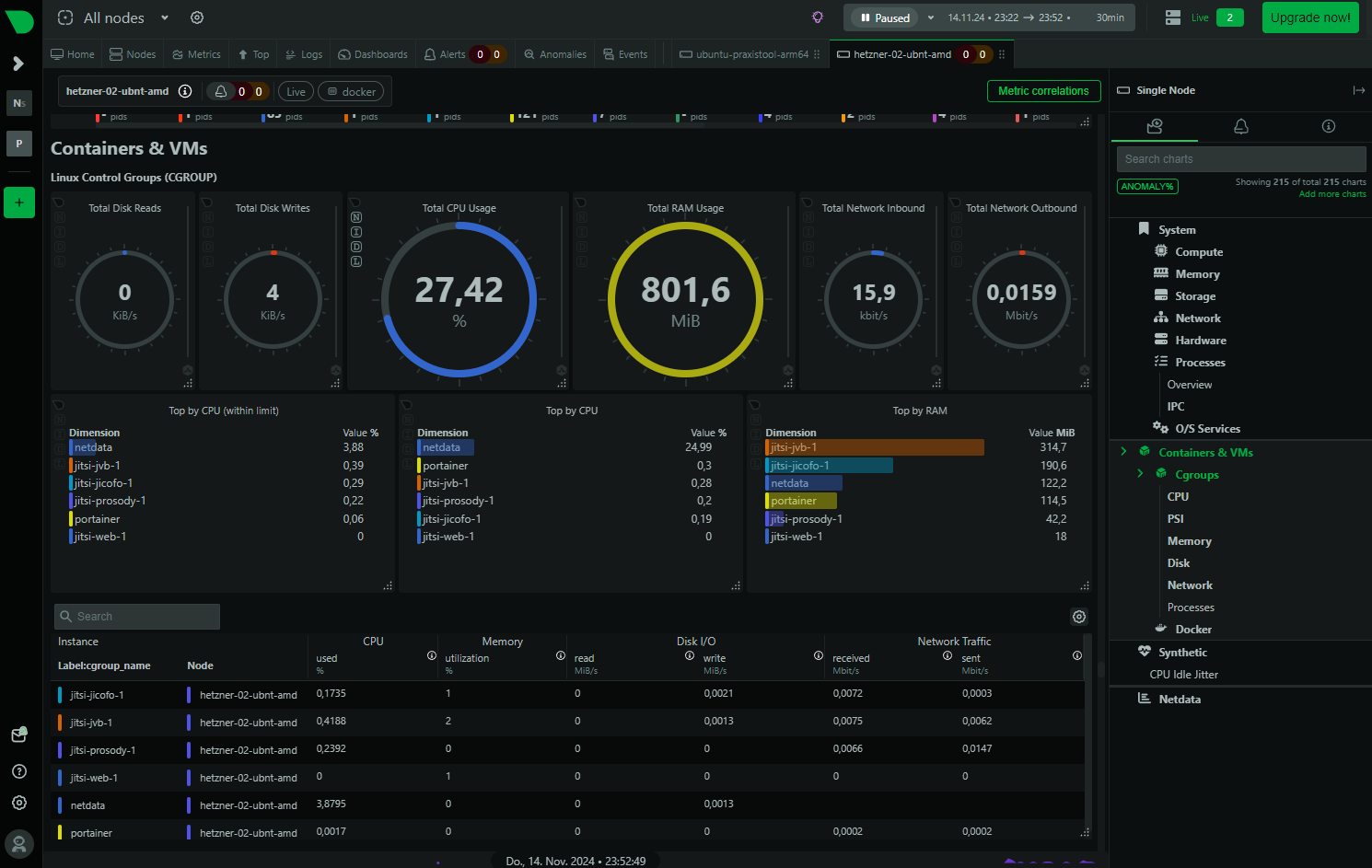
version: '3'
services:
netdata:
image: netdata/netdata
container_name: netdata
pid: host
network_mode: host
restart: unless-stopped
cap_add:
- SYS_PTRACE
- SYS_ADMIN
security_opt:
- apparmor:unconfined
volumes:
- netdataconfig:/etc/netdata
- netdatalib:/var/lib/netdata
- netdatacache:/var/cache/netdata
- /:/host/root:ro,rslave
- /etc/passwd:/host/etc/passwd:ro
- /etc/group:/host/etc/group:ro
- /etc/localtime:/etc/localtime:ro
- /proc:/host/proc:ro
- /sys:/host/sys:ro
- /etc/os-release:/host/etc/os-release:ro
- /var/log:/host/var/log:ro
- /var/run/docker.sock:/var/run/docker.sock:ro
volumes:
netdataconfig:
netdatalib:
netdatacache:
OliveTin (Web-UI für Shell-Cmds)
OliveTin
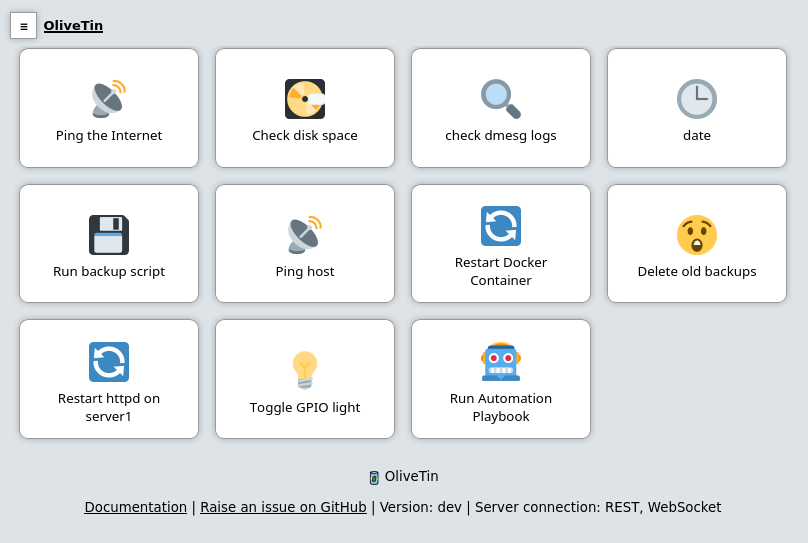
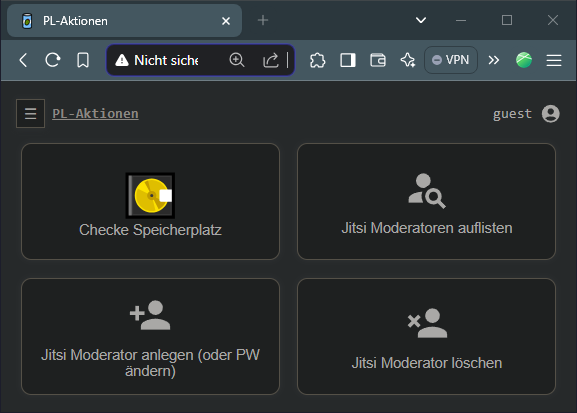
https://github.com/OliveTin/OliveTin
Eikes docker-compose.yml (mit Möglichkeit für docker exec cmds)
version: "3.8"
services:
olivetin:
container_name: olivetin
image: jamesread/olivetin:2024.11.18
user: root # wichtig für 'docker exec... Befehle in anderen Containern'
volumes:
- cfg:/config
- /var/run/docker.sock:/var/run/docker.sock # wichtig für 'docker exec... Befehle in anderen Containern'
ports:
- "1337:1337"
restart: unless-stopped
volumes:
cfg:Eikes config.yaml für Jitsi mit Authentik
# There is a built-in micro proxy that will host the webui and REST API all on
# one port (this is called the "Single HTTP Frontend") and means you just need
# one open port in the container/firewalls/etc.
#
# Listen on all addresses available, port 1337
listenAddressSingleHTTPFrontend: 0.0.0.0:1337
# Choose from INFO (default), WARN and DEBUG
logLevel: "DEBUG"
# Checking for updates https://docs.olivetin.app/update-checks.html
checkForUpdates: false
pageTitle: Shell-Aktionen
showFooter: false
# Actions are commands that are executed by OliveTin, and normally show up as
# buttons on the WebUI.
#
# Docs: https://docs.olivetin.app/create-your-first-action.html
actions:
# This uses `popupOnStart: execution-dialog-stdout-only` to simply show just
# the command output.
- title: Checke Speicherplatz
icon: disk
shell: df -h /media
popupOnStart: execution-dialog-stdout-only
# ACL MUSS NICHT MEHR BEI JEDER AKTION EINGESTELLT WERDEN, WEIL
# addToEveryAction: true
# BEI DEN ACL EINSTELLUNGEN UNTEN
# acls:
# - Authentik-Admins
# - AdminsNachUsername
- title: Jitsi Moderatoren auflisten
icon: <iconify-icon icon="mdi:user-search"></iconify-icon>
shell: docker exec jitsi-prosody-1 sh -c "find /config/data/meet%2ejitsi/accounts -type f -exec basename {} .dat \; | sed -e 's/%2e/./g' -e 's/%2d/-/g' -e 's/%5f/_/g'"
popupOnStart: execution-dialog-stdout-only
- title: Jitsi Moderator anlegen (oder PW ändern)
#shell: echo Test für execution-dialog-stdout-only: User: {{ beuntzername }} PW: {{ passwort }}
shell: docker exec jitsi-prosody-1 sh -c "prosodyctl --config /config/prosody.cfg.lua register {{ beuntzername }} meet.jitsi {{ passwort }}"
icon: <iconify-icon icon="mdi:user-add"></iconify-icon>
timeout: 100
popupOnStart: execution-dialog-stdout-only
arguments:
- name: beuntzername
title: Benutzername
type: ascii_identifier
default: m.oderator
description: Verwende nur "-", "_" und ".", keine anderen Sonderzeichen, Umlaute oder Leerzeichen
- name: passwort
title: Passwort
type: ascii_identifier
default: Passwort123
description: PW abspeichern! Verwende nur "-", "_" und ".", keine anderen Sonderzeichen, Umlaute oder Leerzeichen
- title: Jitsi Moderator löschen
shell: docker exec jitsi-prosody-1 sh -c "prosodyctl --config /config/prosody.cfg.lua unregister {{ beuntzername }} meet.jitsi"
icon: <iconify-icon icon="mdi:user-remove"></iconify-icon>
timeout: 100
popupOnStart: execution-dialog-stdout-only
arguments:
- name: beuntzername
title: Benutzername
type: ascii_identifier
default: m.oderator
description: Der Name des Moderators zb m.oderator
authRequireGuestsToLogin: true # Optional - depends if you want to "disable" guests.
authOAuth2RedirectURL: "https://olivetin.MEINEDOMAIN.de/oauth/callback"
authOAuth2Providers:
authentik:
name: authentik
title: Authentik
clientID: "GWF9.......YaHj"
clientSecret: "3yOkhOMCA...............84xOpK2Y1gHzihyyMxkv5"
authURL: "https://auth.MEINEDOMAIN.de/application/o/authorize/"
tokenURL: "https://auth.MEINEDOMAIN.de/application/o/token/"
whoamiURL: "https://auth.MEINEDOMAIN.de/application/o/userinfo/"
usernameField: "preferred_username"
icon: <iconify-icon icon="simple-icons:authentik"></iconify-icon>
defaultPermissions:
view: false
exec: false
logs: true
# GROUPS KLAPPT LEIDER NICHT, SIEHE
# https://github.com/OliveTin/OliveTin/issues/477
# DAHER MATCHUSERNAMES MIT DEN EINZELEN AUTHENTIK-USERN (AdminsNachUsername)
accessControlLists:
- name: Authentik-Admins
matchUsergroups:
- Authentik-Admins
permissions:
view: true
exec: true
- name: AdminsNachUsername
addToEveryAction: true
matchUserNames:
- demo-admin
- vorname.nachname
- m.mustermann
permissions:
view: true
exec: true
Authentik OIDC
https://docs.olivetin.app/oauth2-authentik.html
Original config.yaml mit Beispielen
# There is a built-in micro proxy that will host the webui and REST API all on
# one port (this is called the "Single HTTP Frontend") and means you just need
# one open port in the container/firewalls/etc.
#
# Listen on all addresses available, port 1337
listenAddressSingleHTTPFrontend: 0.0.0.0:1337
# Choose from INFO (default), WARN and DEBUG
logLevel: "INFO"
# Checking for updates https://docs.olivetin.app/update-checks.html
checkForUpdates: false
# Actions are commands that are executed by OliveTin, and normally show up as
# buttons on the WebUI.
#
# Docs: https://docs.olivetin.app/create-your-first-action.html
actions:
# This is the most simple action, it just runs the command and flashes the
# button to indicate status.
#
# If you are running OliveTin in a container remember to pass through the
# docker socket! https://docs.olivetin.app/action-container-control.html
- title: Ping the Internet
shell: ping -c 3 1.1.1.1
icon: ping
popupOnStart: execution-dialog-stdout-only
# This uses `popupOnStart: execution-dialog-stdout-only` to simply show just
# the command output.
- title: Check disk space
icon: disk
shell: df -h /media
popupOnStart: execution-dialog-stdout-only
# This uses `popupOnStart: execution-dialog` to show a dialog with more
# information about the command that was run.
- title: check dmesg logs
shell: dmesg | tail
icon: logs
popupOnStart: execution-dialog
# This uses `popupOnStart: execution-button` to display a mini button that
# links to the logs.
- title: date
shell: date
timeout: 6
icon: clock
popupOnStart: execution-button
# You are not limited to operating system commands, and of course you can run
# your own scripts. Here `maxConcurrent` stops the script running multiple
# times in parallel. There is also a timeout that will kill the command if it
# runs for too long.
- title: Run backup script
shell: /opt/backupScript.sh
shellAfterCompleted: "apprise -t 'Notification: Backup script completed' -b 'The backup script completed with code {{ exitCode}}. The log is: \n {{ output }} '"
maxConcurrent: 1
timeout: 10
icon: backup
popupOnStart: execution-dialog
# When you want to prompt users for input, that is when you should use
# `arguments` - this presents a popup dialog and asks for argument values.
#
# Docs: https://docs.olivetin.app/action-ping.html
- title: Ping host
shell: ping {{ host }} -c {{ count }}
icon: ping
timeout: 100
popupOnStart: execution-dialog-stdout-only
arguments:
- name: host
title: Host
type: ascii_identifier
default: example.com
description: The host that you want to ping
- name: count
title: Count
type: int
default: 3
description: How many times to do you want to ping?
# OliveTin can control containers - docker is just a command line app.
#
# However, if you are running in a container you will need to do some setup,
# see the docs below.
#
# Docs: https://docs.olivetin.app/action-container-control.html
- title: Restart Docker Container
icon: restart
shell: docker restart {{ container }}
arguments:
- name: container
title: Container name
choices:
- value: plex
- value: traefik
- value: grafana
# There is a special `confirmation` argument to help against accidental clicks
# on "dangerous" actions.
#
# Docs: https://docs.olivetin.app/confirmation.html
- title: Delete old backups
icon: ashtonished
shell: rm -rf /opt/oldBackups/
arguments:
- type: confirmation
title: Are you sure?!
# This is an action that runs a script included with OliveTin, that will
# download themes. You will still need to set theme "themeName" in your config.
#
# Docs: https://docs.olivetin.app/themes.html
- title: Get OliveTin Theme
shell: olivetin-get-theme {{ themeGitRepo }} {{ themeFolderName }}
icon: theme
arguments:
- name: themeGitRepo
title: Theme's Git Repository
description: Find new themes at https://olivetin.app/themes
type: url
- name: themeFolderName
title: Theme's Folder Name
type: ascii_identifier
# Sometimes you want to run actions on other servers - don't overcomplicate
# it, just use SSH! OliveTin includes a helper to make this easier, which is
# entirely optional. You can also setup SSH manually.
#
# Docs: https://docs.olivetin.app/action-ssh-easy.html
# Docs: https://docs.olivetin.app/action-ssh.html
- title: "Setup easy SSH"
icon: ssh
shell: olivetin-setup-easy-ssh
popupOnStart: execution-dialog
# Here's how to use SSH with the "easy" config, to restart a service on
# another server.
#
# Docs: https://docs.olivetin.app/action-ssh-easy.html
# Docs: https://docs.olivetin.app/action-service.html
- title: Restart httpd on server1
id: restart_httpd
icon: restart
timeout: 1
shell: ssh -F /config/ssh/easy.cg root@server1 'service httpd restart'
# Lots of people use OliveTin to build web interfaces for their electronics
# projects. It's best to install OliveTin as a native package (eg, .deb), and
# then you can use either a python script or the `gpio` command.
- title: Toggle GPIO light
shell: gpioset gpiochip1 9=1
icon: light
# There are several built-in shortcuts for the `icon` option, but you
# can also just specify any HTML, this includes any unicode character,
# or a <img = "..." /> link to a custom icon.
#
# Docs: https://docs.olivetin.app/icons.html
#
# Lots of people use OliveTin to easily execute ansible-playbooks. You
# probably want a much longer timeout as well (so that ansible completes).
#
# Docs: https://docs.olivetin.app/ansible-playbook.html
- title: "Run Automation Playbook"
icon: '🤖'
shell: ansible-playbook -i /etc/hosts /root/myRepo/myPlaybook.yaml
timeout: 120
# The following actions are "dummy" actions, used in a Dashboard. As long as
# you have these referenced in a dashboard, they will not show up in the
# `actions` view.
- title: Ping hypervisor1
shell: echo "hypervisor1 online"
- title: Ping hypervisor2
shell: echo "hypervisor2 online"
- title: "{{ server.name }} Wake on Lan"
shell: echo "Sending Wake on LAN to {{ server.hostname }}"
entity: server
- title: "{{ server.name }} Power Off"
shell: "echo 'Power Off Server: {{ server.hostname }}'"
entity: server
- title: Ping All Servers
shell: "echo 'Ping all servers'"
icon: ping
- title: Start {{ container.Names }}
icon: box
shell: docker start {{ container.Names }}
entity: container
trigger: Update container entity file
- title: Stop {{ container.Names }}
icon: box
shell: docker stop {{ container.Names }}
entity: container
trigger: Update container entity file
# Lastly, you can hide actions from the web UI, this is useful for creating
# background helpers that execute only on startup or a cron, for updating
# entity files.
# - title: Update container entity file
# shell: 'docker ps -a --format json > /etc/OliveTin/entities/containers.json'
# hidden: true
# execOnStartup: true
# execOnCron: '*/1 * * * *'
# An entity is something that exists - a "thing", like a VM, or a Container
# is an entity. OliveTin allows you to then dynamically generate actions based
# around these entities.
#
# This is really useful if you want to generate wake on lan or poweroff actions
# for `server` entities, for example.
#
# A very popular use case that entities were designed for was for `container`
# entities - in a similar way you could generate `start`, `stop`, and `restart`
# container actions.
#
# Entities are just loaded fome files on disk, OliveTin will also watch these
# files for updates while OliveTin is running, and update entities.
#
# Entities can have properties defined in those files, and those can be used
# in your configuration as variables. For example; `container.status`,
# or `vm.hostname`.
#
# Docs: http://docs.olivetin.app/entities.html
entities:
# YAML files are the default expected format, so you can use .yml or .yaml,
# or even .txt, as long as the file contains valid a valid yaml LIST, then it
# will load properly.
#
# Docs: https://docs.olivetin.app/entities.html
- file: entities/servers.yaml
name: server
- file: entities/containers.json
name: container
# Dashboards are a way of taking actions from the default "actions" view, and
# organizing them into groups - either into folders, or fieldsets.
#
# The only way to properly use entities, are to use them with a `fieldset` on
# a dashboard.
dashboards:
# Top level items are dashboards.
- title: My Servers
contents:
- title: All Servers
type: fieldset
contents:
# The contents of a dashboard will try to look for an action with a
# matching title IF the `contents: ` property is empty.
- title: Ping All Servers
# If you create an item with some "contents:", OliveTin will show that as
# directory.
- title: Hypervisors
contents:
- title: Ping hypervisor1
- title: Ping hypervisor2
# If you specify `type: fieldset` and some `contents`, it will show your
# actions grouped together without a folder.
- type: fieldset
entity: server
title: 'Server: {{ server.hostname }}'
contents:
# By default OliveTin will look for an action with a matching title
# and put it on the dashboard.
#
# Fieldsets also support `type: display`, which can display arbitary
# text. This is useful for displaying things like a container's state.
- type: display
title: |
Hostname: <strong>{{ server.name }}</strong>
IP Address: <strong>{{ server.ip }}</strong>
# These are the actions (defined above) that we want on the dashboard.
- title: '{{ server.name }} Wake on Lan'
- title: '{{ server.name }} Power Off'
# This is the second dashboard.
- title: My Containers
contents:
- title: 'Container {{ container.Names }} ({{ container.Image }})'
entity: container
type: fieldset
contents:
- type: display
title: |
{{ container.RunningFor }} <br /><br /><strong>{{ container.State }}</strong>
- title: 'Start {{ container.Names }}'
- title: 'Stop {{ container.Names }}'config.yaml Beispiel für Jitsi Meet Moderator anlegen
actions:
- title: Jitsi Moderator anlegen
#shell: echo {{ beuntzername }} meet.jitsi {{ passwort }}
shell: docker exec jitsi-prosody-1 sh -c "prosodyctl --config /config/prosody.cfg.lua register {{ beuntzername }} meet.jitsi {{ passwort }}"
icon: ping
timeout: 100
popupOnStart: execution-dialog-stdout-only
arguments:
- name: beuntzername
title: Benutzername
type: ascii_identifier
default: m.oderator
description: Der Name des Moderators zb m.oderator
- name: passwort
title: Passwort
type: ascii_identifier
default: Passwort123
description: Das Passwort (keine Leerzeichen, PW abspeichern!)Beszel (Simples Server Monitoring)
https://github.com/henrygd/beszel
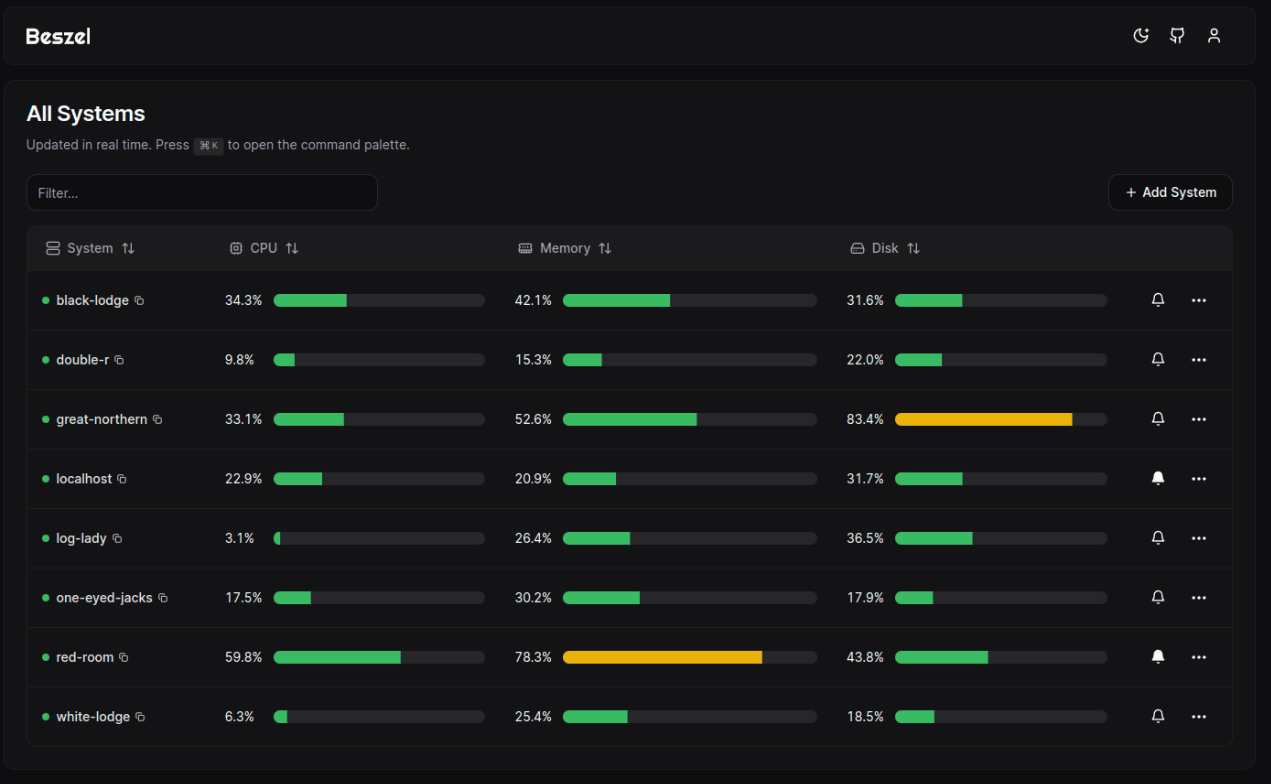
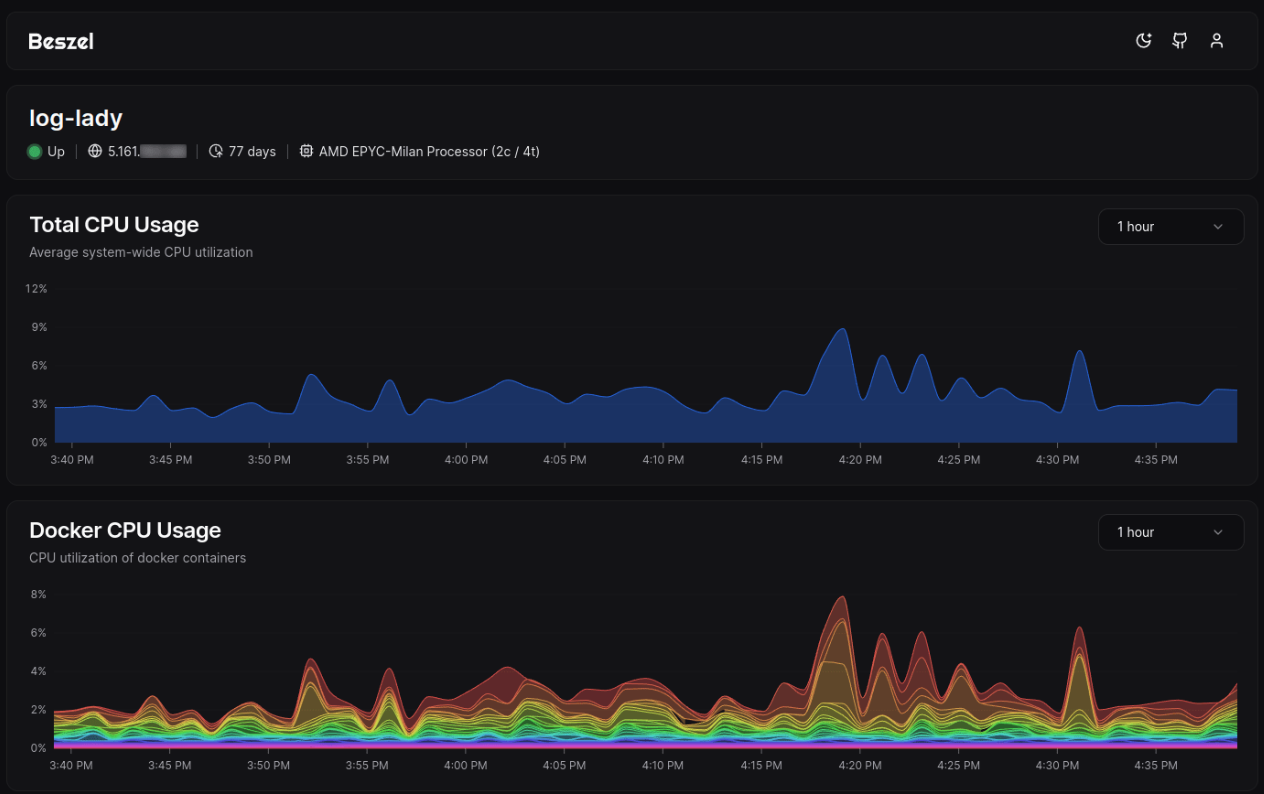
Obacht: Beszel ist nicht für Remote-Server geeignet, sondern nur für IP-Adressen, die übers LAN erreichbar sind. Am besten mit einem Mesh-VPN wie Tailscale oder Netbird lösen
beszel (Server)
services:
beszel:
image: henrygd/beszel
container_name: beszel
restart: unless-stopped
ports:
- 8090:8090
volumes:
- data:/beszel_data
volumes:
data:über "System hinzufügen" das fertige docker-compose.yml für den zu überwachenden Docker-Host kopieren:
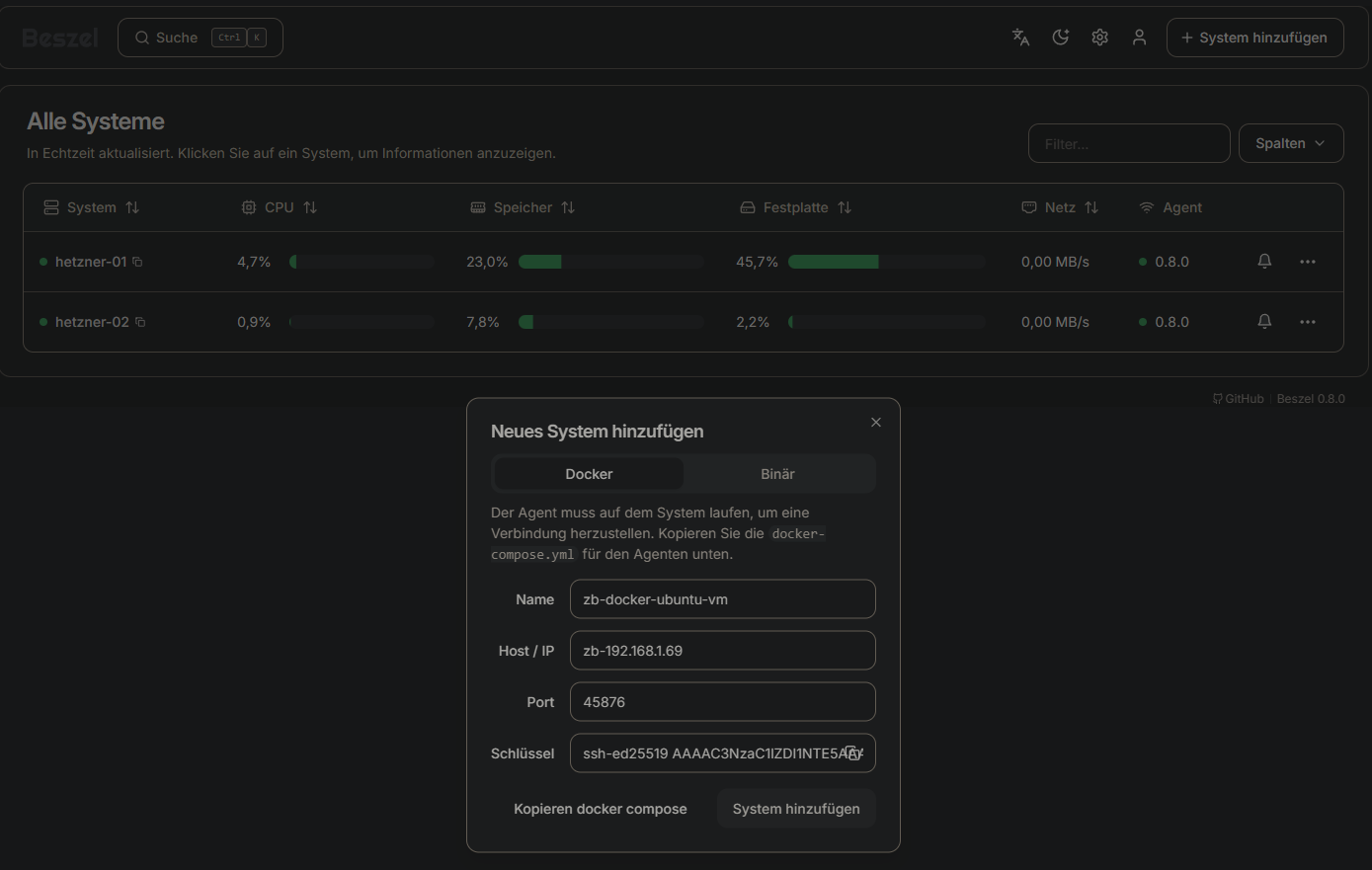
beszel (Agent)
# BEISPIEL FÜR AGENT, NICHT BLIND KOPIEREN
services:
beszel-agent:
image: "henrygd/beszel-agent"
container_name: "beszel-agent"
restart: unless-stopped
network_mode: host
volumes:
- /var/run/docker.sock:/var/run/docker.sock:ro
# monitor other disks / partitions by mounting a folder in /extra-filesystems
# - /mnt/disk/.beszel:/extra-filesystems/sda1:ro
environment:
PORT: 45876
KEY: "ssh-ed25519 AAAAC3N........................lhJ6jc/+LcGSAwKYlfEt"Duplicati (Backup Tool)
---
services:
duplicati:
image: lscr.io/linuxserver/duplicati:2.0.8
container_name: duplicati
environment:
- PUID=1000
- PGID=1000
- TZ=Europe/Berlin
- CLI_ARGS= #optional
volumes:
- config:/config
- backups:/backups
- /home/:/source
ports:
- 8200:8200
restart: unless-stopped
volumes:
config:
backups:
Coturn (STUN / TURN Server für Jitsi Meet)
Weil einige Firewalls auf der Clientseite verhindern, sich mit UDP Port 10000 zu verbinden, um WebRTC durchzuschleusen, sollte ein TURN Server aufgesetzt werden, über den dann der Verkehr geleitet wird. Wenn UDP Ports möglich sind, stellt der STUN Server eine Peer2Peer Verbinung her. Wenn nicht, wird der Traffic über Port 443 geleitet, was bei jedem restriktiven Netzwerk funktionieren sollte.
⚠ Wichtig ⚠ Der TURN Server kann nicht ohne weiteres über einen Reverse Proxy geleitet werden, weil er nicht auf dem HTTP Protokoll beruht, sondern auf TCP und/oder TLS. Es sollte also am besten ein eigener Server sein, auf dem der Port 443 freigegeben werden kann, ohne auf einen Reverse Proxy zu zeigen.
https://hub.docker.com/r/coturn/coturn
https://doganbros.com/blog/turn-server-setup-for-jitsi-on-ubuntu-20-04-tls
jits meet .env
JVB_STUN_SERVERS=turn.DOMAIN.de:443
TURN_CREDENTIALS=rqj........GhY
TURN_HOST=turn.DOMAIN.de
TURN_PORT=443
#TURNS_HOST=turn.DOMAIN.de
#TURNS_PORT=443
TURN_TRANSPORT=tcp
ENABLE_TURN=1
ENABLE_P2P=1certbot installieren
sudo apt update
sudo apt install certbot
sudo certbot certonly --standalone --preferred-challenges http -d turn.DOMAIN.de
sudo ufw allow 443coturn docker-compose.yml
services:
coturn:
network_mode: host
#networks:
# - jitsi_meet.jitsi
container_name: coturn
image: coturn/coturn
restart: unless-stopped
volumes:
- /etc/letsencrypt/live/turn.DOMAIN.de/fullchain.pem:/etc/letsencrypt/live/turn.DOMAIN.de/fullchain.pem
- /etc/letsencrypt/live/turn.DOMAIN.de/privkey.pem:/etc/letsencrypt/live/turn.DOMAIN.de/privkey.pem
tmpfs:
- /var/lib/coturn
#ports:
#- 80:3478
#- 80:3478/udp
#- 443:5349
#- 443:5349/udp
#- 5349:5349
#- 5349:5349/udp
#- 3478:3478
#- 3478:3478/udp
#- 80:80
#- 80:80/udp
#- 443:443
#- 443:443/udp
command:
- --log-file=stdout
- --verbose
- --cert=/etc/letsencrypt/live/turn.DOMAIN.de/fullchain.pem
- --pkey=/etc/letsencrypt/live/turn.DOMAIN.de/privkey.pem
- --min-port=49160
- --max-port=49200
- --listening-port=443
#- --tls-listening-port=443
- --fingerprint
- --no-multicast-peers
#- --no-udp-relay
#- --no-udp
#- --no-tcp-relay
#- --no-tcp
- --no-cli
- --no-tlsv1
- --no-tlsv1_1
- --external-ip=116.203.93.143
- --static-auth-secret=rqj...........[openssl rand -base64 32]...............cGhY
- --use-auth-secret
- --realm=turn.DOMAIN.de
#networks:
# jitsi_meet.jitsi:
# name: jitsi_meet.jitsi
# external: true
# driver: bridgeconfig testen:
secret=rqjw...........cGhY && time=$(date +%s) && expiry=8400 && username=$(( $time + $expiry )) &&echo username:$username && echo password : $(echo -n $username | openssl dgst -binary -sha1 -hmac $secret | openssl base64)
und bei trickle-ice IM FIREFOX (chrome klappt nicht gut) angeben:
https://webrtc.github.io/samples/src/content/peerconnection/trickle-ice/
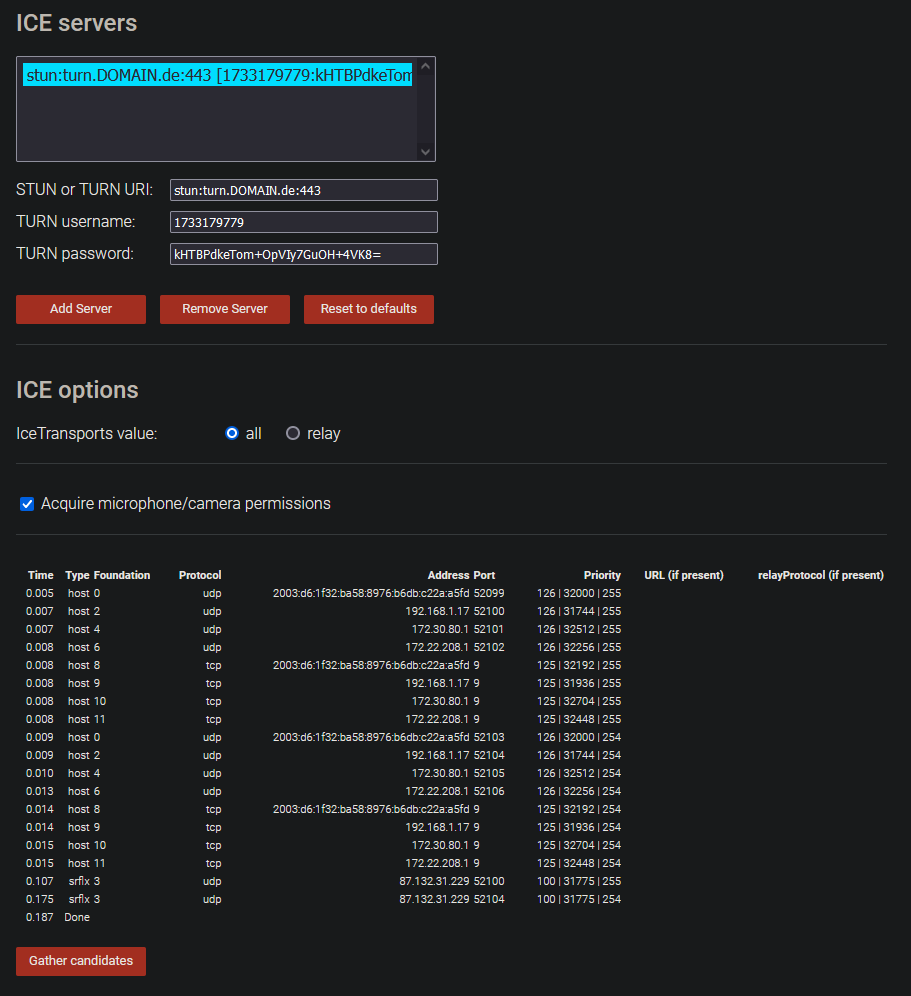
Stirling PDF
version: '3.3'
services:
stirling-pdf:
restart: unless-stopped
image: stirlingtools/stirling-pdf:0.38.0
ports:
- '8080:8080'
volumes:
- trainingData:/usr/share/tessdata # Required for extra OCR languages
- extraConfigs:/configs
- customFiles:/customFiles/
- logs:/logs/
- pipeline:/pipeline/
environment:
- DOCKER_ENABLE_SECURITY=false
- LANGS='de_DE'
- SYSTEM_DEFAULTLOCALE=de-DE
- SYSTEM_SHOWUPDATE=false
- SYSTEM_GOOGLEVISIBILITY=false
- UI_APPNAME=S-PDF
- UI_HOMEDESCRIPTION=Stirling PDF
- UI_APPNAMENAVBAR=S-PDF
volumes:
trainingData:
extraConfigs:
customFiles:
logs:
pipeline:Für deutsches OCR muss die Datei deu.traineddata heruntergeladen und in's Volume trainingData kopiert werden
https://github.com/tesseract-ocr/tessdata_fast/blob/main/deu.traineddata
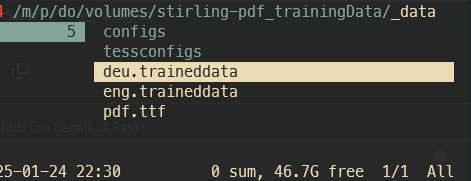
DocuSeal (Docusign Alternative)
https://github.com/docusealco/docuseal
services:
app:
depends_on:
postgres:
condition: service_healthy
image: docuseal/docuseal:1.9.8
ports:
- 3000:3000
volumes:
- app:/data/docuseal
environment:
- FORCE_SSL=${HOST}
- DATABASE_URL=postgresql://postgres:postgres@postgres:5432/docuseal
postgres:
image: postgres:15
volumes:
- './pg_data:/var/lib/postgresql/data'
environment:
POSTGRES_USER: postgres
POSTGRES_PASSWORD: postgres
POSTGRES_DB: docuseal
healthcheck:
test: ["CMD-SHELL", "pg_isready -U postgres"]
interval: 5s
timeout: 5s
retries: 5
volumes:
app:
#
# caddy:
# image: caddy:latest
# command: caddy reverse-proxy --from $HOST --to app:3000
# ports:
# - 80:80
# - 443:443
# - 443:443/udp
# volumes:
# - .:/data
# environment:
# - HOST=${HOST}Beispiel für API-Call zum Unterschreiben
curl --location 'https://sign.DEINEDOMAIN.de/api/submissions' \
--header 'X-Auth-Token: zFTAbKT36yB...............g3E2af' \
--data-raw '{
"template_id": 2,
"submitters": [
{
"name": "Eike Fo",
"role": "Erste Partei",
"email": "MAIL@ADRESSE.DE",
"values": {
"Name AusstellerIn": "Eike Test"
}
},
{ "role": "Second Submitter", "email": "MAIL@ADRESSE.DE" }
]
}'
Grafana + Prometheus + Loki
docker-compose.yml
services:
grafana:
image: grafana/grafana-oss:11.5.1-ubuntu
container_name: grafana
hostname: grafana
restart: unless-stopped
environment:
- GF_SERVER_ROOT_URL=https://grafana.MEINEDOMAIN.de
- GF_PLUGINS_PREINSTALL=grafana-clock-panel
- GF_SECURITY_ADMIN_USER=admin
#- GF_SECURITY_ADMIN_PASSWORD=admin
- GF_SMTP_ENABLED=true
- GF_SMTP_HOST=smtp.strato.de:587
- GF_SMTP_USER=it@MEINEDOMAIN.de
- GF_SMTP_PASSWORD=MEIN-MAIL-PW
- GF_SMTP_FROM_ADDRESS=grafana@MEINEDOMAIN.de
- GF_SMTP_FROM_NAME=Grafana Alerts
ports:
- 3030:3000
volumes:
- grafana:/var/lib/grafana
networks:
grafana-monitoring:
prometheus:
image: prom/prometheus:v3.1.0
container_name: prometheus
hostname: prometheus
restart: unless-stopped
ports:
- 9090:9090
volumes:
- prometheus:/etc/prometheus
networks:
grafana-monitoring:
cadvisor:
image: gcr.io/cadvisor/cadvisor:v0.47.2
devices:
- /dev/kmsg
privileged: true
container_name: cadvisor
hostname: cadvisor
restart: unless-stopped
ports:
- 8088:8080
volumes:
- /dev/disk/:/dev/disk:ro
- /mnt/praxis-volume-01/docker-data/:/var/lib/docker:ro
- /sys:/sys:ro
- /var/run:/var/run:ro
- /:/rootfs:ro
networks:
grafana-monitoring:
volumes:
grafana:
prometheus:
networks:
grafana-monitoring:
driver: bridgePrometheus Node Exporter
Für alle Hardware-Infos des Nodes (CPU, RAM, Netzwerk etc...)
https://github.com/prometheus/node_exporter
https://prometheus.io/docs/guides/node-exporter/
docker-compose.yml
services:
node_exporter:
image: quay.io/prometheus/node-exporter:v1.9.0
container_name: node_exporter
command:
- '--path.rootfs=/host'
network_mode: host
pid: host
restart: unless-stopped
volumes:
- '/:/host:ro,rslave'Prometheus.yml (Prometheus Container)
Danach in das Prometheus Volume gehen und die Prometheus.yml bearbeiten:
# my global config
global:
scrape_interval: 5s # Set the scrape interval to every 15 seconds. Default is every 1 minute.
evaluation_interval: 5s # Evaluate rules every 15 seconds. The default is every 1 minute.
# scrape_timeout is set to the global default (10s).
# Alertmanager configuration
alerting:
alertmanagers:
- static_configs:
- targets:
# - alertmanager:9093
# Load rules once and periodically evaluate them according to the global 'evaluation_interval'.
rule_files:
# - "first_rules.yml"
# - "second_rules.yml"
# A scrape configuration containing exactly one endpoint to scrape:
# Here it's Prometheus itself.
scrape_configs:
# The job name is added as a label `job=<job_name>` to any timeseries scraped from this config.
- job_name: "prometheus"
# metrics_path defaults to '/metrics'
# scheme defaults to 'http'.
static_configs:
- targets: ["localhost:9090"]
- job_name: 'cadvisor'
static_configs:
#- targets: ['cadvisor:8080']
# ^ LÄUFT LEIDER NICHT, HOSTNAME KANN NUR KURZ AM ANFANG VOM PROMETHEUS CONTANER MIT NSLOOKUP CADVISOR GEFUNDEN WERDEN, DANACH NICHT MEHR... ICH MACH ES EINFACH UEBER DIE EXTERNE IP ADRESSE.
# docker exec -it prometheus /bin/sh
# nslookup cadvisor
# Bemerke dass der Host Port 8088 auf intern 8080 umleitet. Wenn du also cadvisor versuchst, nimm den internen Port 8080 und nicht 8088 so wie ich
- targets: ['hetzner-01.MEINEDOMAIN.de:8088']
# oder
- targets: ['LOKALE-VPS-IP-ZB_10.0.0.3:8088']
- job_name: node
static_configs:
- targets: ['10.0.0.3:9100', '10.0.0.4:9100']
Grafana Dashboards
Node Exporter Full
https://grafana.com/grafana/dashboards/1860-node-exporter-full/
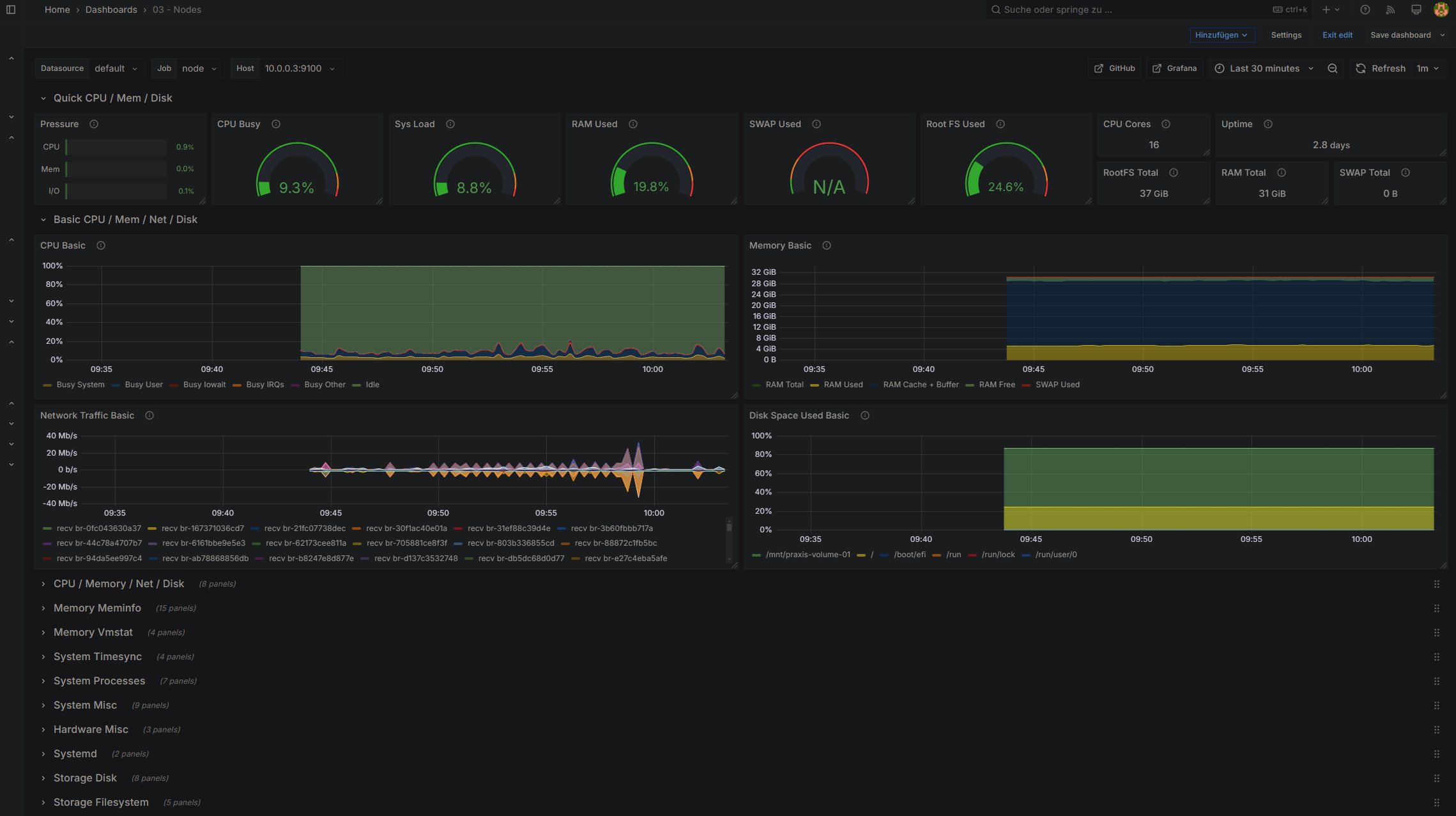
Docker Container (cadvisor)
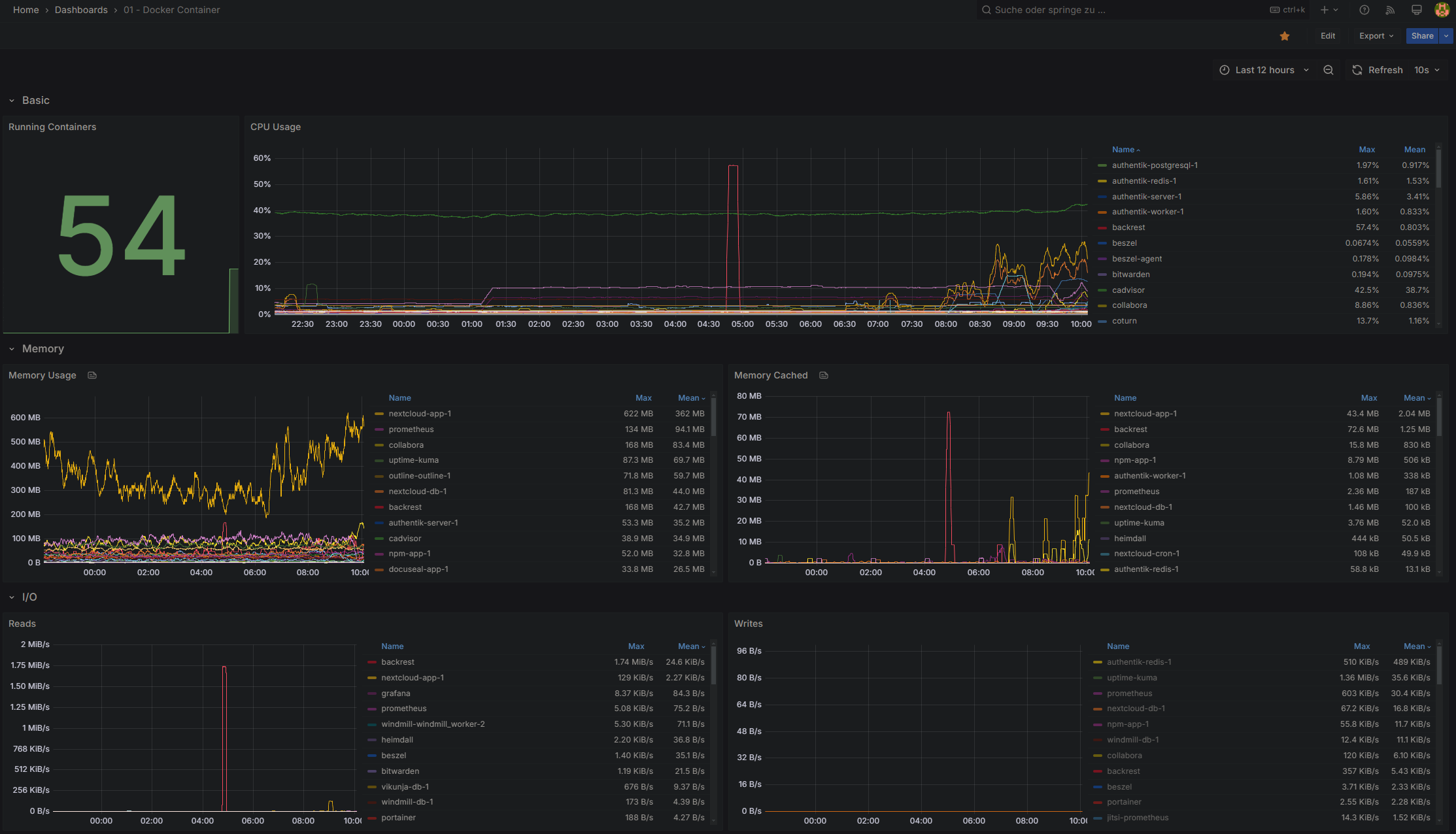
Jitsi Meet
https://grafana.com/grafana/dashboards/12282-jitsi-meet-system/
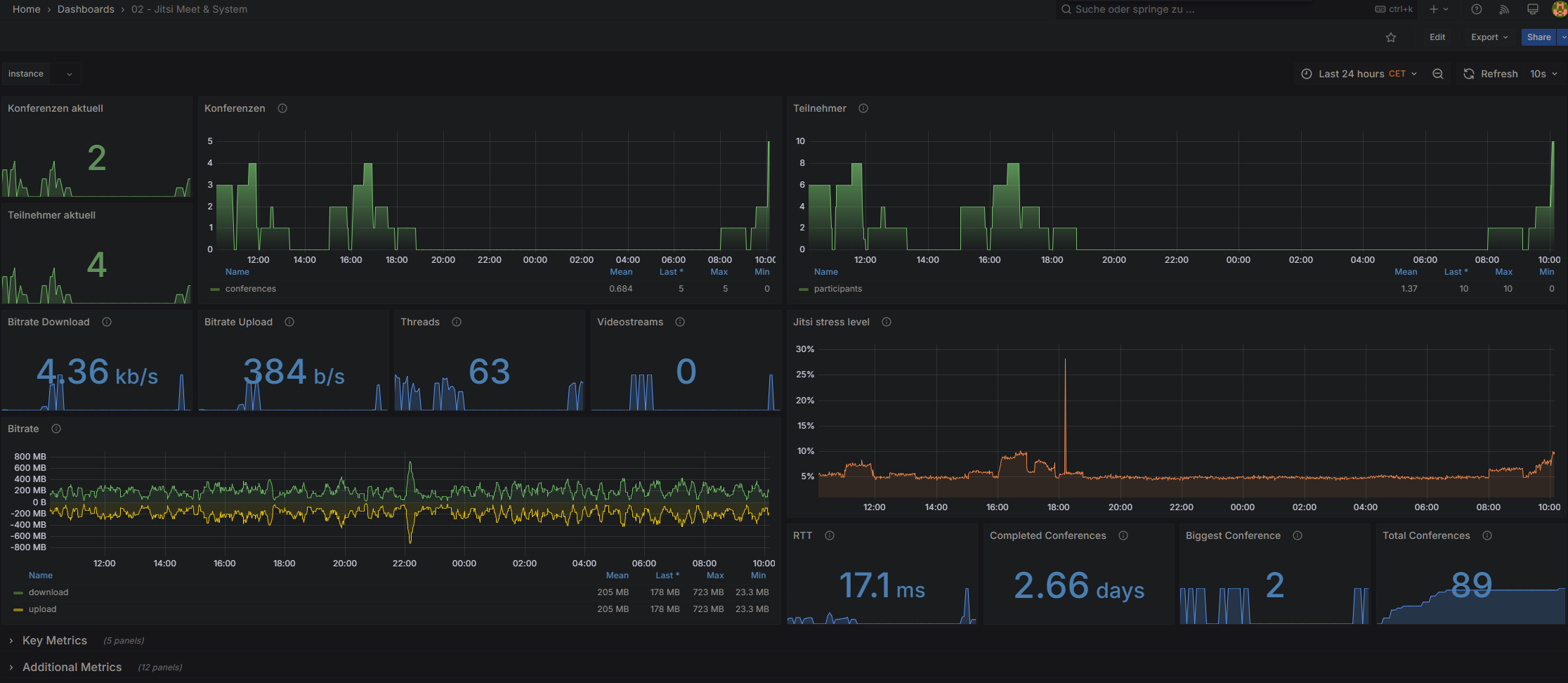
Lokale KI mit Ollama + open-WebUI
Quelle: https://www.youtube.com/watch?v=vW29hgdb05I
abgeändert für AMD Ryzen AI Max+ 395 (dockerimage ollama/ollama:rocm und devices)
2026-03-24
als erstes amdgpu installieren mit
https://amdgpu-install.readthedocs.io/en/latest/install-overview.html#install-script
amdgpu-installdanach
nano /etc/default/grub
[...]
GRUB_CMDLINE_LINUX_DEFAULT="quiet splash amdgpu.noretry=0"
[...]sudo update-grub
sudo rebootauf diese Änderung basiert die env-var HSA_XNACK: 1 in der folgenden docker-compose, erst damit klappte bei meinem Strix Halo die Erkennung der Graka
services:
ollama:
image:
ollama/ollama:0.18.2-rocm
restart: unless-stopped
container_name: ollama
environment:
#OLLAMA_FLASH_ATTENTION: true
# setting Context length to 8192 for longer data
#OLLAMA_CONTEXT_LENGTH: 8192
#HSA_OVERRIDE_GFX_VERSION: 11.5.1
#HIP_VISIBLE_DEVICES: 0 # Standard-GPU (0 = erste GPU)
#ROCR_VISIBLE_DEVICES: "34632"
OLLAMA_DEBUG: 1
HSA_XNACK: 1
volumes:
- ollama:/root/.ollama
devices:
- "/dev/kfd:/dev/kfd"
- "/dev/dri:/dev/dri"
group_add:
- video
#- render
ports:
- "11434:11434"
open-webui:
image: ghcr.io/open-webui/open-webui:latest
container_name: open-webui
volumes:
- open-webui:/app/backend/data
depends_on:
- ollama
ports:
- 3000:8080
environment:
- WEBUI_URL=https://ki.MEINEDOMAIN.DE
- ENABLE_OAUTH_PERSISTENT_CONFIG=false
- OAUTH_PROVIDER_NAME=Authentik
- OAUTH_CLIENT_ID=k4I...NF
- OAUTH_CLIENT_SECRET=JNnJp31ZqcM5Uu...GWl7DHw5qCi0hz0
- OPENID_PROVIDER_URL=https://auth.MEINEDOMAIN.DE/application/o/<MEIN-SLUG-NAME>/.well-known/openid-configuration
- OPENID_REDIRECT_URI=https://ki.MEINEDOMAIN.DE/oauth/oidc/callback
# Allows auto-creation of new users using OAuth. Must be paired with ENABLE_LOGIN_FORM=false.
- ENABLE_OAUTH_SIGNUP=true
# Disables user/password login form. Required when ENABLE_OAUTH_SIGNUP=true.
# Nachtrag von Eike: Required stimmt nicht ganz, es geht auch ENABLE_OAUTH_SIGNUP=true UND ENABLE_LOGIN_FORM=true
- ENABLE_LOGIN_FORM=true
- OAUTH_MERGE_ACCOUNTS_BY_EMAIL=true
- OAUTH_SCOPES=openid email profile
- OLLAMA_BASE_URL=http://ollama:11434
- WEBUI_SECRET_KEY=3ba8.....<openssl rand -hex 24>...3a70124
extra_hosts:
- host.docker.internal:host-gateway
restart: unless-stopped
volumes:
ollama:
open-webui:
Mit Authentik verbinden (OIDC)
https://integrations.goauthentik.io/miscellaneous/open-webui/
https://docs.openwebui.com/features/access-security/auth/sso/
https://docs.openwebui.com/troubleshooting/sso/
Einfach provider in Authentik einstellen mit standard settings (email openid profile) und als redirect-uri strict die gleiche URI wie in der env var OPENID_REDIRECT_URI aus der docker-compose:
https://ki.MEINEDOMAIN.DE/oauth/oidc/callback
2026-03-22 (mit image von rjmalagon)
Problem: ROCm im neuesten rjmalagon-image (v0.18.0.2) ist nicht rocm 7.x sondern 6.x enthalten.
Das aktuellste ROCm-7 Image (optm-rocm7-latest) hat zwar rocm 7.x, ist allerdings zu alt, um neuere MoE Modelle zu unterstützen wie qwen3.5 oder nemotron-cascade-2. Lösung siehe oben mit ollama aktuell und HSA_XNACK=1
https://community.frame.work/t/running-ollama-in-docker-on-our-framework-desktop-using-the-gpu/75662/9 < ollama compose part aus diesem thread
https://github.com/rjmalagon/ollama-linux-amd-apu < dieses image
https://github.com/phueper/ollama-linux-amd-apu/tree/apu-optimizer < anderer fork
https://www.reddit.com/r/ollama/comments/1nt5fcr/how_do_i_get_ollama_to_use_the_igpu_on_the_amd_ai/
https://github.com/rjmalagon/ollama-linux-amd-apu/issues/24
https://github.com/ollama/ollama/pull/13000
docker-compose.yml
services:
ollama:
image:
ghcr.io/rjmalagon/ollama-linux-amd-apu:optm-rocm7-latest
restart: unless-stopped
environment:
OLLAMA_FLASH_ATTENTION: true
OLLAMA_DEBUG: 0
# setting Context length to 8192 for longer data
OLLAMA_CONTEXT_LENGTH: 8192
volumes:
- ollama_storage:/root/.ollama
devices:
- "/dev/kfd:/dev/kfd"
- "/dev/dri:/dev/dri"
group_add:
- video
ports:
- "11434:11434"
open-webui:
image: ghcr.io/open-webui/open-webui:latest
container_name: open-webui
volumes:
- open-webui:/app/backend/data
depends_on:
- ollama
ports:
- 3000:8080
environment:
- 'OLLAMA_BASE_URL=http://ollama:11434'
- 'WEBUI_SECRET_KEY='
extra_hosts:
- host.docker.internal:host-gateway
restart: unless-stopped
volumes:
ollama_storage:
open-webui:
alt (mit ollama image)
services:
ollama:
# Uncomment below for GPU support
# deploy:
# resources:
# reservations:
# devices:
# - driver: nvidia
# count: 1
# capabilities:
# - gpu
# AMD GPU:
devices:
- /dev/kfd
- /dev/dri
volumes:
- ollama:/root/.ollama
# Uncomment below to expose Ollama API outside the container stack
# ports:
# - 11434:11434
container_name: ollama
pull_policy: always
tty: true
restart: unless-stopped
#image: ollama/ollama
# AMD GPU:
image: ollama/ollama:rocm
#networks:
# - ollama-network
open-webui:
# build:
# context: .
# args:
# OLLAMA_BASE_URL: '/ollama'
# dockerfile: Dockerfile
image: ghcr.io/open-webui/open-webui:latest
container_name: open-webui
volumes:
- open-webui:/app/backend/data
depends_on:
- ollama
ports:
- 3000:8080
environment:
- 'OLLAMA_BASE_URL=http://ollama:11434'
- 'WEBUI_SECRET_KEY='
extra_hosts:
- host.docker.internal:host-gateway
restart: unless-stopped
#networks:
# - ollama-network
# - proxy
#labels:
# - "traefik.enable=true"
# - "traefik.docker.network=proxy"
# - "traefik.http.routers.ollama.entrypoints=http"
# - "traefik.http.routers.ollama.rule=Host(`ollama.jimsgarage.co.uk`)"
# - "traefik.http.middlewares.ollama-https-redirect.redirectscheme.scheme=https"
# - "traefik.http.routers.ollama.middlewares=ollama-https-redirect"
# - "traefik.http.routers.ollama-secure.entrypoints=https"
# - "traefik.http.routers.ollama-secure.rule=Host(`ollama.jimsgarage.co.uk`)"
# - "traefik.http.routers.ollama-secure.tls=true"
# - "traefik.http.routers.ollama-secure.tls.certresolver=cloudflare"
# - "traefik.http.routers.ollama-secure.service=ollama"
# - "traefik.http.services.ollama.loadbalancer.server.port=8080"
volumes:
ollama:
open-webui:
#networks:
#ollama-network:
#proxy:
# external: trueHoarder (Bookmark-Senke)
services:
web:
image: ghcr.io/hoarder-app/hoarder:${HOARDER_VERSION:-release}
restart: unless-stopped
volumes:
# By default, the data is stored in a docker volume called "data".
# If you want to mount a custom directory, change the volume mapping to:
# - /path/to/your/directory:/data
- data:/data
ports:
- 3023:3000
env_file:
- stack.env
environment:
MEILI_ADDR: http://meilisearch:7700
BROWSER_WEB_URL: http://chrome:9222
# OPENAI_API_KEY: ...
# You almost never want to change the value of the DATA_DIR variable.
# If you want to mount a custom directory, change the volume mapping above instead.
DATA_DIR: /data # DON'T CHANGE THIS
chrome:
image: gcr.io/zenika-hub/alpine-chrome:123
restart: unless-stopped
command:
- --no-sandbox
- --disable-gpu
- --disable-dev-shm-usage
- --remote-debugging-address=0.0.0.0
- --remote-debugging-port=9222
- --hide-scrollbars
meilisearch:
image: getmeili/meilisearch:v1.11.1
restart: unless-stopped
env_file:
- stack.env
environment:
MEILI_NO_ANALYTICS: "true"
volumes:
- meilisearch:/meili_data
volumes:
meilisearch:
data:.env
DATA_DIR=/data
MEILI_ADDR=http://127.0.0.1:7700
MEILI_MASTER_KEY=m2l...........VU3e
NEXTAUTH_URL=http://localhost:3000
NEXTAUTH_SECRET=8Fz..............c6qU
DISABLE_SIGNUPS=true
OPENAI_API_KEY=sk-svcacct-PZe_..........BO9AA
Nextcloud AIO
Nextcloud All-In-One Manual-Install
Manual-install statt Auto-install mit AIO-Webinterface, um Möglichkeiten wie admin-pw, container-versionen, SSE, S3 Primary Storage usw bearbeiten zu können und es zu einem späteren Zeitpunkt besser zu Kubernetes/Swarm übertragen zu können.
Quelle: https://github.com/nextcloud/all-in-one/tree/main/manual-install
Aktuellste Images: https://github.com/orgs/nextcloud-releases/packages?repo_name=all-in-one
Befehle
# nextcloud-aio repo klonen
git clone https://github.com/nextcloud/all-in-one.git
cd all-in-one/manual-install
# dateien kopieren und umbenennen (auch damit sie beim updaten nicht überschrieben werden)
cp sample.conf .env
cp latest.yml compose.yaml
# bearbeiten
nano .env
nano compose.yaml
# mit docker hochfahren
# sudo docker compose --profile collabora --profile talk --profile talk-recording --profile clamav --profile imaginary --profile fulltextsearch --profile whiteboard up
docker compose --profile collabora --profile clamav --profile imaginary --profile fulltextsearch --profile whiteboard up -d --force-recreate
Allgemeine Befehle zb für Updates der Container
# Container stoppen
docker compose --profile collabora --profile clamav --profile imaginary --profile fulltextsearch --profile whiteboard down
# Updaten
docker compose --profile collabora --profile clamav --profile imaginary --profile fulltextsearch --profile whiteboard pull
# Container neustarten
docker compose --profile collabora --profile clamav --profile imaginary --profile fulltextsearch --profile whiteboard up -d --force-recreate -t 30Resultierende Dateien
Eikes .env
(updated 2026-01-21)
Änderungen: Secrets & PWs, optionale Container enabled, Nextcloud PHP Memory auf 2048MB statt 512, Apache-Additional-Network für reverse-proxy von anderem server, skip-domain-validation für einfacheres debugging, pgadmin logindaten
# SECRETS UND PWs MIT 'openssl rand -hex 24' erstellen!
DATABASE_PASSWORD=c9ba4dc404 # TODO! This needs to be a unique and good password!
FULLTEXTSEARCH_PASSWORD=5a2e38d # TODO! This needs to be a unique and good password!
IMAGINARY_SECRET=b8e9d34b1 # TODO! This needs to be a unique and good password!
NC_DOMAIN=nextcloud.MEINEDOMAIN.de # TODO! Needs to be changed to the domain that you want to use for Nextcloud.
NEXTCLOUD_PASSWORD=e1dae5 # TODO! This is the password of the initially created Nextcloud admin with username "admin".
ONLYOFFICE_SECRET=aaf8 # TODO! This needs to be a unique and good password!
RECORDING_SECRET=88ff5 # TODO! This needs to be a unique and good password!
REDIS_PASSWORD=0aaff3b99c # TODO! This needs to be a unique and good password!
SIGNALING_SECRET=98467 # TODO! This needs to be a unique and good password!
TALK_INTERNAL_SECRET=4d67b6 # TODO! This needs to be a unique and good password!
TIMEZONE=Europe/Berlin # TODO! This is the timezone that your containers will use.
TURN_SECRET=b1ebb03d63 # TODO! This needs to be a unique and good password!
WHITEBOARD_SECRET=d7135 # TODO! This needs to be a unique and good password!
CLAMAV_ENABLED="yes" # Setting this to "yes" (with quotes) enables the option in Nextcloud automatically.
COLLABORA_ENABLED="yes" # Setting this to "yes" (with quotes) enables the option in Nextcloud automatically.
FULLTEXTSEARCH_ENABLED="yes" # Setting this to "yes" (with quotes) enables the option in Nextcloud automatically.
IMAGINARY_ENABLED="yes" # Setting this to "yes" (with quotes) enables the option in Nextcloud automatically.
ONLYOFFICE_ENABLED="no" # Setting this to "yes" (with quotes) enables the option in Nextcloud automatically.
TALK_ENABLED="no" # Setting this to "yes" (with quotes) enables the option in Nextcloud automatically.
TALK_RECORDING_ENABLED="no" # Setting this to "yes" (with quotes) enables the option in Nextcloud automatically.
WHITEBOARD_ENABLED="yes" # Setting this to "yes" (with quotes) enables the option in Nextcloud automatically.
APACHE_IP_BINDING=0.0.0.0 # This can be changed to e.g. 127.0.0.1 if you want to run AIO behind a web server or reverse proxy (like Apache, Nginx, Caddy, Cloudflare Tunnel and else) and if that is running on the same host and using localhost to connect
APACHE_MAX_SIZE=17179869184 # This needs to be an integer and in sync with NEXTCLOUD_UPLOAD_LIMIT
APACHE_PORT=11000 # Changing this to a different value than 443 will allow you to run it behind a web server or reverse proxy (like Apache, Nginx, Caddy, Cloudflare Tunnel and else).
ADDITIONAL_COLLABORA_OPTIONS=['--o:security.seccomp=true'] # You can add additional collabora options here by using the array syntax.
COLLABORA_DICTIONARIES="de_DE en_GB en_US es_ES fr_FR it nl pt_BR pt_PT ru" # You can change this in order to enable other dictionaries for collabora
FULLTEXTSEARCH_JAVA_OPTIONS="-Xms512M -Xmx512M" # Allows to adjust the fulltextsearch java options.
INSTALL_LATEST_MAJOR=no # Setting this to yes will install the latest Major Nextcloud version upon the first installation
NEXTCLOUD_ADDITIONAL_APKS=imagemagick # This allows to add additional packages to the Nextcloud container permanently. Default is imagemagick but can be overwritten by modifying this value.
NEXTCLOUD_ADDITIONAL_PHP_EXTENSIONS=imagick # This allows to add additional php extensions to the Nextcloud container permanently. Default is imagick but can be overwritten by modifying this value.
NEXTCLOUD_DATADIR=nextcloud_aio_nextcloud_data # You can change this to e.g. "/mnt/ncdata" to map it to a location on your host. It needs to be adjusted before the first startup and never afterwards!
NEXTCLOUD_MAX_TIME=3600 # This allows to change the upload time limit of the Nextcloud container
NEXTCLOUD_MEMORY_LIMIT=2048M # This allows to change the PHP memory limit of the Nextcloud container
NEXTCLOUD_MOUNT=/mnt/ # This allows the Nextcloud container to access directories on the host. It must never be equal to the value of NEXTCLOUD_DATADIR!
NEXTCLOUD_STARTUP_APPS="deck twofactor_totp tasks calendar contacts notes user_oidc external files_accesscontrol files_linkeditor drawio" # Allows to modify the Nextcloud apps that are installed on starting AIO the first time
NEXTCLOUD_TRUSTED_CACERTS_DIR=/usr/local/share/ca-certificates/my-custom-ca # Nextcloud container will trust all the Certification Authorities, whose certificates are included in the given directory.
NEXTCLOUD_UPLOAD_LIMIT=16G # This allows to change the upload limit of the Nextcloud container
REMOVE_DISABLED_APPS=no # Setting this to no keep Nextcloud apps that are disabled via their switch and not uninstall them if they should be installed in Nextcloud.
TALK_PORT=3478 # This allows to adjust the port that the talk container is using. It should be set to something higher than 1024! Otherwise it might not work!
UPDATE_NEXTCLOUD_APPS="no" # When setting to "yes" (with quotes), it will automatically update all installed Nextcloud apps upon container startup on saturdays.
APACHE_ADDITIONAL_NETWORK=""
SKIP_DOMAIN_VALIDATION=true
PGADMIN_DEFAULT_EMAIL=MAIL@MEINEDOMAIN.de
PGADMIN_DEFAULT_PASSWORD=MEIN-PGADMIN-WEBUI-PW (oder mit <openssl rand -hex 24> erzeugt)
# seit Update auf Nextcloud Hub 10 (Nextcloud 31.x) startete das entrypoint.sh Skript nicht mehr, weil es die Redis-DB nicht erreichen konnte weil die var REDIS_PORT fehlte. In der docker-compose.yml bzw. compose.yml unbedingt im Container nextcloud-aio-nextcloud als environment abspeichern. siehe compose.yml weiter unten im wiki
REDIS_PORT=6379Eikes compose.yaml
(updated 2026-01-21)
Änderungen:
name: ncganz oben, damit das Docker-Stack nicht nach dem Ordner 'manual-install' benannt wird- pgadmin am Ende für Datenbank-WebUI
- Volume für pgadmin
- REDIS_PORT als env-var im service nextcloud-aio-nextcloud
name: ncaio
services:
nextcloud-aio-apache:
depends_on:
nextcloud-aio-onlyoffice:
condition: service_started
required: false
nextcloud-aio-collabora:
condition: service_started
required: false
nextcloud-aio-talk:
condition: service_started
required: false
nextcloud-aio-notify-push:
condition: service_started
required: false
nextcloud-aio-whiteboard:
condition: service_started
required: false
nextcloud-aio-nextcloud:
condition: service_started
required: false
image: ghcr.io/nextcloud-releases/aio-apache:latest
user: "33"
init: true
healthcheck:
start_period: 0s
test: /healthcheck.sh
interval: 30s
timeout: 30s
start_interval: 5s
retries: 3
ports:
- ${APACHE_IP_BINDING}:${APACHE_PORT}:${APACHE_PORT}/tcp
- ${APACHE_IP_BINDING}:${APACHE_PORT}:${APACHE_PORT}/udp
environment:
- NC_DOMAIN
- NEXTCLOUD_HOST=nextcloud-aio-nextcloud
- APACHE_HOST=nextcloud-aio-apache
- COLLABORA_HOST=nextcloud-aio-collabora
- TALK_HOST=nextcloud-aio-talk
- APACHE_PORT
- ONLYOFFICE_HOST=nextcloud-aio-onlyoffice
- TZ=${TIMEZONE}
- APACHE_MAX_SIZE
- APACHE_MAX_TIME=${NEXTCLOUD_MAX_TIME}
- NOTIFY_PUSH_HOST=nextcloud-aio-notify-push
- WHITEBOARD_HOST=nextcloud-aio-whiteboard
volumes:
- nextcloud_aio_nextcloud:/var/www/html:ro
- nextcloud_aio_apache:/mnt/data:rw
restart: unless-stopped
read_only: true
tmpfs:
- /var/log/supervisord
- /var/run/supervisord
- /usr/local/apache2/logs
- /tmp
- /home/www-data
cap_drop:
- NET_RAW
nextcloud-aio-database:
image: ghcr.io/nextcloud-releases/aio-postgresql:latest
user: "999"
init: true
healthcheck:
start_period: 0s
test: /healthcheck.sh
interval: 30s
timeout: 30s
start_interval: 5s
retries: 3
expose:
- "5432"
volumes:
- nextcloud_aio_database:/var/lib/postgresql/data:rw
- nextcloud_aio_database_dump:/mnt/data:rw
environment:
- POSTGRES_PASSWORD=${DATABASE_PASSWORD}
- POSTGRES_DB=nextcloud_database
- POSTGRES_USER=nextcloud
- TZ=${TIMEZONE}
- PGTZ=${TIMEZONE}
stop_grace_period: 1800s
restart: unless-stopped
shm_size: 268435456
read_only: true
tmpfs:
- /var/run/postgresql
cap_drop:
- NET_RAW
nextcloud-aio-nextcloud:
depends_on:
nextcloud-aio-database:
condition: service_started
required: false
nextcloud-aio-redis:
condition: service_started
required: false
nextcloud-aio-clamav:
condition: service_started
required: false
nextcloud-aio-fulltextsearch:
condition: service_started
required: false
nextcloud-aio-talk-recording:
condition: service_started
required: false
nextcloud-aio-imaginary:
condition: service_started
required: false
nextcloud-aio-pgadmin:
condition: service_started
required: false
image: ghcr.io/nextcloud-releases/aio-nextcloud:latest
init: true
healthcheck:
start_period: 0s
test: /healthcheck.sh
interval: 30s
timeout: 30s
start_interval: 5s
retries: 3
expose:
- "9000"
- "9001"
volumes:
- nextcloud_aio_nextcloud:/var/www/html:rw
- ${NEXTCLOUD_DATADIR}:/mnt/ncdata:rw
- ${NEXTCLOUD_MOUNT}:${NEXTCLOUD_MOUNT}:rw
- ${NEXTCLOUD_TRUSTED_CACERTS_DIR}:/usr/local/share/ca-certificates:ro
environment:
- NEXTCLOUD_HOST=nextcloud-aio-nextcloud
- POSTGRES_HOST=nextcloud-aio-database
- POSTGRES_PORT=5432
- POSTGRES_PASSWORD=${DATABASE_PASSWORD}
- POSTGRES_DB=nextcloud_database
- POSTGRES_USER=nextcloud
- REDIS_HOST=nextcloud-aio-redis
- REDIS_HOST_PASSWORD=${REDIS_PASSWORD}
- APACHE_HOST=nextcloud-aio-apache
- APACHE_PORT
- NC_DOMAIN
- ADMIN_USER=admin
- ADMIN_PASSWORD=${NEXTCLOUD_PASSWORD}
- NEXTCLOUD_DATA_DIR=/mnt/ncdata
- OVERWRITEHOST=${NC_DOMAIN}
- OVERWRITEPROTOCOL=https
- TURN_SECRET
- SIGNALING_SECRET
- ONLYOFFICE_SECRET
- NEXTCLOUD_MOUNT
- CLAMAV_ENABLED
- CLAMAV_HOST=nextcloud-aio-clamav
- ONLYOFFICE_ENABLED
- COLLABORA_ENABLED
- COLLABORA_HOST=nextcloud-aio-collabora
- TALK_ENABLED
- ONLYOFFICE_HOST=nextcloud-aio-onlyoffice
- UPDATE_NEXTCLOUD_APPS
- TZ=${TIMEZONE}
- TALK_PORT
- IMAGINARY_ENABLED
- IMAGINARY_HOST=nextcloud-aio-imaginary
- CLAMAV_MAX_SIZE=${APACHE_MAX_SIZE}
- PHP_UPLOAD_LIMIT=${NEXTCLOUD_UPLOAD_LIMIT}
- PHP_MEMORY_LIMIT=${NEXTCLOUD_MEMORY_LIMIT}
- FULLTEXTSEARCH_ENABLED
- FULLTEXTSEARCH_HOST=nextcloud-aio-fulltextsearch
- FULLTEXTSEARCH_PORT=9200
- FULLTEXTSEARCH_USER=elastic
- FULLTEXTSEARCH_INDEX=nextcloud-aio
- PHP_MAX_TIME=${NEXTCLOUD_MAX_TIME}
- TRUSTED_CACERTS_DIR=${NEXTCLOUD_TRUSTED_CACERTS_DIR}
- STARTUP_APPS=${NEXTCLOUD_STARTUP_APPS}
- ADDITIONAL_APKS=${NEXTCLOUD_ADDITIONAL_APKS}
- ADDITIONAL_PHP_EXTENSIONS=${NEXTCLOUD_ADDITIONAL_PHP_EXTENSIONS}
- INSTALL_LATEST_MAJOR
- TALK_RECORDING_ENABLED
- RECORDING_SECRET
- TALK_RECORDING_HOST=nextcloud-aio-talk-recording
- FULLTEXTSEARCH_PASSWORD
- REMOVE_DISABLED_APPS
- IMAGINARY_SECRET
- WHITEBOARD_SECRET
- WHITEBOARD_ENABLED
- REDIS_PORT=${REDIS_PORT}
stop_grace_period: 600s
restart: unless-stopped
cap_drop:
- NET_RAW
nextcloud-aio-notify-push:
image: ghcr.io/nextcloud-releases/aio-notify-push:latest
user: "33"
init: true
healthcheck:
start_period: 0s
test: /healthcheck.sh
interval: 30s
timeout: 30s
start_interval: 5s
retries: 3
expose:
- "7867"
volumes:
- nextcloud_aio_nextcloud:/nextcloud:ro
environment:
- NC_DOMAIN
- NEXTCLOUD_HOST=nextcloud-aio-nextcloud
- TZ=${TIMEZONE}
- REDIS_HOST=nextcloud-aio-redis
- REDIS_HOST_PASSWORD=${REDIS_PASSWORD}
- POSTGRES_HOST=nextcloud-aio-database
- POSTGRES_PORT=5432
- POSTGRES_PASSWORD=${DATABASE_PASSWORD}
- POSTGRES_DB=nextcloud_database
- POSTGRES_USER=nextcloud
restart: unless-stopped
read_only: true
cap_drop:
- NET_RAW
nextcloud-aio-redis:
image: ghcr.io/nextcloud-releases/aio-redis:latest
user: "999"
init: true
healthcheck:
start_period: 0s
test: /healthcheck.sh
interval: 30s
timeout: 30s
start_interval: 5s
retries: 3
expose:
- "6379"
environment:
- REDIS_HOST_PASSWORD=${REDIS_PASSWORD}
- TZ=${TIMEZONE}
volumes:
- nextcloud_aio_redis:/data:rw
restart: unless-stopped
read_only: true
cap_drop:
- NET_RAW
nextcloud-aio-collabora:
command: ${ADDITIONAL_COLLABORA_OPTIONS}
image: ghcr.io/nextcloud-releases/aio-collabora:latest
init: true
healthcheck:
start_period: 60s
test: /healthcheck.sh
interval: 30s
timeout: 30s
start_interval: 5s
retries: 9
expose:
- "9980"
environment:
- aliasgroup1=https://${NC_DOMAIN}:443
- extra_params=--o:ssl.enable=false --o:ssl.termination=true --o:mount_jail_tree=false --o:logging.level=warning --o:logging.level_startup=warning --o:home_mode.enable=true --o:remote_font_config.url=https://${NC_DOMAIN}/apps/richdocuments/settings/fonts.json --o:net.post_allow.host[0]=.+
- dictionaries=${COLLABORA_DICTIONARIES}
- TZ=${TIMEZONE}
- server_name=${NC_DOMAIN}
- DONT_GEN_SSL_CERT=1
restart: unless-stopped
profiles:
- collabora
cap_add:
- MKNOD
- SYS_ADMIN
- CHOWN
cap_drop:
- NET_RAW
nextcloud-aio-talk:
image: ghcr.io/nextcloud-releases/aio-talk:latest
user: "1000"
init: true
healthcheck:
start_period: 0s
test: /healthcheck.sh
interval: 30s
timeout: 30s
start_interval: 5s
retries: 3
ports:
- ${TALK_PORT}:${TALK_PORT}/tcp
- ${TALK_PORT}:${TALK_PORT}/udp
expose:
- "8081"
environment:
- NC_DOMAIN
- TALK_HOST=nextcloud-aio-talk
- TURN_SECRET
- SIGNALING_SECRET
- TZ=${TIMEZONE}
- TALK_PORT
- INTERNAL_SECRET=${TALK_INTERNAL_SECRET}
restart: unless-stopped
profiles:
- talk
- talk-recording
read_only: true
tmpfs:
- /var/log/supervisord
- /var/run/supervisord
- /opt/eturnal/run
- /conf
- /tmp
cap_drop:
- NET_RAW
nextcloud-aio-talk-recording:
image: ghcr.io/nextcloud-releases/aio-talk-recording:latest
user: "122"
init: true
healthcheck:
start_period: 0s
test: /healthcheck.sh
interval: 30s
timeout: 30s
start_interval: 5s
retries: 3
expose:
- "1234"
environment:
- NC_DOMAIN
- TZ=${TIMEZONE}
- RECORDING_SECRET
- INTERNAL_SECRET=${TALK_INTERNAL_SECRET}
volumes:
- nextcloud_aio_talk_recording:/tmp:rw
shm_size: 2147483648
restart: unless-stopped
profiles:
- talk-recording
read_only: true
tmpfs:
- /conf
cap_drop:
- NET_RAW
nextcloud-aio-clamav:
image: ghcr.io/nextcloud-releases/aio-clamav:latest
user: "100"
init: false
healthcheck:
start_period: 60s
test: /healthcheck.sh
interval: 30s
timeout: 30s
start_interval: 5s
retries: 9
expose:
- "3310"
environment:
- TZ=${TIMEZONE}
- MAX_SIZE=${NEXTCLOUD_UPLOAD_LIMIT}
volumes:
- nextcloud_aio_clamav:/var/lib/clamav:rw
restart: unless-stopped
profiles:
- clamav
read_only: true
tmpfs:
- /tmp
- /var/log/clamav
- /run/clamav
- /var/log/supervisord
- /var/run/supervisord
cap_drop:
- NET_RAW
nextcloud-aio-onlyoffice:
image: ghcr.io/nextcloud-releases/aio-onlyoffice:latest
init: true
healthcheck:
start_period: 60s
test: /healthcheck.sh
interval: 30s
timeout: 30s
start_interval: 5s
retries: 9
expose:
- "80"
environment:
- TZ=${TIMEZONE}
- JWT_ENABLED=true
- JWT_HEADER=AuthorizationJwt
- JWT_SECRET=${ONLYOFFICE_SECRET}
volumes:
- nextcloud_aio_onlyoffice:/var/lib/onlyoffice:rw
restart: unless-stopped
profiles:
- onlyoffice
cap_drop:
- NET_RAW
nextcloud-aio-imaginary:
image: ghcr.io/nextcloud-releases/aio-imaginary:latest
user: "65534"
init: true
healthcheck:
start_period: 0s
test: /healthcheck.sh
interval: 30s
timeout: 30s
start_interval: 5s
retries: 3
expose:
- "9000"
environment:
- TZ=${TIMEZONE}
- IMAGINARY_SECRET
restart: unless-stopped
cap_add:
- SYS_NICE
cap_drop:
- NET_RAW
profiles:
- imaginary
read_only: true
tmpfs:
- /tmp
nextcloud-aio-fulltextsearch:
image: ghcr.io/nextcloud-releases/aio-fulltextsearch:latest
init: false
healthcheck:
start_period: 60s
test: /healthcheck.sh
interval: 10s
timeout: 5s
start_interval: 5s
retries: 5
expose:
- "9200"
environment:
- TZ=${TIMEZONE}
- ES_JAVA_OPTS=${FULLTEXTSEARCH_JAVA_OPTIONS}
- bootstrap.memory_lock=true
- cluster.name=nextcloud-aio
- discovery.type=single-node
- logger.level=WARN
- http.port=9200
- xpack.license.self_generated.type=basic
- xpack.security.enabled=false
- FULLTEXTSEARCH_PASSWORD
volumes:
- nextcloud_aio_elasticsearch:/usr/share/elasticsearch/data:rw
restart: unless-stopped
profiles:
- fulltextsearch
cap_drop:
- NET_RAW
nextcloud-aio-whiteboard:
image: ghcr.io/nextcloud-releases/aio-whiteboard:latest
user: "65534"
init: true
healthcheck:
start_period: 0s
test: /healthcheck.sh
interval: 30s
timeout: 30s
start_interval: 5s
retries: 3
expose:
- "3002"
tmpfs:
- /tmp
environment:
- TZ=${TIMEZONE}
- NEXTCLOUD_URL=https://${NC_DOMAIN}
- JWT_SECRET_KEY=${WHITEBOARD_SECRET}
- STORAGE_STRATEGY=redis
- REDIS_HOST=nextcloud-aio-redis
- REDIS_HOST_PASSWORD=${REDIS_PASSWORD}
- BACKUP_DIR=/tmp
restart: unless-stopped
profiles:
- whiteboard
read_only: true
cap_drop:
- NET_RAW
nextcloud-aio-pgadmin:
# container_name: nextcloud-aio_pgadmin
image: dpage/pgadmin4:9.6.0
volumes:
- pgadmin:/root/.pgadmin
ports:
- 5050:80
environment:
- PGADMIN_DEFAULT_EMAIL=${PGADMIN_DEFAULT_EMAIL}
- PGADMIN_DEFAULT_PASSWORD=${PGADMIN_DEFAULT_PASSWORD}
restart: unless-stopped
volumes:
nextcloud_aio_apache:
name: nextcloud_aio_apache
nextcloud_aio_clamav:
name: nextcloud_aio_clamav
nextcloud_aio_database:
name: nextcloud_aio_database
nextcloud_aio_database_dump:
name: nextcloud_aio_database_dump
nextcloud_aio_elasticsearch:
name: nextcloud_aio_elasticsearch
nextcloud_aio_nextcloud:
name: nextcloud_aio_nextcloud
nextcloud_aio_onlyoffice:
name: nextcloud_aio_onlyoffice
nextcloud_aio_redis:
name: nextcloud_aio_redis
nextcloud_aio_talk_recording:
name: nextcloud_aio_talk_recording
nextcloud_aio_nextcloud_data:
name: nextcloud_aio_nextcloud_data
pgadmin:
name: nextcloud_aio_pgadmin
networks:
default:
driver: bridgeConfig.php
...
'trusted_proxies' =>
array (
0 => '127.0.0.1',
1 => '::1',
2 => '10.0.0.0/24',
10 => '172.21.0.0/16',
),
...
'trusted_domains' =>
array (
0 => 'localhost',
1 => 'nextcloud.MEINEDOMAIN.de',
2 => 'dev.nextcloud.MEINEDOMAIN.de',
),
...
'share_folder' => '/',
'skeletondirectory' => '',
'defaultapp' => 'files',
'default_language' => 'de',
'default_locale' => 'de',
'default_phone_region' => 'DE',
'default_timezone' => 'Europe/Berlin',
'knowledgebaseenabled' => false,
'lost_password_link' => 'disabled',
'simpleSignUpLink.shown' => false,
'loglevel' => 2,
'mail_from_address' => 'admin',
'mail_smtpmode' => 'smtp',
'mail_sendmailmode' => 'smtp',
'mail_domain' => 'MEINEDOMAIN.de',
'mail_smtphost' => 'smtp.strato.de',
'mail_smtpauth' => 1,
'mail_smtpport' => '587',
'mail_smtpname' => 'admin@MEINEDOMAIN.de',
'mail_smtppassword' => 'meintollespw123',
'maintenance' => false,
'default_charset' => 'UTF-8',
'sharing.force_share_accept' => 'false',
'sharing.enable_share_accept' => 'false',
'forbidden_filename_characters' =>
array (
0 => '?',
1 => '<',
2 => '>',
3 => ':',
4 => '*',
5 => '|',
6 => '"',
7 => '/',
8 => '§',
9 => '^',
),
)Installierte Apps
siehe .env Datei oben:
NEXTCLOUD_STARTUP_APPS="... user_oidc external files_accesscontrol files_linkeditor drawio" Deaktivierte Apps
- Dashboard
- Nextcloud Announcements
- Recommendations
- User Status
- Weather Status
- Support
- Usage Survey
- First Run Wizard
Weitere Befehle
im nextcloud container mit docker exec -it nc-nextcloud-aio-nextcloud-1 /bin/bash
php occ maintenance:repair --include-expensivephp occ files:scan --all# https://github.com/nextcloud/user_oidc?tab=readme-ov-file#disable-other-login-methods
docker exec -it -u 33 nc-nextcloud-aio-nextcloud-1 /bin/bash
php occ config:app:set --value=0 user_oidc allow_multiple_user_backendsLogs
...
Update
Um die Nextcloud-AIO Manual Installation Variante upzudaten, bedarf es dem update-yaml.sh Skript im Repo mit der Anleitung dazu:
https://github.com/nextcloud/all-in-one/blob/main/manual-install/readme.md#how-to-update
How to update?
Since the AIO containers may change in the future, it is highly recommended to strictly follow the following procedure whenever you want to upgrade your containers.
- If your previous copy of
sample.confis namedmy.conf, runmv -vn my.conf .envin order to rename the file to.env. - Run
sudo docker compose downto stop all running containers - Back up all important files and folders
- If your compose file is still named
docker-compose.ymlrename it tocompose.yamlby runningmv -vn docker-compose.yml compose.yaml - Run
git pullin order to get the updated yaml files from the repository. Now bring yourcompose.yamlfile up-to-date with the updated one from the repository. You can usediff compose.yaml latest.ymlfor comparing. ⚠️ Please note: Starting with AIO v5.1.0, ipv6 networking will be enabled by default, so make sure to either enable it first by following steps 1 and 2 of https://github.com/nextcloud/all-in-one/blob/main/docker-ipv6-support.md and then proceed with the steps below or disable ipv6 networking by editing the compose.yaml file and removing ipv6 from the network. - Also have a look at the
sample.confif any variable was added or renamed and add that to your conf file as well. Here may help the diff command as well. - After the file update was successful, simply run
sudo docker compose pullto pull the new images. - At the end run
sudo docker compose upin order to start and update the containers with the new configuration.
2026-01-20 Fehler: redis möchte nicht starten
WARNING Memory overcommit must be enabled! Without it, a background save or replication may fail under low memory condition. Being disabled, it can also cause failures without low memory condition
Lösung:
https://github.com/nextcloud/all-in-one/discussions/1731
# auf dem host außerhalb docker:
echo "vm.overcommit_memory = 1" | sudo tee /etc/sysctl.d/nextcloud-aio-memory-overcommit.conf
sysctl "vm.overcommit_memory=1"
# restart aio container zb mit
docker compose --profile collabora --profile clamav --profile imaginary --profile fulltextsearch --profile whiteboard up -d --force-recreate2026-01-21 Fehler: Nextcloud Container findet Redis-Service nicht
logs:
Waiting for Redis to start...
nc: service "" unknown
Waiting for Redis to start...
nc: service "" unknown
Waiting for Redis to start...
nc: service "" unknown
Waiting for Redis to start...
nc: service "" unknown
Waiting for Redis to start...
nc: service "" unknown
Waiting for Redis to start...
nc: service "" unknown
Waiting for Redis to start...Lösung: REDIS_PORT=6379 als env-var in compose.yml bei service nextcloud-aio-nextcloud hinzufügen. siehe .env Datei oben mit Kommentar
2026-01-21 Fehler: Collabora - Mount jail self-test fails inside Docker
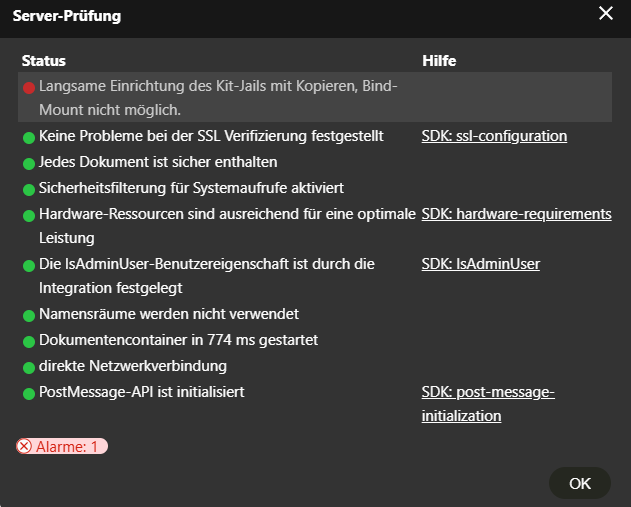
Lösung bisher nur ein Workaround:
2026-02-04 Fehler fulltextsearch fehlt
Waiting for Fulltextsearch to become available...
nc: service "" unknown
Waiting for Fulltextsearch to become available...
nc: service "" unknown
Fulltextsearch did not start in time. Skipping initialization and disabling fulltextsearch apps.
No such app enabled: fulltextsearch
No such app enabled: fulltextsearch_elasticsearch
No such app enabled: files_fulltextsearchLösung: elasticsearch volume leeren und mit docker compose up -d --force-recreate neustarten
Danach fulltextsearch neu indizieren mit
php occ app:enable fulltextsearch
php occ app:enable fulltextsearch_elasticsearch
php occ app:enable files_fulltextsearch
php occ fulltextsearch:test
php occ fulltextsearch:index
Security-Check
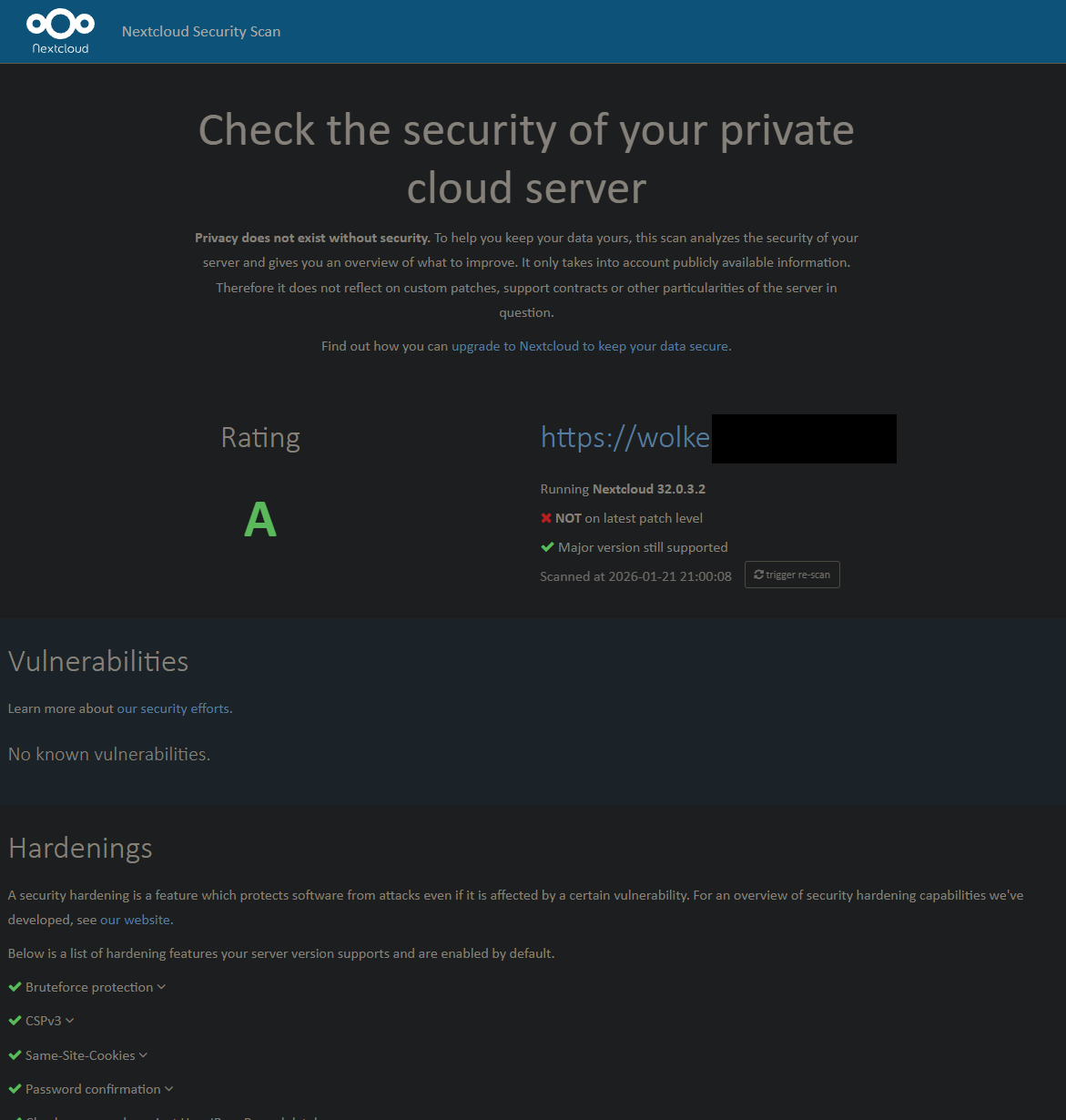
Nexterm (SSH, VNC, RDP über Web-UI)
docker-compose.yml
services:
nexterm:
image: germannewsmaker/nexterm:1.0.3-OPEN-PREVIEW
ports:
- "6989:6989"
restart: unless-stopped
volumes:
- data:/app/data
environment:
ENCRYPTION_KEY: f0a8e...<openssl rand -hex 32>...c226
volumes:
data:pgAdmin (PostgreSQL Web-UI)
docker-compose.yml
services:
pgadmin:
container_name: pgadmin
image: dpage/pgadmin4:9.9.0
volumes:
- pgadmin:/root/.pgadmin
- storage:/var/lib/pgadmin/storage
ports:
- 5050:80
restart: unless-stopped
env_file:
- stack.env
postgres:
container_name: postgresql
image: postgres:13.22
environment:
# username postgres
- POSTGRES_PASSWORD=nC8.........8m5t
ports:
- '5432:5432'
volumes:
pgadmin:
storage:.env
PGADMIN_DEFAULT_EMAIL=MAIL@MEINEDOMAIN.de
PGADMIN_DEFAULT_PASSWORD=MEIN-PGADMIN-WEBUI-PW (oder mit <openssl rand -hex 24> erzeugt)
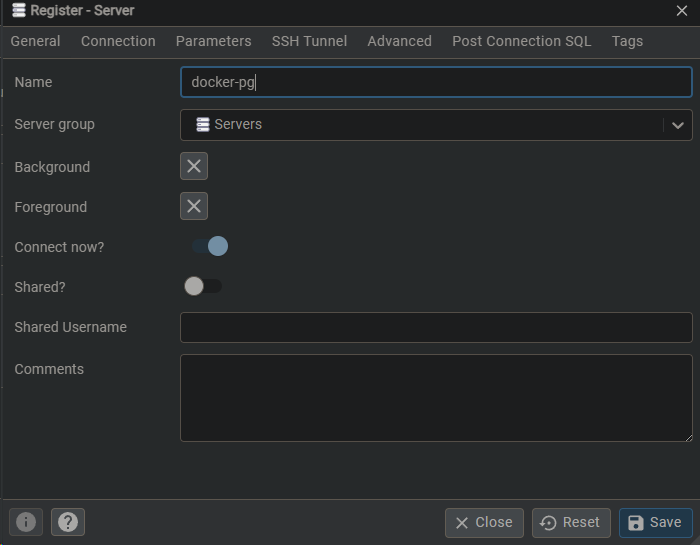
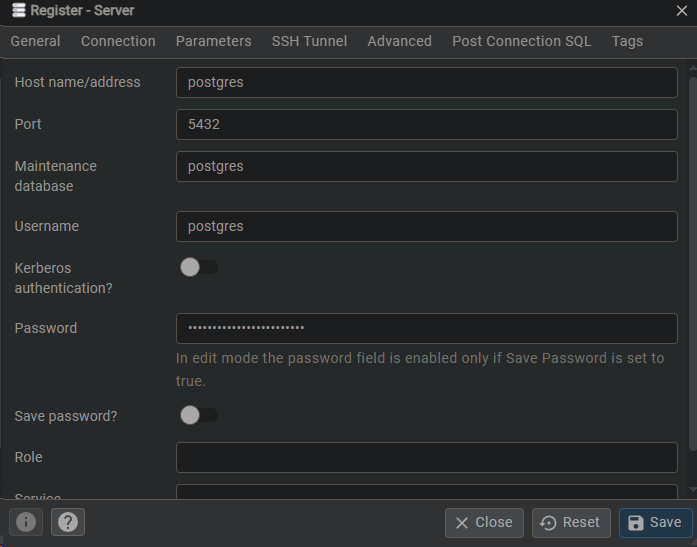
Gotify
services:
gotify:
image: gotify/server
ports:
- 8066:80
environment:
GOTIFY_DEFAULTUSER_PASS: 'admin'
volumes:
- app:/app/data
# to run gotify as a dedicated user:
# sudo chown -R 1234:1234 ./gotify_data
# user: "1234:1234"
volumes:
app:
Gitea
Anleitung
https://docs.gitea.com/installation/install-with-docker
https://integrations.goauthentik.io/integrations/services/gitea/
https://docs.gitea.com/administration/config-cheat-sheet
Runner:
https://docs.gitea.com/usage/actions/act-runner#install-with-the-docker-image
https://docs.gitea.com/usage/actions/act-runner#configuration
docker-compose.yml mit Runner
update mit v1.25.4 am 03.02.2026
services:
server:
image: docker.gitea.com/gitea:1.25.4
container_name: gitea
environment:
- USER_UID=1000
- USER_GID=1000
- GITEA__database__DB_TYPE=postgres
- GITEA__database__HOST=db:5432
- GITEA__database__NAME=gitea
- GITEA__database__USER=gitea
- GITEA__database__PASSWD=<openssl rand -hex 24>
restart: always
networks:
- gitea
volumes:
- app:/data
- /etc/timezone:/etc/timezone:ro
- /etc/localtime:/etc/localtime:ro
ports:
- "3046:3000"
- "222:22"
depends_on:
- db
db:
image: docker.io/library/postgres:14
restart: unless-stopped
environment:
- POSTGRES_USER=gitea
- POSTGRES_PASSWORD=<openssl rand -hex 24>
- POSTGRES_DB=gitea
networks:
- gitea
volumes:
- db:/var/lib/postgresql/data
runner:
image: docker.io/gitea/act_runner:0.2.13
environment:
CONFIG_FILE: /config.yaml
GITEA_INSTANCE_URL: "https://git.MEINEDOMAIN.DE"
GITEA_RUNNER_REGISTRATION_TOKEN: "r5ES....ptLTD" # Token aus gitea web-ui Einstellungen > Actions > Runner > create Runner
GITEA_RUNNER_NAME: "gitea-runner-01"
GITEA_RUNNER_LABELS: "ubuntu-22.04:host"
volumes:
- /mnt/fn-volume-01/docker-data/volumes/gitea_runner-cfg/config.yaml:/config.yaml
- runner-data:/data
- /var/run/docker.sock:/var/run/docker.sock
networks:
gitea:
# external: false
volumes:
app:
db:
runner-data:
SSH einrichten
Im meiner docker-compose.yml oben ist port 22 im Container auf Port 222 vom Host gemappt. Daher muss noch im Container in der app.ini der SSH-Port angepasst werden:
nano /var/lib/docker/volumes/gitea_app/_data/gitea/conf[server]
...
SSH_PORT = 222
SSH_LISTEN_PORT = 222
...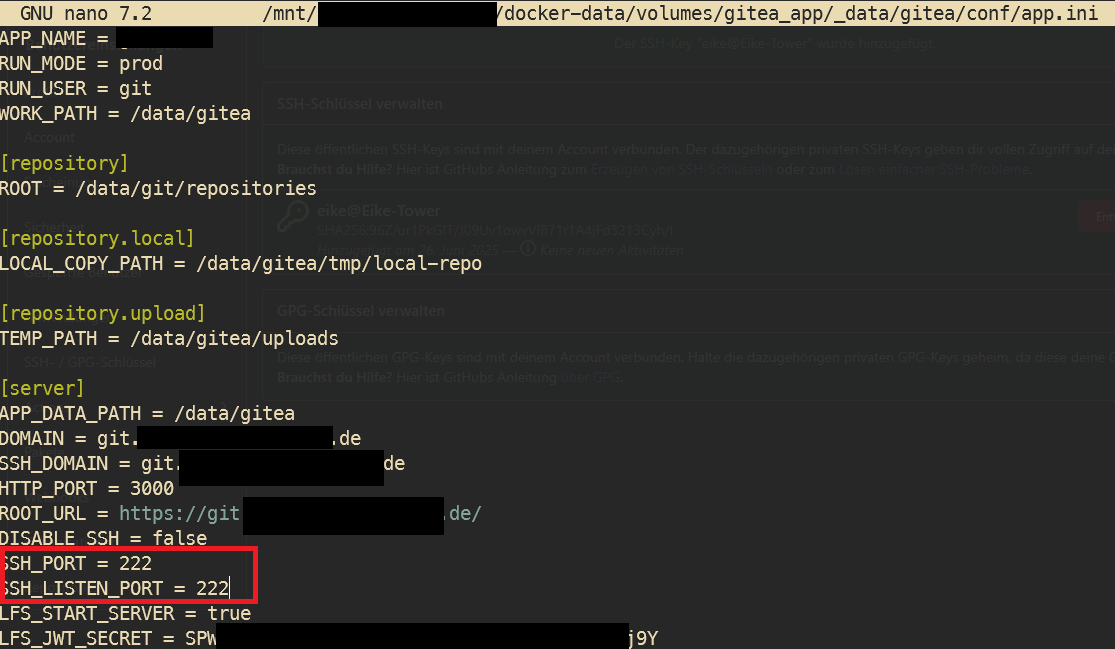
Danach den Gitea-Container neustarten und in einem Repo unter Code > SSH die Adresse checken, ob der Port übernommen wurde:
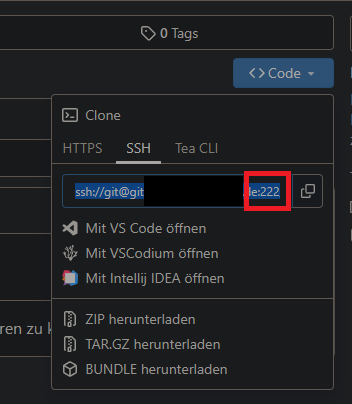
Nicht vergessen, den Port in der Firewall zu öffnen, in meinem Fall Hetzner, ansonsten auch in der ufw
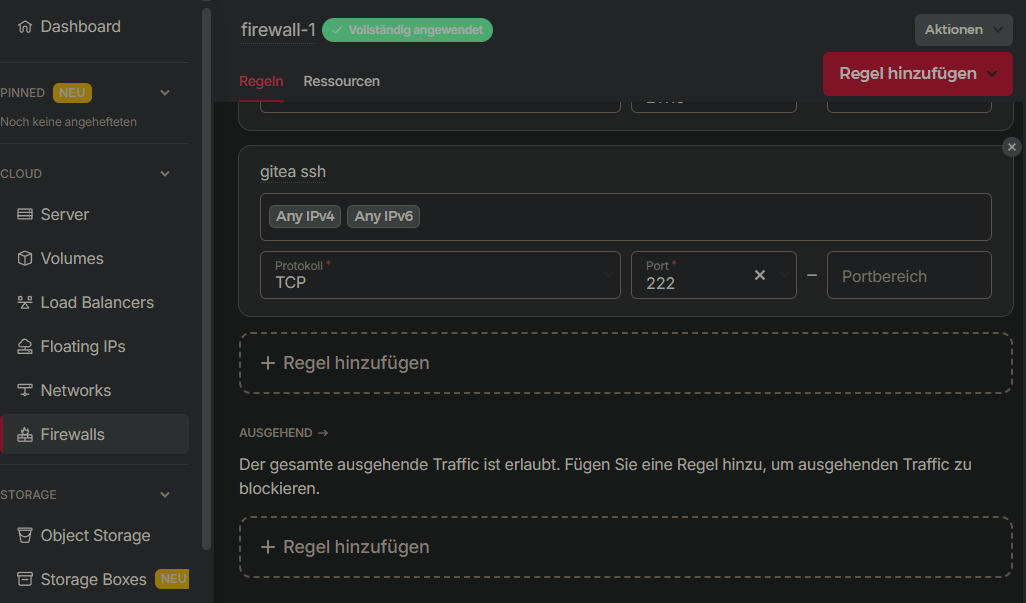
Um den eigenen SSH-Key verwenden zu können, muss der Public-Key natürlich noch in Gitea eingepflegt werden unter
Profilbild > Einstellungen > SSH / GPG-Schlüssel > Schlüssel hinzufügen > .pub-Key einfügen und benennen
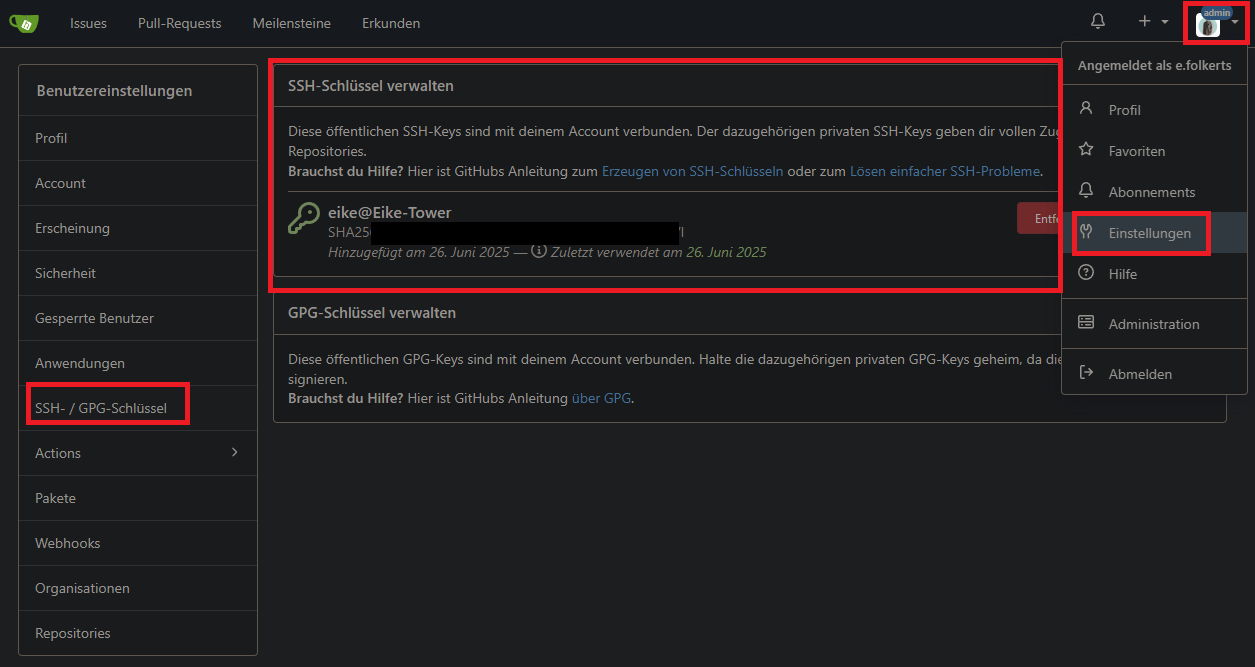
ssh testen mit
ssh -p 222 -i /home/BENUTZER/.ssh/id_MEINNAME_ed25519 git@git.DEINEDOMAIN.dewenn successfully authenticated, testen mit git clone:
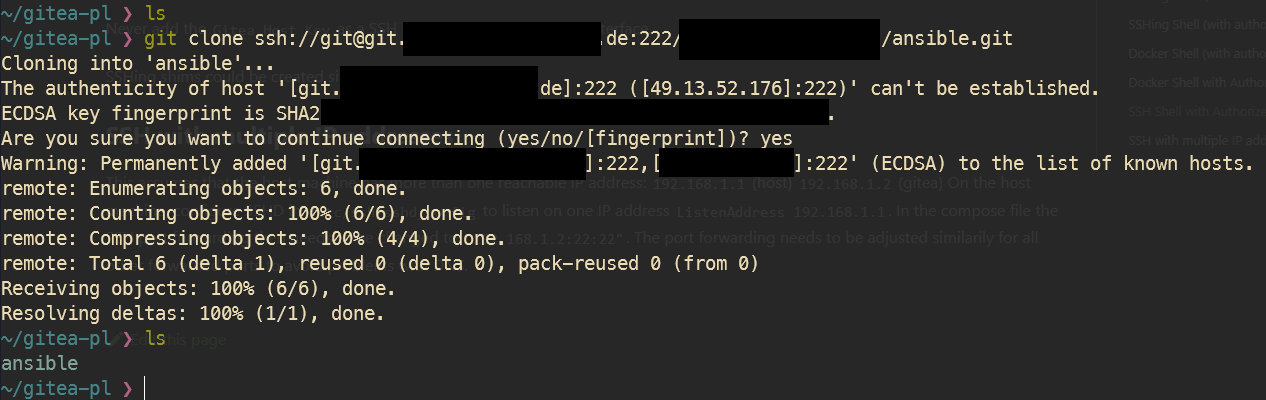
Falls ein anderer ssh-key angegeben werden muss, kann dies in der ~/.ssh/config eingestellt werden (Datei anlegen, falls nicht vorhanden):
~ ❯ cat /home/eike/.ssh/config
Host git.MEINEDOMAIN.de
HostName git.MEINEDOMAIN.de
Port 222
User git
IdentityFile ~/.ssh/id_MEINNAME_ed25519OIDC-Settings in Authentik
app.ini Configuration
https://docs.gitea.com/administration/config-cheat-sheet
nano /var/lib/docker/volumes/gitea_app/_data/gitea/conf/app.ini:
[service]
# ...
DISABLE_REGISTRATION = false
REQUIRE_SIGNIN_VIEW = true
ALLOW_ONLY_EXTERNAL_REGISTRATION = true
ENABLE_AUTO_REGISTRATION = true
# ...
[openid]
ENABLE_OPENID_SIGNIN = true
ENABLE_OPENID_SIGNUP = true
# ...Anwendungen > Provider > gitea
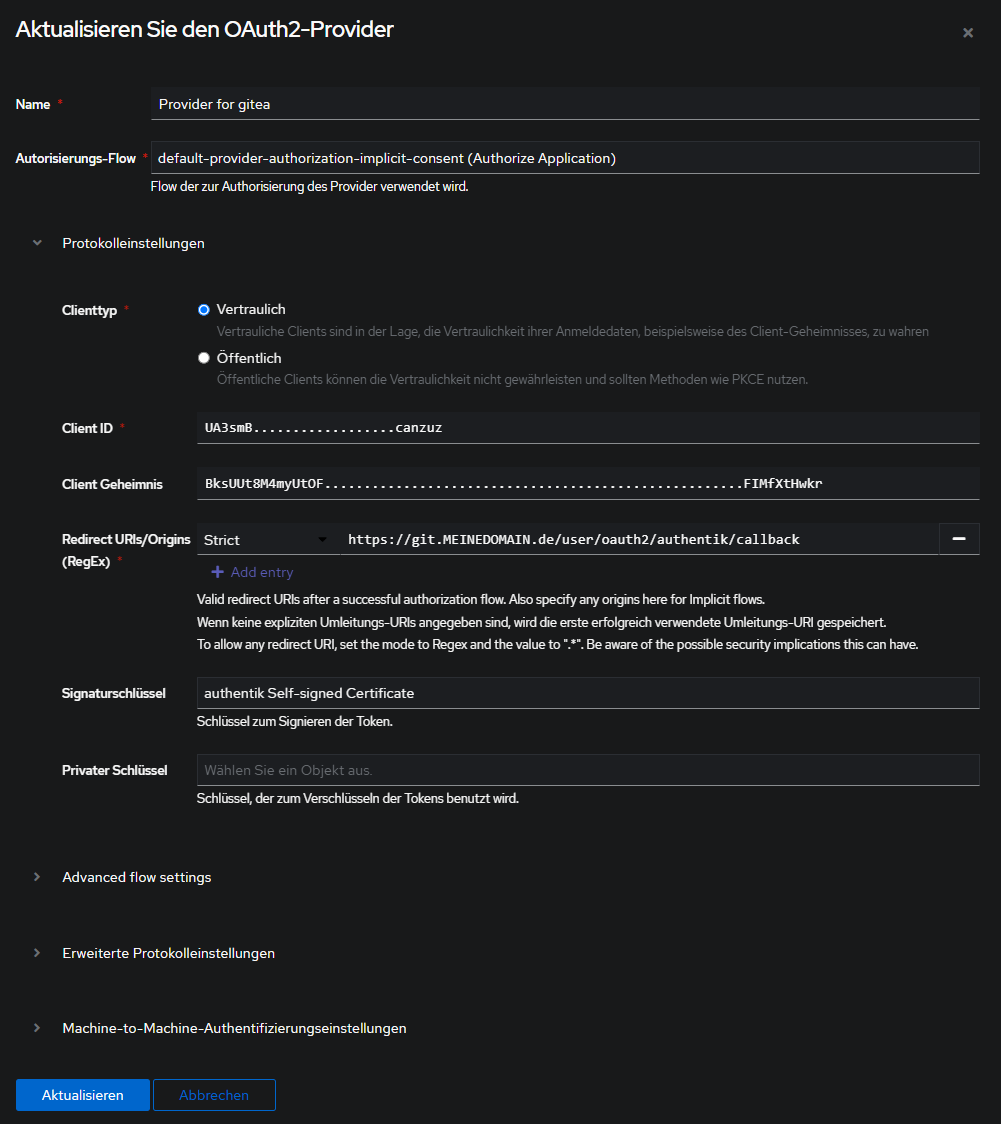
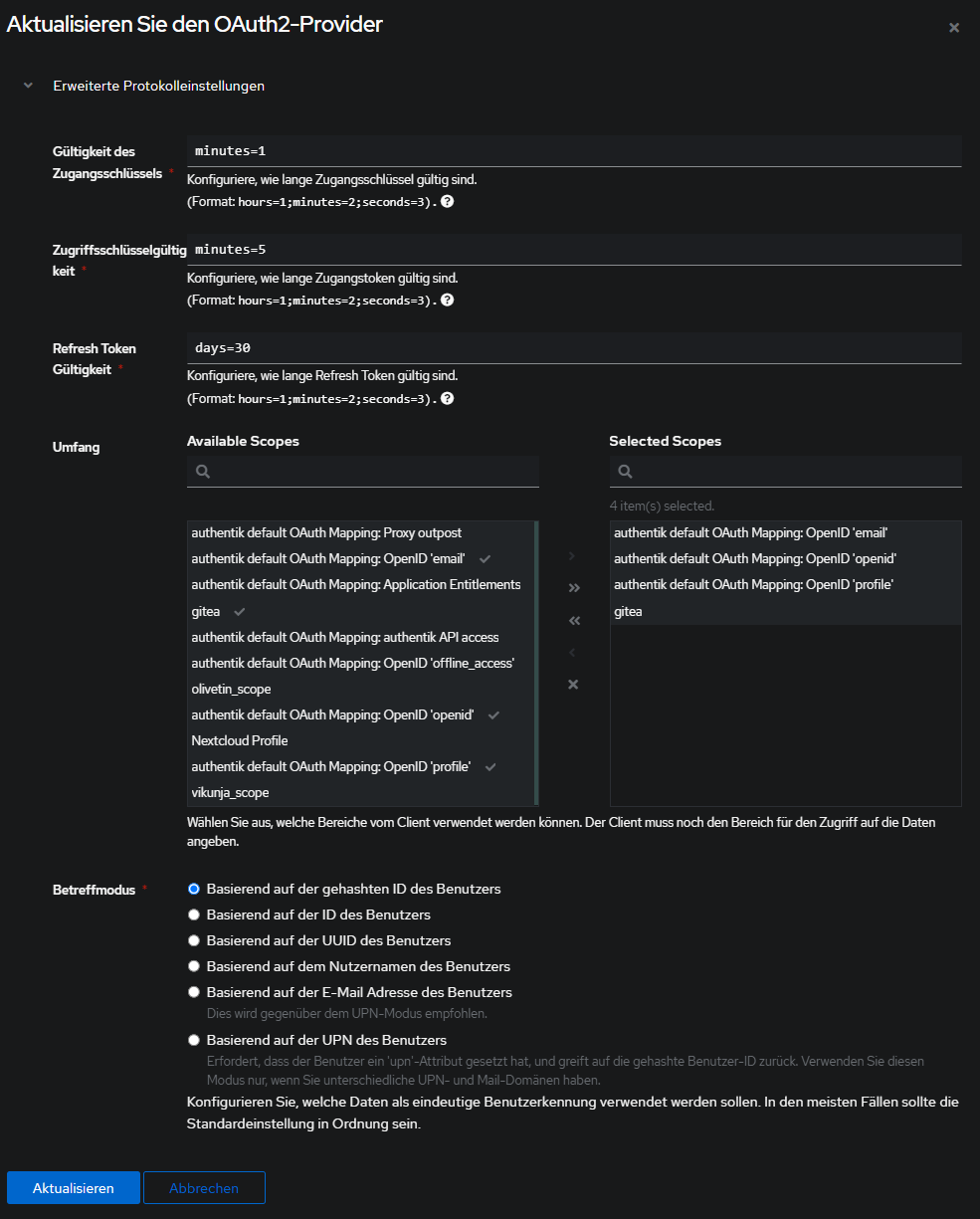
Anwendungen > Anwendungen > Gitea
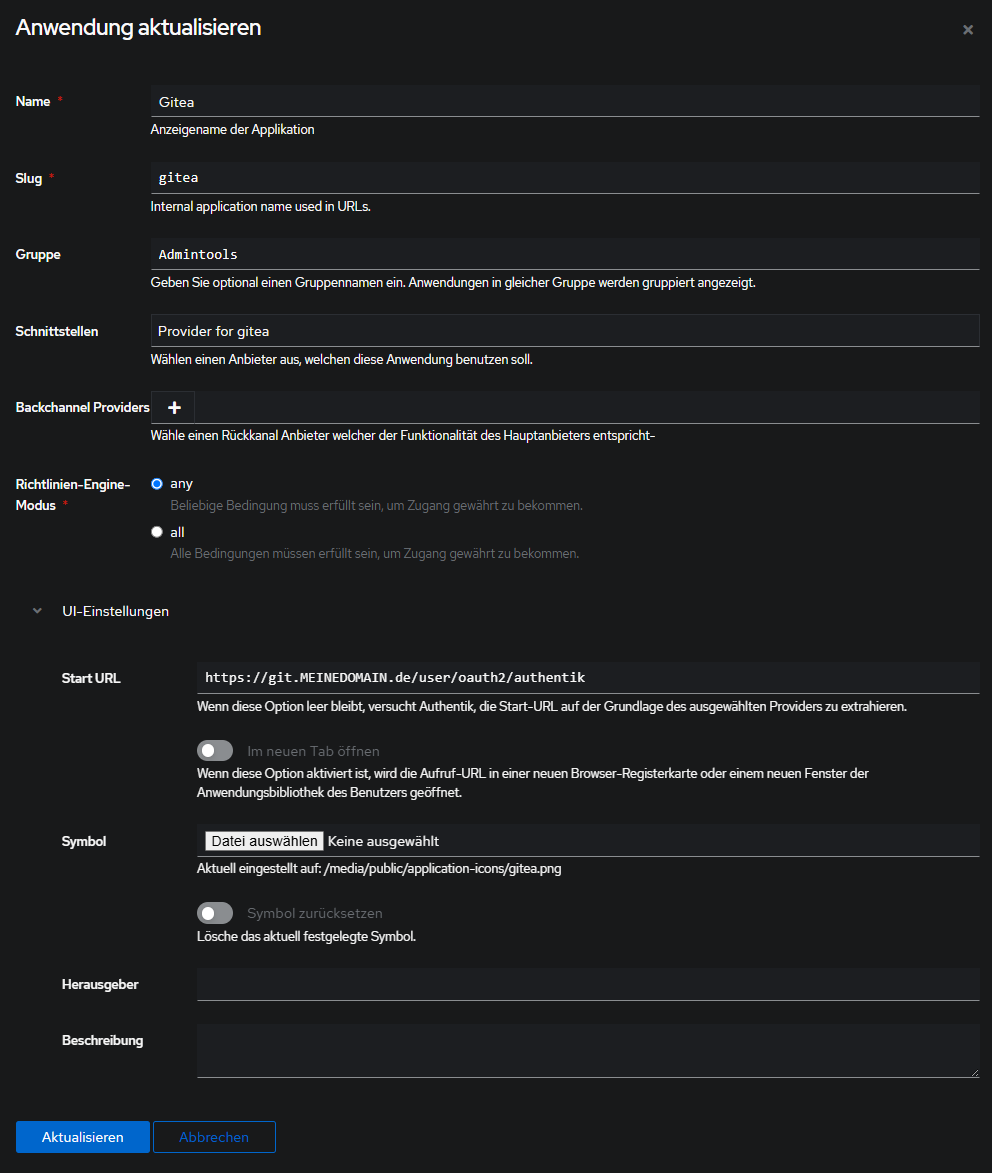
Customization > Eigenschaften > Scope Mapping
gitea scope für gruppen gituser, gitadmin und gitrestricted
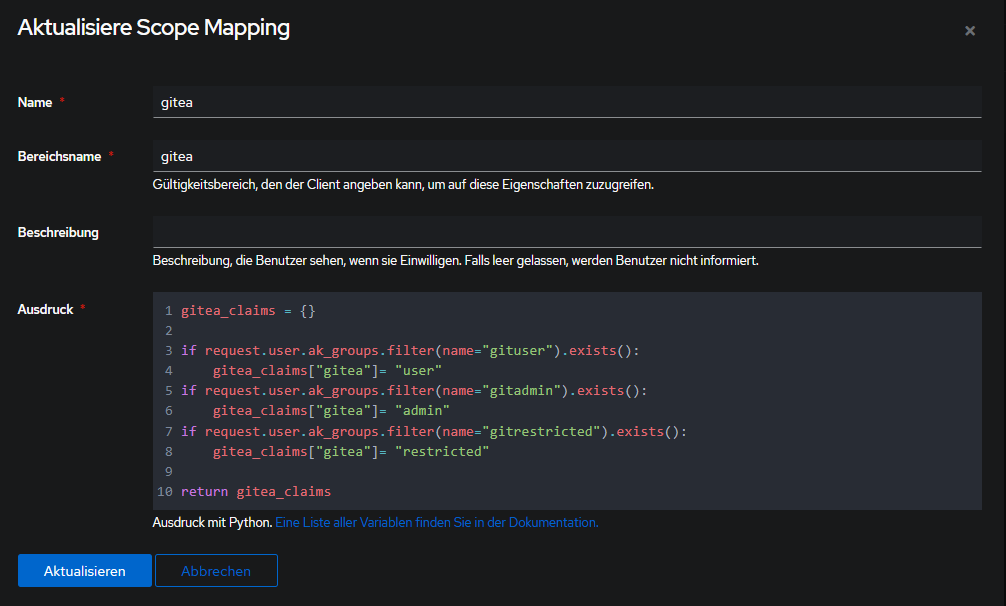
gitea_claims = {}
if request.user.ak_groups.filter(name="gituser").exists():
gitea_claims["gitea"]= "user"
if request.user.ak_groups.filter(name="gitadmin").exists():
gitea_claims["gitea"]= "admin"
if request.user.ak_groups.filter(name="gitrestricted").exists():
gitea_claims["gitea"]= "restricted"
return gitea_claimsVerzeichnis > Gruppen
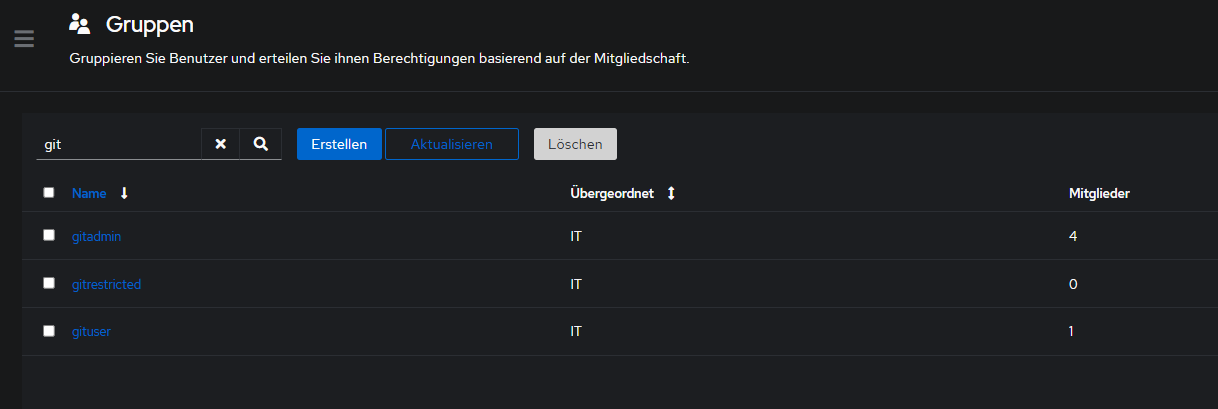
OIDC-Settings in Gitea
Administration > Identität & Zugriff > Authentifizierungsquellen > Neu:
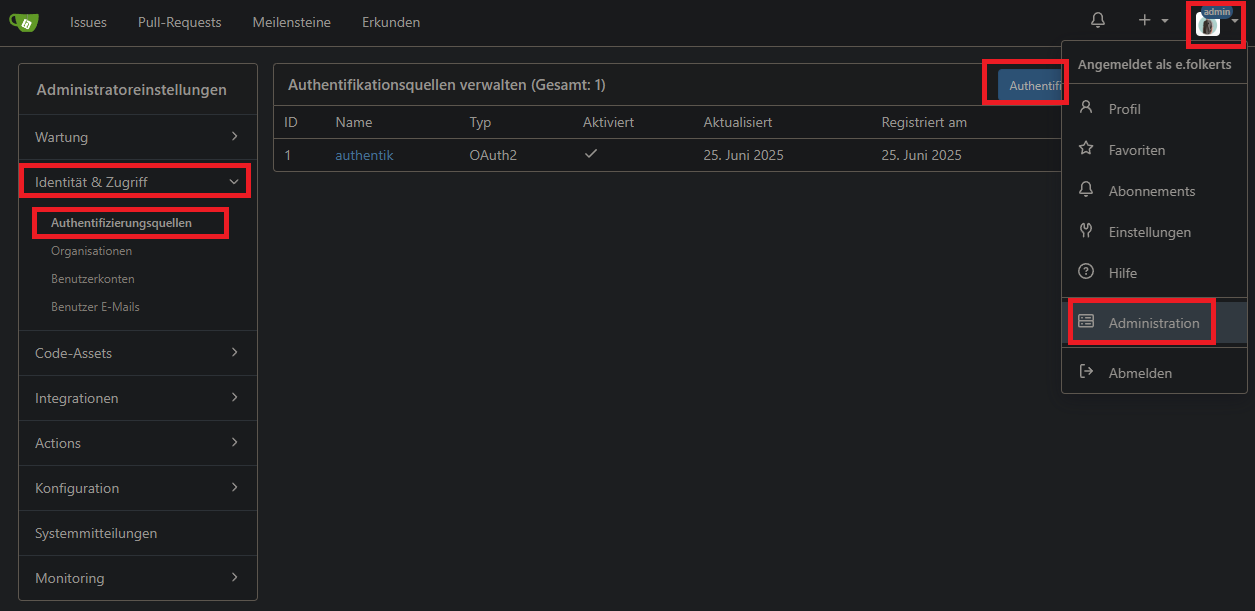
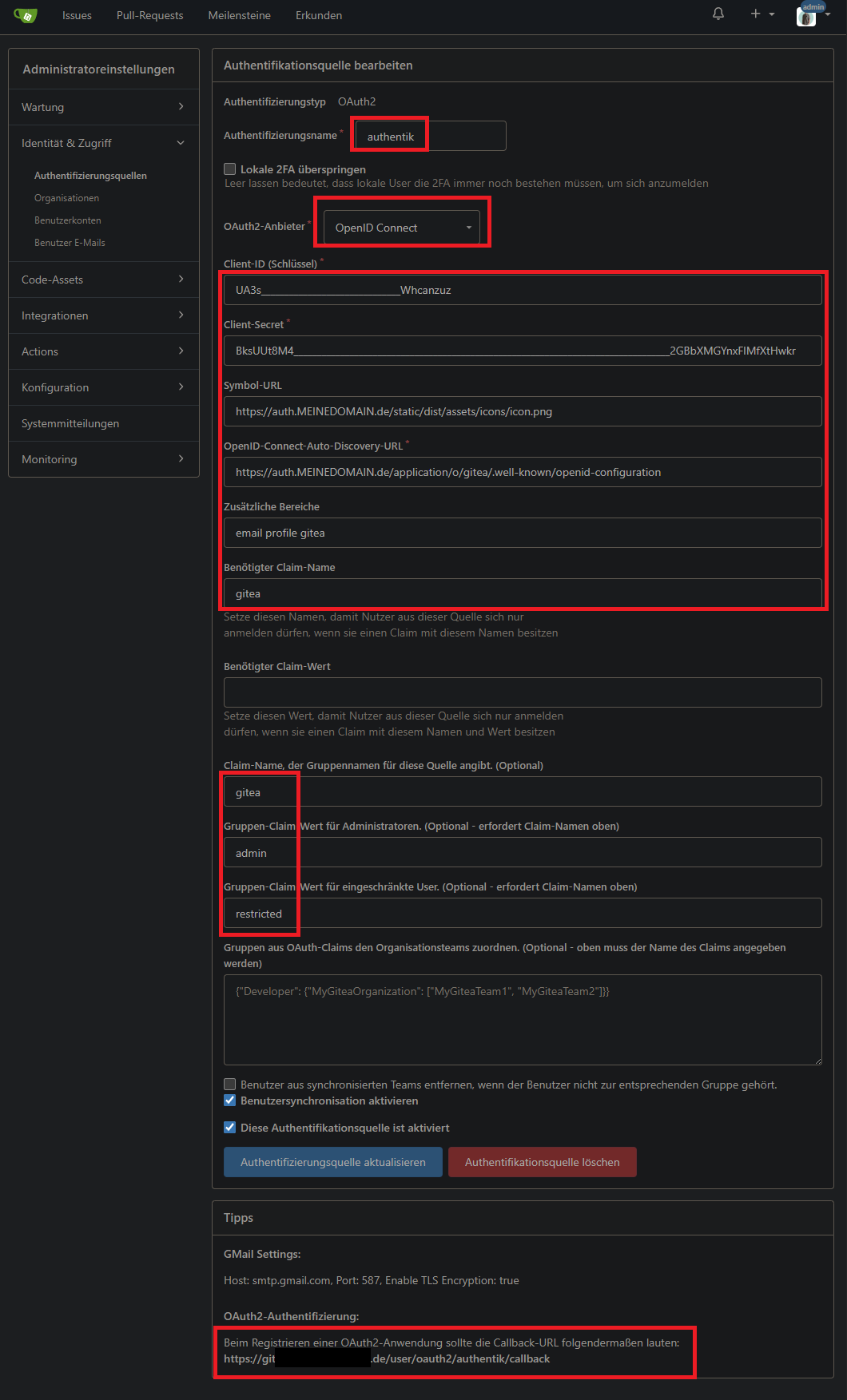
groß- und kleinbuchstaben beachten, alles so nennen wie in anleitung (auch scope, gruppen, claims, slug bei provider usw)
Rustdesk
Anleitung
https://rustdesk.com/docs/en/self-host/rustdesk-server-oss/docker/
https://integrations.goauthentik.io/integrations/services/rustdesk-pro/
Ports öffnen
Be sure to open these ports in the firewall:
hbbs:21114(TCP): used for web console, only available inProversion.21115(TCP): used for the NAT type test.21116(TCP/UDP): Please note that21116should be enabled both for TCP and UDP.21116/UDPis used for the ID registration and heartbeat service.21116/TCPis used for TCP hole punching and connection service.21118(TCP): used to support web clients.
hbbr:21117(TCP): used for the Relay services.21119(TCP): used to support web clients.
If you do not need web client support, the corresponding ports 21118, 21119 can be disabled.
docker-compose.yml (free plan)
services:
hbbs:
container_name: rustdesk-hbbs
image: rustdesk/rustdesk-server:1.1.14
# environment:
# - ALWAYS_USE_RELAY=Y
command: hbbs
volumes:
- app:/root
network_mode: "host"
depends_on:
- hbbr
restart: unless-stopped
hbbr:
container_name: rustdesk-hbbr
image: rustdesk/rustdesk-server:1.1.14
command: hbbr
volumes:
- app:/root
network_mode: "host"
restart: unless-stopped
volumes:
app:docker-compose.yml (pro plan, 20€ mit OIDC und Webconsole)
einfach
image: rustdesk/rustdesk-server:1.1.14mit
image: docker.io/rustdesk/rustdesk-server-pro:1.6.1ersetzen
Rustdesk-Console unter http://<rustdesk-server-ip>:21114 erreichbar.
The default administrator username/password is admin/test1234:
OIDC (Pro-only)
https://integrations.goauthentik.io/integrations/services/rustdesk-pro/
DDNS-Updater
DynamicDNS DDNS Updater Strato
https://github.com/qdm12/ddns-updater
https://hub.docker.com/r/qmcgaw/ddns-updater/tags

version: "3.7"
services:
ddns-updater:
image: qmcgaw/ddns-updater:v2.9
container_name: ddns-updater
network_mode: bridge
ports:
- 8003:8000/tcp
volumes:
- app:/updater/data
environment:
- CONFIG={"settings":[{"provider":"strato","domain":"subdomain.DOMAIN.de","password":"MEINPASSWORT","ip_version":"ipv4","ipv6_suffix":""}]}
- PERIOD=5m
- UPDATE_COOLDOWN_PERIOD=5m
- PUBLICIP_FETCHERS=all
- PUBLICIP_HTTP_PROVIDERS=all
- PUBLICIPV4_HTTP_PROVIDERS=all
- PUBLICIPV6_HTTP_PROVIDERS=all
- PUBLICIP_DNS_PROVIDERS=all
- PUBLICIP_DNS_TIMEOUT=3s
- HTTP_TIMEOUT=10s
# Web UI
- LISTENING_ADDRESS=:8000
- ROOT_URL=/
# Backup
- BACKUP_PERIOD=0 # 0 to disable
- BACKUP_DIRECTORY=/updater/data
# Other
- LOG_LEVEL=info
- LOG_CALLER=hidden
- SHOUTRRR_ADDRESSES=
restart: always
volumes:
app:Trilium Notes
# Running `docker-compose up` will create/use the "trilium-data" directory in the user home
# Run `TRILIUM_DATA_DIR=/path/of/your/choice docker-compose up` to set a different directory
# To run in the background, use `docker-compose up -d`
services:
trilium:
# Optionally, replace `latest` with a version tag like `v0.90.3`
# Using `latest` may cause unintended updates to the container
image: triliumnext/notes:v0.95.0
# Restart the container unless it was stopped by the user
restart: unless-stopped
environment:
- TRILIUM_DATA_DIR=/home/node/trilium-data
ports:
# By default, Trilium will be available at http://localhost:8080
# It will also be accessible at http://<host-ip>:8080
# You might want to limit this with something like Docker Networks, reverse proxies, or firewall rules,
# however be aware that using UFW is known to not work with default Docker installations, see:
# https://docs.docker.com/engine/network/packet-filtering-firewalls/#docker-and-ufw
- '8089:8080'
volumes:
# Unless TRILIUM_DATA_DIR is set, the data will be stored in the "trilium-data" directory in the home directory.
# This can also be changed with by replacing the line below with `- /path/of/your/choice:/home/node/trilium-data
#- ${TRILIUM_DATA_DIR:-~/trilium-data}:/home/node/trilium-data
- data:/home/node/trilium-data
- /etc/timezone:/etc/timezone:ro
- /etc/localtime:/etc/localtime:ro
volumes:
data:CUPS Druckerserver
https://hub.docker.com/r/anujdatar/cups
https://github.com/anujdatar/cups-docker
services:
cups:
image: anujdatar/cups:25.10.01
container_name: cups
network_mode: host #optional, falls etwas mit discovern der Geraete nicht klappt
restart: unless-stopped
ports:
- "631:631"
devices:
- /dev/bus/usb:/dev/bus/usb
environment:
- CUPSADMIN=admin
- CUPSPASSWORD=MEINPW
- TZ=Europe/Berlin
volumes:
- app:/etc/cups
#- eigene-treiber:/opt/eigene-treiber
#- spool:/var/spool/cups
# Folgendes CMD nur wenn man eigene Treiber als .deb im Volume eingepflegt hat:
#command: sh -c "dpkg -i /opt/eigene-treiber/cnijfilter2_6.00-1_amd64.deb && apt-get install -f -y && /entrypoint.sh"
volumes:
app:
#eigene-treiber:
#spool:Falls Port 631 vom System already in use
sudo systemctl stop cups
sudo systemctl disable cups
sudo apt remove cups
#optional
sudo systemctl stop cups-browsed
sudo systemctl disable cups-browsedMit CUPS verbundenen Drucker in Windows einfügen
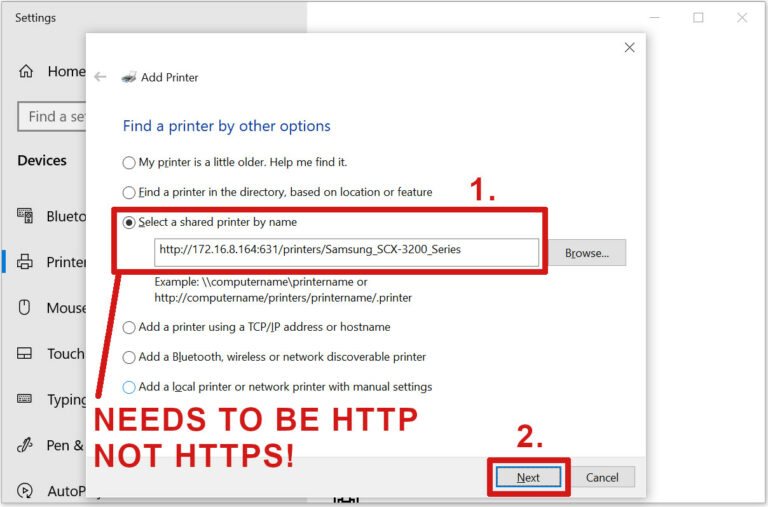
pnputil verwenden um Treiber zu installieren:
https://www.reddit.com/r/PowerShell/comments/14k0wkb/addprinter_ugh/
für ansible aus https://stackoverflow.com/questions/69673238/adding-a-printer-with-powershell:
- name: install Sharp MX3070N driver
win_shell: pnputil /add-driver "C:\sharp-mx3070n\su0emenu.inf" /install
- name: add printer port
win_shell: Add-PrinterPort -Name "printer3" -PrinterHostAddress "yourprintersIP"
- name: add printer driver
win_shell: Add-PrinterDriver -Name "SHARP MX-3070N PCL6" # if this string is not known, grab from .inf file
- name: add printer
win_shell: Add-Printer -Name "sharpmx3070n" -DriverName "SHARP MX-3070N PCL6" -PortName "printer3"
- name: black and white printing
win_shell: Set-PrintConfiguration -PrinterName "sharpmx3070n" -Color 0 # B&W
- name: single-sided printing
win_shell: Set-PrintConfiguration -PrinterName "sharpmx3070n" -DuplexingMode 'OneSided'Ansible-Playbook PL
printer_install.yml
---
- name: Add CUPS printer for current site only
hosts: windows_targets
tasks:
- name: Detect site by local IPv4
ansible.windows.win_powershell:
script: |
$ips = Get-NetIPAddress -AddressFamily IPv4 | Where-Object {
$_.IPAddress -notmatch '^169\.254\.' -and $_.IPAddress -notmatch '^127\.'
} | Select-Object -ExpandProperty IPAddress
$site = 'NONE'
foreach ($ip in $ips) {
if ($ip -match '^192\.168\.200\.\d+$') { $site = 'HWS'; break }
if ($ip -match '^10\.53\.1\.\d+$') { $site = 'FBS'; break }
if ($ip -match '^10\.26\.1\.\d+$') { $site = 'SPS'; break }
}
@{site=$site; ips=$ips} | ConvertTo-Json -Compress
register: netinfo
changed_when: false
- name: Save site_info (parsed)
ansible.builtin.set_fact:
site_info: "{{ (netinfo.output | default([])) | join('') | from_json }}"
- name: Save site_id
ansible.builtin.set_fact:
site_id: "{{ site_info.site | default('NONE') }}"
- name: Install printers for Standort HWS
ansible.builtin.include_tasks: printer_HWS.yml
when: site_id == 'HWS'
- name: Install printers for Standort FBS
ansible.builtin.include_tasks: printer_FBS.yml
when: site_id == 'FBS'
- name: Install printers for Standort SPS
ansible.builtin.include_tasks: printer_SPS.yml
when: site_id == 'SPS'
löst zb printer_HWS.yml aus:
printer_HWS.yml
- name: Install printers for HWS
block:
- name: Ensure Internet Printing Client is enabled (best-effort)
ansible.windows.win_powershell:
script: |
$candidates = @('Printing-InternetPrinting-Client','Printing-Internet Printing-Client')
foreach ($c in $candidates) {
$f = Get-WindowsOptionalFeature -Online -FeatureName $c -ErrorAction SilentlyContinue
if ($f) {
if ($f.State -ne 'Enabled') { Enable-WindowsOptionalFeature -Online -FeatureName $c -All -NoRestart | Out-Null }
break
}
}
'{"ok":true}'
changed_when: false
failed_when: false
- name: Add all printers (force) with Microsoft IPP Class Driver
ansible.windows.win_powershell:
script: |
$PrinterName = "{{ item.printer_name }}"
$PrinterURL = "{{ item.printer_url }}"
$DriverName = "{{ item.ipp_driver }}"
try {
Add-Printer -Name $PrinterName -PortName $PrinterURL -DriverName $DriverName -ErrorAction Stop
'{"changed":true,"action":"Add-Printer","name":' + (ConvertTo-Json $PrinterName -Compress) + '}'
} catch {
'{"changed":false,"action":"ignored","name":' + (ConvertTo-Json $PrinterName -Compress) +
',"error":' + (ConvertTo-Json $_.Exception.Message -Compress) + '}'
}
loop: "{{ printers }}"
register: add_results
changed_when: (item.output[0] | default('{}') | from_json).changed | default(false)
failed_when: false
- name: Summary (per printer)
ansible.builtin.debug:
msg: "{{ ((item.output | first) | default('{}')) | from_json }}"
loop: "{{ add_results.results | default([]) }}"
vars:
printers:
- { printer_name: "HWS PM1 ✳️|⚫", printer_url: "http://192.168.200.11:631/printers/Brother-MFC-L2750DW_PM1_SW", ipp_driver: "Microsoft IPP Class Driver" }
- { printer_name: "HWS PM1 🦑|⚫", printer_url: "http://192.168.200.11:631/printers/Canon-GM4050_PM1_SW", ipp_driver: "Microsoft IPP Class Driver" }
- { printer_name: "HWS PM2 ✳️|⚫", printer_url: "http://192.168.200.11:631/printers/Brother-MFC-L2710DW_PM2_SW", ipp_driver: "Microsoft IPP Class Driver" }
- { printer_name: "HWS PM3 🦑|⚫", printer_url: "http://192.168.200.11:631/printers/Canon-GM4050_PM3_SW", ipp_driver: "Microsoft IPP Class Driver" }
- { printer_name: "HWS 1.OG ✳️|🎨", printer_url: "http://192.168.200.11:631/printers/Brother-DCP-L3560CDW_1.OG_Farbe", ipp_driver: "Microsoft IPP Class Driver" }Name und Benutzer anzeigen
Wenn man Name des Auftrags und Benutzer in der CUPS Web-UI sehen möchte und anstatt dem hier...
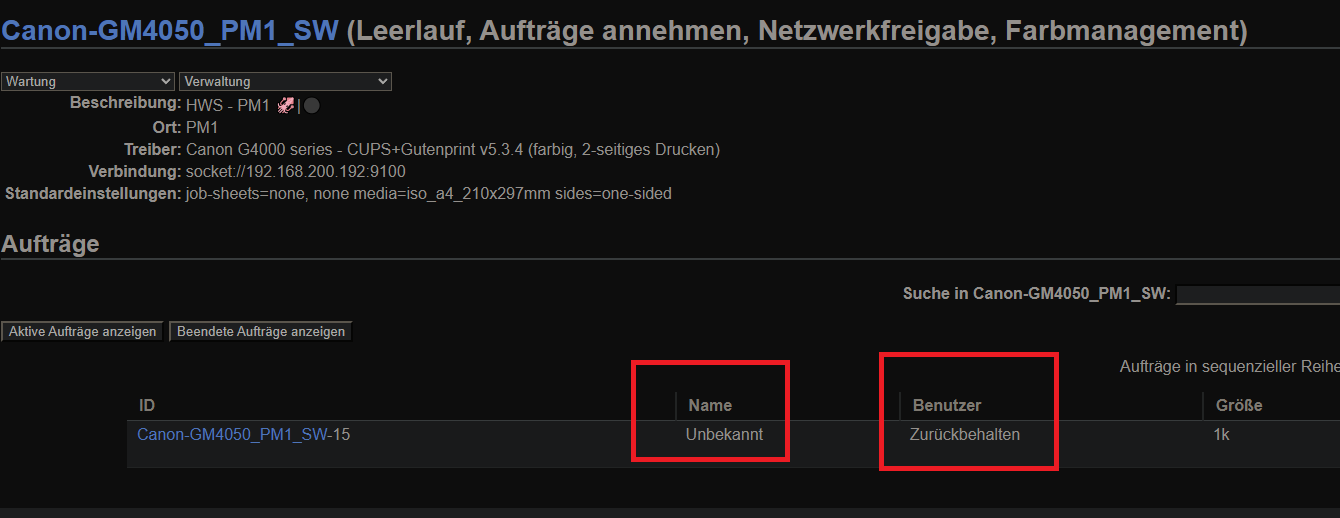
... lieber das hier sehen möchte ....
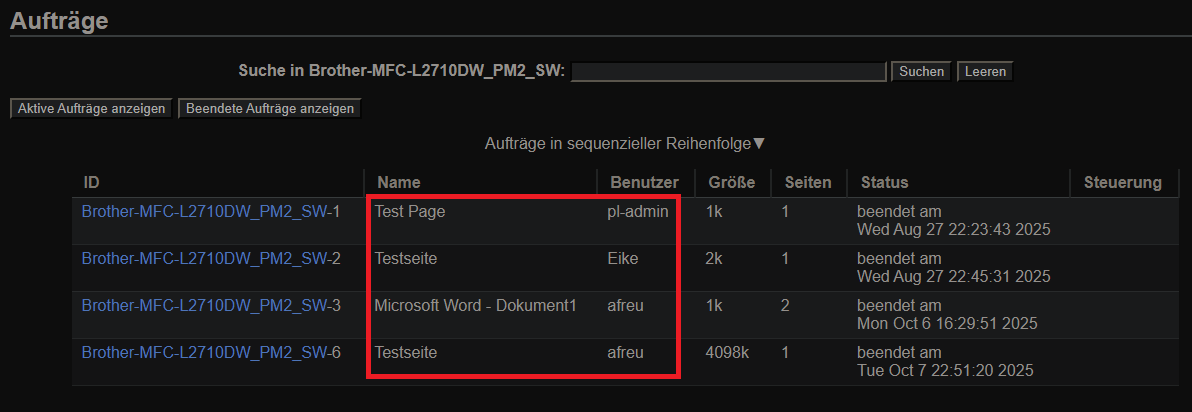
... muss die Konfigurationsdatei cupsd.conf wie folgt ändern:
Entweder direkt im Dockervolume oder CUPS Web-UI > Konfigurationsdatei bearbeiten:
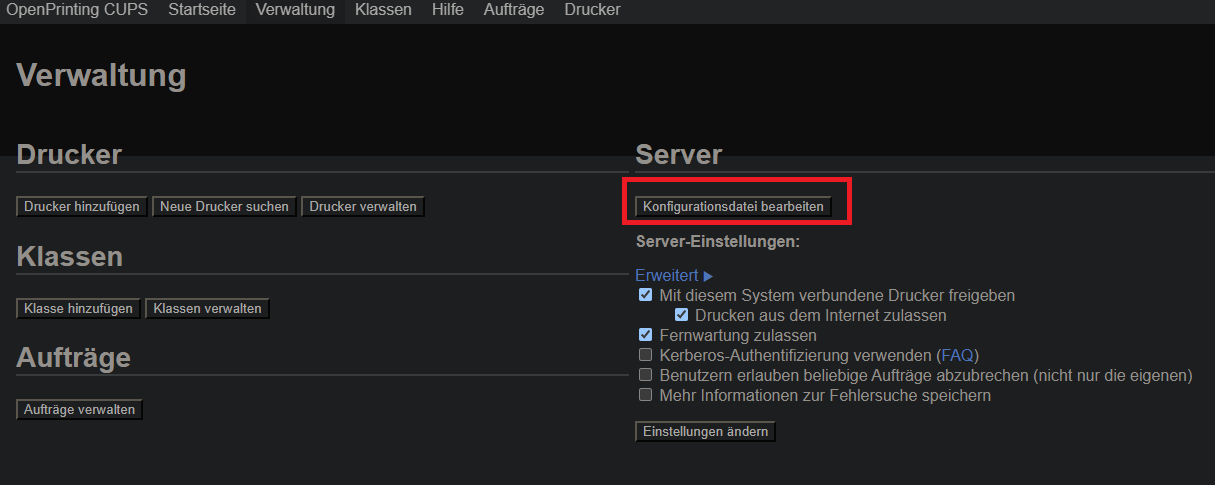
folgende Stelle finden:
...
<Policy default>
JobPrivateAccess default
JobPrivateValues default
...und in
...
<Policy default>
JobPrivateAccess all
JobPrivateValues none
...ändern:
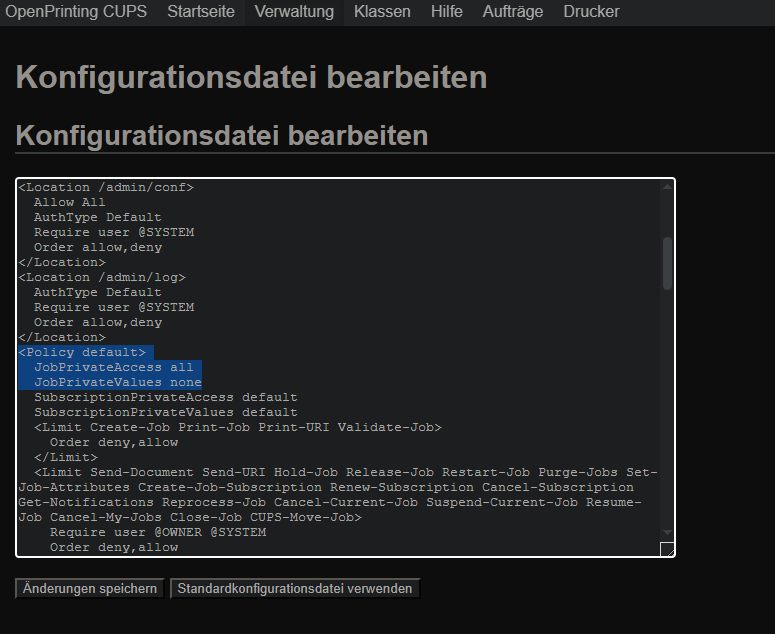
Änderungen speichern klicken und neustart abwarten. Dann unter Drucker > Auftäge nachsehen ob es geklappt hat.
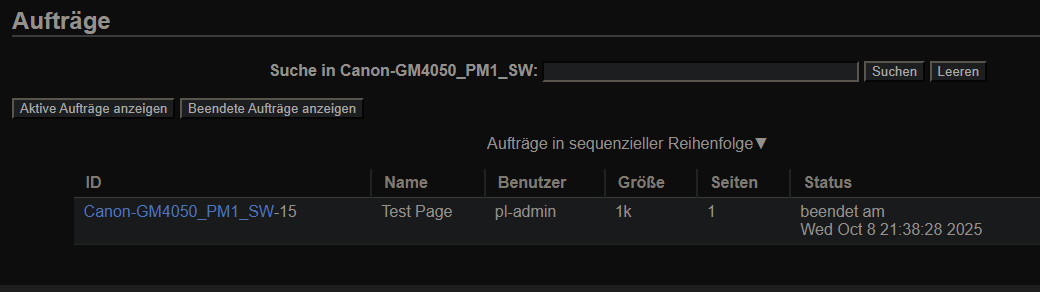
Canon Pixma GM4050: Keine Netzwerkfreigabe
Problem: Ein Canon Drucker meldet in CUPS, dass keine Netzwerkfreigabe möglich ist, obwohl das Häkchen gesetzt wurde:
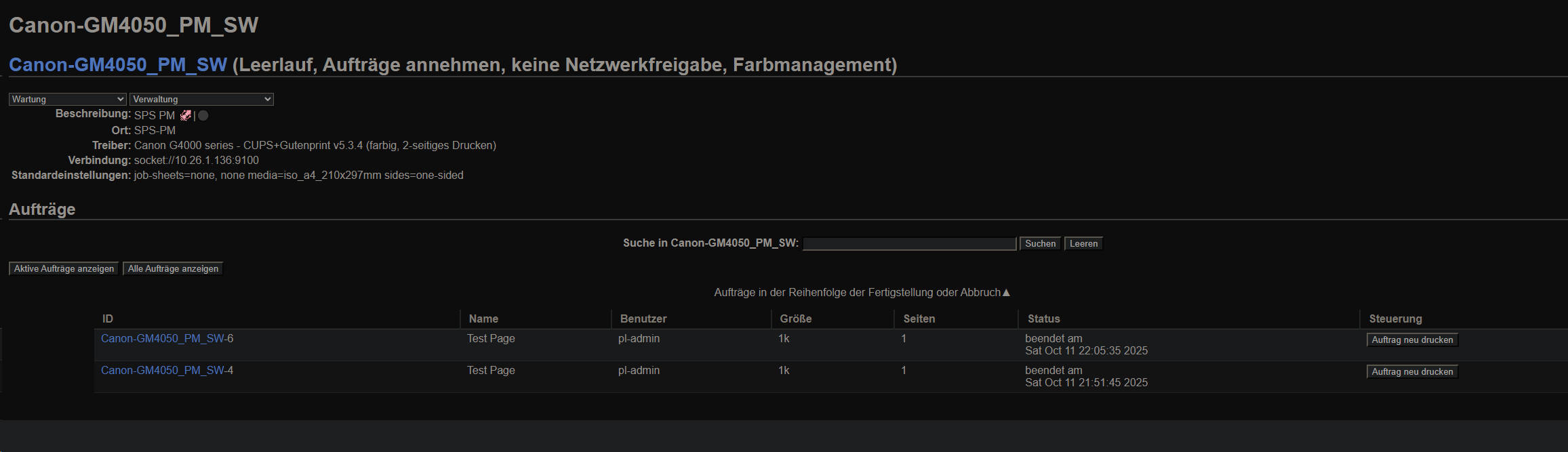
Lösung: in docker-compose den network_mode: host einstellen und den Drucker ueber CUPS > Verwaltung > Neuen Drucker suchen. Am besten vorher die Treiber installieren (siehe unten) damit entweder ueber socket:// oder cnijbe2:// (Canontreiber) verbunden werden kann:
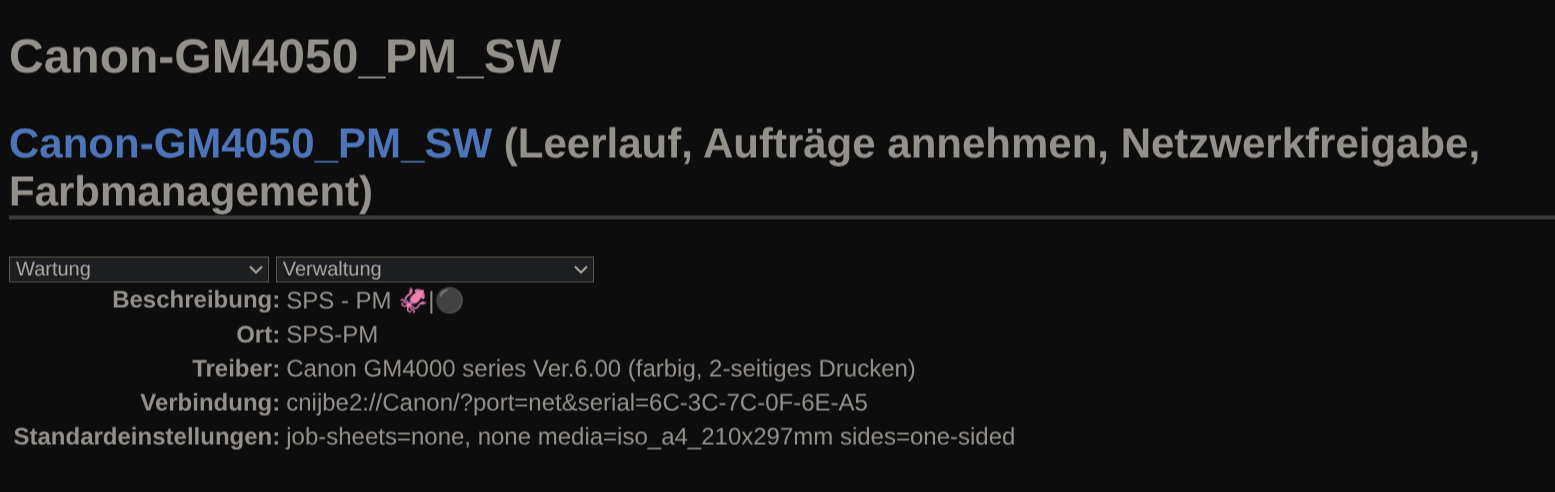
Canon PIXMA GM4050: Druckertreiber nachinstallieren
- Druckertreiber von offizieller Seite herunterladen, fuer Linux x64 (.deb oder .rpm)
- eigenes Volume dafuer einbinden (siehe oben Docker Compose)
- .deb in volume kopieren
- command hinzufuegen um nach jeden Container-Start die Treiber zu installieren
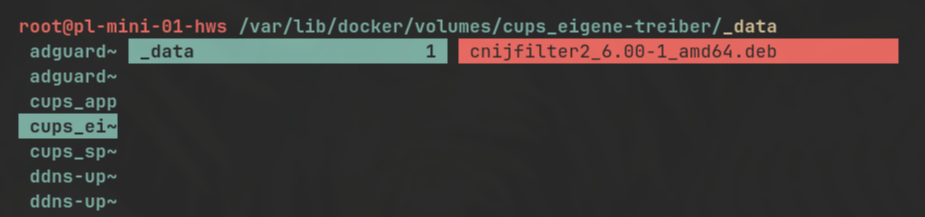
docker-compose.yaml
[...]
- TZ=Europe/Berlin
volumes:
- app:/etc/cups
- eigene-treiber:/opt/eigene-treiber
command: sh -c "dpkg -i /opt/eigene-treiber/cnijfilter2_6.00-1_amd64.deb && apt-get install -f -y && /entrypoint.sh"
volumes:
app:
eigene-treiber:Drucker mit Socket hinzufuegen:
socket://<DRUCKER-IP>Treiber auswaehlen:
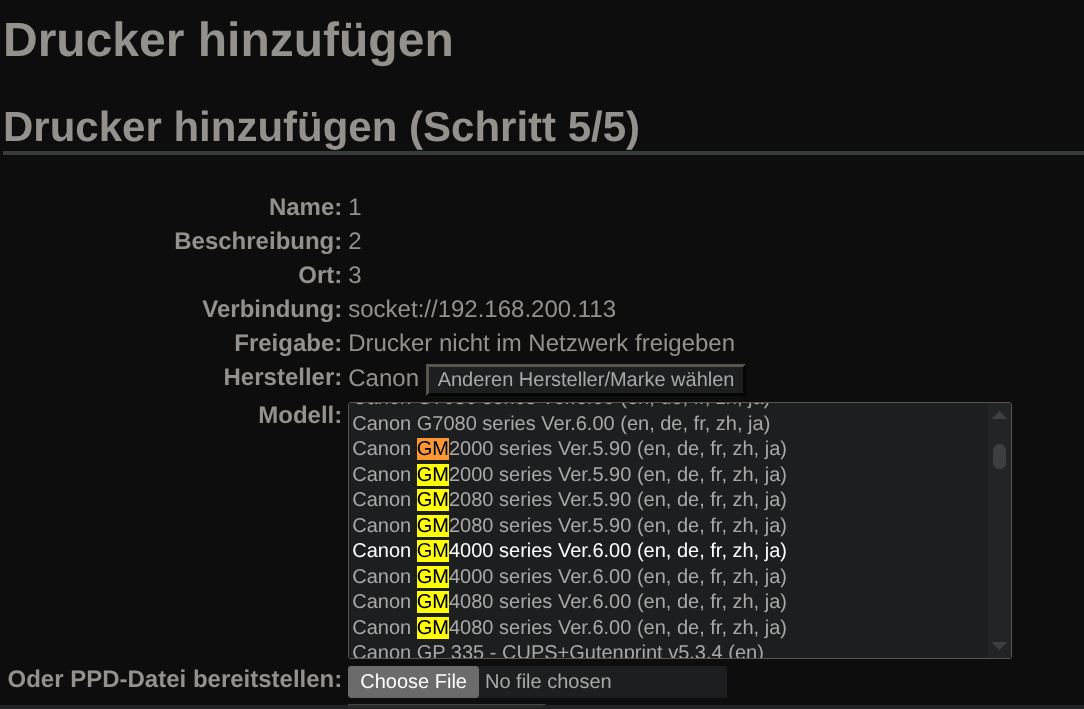
Druckertreiber installieren
## Powershell-CMDs
### Treibername aus .inf Dateien herausfinden, nach Pattern filtern (GM4000 in diesem Fall für den GM4050 Drucker)
Get-Content "D:\Entwicklung\Praxis Maxis\Druckertreiber\Canon_GM4050\*.inf" | Select-String -Pattern "GM4000" -Context 1,2
### Druckertreiber installieren mit pnputil
pnputil /add-driver "D:\Entwicklung\Praxis Maxis\Druckertreiber\Canon_GM4050\*.inf" /subdirs /install
### Druckertreiber hinzufügen
Add-PrinterDriver -Name "Canon GM4000 series"
### Drucker hinzufügen mit CUPS-Server in Docker und richtigem Treibername
Add-Printer -Name 'HWS PM3 🦑|⚫' -PortName 'http://192.168.200.11:631/printers/Canon-GM4050_PM3_SW' -DriverName 'Canon GM4000 series'
### Falls ein Fehler auftaucht, probieren den Spooler-Service bei jedem Windows-Neustart neuzustarten mit
Restart-Service -Name Spooler -Force
scanservjs (Scanner Web-UI)
version: "3.8"
services:
scanservjs:
image: sbs20/scanservjs:v3.0.4
container_name: scanservjs
privileged: true
#network_mode: host #BENOETIGT BEIM SUCHEN MIT 'airscan-discover fuer eSCL und WSD Scanner'
ports:
- "8098:8080"
environment:
#DELIMITER: '|'
#SANED_NET_HOSTS: "10.0.100.30;10.0.100.31"
#AIRSCAN_DEVICES: '"HWS PM1 ✳️⚫" = "http://192.168.200.18/eSCL"|"HWS PM2 ✳️⚫" = "http://192.168.200.15/eSCL"|"HWS 1.OG ✳️🎨" = "http://192.168.200.119/eSCL"'
#AIRSCAN_DEVICES='"Canon MFD" = "http://192.168.0.10/eSCL";"EPSON MFD" = "http://192.168.0.11/eSCL"'
#AIRSCAN_DEVICES: |
# "Canon MFD" = "http://192.168.0.10/eSCL";
# "EPSON MFD" = "http://192.168.0.11/eSCL"
#PIXMA_HOSTS: "192.168.200.33"
#SCANIMAGE_LIST_IGNORE: "true"
#DEVICES: "net:10.0.100.30:plustek:libusb:001:003;net:10.0.100.31:plustek:libusb:001:003;airscan:e0:Canon TR8500 series;airscan:e1:EPSON Cool Series"
OCR_LANG: "deu+eng"
volumes:
- /var/run/dbus:/var/run/dbus
- scans:/var/lib/scanservjs/output
- scans-backup:/var/lib/scanservjs/output-backup
- cfg:/etc/scanservjs
- saned:/etc/sane.d
restart: unless-stopped
volumes:
scans:
scans-backup:
cfg:
saned:Problem: Es werden immer nur die ersten Trennzeichen erkannt, das heißt Scanner PM2 und 1.OG fallen unter ein Device, siehe Log:
# Insert airscan devices
if [ ! -z "$AIRSCAN_DEVICES" ]; then
devices=$(echo $AIRSCAN_DEVICES | sed "s/$DELIMITER/\n/")
for device in $devices; do
sed -i "/^\[devices\]/a $device" /etc/sane.d/airscan.conf
done
fi
+ [ ! -z "HWS PM1 ✳️⚫" = "http://192.168.200.18/eSCL"|"HWS PM2 ✳️⚫" = "http://192.168.200.15/eSCL"|"HWS 1.OG ✳️🎨" = "http://192.168.200.119/eSCL" ]
+ echo "HWS PM1 ✳️⚫" = "http://192.168.200.18/eSCL"|"HWS PM2 ✳️⚫" = "http://192.168.200.15/eSCL"|"HWS 1.OG ✳️🎨" = "http://192.168.200.119/eSCL"
+ sed s/|/\n/
+ devices="HWS PM1 ✳️⚫" = "http://192.168.200.18/eSCL"
"HWS PM2 ✳️⚫" = "http://192.168.200.15/eSCL"|"HWS 1.OG ✳️🎨" = "http://192.168.200.119/eSCL"
+ sed -i /^\[devices\]/a "HWS PM1 ✳️⚫" = "http://192.168.200.18/eSCL" /etc/sane.d/airscan.conf
+ sed -i /^\[devices\]/a "HWS PM2 ✳️⚫" = "http://192.168.200.15/eSCL"|"HWS 1.OG ✳️🎨" = "http://192.168.200.119/eSCL" /etc/sane.d/airscan.conf
# Insert pixma hosts
if [ ! -z "$PIXMA_HOSTS" ]; then
hosts=$(echo $PIXMA_HOSTS | sed "s/$DELIMITER/\n/")
for host in $hosts; do
echo "bjnp://$host" >> /etc/sane.d/pixma.confLösung: wie oben im docker-compose, den Ordner /etc/sane.d als Volume mounten und die airscan.conf darin per Hand bearbeiten:
[devices]
"HWS PM1 ✳️⚫" = "http://192.168.200.30/eSCL"
"HWS PM1 🦑⚫" = "http://192.168.200.31:80/wsd/scanservice.cgi", wsd
"HWS PM2 ✳️⚫" = "http://192.168.200.32/eSCL"
"HWS PM3 🦑⚫" = "http://192.168.200.33:80/wsd/scanservice.cgi", wsd
"HWS 1.OG ✳️⚫🔵🔴🟡" = "http://192.168.200.34/eSCL"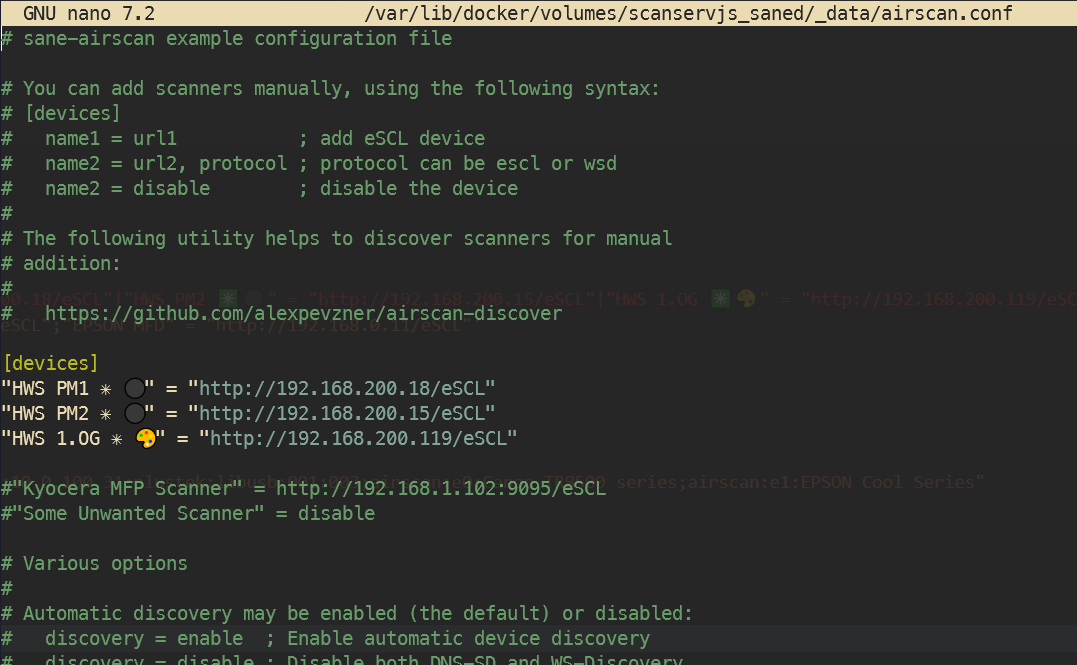
>
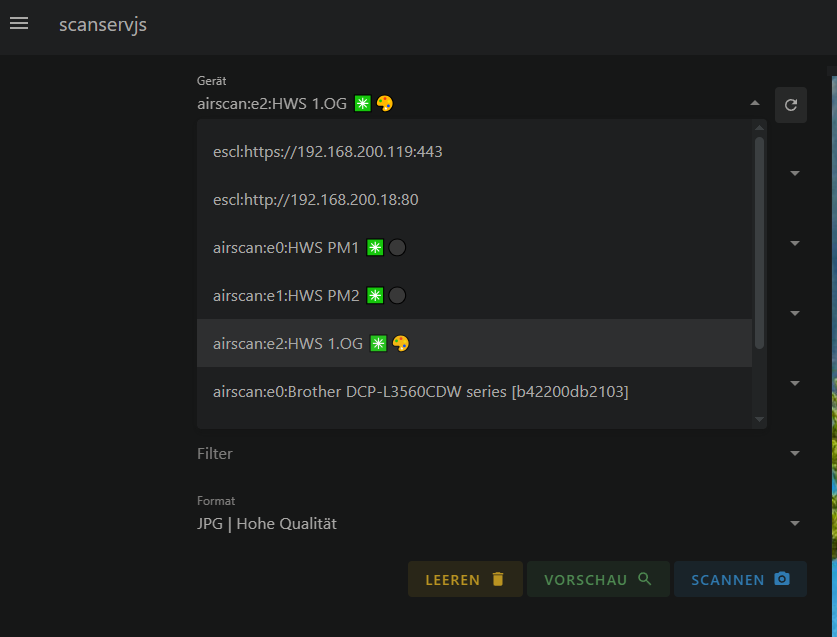
Testen, ob eSCL funktioniert
URL des Druckers mit Anhang aufrufen:
http://<DRUCKER-IP>/eSCL/ScannerCapabilities
http://<DRUCKER-IP>/eSCL/ScannerStatus
zb http://10.53.1.20/eSCL/ScannerCapabilities
WSD-Scanner suchen
In Docker Container execen und
airscan-discoverausfuehren.
ACHTUNG! Zum discovern eines zb Canon Pixma GM4050 bzw GM4000 series muss network_mode: host im docker-compose.yml aktiviert sein. Danach funktioniert das scannen aber auch ohne network_mode: host
[...]
container_name: scanservjs
privileged: true
network_mode: host
ports:
[...]> airscan-discover
[devices]
Brother DCP-L3560CDW series [b42200db2103] = http://192.168.200.34:80/eSCL/, eSCL
Brother DCP-L3560CDW series [b42200db2103] = https://192.168.200.34:443/eSCL/, eSCL
Brother DCP-L3560CDW series [b42200db2103] = http://192.168.200.34:80/WebServices/ScannerService, WSD
Brother DCP-L3560CDW series [b42200db2103] = http://[FE80::7697:79FF:FEEA:4635%252]:80/WebServices/ScannerService, WSD
Brother MFC-L2710DW series = http://192.168.200.32:80/eSCL/, eSCL
Brother MFC-L2710DW series = http://192.168.200.32:80/WebServices/ScannerService, WSD
Brother MFC-L2710DW series = http://[FE80::4ED5:77FF:FE6D:67EF%252]:80/WebServices/ScannerService, WSD
Brother MFC-L2750DW series = http://192.168.200.30:80/eSCL/, eSCL
Brother MFC-L2750DW series = http://192.168.200.30:80/WebServices/ScannerService, WSD
Brother MFC-L2750DW series = http://[FE80::BEF4:D4FF:FE44:75D%252]:80/WebServices/ScannerService, WSD
CANON INC. GM4000 series = http://192.168.200.33:80/wsd/scanservice.cgi, WSD
CANON INC. GM4000 series = http://[fe80::6e3c:7cff:fe0e:c3da%252]:80/wsd/scanservice.cgi, WSD
CANON INC. GM4000 series = http://192.168.200.31:80/wsd/scanservice.cgi, WSD
CANON INC. GM4000 series = http://[fe80::6e3c:7cff:fe0f:db71%252]:80/wsd/scanservice.cgi, WSD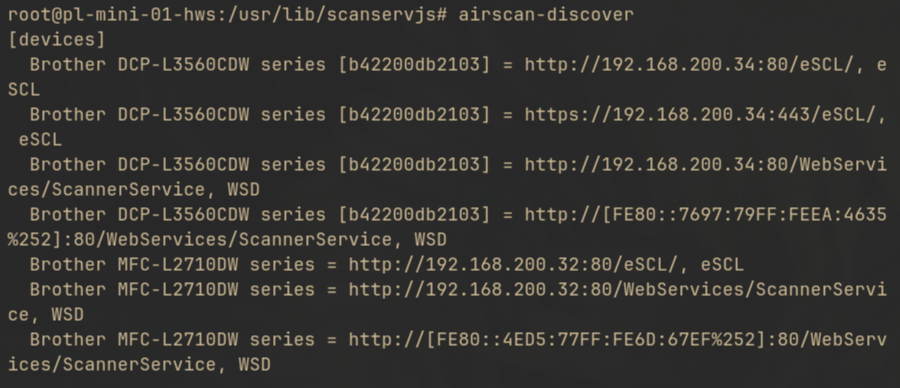
danach die sane.d/airscan.conf anpassen:
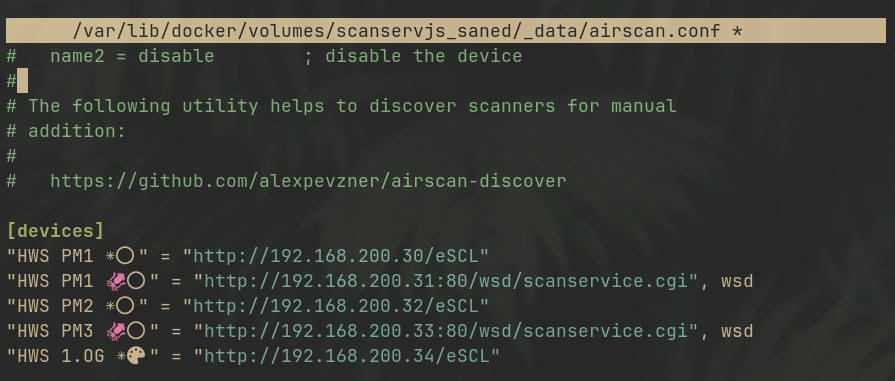
und
scanimage -Leingeben:
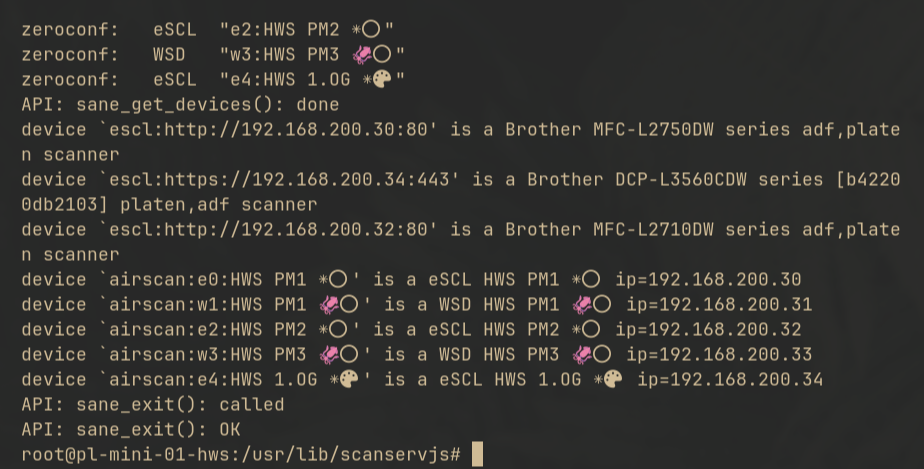
config anpassen und in config.local.js umbenennen:
Eikes Beispiel:
[...]
afterDevices(devices) {
const deviceNames = {
'airscan:e0:FBS Friedrich UG ✳️|⚫🔵🔴🟡': 'FBS Friedrich UG ✳️|⚫🔵🔴🟡',
'airscan:e1:FBS EG-PM ✳️|⚫': 'FBS EG-PM ✳️|⚫',
'airscan:e2:FBS Friedrich I. ✳️|⚫🔵🔴🟡': 'FBS Friedrich I. ✳️|⚫🔵🔴🟡',
'airscan:e3:FBS Friedrich II. ✳️|⚫🔵🔴🟡': 'FBS Friedrich II. ✳️|⚫🔵🔴🟡',
'airscan:e4:FBS Friedrich III. ✳️|⚫🔵🔴🟡': 'FBS Friedrich III. ✳️|⚫🔵🔴🟡'
};
devices
.filter(d => d.id in deviceNames)
.forEach(d => d.name = deviceNames[d.id]);
devices
.filter(d => d.id.includes('FBS'))
.forEach(device => {
device.features['--mode'].default = 'Color';
device.features['--resolution'].default = 150;
device.features['--resolution'].options = [75, 150, 300, 600];
device.features['--brightness'].default = 0;
device.features['--contrast'].default = 5;
device.features['-x'].default = 192;
device.features['-y'].default = 272;
/* device.settings.pipeline.default = 'PNG'; */
device.settings.pipeline.default = '@:pipeline.ocr | PDF (JPG | @:pipeline.high-quality)';
/* Disable batch modes if they are not available on your printer: */
/*device.settings.batchMode.options = ['none', 'manual']; */
});
},
async afterScan(fileInfo) {
[...]https://medium.com/@davidclaeys/scanservjs-make-your-own-scan-server-21539f64265c
module.exports = {
afterDevices(devices) {
const deviceNames = {
/*
'device id':'device name'
*/
'airscan:e0:Hp Envy Pro 6442': 'Hp Envy Pro 6442'
};
/*
replace the id in the filter
*/
devices
.filter(d => d.id == 'airscan:e0:Hp Envy Pro 6442')
.forEach(device => {
device.features['--resolution'].default = 400;
device.features['--resolution'].options = [100, 150, 200, 300, 400, 600];
/*
Disable batch modes if they are not available on your printer
*/
device.settings.batchMode.options = ['none', 'manual'];
/*
Specify the default pipeline
*/
device.settings.pipeline.default = ['PNG'];
});
devices
.filter(d => d.id in deviceNames)
.forEach(d => d.name = deviceNames[d.id]);
}
};escl:// automatische Suche deaktivieren
escl.conf umbenennen:
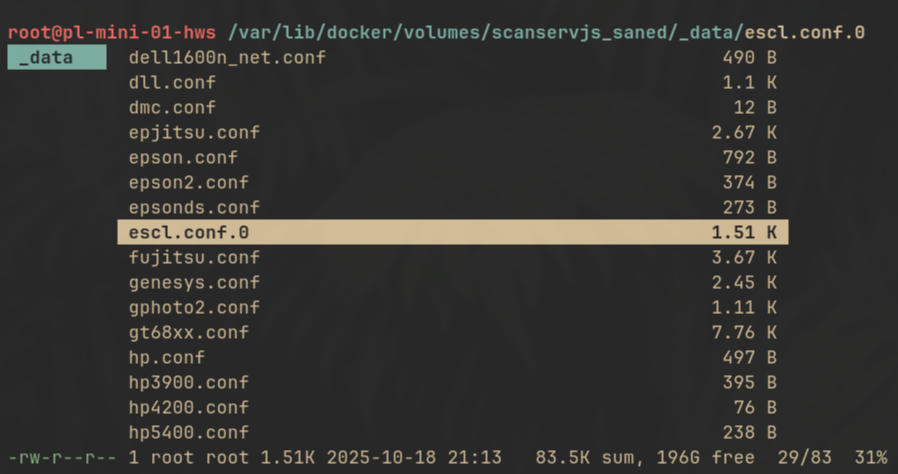
Scans autom. backupen und löschen
Weil die Scans von jedem zugänglich sind, der die Seite aufrufen kann, sollten die Scans gelöscht und zusätzlich gebackupt werden.
Wie oben in der docker-compose.yml beschrieben, ein Volume scans-backup anlegen. Dazu dieses Skript zb unter
/home/user/scanservjs-backup.sh
anlegen und mit chmod +x /home/user/scanservjs-backup.sh ausführbar machen:
#!/bin/bash
# Scanservjs Backup und Bereinigungsskript
# Erstellt Backups und löscht alte Dateien (älter als 60 Minuten)
# Verzeichnisse definieren
SOURCE_DIR="/var/lib/docker/volumes/scanservjs_scans"
BACKUP_DIR="/var/lib/docker/volumes/scanservjs_scans-backup"
LOG_FILE="/var/log/scanservjs-backup.log"
# Zeitstempel für Logging
TIMESTAMP=$(date '+%Y-%m-%d %H:%M:%S')
# Logging-Funktion
log_message() {
echo "[$TIMESTAMP] $1" | tee -a "$LOG_FILE"
}
# Skript starten
log_message "=== Backup-Skript gestartet ==="
# Prüfen ob Quellverzeichnis existiert
if [ ! -d "$SOURCE_DIR" ]; then
log_message "FEHLER: Quellverzeichnis $SOURCE_DIR existiert nicht!"
exit 1
fi
# Backup-Verzeichnis erstellen falls nicht vorhanden
if [ ! -d "$BACKUP_DIR" ]; then
mkdir -p "$BACKUP_DIR"
log_message "Backup-Verzeichnis $BACKUP_DIR wurde erstellt"
fi
# Dateien kopieren (mit rsync für effizientes Backup)
log_message "Starte Backup von $SOURCE_DIR nach $BACKUP_DIR"
rsync -av --progress "$SOURCE_DIR/" "$BACKUP_DIR/" >> "$LOG_FILE" 2>&1
if [ $? -eq 0 ]; then
log_message "Backup erfolgreich abgeschlossen"
else
log_message "FEHLER beim Backup!"
exit 1
fi
# Alte Dateien löschen (älter als 60 Minuten)
log_message "Suche nach Dateien älter als 60 Minuten in $SOURCE_DIR"
# Zähler für gelöschte Dateien
DELETED_COUNT=0
# Dateien finden und löschen
while IFS= read -r -d '' file; do
log_message "Lösche: $file"
rm -f "$file"
if [ $? -eq 0 ]; then
((DELETED_COUNT++))
else
log_message "FEHLER beim Löschen von: $file"
fi
done < <(find "$SOURCE_DIR" -type f -mmin +60 -print0)
log_message "Anzahl gelöschter Dateien: $DELETED_COUNT"
log_message "=== Backup-Skript beendet ==="
echo "" >> "$LOG_FILE"
exit 0dann mit crontab -e minütlich laufen lassen:
* * * * * /home/user/scanservjs-backup.shSemaphore UI (Ansible)
Achtung, Runners nur in PRO Version (50€ mtl.)
https://semaphoreui.com/install/docker/2_16/
community-edition
services:
semaphore:
restart: always
ports:
- 3000:3000
image: semaphoreui/semaphore:v2.16.45
environment:
SEMAPHORE_DB_DIALECT: bolt
SEMAPHORE_ADMIN: admin
SEMAPHORE_ADMIN_PASSWORD: MEINPW123
SEMAPHORE_ADMIN_NAME: admin
SEMAPHORE_ADMIN_EMAIL: it@MEINEDOMAIN.de
SEMAPHORE_SCHEDULE_TIMEZONE: Europe/Berlin
SEMAPHORE_USE_REMOTE_RUNNER: "True"
SEMAPHORE_RUNNER_REGISTRATION_TOKEN: "D3o/h.........QAdqU="
volumes:
- cfg:/etc/semaphore
- tmp:/tmp/semaphore
- data:/var/lib/semaphore
runner01:
image: semaphoreui/runner:v2.16.45
environment:
- SEMAPHORE_RUNNER_PRIVATE_KEY_FILE=/var/lib/semaphore/config.runner.key
- SEMAPHORE_RUNNER_REGISTRATION_TOKEN=D3o/hQ..........VdqU=
- SEMAPHORE_RUNNER_TOKEN=12rew..........bqj8=
- SEMAPHORE_WEB_ROOT=http://192.168.200.11:3000
volumes:
- cfg-run01:/var/lib/semaphore
volumes:
cfg:
tmp:
data:
cfg-run01:pro-edition (15€/monat)
Pro = mehrere Runner + Terraform + opentofu
Obacht: Beim umstellen von Free auf Pro muss der Browsercache gelöscht werden, damit unten links der Button 'activate Subscription' erscheint
services:
semaphore:
restart: always
ports:
- 3000:3000
#image: semaphoreui/semaphore:v2.16.45
image: public.ecr.aws/semaphore/pro/server:v2.16.43
environment:
SEMAPHORE_DB_DIALECT: bolt
SEMAPHORE_ADMIN: admin
SEMAPHORE_ADMIN_PASSWORD: MEINPW123
SEMAPHORE_ADMIN_NAME: admin
SEMAPHORE_ADMIN_EMAIL: it@MEINEDOMAIN.de
SEMAPHORE_SCHEDULE_TIMEZONE: Europe/Berlin
SEMAPHORE_USE_REMOTE_RUNNER: "True"
SEMAPHORE_RUNNER_REGISTRATION_TOKEN: "D3o/h.........QAdqU="
volumes:
- cfg:/etc/semaphore
- tmp:/tmp/semaphore
- data:/var/lib/semaphore
runner01:
#image: semaphoreui/runner:v2.16.45
image: public.ecr.aws/semaphore/pro/runner:v2.16.43
environment:
- SEMAPHORE_RUNNER_PRIVATE_KEY_FILE=/var/lib/semaphore/config.runner.key
- SEMAPHORE_RUNNER_REGISTRATION_TOKEN=D3o/hQ..........VdqU=
- SEMAPHORE_RUNNER_TOKEN=12rew..........bqj8=
- SEMAPHORE_WEB_ROOT=http://192.168.200.11:3000
volumes:
- cfg-run01:/var/lib/semaphore
runner02:
image: semaphoreui/runner:v2.16.7
environment:
- SEMAPHORE_RUNNER_PRIVATE_KEY_FILE=/var/lib/semaphore/config.runner.key
- SEMAPHORE_RUNNER_REGISTRATION_TOKEN=D3o/hQ..........dqU=
- SEMAPHORE_RUNNER_TOKEN=wM7...........6S8=
- SEMAPHORE_WEB_ROOT=http://192.168.200.11:3000
volumes:
- cfg-run02:/var/lib/semaphore
volumes:
cfg:
tmp:
data:
cfg-run01:
cfg-run02:Runner mit config.runner.key erzeugen
Beim Erzeugen eines neuen Runners über die Semaphore-UI muss der private-key in der Datei
/var/lib/semaphore/config.runner.key
gespeichert werden (kann mit root also vom Docker Host passieren)
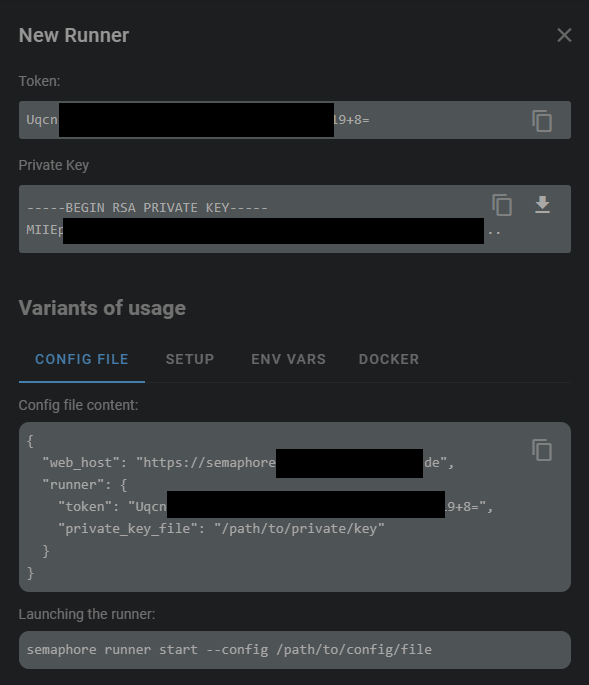

wie oben in der docker-compose.yml der Pro-Variante angegeben muss der Pfad der Datei als env-var mitgegeben werden:
[...]
runner02:
image: semaphoreui/runner:v2.16.7
environment:
- SEMAPHORE_RUNNER_PRIVATE_KEY_FILE=/var/lib/semaphore/config.runner.key
[...] paperless-ai
https://github.com/clusterzx/paperless-ai
services:
paperless-ai:
image: clusterzx/paperless-ai:3.0.9
container_name: paperless-ai
network_mode: bridge
restart: unless-stopped
cap_drop:
- ALL
security_opt:
- no-new-privileges=true
environment:
- PUID=1000
- PGID=1000
- PAPERLESS_AI_PORT=${PAPERLESS_AI_PORT:-3000}
- RAG_SERVICE_URL=http://localhost:8000
- RAG_SERVICE_ENABLED=true
ports:
- "3057:${PAPERLESS_AI_PORT:-3000}"
volumes:
- data:/app/data
volumes:
data:
.env
PAPERLESS_AI_PORT=3057Paperless-ai + netbird
um mit paperless-ai auf eine lokale KI (zB ein GMKTec Evo-X2) zugreifen zu können, nutze ich Netbird-VPN:
services:
paperless-ai:
image: clusterzx/paperless-ai:3.0.9
container_name: paperless-ai
#network_mode: host
depends_on:
- netbird
restart: unless-stopped
cap_drop:
- ALL
security_opt:
- no-new-privileges=true
environment:
- PUID=1000
- PGID=1000
- PAPERLESS_AI_PORT=${PAPERLESS_AI_PORT:-3000}
- RAG_SERVICE_URL=http://localhost:8000
- RAG_SERVICE_ENABLED=true
- PAPERLESS_URL=https://paperless-ai.MEINEDOMAIN.de
ports:
- "3057:${PAPERLESS_AI_PORT:-3000}"
volumes:
- data:/app/data
netbird:
image: netbirdio/netbird:latest
container_name: paperless-ai-netbird
hostname: fn-paperless-ai
privileged: true
#network_mode: host
cap_add:
- NET_ADMIN
- SYS_ADMIN
- SYS_RESOURCE
volumes:
#- /var/run/netbird:/var/run/netbird
- nb-var-lib:/var/lib/netbird
- nb-cfg:/etc/netbird
environment:
- NB_SETUP_KEY=FFE.........AA49
restart: unless-stopped
volumes:
data:
nb-cfg:
nb-var-lib:.env
PAPERLESS_AI_PORT=3057paperless-ai Konfiguration mit Ollama:
Provider: Ollama
Ollama API: http://evo-x2.netbird.cloud:11434
Ollama Model: gemma3:27b
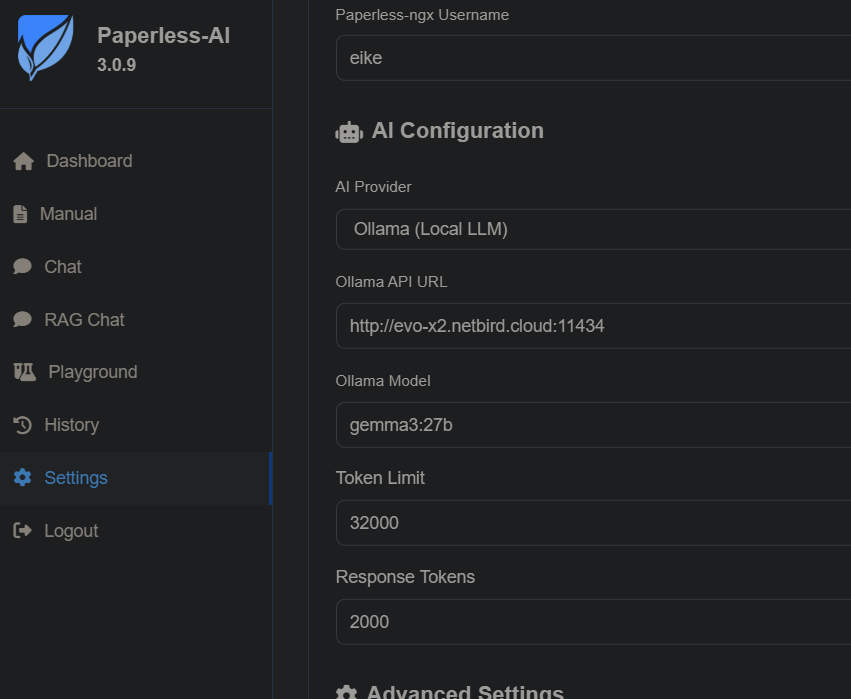
immich
https://docs.immich.app/install/docker-compose/
docker-compose.yml
# https://docs.immich.app/install/docker-compose/
#
# WARNING: To install Immich, follow our guide: https://docs.immich.app/install/docker-compose
#
# Make sure to use the docker-compose.yml of the current release:
#
# https://github.com/immich-app/immich/releases/latest/download/docker-compose.yml
#
# The compose file on main may not be compatible with the latest release.
name: immich
services:
immich-server:
container_name: immich_server
image: ghcr.io/immich-app/immich-server:${IMMICH_VERSION:-release}
# extends:
# file: hwaccel.transcoding.yml
# service: cpu # set to one of [nvenc, quicksync, rkmpp, vaapi, vaapi-wsl] for accelerated transcoding
volumes:
- upload:/data
- /etc/localtime:/etc/localtime:ro
env_file:
- stack.env
ports:
- '2283:2283'
depends_on:
- redis
- database
restart: unless-stopped
healthcheck:
disable: false
immich-machine-learning:
container_name: immich_machine_learning
# For hardware acceleration, add one of -[armnn, cuda, rocm, openvino, rknn] to the image tag.
# Example tag: ${IMMICH_VERSION:-release}-cuda
image: ghcr.io/immich-app/immich-machine-learning:${IMMICH_VERSION:-release}
# extends: # uncomment this section for hardware acceleration - see https://docs.immich.app/features/ml-hardware-acceleration
# file: hwaccel.ml.yml
# service: cpu # set to one of [armnn, cuda, rocm, openvino, openvino-wsl, rknn] for accelerated inference - use the `-wsl` version for WSL2 where applicable
volumes:
- model-cache:/cache
env_file:
- stack.env
restart: unless-stopped
healthcheck:
disable: false
redis:
container_name: immich_redis
image: docker.io/valkey/valkey:8@sha256:81db6d39e1bba3b3ff32bd3a1b19a6d69690f94a3954ec131277b9a26b95b3aa
healthcheck:
test: redis-cli ping || exit 1
restart: unless-stopped
database:
container_name: immich_postgres
image: ghcr.io/immich-app/postgres:14-vectorchord0.4.3-pgvectors0.2.0@sha256:bcf63357191b76a916ae5eb93464d65c07511da41e3bf7a8416db519b40b1c23
env_file:
- stack.env
environment:
POSTGRES_PASSWORD: ${DB_PASSWORD}
POSTGRES_USER: ${DB_USERNAME}
POSTGRES_DB: ${DB_DATABASE_NAME}
POSTGRES_INITDB_ARGS: '--data-checksums'
# Uncomment the DB_STORAGE_TYPE: 'HDD' var if your database isn't stored on SSDs
# DB_STORAGE_TYPE: 'HDD'
volumes:
- db:/var/lib/postgresql/data
shm_size: 128mb
restart: unless-stopped
volumes:
model-cache:
db:
upload:.env
IMMICH_VERSION=v2
DB_PASSWORD=postgres
DB_USERNAME=postgres
DB_DATABASE_NAME=immich
Upload mit immich-go
https://github.com/simulot/immich-go
https://github.com/simulot/immich-go/blob/main/docs/best-practices.md
lokale Ordner Upload
.\immich-go upload from-folder --server=https://immich.MEINEDOMAIN.de --api-key=gHwcJ.......jE --concurrent-tasks=4 --client-timeout=60m --pause-immich-jobs=false --on-errors=continue --manage-burst=Stack --manage-raw-jpeg=StackCoverJPG --manage-heic-jpeg=StackCoverJPG --exclude-extensions="*.psd" --session-tag --folder-as-album=FOLDER --folder-as-tags --tag="Import 2026-Jan" 'D:\Bilder\anderes\Ford Fiesta\'Google Photos Upload
zuerst Takeout herunterladen: https://takeout.google.com/
dann
.\immich-go upload from-google-photos --server=https://immich.MEINEDOMAIN.de --api-key=gHwc........jE --concurrent-tasks=4 --client-timeout=60m --pause-immich-jobs=true --on-errors=continue --manage-burst=Stack --manage-raw-jpeg=StackCoverJPG --manage-heic-jpeg=StackCoverJPG --session-tag E:\googlephotosbackup\takeout-20251202T213051Z-3-*.zip
Windows in Docker
services:
windows:
image: dockurr/windows
container_name: windows
environment:
VERSION: "11"
devices:
- /dev/kvm
- /dev/net/tun
cap_add:
- NET_ADMIN
ports:
- 8006:8006
- 3389:3389/tcp
- 3389:3389/udp
volumes:
- storage:/storage
restart: unless-stopped
stop_grace_period: 2m
volumes:
storage:Zerobyte (Restic Backup UI)
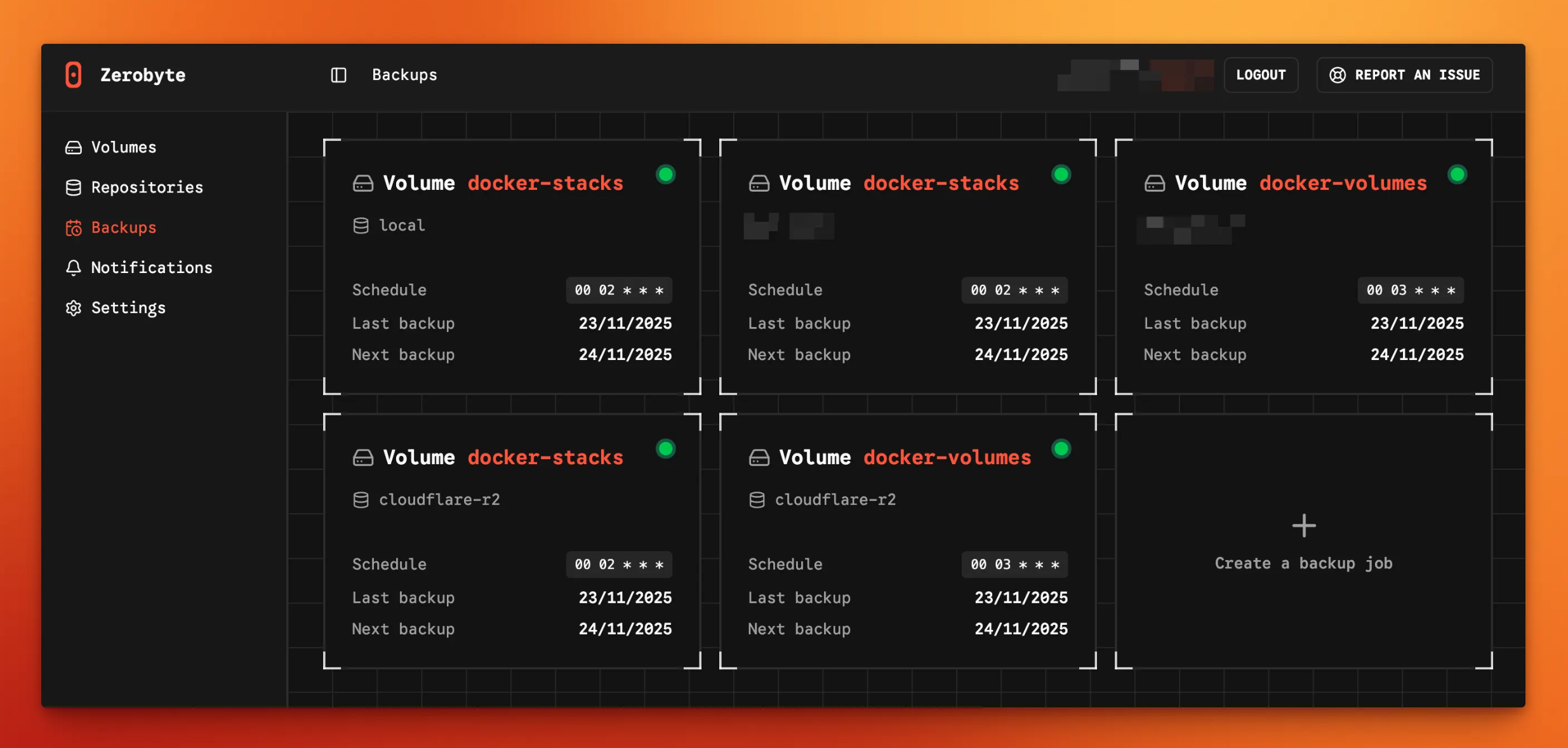
https://github.com/nicotsx/zerobyte
services:
zerobyte:
image: ghcr.io/nicotsx/zerobyte:v0.22
container_name: zerobyte
restart: unless-stopped
# ---------------------------------
# OBACHT wenn man Volumes (zu speichernde Daten) oder Repositories (Ziele der Backups) mit SMB oder SFTP mounten möchte,
# dann folgende Optionen:
cap_add:
- SYS_ADMIN
- SYS_PTRACE
security_opt:
- seccomp:unconfined
- apparmor:unconfined
# falls SFTP oder SMB nicht notwendig, dann nur:
cap_add:
- SYS_ADMIN
# ---------------------------------
ports:
- "4096:4096"
devices:
- /dev/fuse:/dev/fuse
environment:
- TZ=Europe/Berlin # Set your timezone here
volumes:
- /etc/localtime:/etc/localtime:ro
- app:/var/lib/zerobyte
- /var/lib/docker:/backup-var-lib
- /root:/backup-root-home
- /mnt/fn-volume-01:/backup-fn-volume-01
- /mnt/fn-volume-02:/backup-fn-volume-02
volumes:
app:Hetzner S3 Object Storage als Repo
Backend: S3
Endpoint:
fsn1.your-objectstorage.comBucket: <Bucket-Bezeichnung-aus-Hetzner>/<gewuenschter-Unterordner> zb BUCKETNAME/Server-01
Acces-Key & Secret-Key aus Hetzner entnehmen
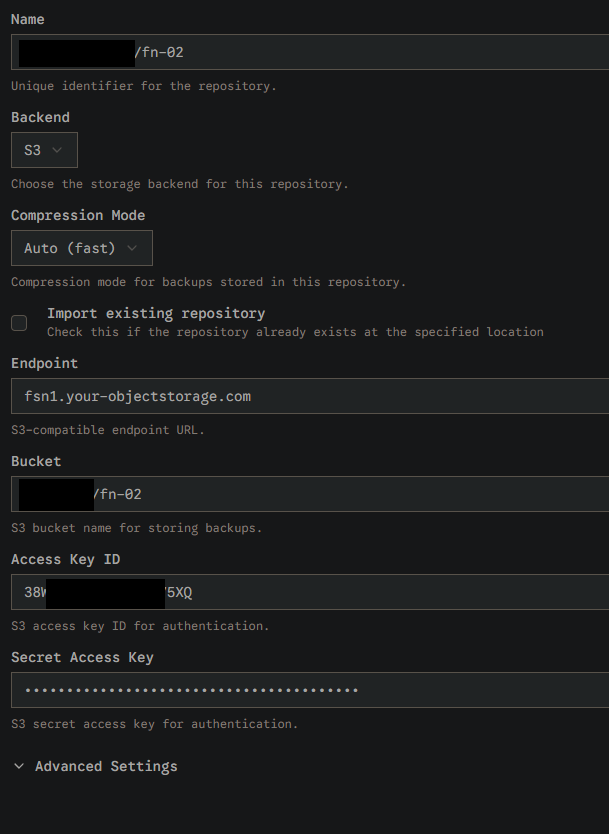
! /var/lib/docker/overlay2 aufräumen
mit
sudo apt install ncdu
ncdu /herausfinden, ob /var/lib/docker/overlay bzw. overlay2 für den vollen Speicher verantwortlich ist.
Mehr Info:
https://wiki.folkerts.it/books/code-snippets-notes/page/speicherplatz-in-treesize-form-mit-ncdu
https://stackoverflow.com/questions/46672001/is-it-safe-to-clean-docker-overlay2
https://forums.docker.com/t/some-way-to-clean-up-identify-contents-of-var-lib-docker-overlay/30604
docker system prune -a -foder
docker builder prune
! Log-Datei Limit
Um eine aufblähende Dockerinstanz zu verhindern, kann ein Limitieren der Container-Logdatei helfen.
docker-compose.yml
logging:
options:
max-size: "100m"zb in homer:
version: "2"
services:
homer:
image: b4bz/homer
logging:
options:
max-size: "100m"
container_name: homer
volumes:
- /var/lib/docker/volumes/homer/:/www/assets
ports:
- 8090:8080
#environment:
# - UID=1000
# - GID=1000
restart: unless-stoppedODER
Direkt im Docker Daemon einstellen, damit es für alle Container automatisch gilt:
https://stackoverflow.com/a/42510314
https://stackoverflow.com/a/75928154
sudo nano /etc/docker/daemon.json (Datei anlegen, wenn nonexistent)
{
"log-driver": "local",
"log-opts": {"max-size": "50m", "max-file": "3"}
}oder
{
"log-opts": {
"max-size": "10m",
"max-file": "5"
}
}
weitere Quelle
! NAS-Server als Volume einbinden
version: "2"
services:
ipparks:
image: 192.168.178.224:5000/ipparks:latest
container_name: ipparks
volumes:
- LaufwerkS:/mnt/NAS
volumes:
LaufwerkS:
driver_opts:
type: cifs
o: "username=ea_system,password=MEINPW123"
device: "//192.168.178.199/ea-gmbh"oder
version: '3.8'
services:
minio:
restart: unless-stopped
image: 'bitnami/minio:latest'
ports:
- '9000:9000'
- '9001:9001'
environment:
- MINIO_ROOT_USER=admin
- MINIO_ROOT_PASSWORD=Unude0
networks:
- praxistool-nw
volumes:
- hetzner_storagebox_minio:/bitnami/minio/data
- data:/data
- certs:/certs
volumes:
data:
certs:
hetzner_storagebox_minio:
driver: local
driver_opts:
type: cifs
o: "username=u4b1,password=zpp,uid=1001,gid=1001,file_mode=0777,dir_mode=0777,vers=3.1.1,seal"
device: "//u4b1.your-storagebox.de/u4b1/dockervolume_minio"
networks:
praxistool-nw:
driver: bridgewichtig! vers=3.1.1 und seal parameter für sicherheit und encryption!
! Portainer Stack: Environment Variables
Wenn in Docker Portainer ein Stack erstellt und darin Umgebungsvariablen geladen werden sollen, muss im docker-compose die .env Datei als 'stack.env' angegeben werden:
volumes:
- ...
- ...
env_file:
- stack.env
ports:
- ...
Dabei ist egal, ob die Variablen aus einer .env geladen, im Advanced Mode oder wie auf dem Screenshot im Simple Modus ausgefüllt wurden.
Zusatzinfo: Der Doppelpunkt gefolgt vom Minus im docker-compose.yml "${COMPOSE_PORT_HTTP:-9000}:9000"
gibt den Standardwert an, falls die angegebene env-var nicht gefunden wurde.
! CPU+RAM limitieren
deploy:
resources:
limits:
cpus: '0.95'
memory: 500Mzb in nextcloud:
app:
image: nextcloud:apache
restart: always
ports:
- 8654:80
volumes:
- app02:/var/www/html:z
environment:
- POSTGRES_HOST=db
- REDIS_HOST=redis
env_file:
- stack.env
depends_on:
- db
- redis
deploy:
resources:
limits:
cpus: '0.95'
memory: 500MDocker Images updaten
sudo docker-compose pull && sudo docker-compose upquelle:
https://stackoverflow.com/a/39127792
ODER
einfach watchtower als Container erstellen:
https://schroederdennis.de/allgemein/watchtower-automatische-docker-container-updates/
#Regelmäßig alle 6 Stunden und nur mit Label Enable!
docker run -it -d \
--name WatchTower \
-v /var/run/docker.sock:/var/run/docker.sock \
containrrr/watchtower \
--label-enable \
--interval 21600
#Zum einmal ausführen
docker run --rm \
--name WatchTower \
-v /var/run/docker.sock:/var/run/docker.sock \
-e WATCHTOWER_NOTIFICATIONS=gotify \
-e WATCHTOWER_NOTIFICATION_GOTIFY_URL="http://192.168.10.7:5001" \
-e WATCHTOWER_NOTIFICATION_GOTIFY_TOKEN="ASlcSC1ofE.dmaG" \
containrrr/watchtower \
--run-once \
--cleanup \
--include-restarting \
--rolling-restart \
--include-stopped#Regelmäßig alle 6 Stunden
docker run -it -d \
--name WatchTower \
-v /var/run/docker.sock:/var/run/docker.sock \
containrrr/watchtower \
--cleanup \
--include-restarting \
--rolling-restart \
--include-stopped \
--interval 21600
Am besten aber über ein Stack mit docker-compose:
https://wiki.folkerts.it/books/docker/page/watchtower
Wichtige Docker Befehle
in Container Shell ausführen
docker exec -it gitlab-web-1 bash
oder
docker exec -it gitlab-web-1 shDocker CPU / Memory Verbrauch der einzelnen Container anzeigen
docker ps -q | xargs docker stats --no-stream
oder
docker ps -q | xargs docker statsPortainer Console geht nicht
Wenn man in Portainer nicht auf die Konsole eines Containers gelangt, könnte es sein, dass im NGINX Proxy Manager der Haken bei Websockets fehlt:
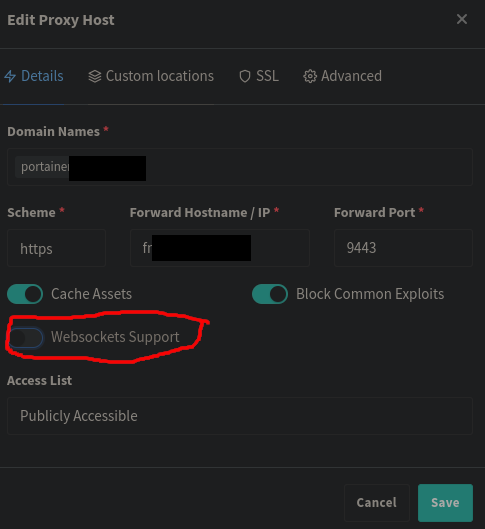
Haken setzen, danach sollte es klappen.
Quelle
Google: portainer console stuck 'Exec into container as default user using command bash'
https://github.com/portainer/portainer/issues/3940#issuecomment-1203806507
Docker-Volumes mit winSCP kopieren
https://mulcas.com/connect-to-an-ubuntu-server-as-a-root-using-winscp/
Hetzner Storage Box über Samba einbinden
am Beispiel minio
Am besten die CIFS/Samba Share über den Dockerhost mit fstab mounten und nicht in docker-compose selbst. Dafür:
nano /etc/fstab
//u12345-sub1.your-storagebox.de/u12345-sub1/dockervolume_minio /mnt/storagebox cifs iocharset=utf8,rw,credentials=/etc/backup-credentials.txt,uid=1001,gid=1001,vers=3.1.1,seal,file_mode=0660,dir_mode=0770 0 0nano /etc/backup-credentials.txt
username=u12345-sub1
password=SUBACCOUNTSTORAGE......PASSWORDtesten mit
mount -a
und untesten mit
umount -a
WICHTIGvers=3.1.1,seal hinten dranhängen, um eine möglichst sichere Samba-Verbindung herzustellen
in diesem fall wurde ein sub-account in der Hetzner Storage Box angelegt, dabei wird der uesrname und freigabename geändert:
Wenn Sie Ihren Haupt-Account verwenden, lautet der Freigabename backup
Bei der Verwendung eines Sub-Accounts müssen Sie als Nutzername und Freigabename, den Nutzername des Sub-Accounts verwenden.
Linux/Unix://<username>.your-storagebox.de/<Freigabename>
Windows\\<username>.your-storagebox.de\<Freigabename>
https://docs.hetzner.com/de/robot/storage-box/access/access-samba-cifs
https://docs.hetzner.com/de/robot/storage-box/additional-users
normalerweise ist der pfad als Hauptnutzer
user: u12345
pw: im hetzner robot portal im Hauptaccount vergeben//u12345.your-storagebox.de/backup
und für einen Sub-Account
user: u12345-sub1
pw: im hetzner robot portal unter sub-accounts vergeben//u12345-sub1.your-storagebox.de/u12345-sub1
ALTE VERSION (buggy, laggy, reconnects usw)
version: '3.8'
services:
minio:
restart: unless-stopped
image: 'bitnami/minio:latest'
ports:
- '9000:9000'
- '9001:9001'
environment:
- MINIO_ROOT_USER=admin
- MINIO_ROOT_PASSWORD=Unude0
networks:
- praxistool-nw
volumes:
- hetzner_storagebox_minio:/bitnami/minio/data
- data:/data
- certs:/certs
volumes:
data:
certs:
hetzner_storagebox_minio:
driver: local
driver_opts:
type: cifs
o: "username=u4b1,password=zpp,uid=1001,gid=1001,file_mode=0777,dir_mode=0777,vers=3.1.1,seal"
device: "//u4b1.your-storagebox.de/u4b1/dockervolume_minio"
networks:
praxistool-nw:
driver: bridgeMySQL: Fatal glibc error: CPU does not support x86-64-v2
Fatal glibc error: CPU does not support x86-64-v2
fix:
anderes MySQL Image verwenden
db:
image: mysql:8-oraclelinux8
container_name: kimai_db
restart: unless-stopped
Quellen
https://github.com/docker-library/mysql/issues/1055#issuecomment-2099265909
https://www.reddit.com/r/docker/comments/1cnx28w/fatal_glibc_error_cpu_does_not_support_x8664v2/
Docker Standardverzeichnis ändern
aktuelles Dir abfragen:
docker info | grep 'Docker Root Dir'
daemon.json erstellen falls nicht vorhanden oder ändern:
nano /etc/docker/daemon.json{
"data-root": "/path/to/new/docker-data"
}# docker stoppen
sudo systemctl stop docker
sudo systemctl stop docker.socket
# checken ob gestoppt
ps aux | grep -i docker | grep -v grep
# Dockerverzeichnis rüberkopieren
sudo rsync -axPS /var/lib/docker/ /path/to/new/docker-data
# docker starten
sudo systemctl start docker
# neues dir checken
docker info | grep 'Docker Root Dir'
# container checken
docker ps
# sicherheitshalber altes Verzeichnis löschen oder umbenennen
sudo rm -r /var/lib/docker

Error response from daemon: client version 1.xx is too old
Fehlermeldung
client version 1.42 is too old. Minimum supported API version is 1.44, please upgrade your client to a newer version
oder
Docker event stream returned error: Error response from daemon: client version 1.25 is too old....

Loesung:
https://github.com/traefik/traefik/issues/12253#issuecomment-3515555316
systemctl edit docker.service
# nach
# ### Anything danach wird discarded
# einfuegen:
[Service]
Environment=DOCKER_MIN_API_VERSION=1.24
# speichern und beenden
systemctl restart docker! IP-Kollidierung bei Netbird verhindern (192.168.x und 10.1.x)
Falls eine IP-Adresse aus einem anderen Subnetz nicht erreichbar ist, kann es daran liegen, dass eine Docker-Bridge mit diesem Subnetz vorhanden ist.
siehe https://wiki.folkerts.it/books/docker/page/netbird-vpn-it-infrastructure-mit-wireguard-und-authentik
ip route show | grep -E "192\."oder
ip route get 192.168.5.55root@fn-01:~# ip route get 192.168.5.55
192.168.5.55 dev br-ebe13ac6d23b src 192.168.0.1 uid 0 cache
docker network ls
docker network inspect ebe13ac6d23blösung für den einen container
docker-compose.yml
...
- /var/lib/docker:/backup-var-lib
- /mnt/fn-volume-01:/backup-fn-volume-01
networks:
- zerobyte_network # <<< wichtig
volumes:
app:
networks:
zerobyte_network:
driver: bridge
ipam:
config:
- subnet: 172.69.19.0/24
gateway: 172.69.19.1Dauerhafte lösung
nano /etc/docker/daemon.json
{
"default-address-pools": [
{
"base": "172.16.0.0/12",
"size": 20
}
],
"data-root": "/mnt/fn-volume-01/docker-data",
"log-opts": {
"max-size": "100m",
"max-file": "5"
}
}sudo systemctl restart docker
sudo systemctl status docker