Vikunja
docker-compose.yml
version: '3'

services:
  vikunja:
    image: vikunja/vikunja
    environment:
      VIKUNJA_SERVICE_PUBLICURL: https://vikunja.MEINEDOMAIN.DE
      VIKUNJA_DATABASE_HOST: db
      VIKUNJA_DATABASE_PASSWORD: MEINDB-PW-123 (gleiches wie unten)
      VIKUNJA_DATABASE_TYPE: postgres
      VIKUNJA_DATABASE_USER: vikunja
      VIKUNJA_DATABASE_DATABASE: vikunja
      VIKUNJA_SERVICE_JWTSECRET: GCP.........bjd ("openssl rand 32 -base64" in shell eingeben)
      #EMAIL-Settings
      #VIKUNJA_MAILER_AUTHTYPE: plain
      #VIKUNJA_MAILER_SKIPTLSVERIFY: 1
      #VIKUNJA_MAILER_FORCESSL: 1
      VIKUNJA_SERVICE_ENABLEEMAILREMINDERS: 1
      VIKUNJA_MAILER_ENABLED: 1
      VIKUNJA_MAILER_HOST: smtp.MAILSERVER.DE
      VIKUNJA_MAILER_PORT: 587
      VIKUNJA_MAILER_USERNAME: USER@DOMAIN.DE
      VIKUNJA_MAILER_PASSWORD: MEINMAILPW123
      VIKUNJA_MAILER_FROMEMAIL: USER@DOMAIN.DE
      #Allow New User Registration (Für ersten User auf true setzen, User anlegen und danach wieder auf false)
      VIKUNJA_SERVICE_ENABLEREGISTRATION: false
      #JWT Token Expiration in Seconds (2592000 = 30 days, default is 3 days = 259200)
      VIKUNJA_SERVICE_JWTTTL: 2592000
    ports:
      - 3456:3456
    volumes:
      - app:/app/vikunja/files
      - config:/etc/vikunja/
    depends_on:
      db:
        condition: service_healthy
    restart: unless-stopped
  db:
    image: postgres:16
    environment:
      POSTGRES_PASSWORD: MEINDB-PW-123 (gleiches wie oben)
      POSTGRES_USER: vikunja
    volumes:
      - db:/var/lib/postgresql/data
    restart: unless-stopped
    healthcheck:
      test: ["CMD-SHELL", "pg_isready -h localhost -U $$POSTGRES_USER"]
      interval: 2s

volumes:
  app:
  db:
  config:
Schreibrechte für files erteilen
(default ist root user mit uid 1000 für den container)
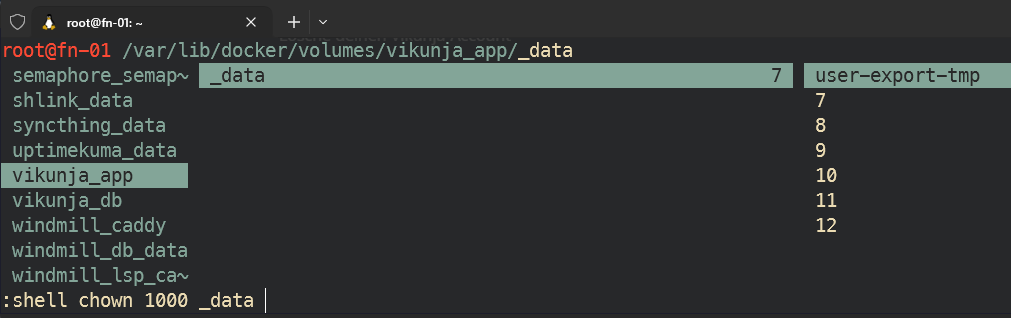
Für Schreibrechte muss man noch den root user 1000 für das App-Volume berechtigen:
chown 1000 $PWD/fileszb in ranger mit Shortcut s um ein Shell-cmd einzugeben:
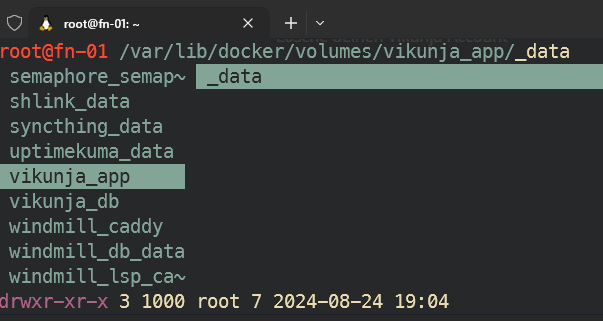
sieht danach so aus:
Account anlegen
dann die subdomain anlegen, Reverserproxy konfigurieren und domain aufrufen:
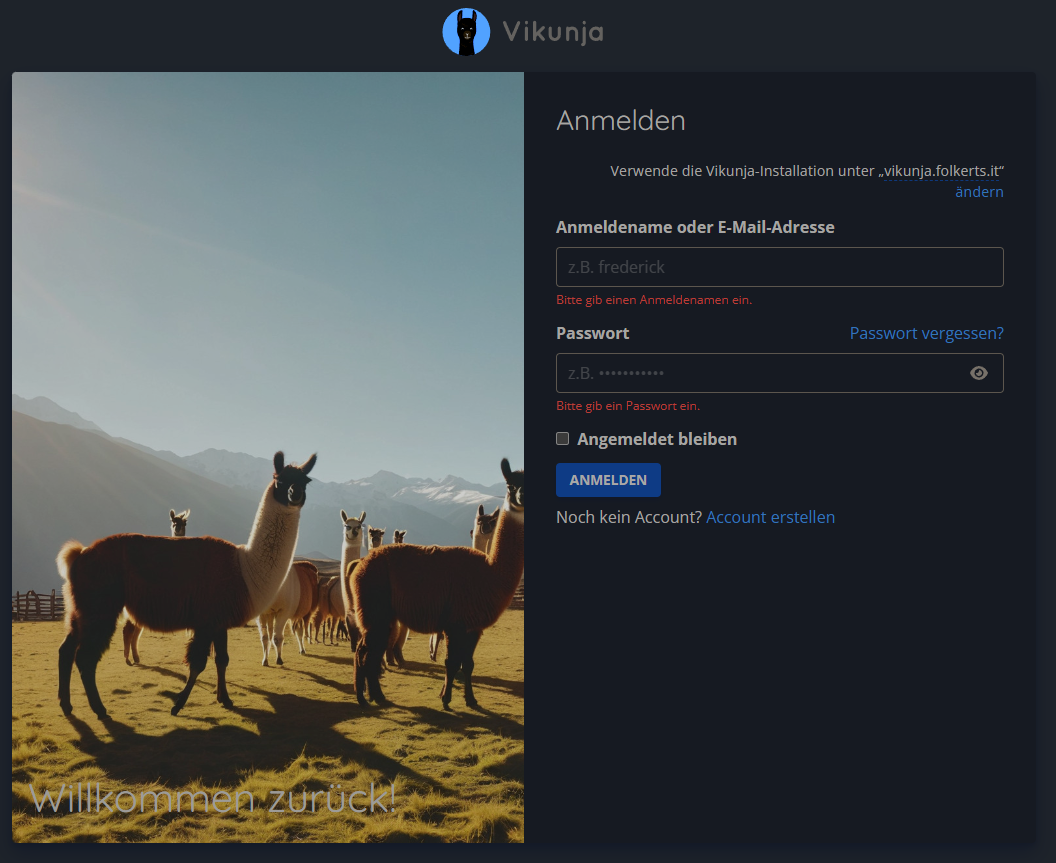
auf 'Account erstellen' und ersten bzw weitere Accounts erstellen.
Danach im Stack die env
VIKUNJA_SERVICE_ENABLEREGISTRATION=falsesetzen, um weitere Anmeldungen zu verhindern.
Authentik verknüpfen
für die config.yml, das volume config: verwenden und dort eine config.yml anlegen:
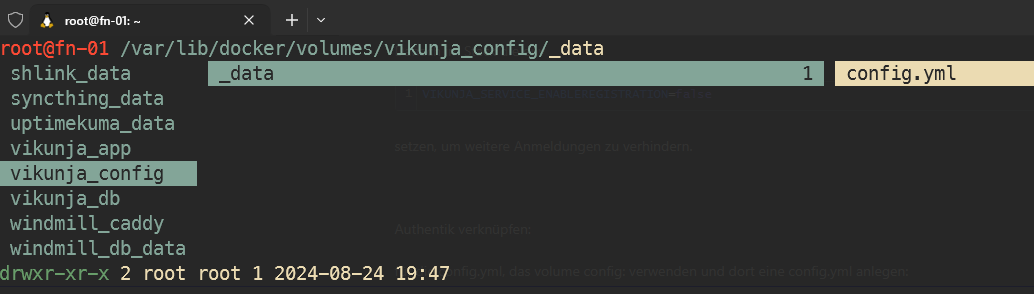
mit dem inhalt:
auth:
  # Local authentication will let users log in and register (if enabled) through the db.
  # This is the default auth mechanism and does not require any additional configuration.
  local:
    # Enable or disable local authentication
    enabled: true
  # OpenID configuration will allow users to authenticate through a third-party OpenID Connect compatible provider.<br/>
  # The provider needs to support the `openid`, `profile` and `email` scopes.<br/>
  # **Note:** Some openid providers (like gitlab) only make the email of the user available through openid claims if they have set it to be publicly vis>  # If the email >  # **Note 2:** The frontend expects to be redirected after authentication by the third party
  # to <frontend-url>/auth/openid/<auth key>. Please make sure to configure the redirect url with your third party
  # auth service accordingly if you're using the default Vikunja frontend.
  # Take a look at the [default config file](https://github.com/go-vikunja/api/blob/main/config.yml.sample) for more information about how to configure >  openid:
  openid:
    # Enable or disable OpenID Connect authentication
    enabled: true
    # A list of enabled providers
    providers:
      # The name of the provider as it will appear in the frontend.
      - name: "authentik Login"
        # The auth url to send users to if they want to authenticate using OpenID Connect.
        authurl: https://auth.MEINEDOMAIN.DE/application/o/vikunja/
        # The client ID used to authenticate Vikunja at the OpenID Connect provider.
        clientid: x8GYDQBG8..........WPiN0n
        # The client secret used to authenticate Vikunja at the OpenID Connect provider.
        clientsecret: vdciH0h1L..........................................................dPHA9WBP6tGLD

        # https://vikunja.io/docs/openid#setup-in-authentik
        logouturl: https://auth.MEINEDOMAIN.DE/application/o/vikunja/end-session/"
        scope: openid email profile vikunja_scope
weiteres unter
https://docs.goauthentik.io/integrations/services/vikunja/
und um teams / groups zu syncen:
https://vikunja.io/docs/openid#setup-in-authentik
Vikunja Teams aus Authentik übernehmen
https://vikunja.io/docs/openid#setup-in-authentik
in der config.yml (siehe oben) ist dafür bereits der scope vikunja_scope eingestellt. Der Custom Scope muss nun noch in Authentik angelegt werden:
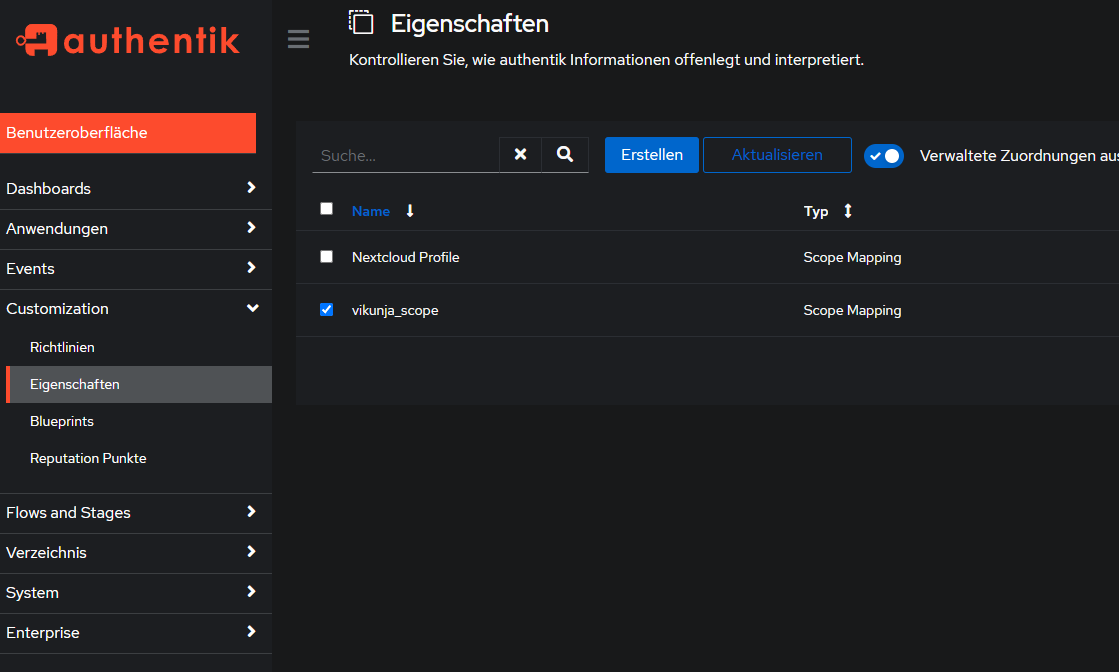
neuer scope unter Customization > Eigenschaften (Properties auf eng?) > Erstellen > Scope Mapping >
Name: vikunja_scope
Bereichsname: vikunja_scope (?)
Ausdruck:
groupsDict = {"vikunja_groups": []}
for group in request.user.ak_groups.all():
  groupsDict["vikunja_groups"].append({"name": group.name, "oidcID": group.num_pk})
return groupsDict
> Fertig
Danach unter Anwendungen > Anbieter (Provider auf eng.) > Vikunja > Erweiterte Protokolleinstellungen > email, openid, profile, vikunja_scope mit gedrückter STRG-Taste und Mausklick auswählen:
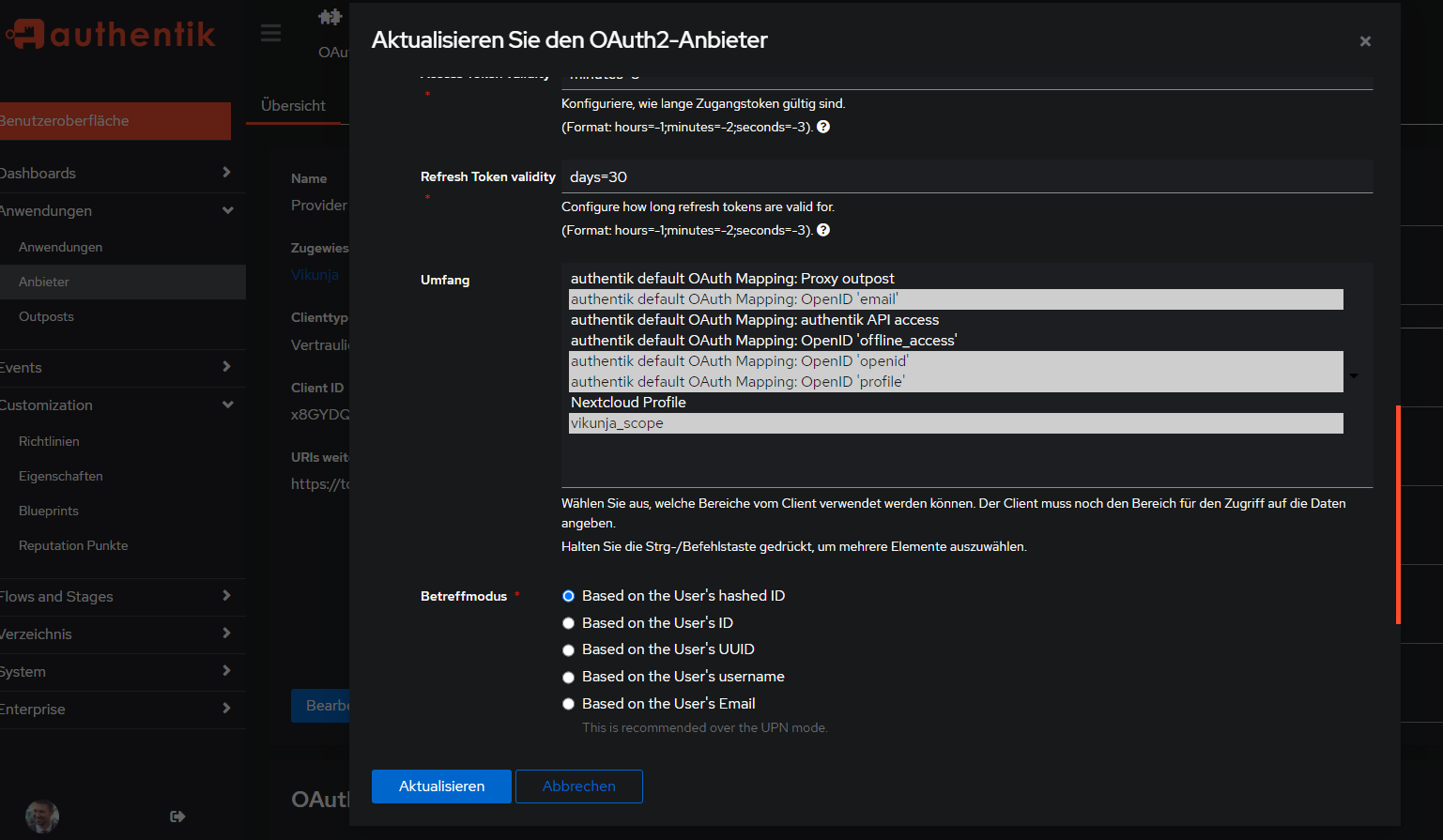
> Aktualisieren
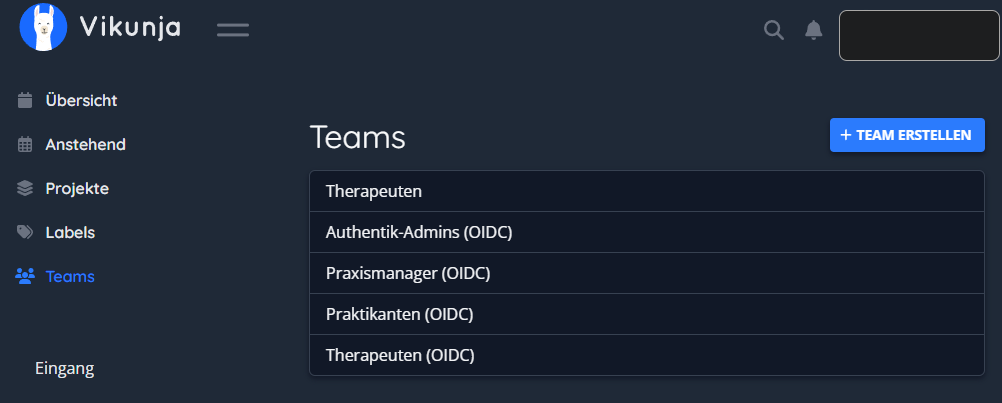
Vikunja Container neustarten, nochmal aus- und einloggen mit Authentik bei Vikunja, dann sollten die Teams (Gruppen) aus Authentik übernommen worden sein: