
Nextcloud
Nextcloud AIO (All-In-One) Variante
Anleitung für Nextcloud AIO: https://github.com/nextcloud/all-in-one
Dockerhub: https://hub.docker.com/r/nextcloud/all-in-one
Folgende docker-compose.yml für Reverse Proxy angepasst. Mehr dazu unter https://github.com/nextcloud/all-in-one/blob/main/reverse-proxy.md
services:
  nextcloud-aio-mastercontainer:
    image: ghcr.io/nextcloud-releases/all-in-one:20250424_092733
    init: true
    restart: always
    container_name: nextcloud-aio-mastercontainer # This line is not allowed to be changed as otherwise AIO will not work correctly
    volumes:
      - nextcloud_aio_mastercontainer:/mnt/docker-aio-config # This line is not allowed to be changed as otherwise the built-in backup solution will not work
      - /var/run/docker.sock:/var/run/docker.sock:ro # May be changed on macOS, Windows or docker rootless. See the applicable documentation. If adjusting, don't forget to also set 'WATCHTOWER_DOCKER_SOCKET_PATH'!
    network_mode: bridge # add to the same network as docker run would do
    ports:
      #- 80:80 # Can be removed when running behind a web server or reverse proxy (like Apache, Nginx, Caddy, Cloudflare Tunnel and else). See https://github.com/nextcloud/all-in-one/blob/main/reverse-proxy.md
      - 8080:8080 # AIO Web-UI
      #- 8443:8443 # Can be removed when running behind a web server or reverse proxy (like Apache, Nginx, Caddy, Cloudflare Tunnel and else). See https://github.com/nextcloud/all-in-one/blob/main/reverse-proxy.md
    environment: # Is needed when using any of the options below
      # AIO_DISABLE_BACKUP_SECTION: false # Setting this to true allows to hide the backup section in the AIO interface. See https://github.com/nextcloud/all-in-one#how-to-disable-the-backup-section
      # AIO_COMMUNITY_CONTAINERS: # With this variable, you can add community containers very easily. See https://github.com/nextcloud/all-in-one/tree/main/community-containers#community-containers
      APACHE_PORT: 11000 # Is needed when running behind a web server or reverse proxy (like Apache, Nginx, Caddy, Cloudflare Tunnel and else). See https://github.com/nextcloud/all-in-one/blob/main/reverse-proxy.md
      APACHE_IP_BINDING: 0.0.0.0 # Should be set when running behind a web server or reverse proxy (like Apache, Nginx, Caddy, Cloudflare Tunnel and else) that is running on the same host. See https://github.com/nextcloud/all-in-one/blob/main/reverse-proxy.md
      APACHE_ADDITIONAL_NETWORK: "" # (Optional) Connect the apache container to an additional docker network. Needed when behind a web server or reverse proxy (like Apache, Nginx, Caddy, Cloudflare Tunnel and else) running in a different docker network on same server. See https://github.com/nextcloud/all-in-one/blob/main/reverse-proxy.md
      # BORG_RETENTION_POLICY: --keep-within=7d --keep-weekly=4 --keep-monthly=6 # Allows to adjust borgs retention policy. See https://github.com/nextcloud/all-in-one#how-to-adjust-borgs-retention-policy
      # COLLABORA_SECCOMP_DISABLED: false # Setting this to true allows to disable Collabora's Seccomp feature. See https://github.com/nextcloud/all-in-one#how-to-disable-collaboras-seccomp-feature
      # FULLTEXTSEARCH_JAVA_OPTIONS: "-Xms1024M -Xmx1024M" # Allows to adjust the fulltextsearch java options. See https://github.com/nextcloud/all-in-one#how-to-adjust-the-fulltextsearch-java-options
      #NEXTCLOUD_DATADIR: /mnt/hz-s3-pl-01/nextcloud_data # Allows to set the host directory for Nextcloud's datadir. ⚠️⚠️⚠️ Warning: do not set or adjust this value after the initial Nextcloud installation is done! See https://github.com/nextcloud/all-in-one#how-to-change-the-default-location-of-nextclouds-datadir
      # NEXTCLOUD_MOUNT: /mnt/ # Allows the Nextcloud container to access the chosen directory on the host. See https://github.com/nextcloud/all-in-one#how-to-allow-the-nextcloud-container-to-access-directories-on-the-host
      # NEXTCLOUD_UPLOAD_LIMIT: 16G # Can be adjusted if you need more. See https://github.com/nextcloud/all-in-one#how-to-adjust-the-upload-limit-for-nextcloud
      # NEXTCLOUD_MAX_TIME: 3600 # Can be adjusted if you need more. See https://github.com/nextcloud/all-in-one#how-to-adjust-the-max-execution-time-for-nextcloud
      # NEXTCLOUD_MEMORY_LIMIT: 512M # Can be adjusted if you need more. See https://github.com/nextcloud/all-in-one#how-to-adjust-the-php-memory-limit-for-nextcloud
      # NEXTCLOUD_TRUSTED_CACERTS_DIR: /path/to/my/cacerts # CA certificates in this directory will be trusted by the OS of the nextcloud container (Useful e.g. for LDAPS) See https://github.com/nextcloud/all-in-one#how-to-trust-user-defined-certification-authorities-ca
      # NEXTCLOUD_STARTUP_APPS: deck twofactor_totp tasks calendar contacts notes # Allows to modify the Nextcloud apps that are installed on starting AIO the first time. See https://github.com/nextcloud/all-in-one#how-to-change-the-nextcloud-apps-that-are-installed-on-the-first-startup
      # NEXTCLOUD_ADDITIONAL_APKS: imagemagick # This allows to add additional packages to the Nextcloud container permanently. Default is imagemagick but can be overwritten by modifying this value. See https://github.com/nextcloud/all-in-one#how-to-add-os-packages-permanently-to-the-nextcloud-container
      # NEXTCLOUD_ADDITIONAL_PHP_EXTENSIONS: imagick # This allows to add additional php extensions to the Nextcloud container permanently. Default is imagick but can be overwritten by modifying this value. See https://github.com/nextcloud/all-in-one#how-to-add-php-extensions-permanently-to-the-nextcloud-container
      # NEXTCLOUD_ENABLE_DRI_DEVICE: true # This allows to enable the /dev/dri device for containers that profit from it. ⚠️⚠️⚠️ Warning: this only works if the '/dev/dri' device is present on the host! If it should not exist on your host, don't set this to true as otherwise the Nextcloud container will fail to start! See https://github.com/nextcloud/all-in-one#how-to-enable-hardware-acceleration-for-nextcloud
      # NEXTCLOUD_ENABLE_NVIDIA_GPU: true # This allows to enable the NVIDIA runtime and GPU access for containers that profit from it. ⚠️⚠️⚠️ Warning: this only works if an NVIDIA gpu is installed on the server. See https://github.com/nextcloud/all-in-one#how-to-enable-hardware-acceleration-for-nextcloud.
      # NEXTCLOUD_KEEP_DISABLED_APPS: false # Setting this to true will keep Nextcloud apps that are disabled in the AIO interface and not uninstall them if they should be installed. See https://github.com/nextcloud/all-in-one#how-to-keep-disabled-apps
      SKIP_DOMAIN_VALIDATION: true # This should only be set to true if things are correctly configured. See https://github.com/nextcloud/all-in-one?tab=readme-ov-file#how-to-skip-the-domain-validation
      # TALK_PORT: 3478 # This allows to adjust the port that the talk container is using which is exposed on the host. See https://github.com/nextcloud/all-in-one#how-to-adjust-the-talk-port
      # WATCHTOWER_DOCKER_SOCKET_PATH: /var/run/docker.sock # Needs to be specified if the docker socket on the host is not located in the default '/var/run/docker.sock'. Otherwise mastercontainer updates will fail. For macos it needs to be '/var/run/docker.sock'
    # security_opt: ["label:disable"] # Is needed when using SELinux

#   # Optional: Caddy reverse proxy. See https://github.com/nextcloud/all-in-one/discussions/575
#   # Alternatively, use Tailscale if you don't have a domain yet. See https://github.com/nextcloud/all-in-one/discussions/5439
#   # Hint: You need to uncomment APACHE_PORT: 11000 above, adjust cloud.example.com to your domain and uncomment the necessary docker volumes at the bottom of this file in order to make it work
#   # You can find further examples here: https://github.com/nextcloud/all-in-one/discussions/588
#   caddy:
#     image: caddy:alpine
#     restart: always
#     container_name: caddy
#     volumes:
#       - caddy_certs:/certs
#       - caddy_config:/config
#       - caddy_data:/data
#       - caddy_sites:/srv
#     network_mode: "host"
#     configs:
#       - source: Caddyfile
#         target: /etc/caddy/Caddyfile
# configs:
#   Caddyfile:
#     content: |
#       # Adjust cloud.example.com to your domain below
#       https://cloud.example.com:443 {
#         reverse_proxy localhost:11000
#       }

volumes: # If you want to store the data on a different drive, see https://github.com/nextcloud/all-in-one#how-to-store-the-filesinstallation-on-a-separate-drive
  nextcloud_aio_mastercontainer:
    name: nextcloud_aio_mastercontainer # This line is not allowed to be changed as otherwise the built-in backup solution will not work
  # caddy_certs:
  # caddy_config:
  # caddy_data:
  # caddy_sites:
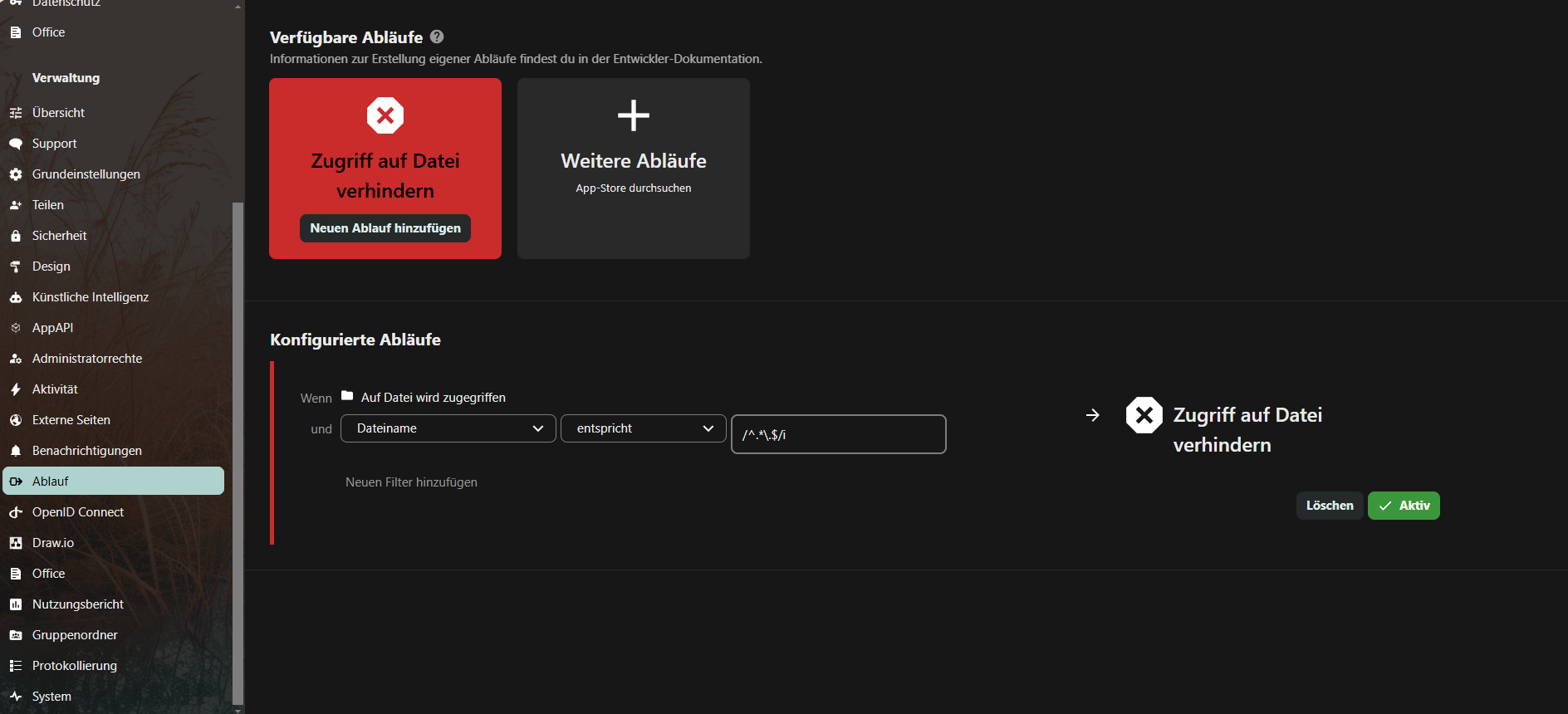
verbotene Zeichen am Ende von Dateien und Ordnern
erstmal bestimmte zeichen generell verbieten siehe oben config.php
danach App File Access Control installieren https://apps.nextcloud.com/apps/files_accesscontrol
Regel für Dateiname > entspricht > /^.*\.$/i aktivieren, um Punkte am Ende einer Datei zu verhindern
Standardsprache DE für neue Benutzer
mit
docker exec -it nextcloud-app-1 bashin die Shell des Containers gehen (oder einfach im Volume), dann
apt-get update
apt-get install nano
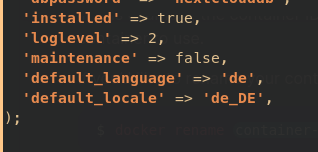
nano config/config.php
und folgendes anhängen:
  'loglevel' => 2,
  'maintenance' => false,
  'default_language' => 'de',
  'default_locale' => 'de_DE',
  'default_timezone' => 'Europe/Berlin',
);
https://docs.nextcloud.com/server/16/admin_manual/configuration_server/language_configuration.html
S3 Minio als primary storage in config.php
(eigentlich über die env-vars im Stack, aber falls das verpasst wurde)
  'objectstore' =>
  array (
    'class' => '\\OC\\Files\\ObjectStore\\S3',
    'arguments' =>
    array (
      'bucket' => 'nextcloud',
      'region' => '',
      'hostname' => 'minio-s3.MEINEDOMAIN.de',
      'port' => '443',
      'StorageClass' => '',
      'objectPrefix' => 'urn:oid:',
      'autocreate' => false,
      'use_ssl' => true,
      'use_path_style' => true,
      'legacy_auth' => false,
      'key' => '3svCe...wVvluT',
      'secret' => 'mHK6Q............0GTa',
    ),
  ),
E-Mail Einstellungen SMTP in config.php (auch über GUI)
  'mail_from_address' => 'admin',
  'mail_smtpmode' => 'smtp',
  'mail_sendmailmode' => 'smtp',
  'mail_domain' => 'MEINEDOMAIN.de',
  'mail_smtphost' => 'smtp.strato.de',
  'mail_smtpauth' => 1,
  'mail_smtpport' => '587',
  'mail_smtpname' => 'admin@MEINEDOMAIN.de',
  'mail_smtppassword' => 'MEIN-123-PASSWORT',
Direkter Login (umgeht OIDC/SAML)
http://nextcloud.MEINEDOMAIN.de/login?direct=1
Troubleshooting
Zugriff ueber eine nicht vertrauenswuerdige Domain
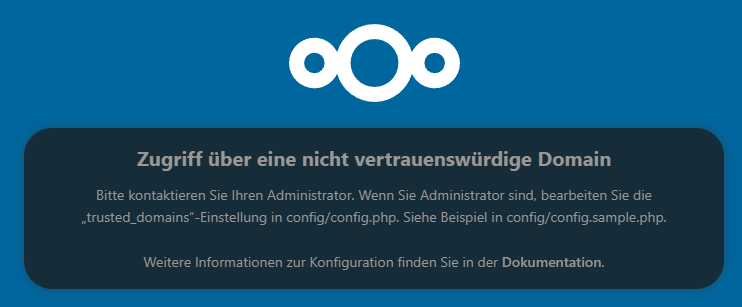
Zugriff über eine nicht vertrauenswürdige Domain
Bitte kontaktieren Sie Ihren Administrator. Wenn Sie Administrator sind, bearbeiten Sie die „trusted_domains“-Einstellung in config/config.php. Siehe Beispiel in config/config.sample.php.
falls die trusted domains in den env nicht passen, siehe ....
- NEXTCLOUD_TRUSTED_DOMAINS=<nextcloud.mydomain.com>
- OVERWRITEPROTOCOL=https
- OVERWRITECLIURL=https://<nextcloud.mydomain.com>
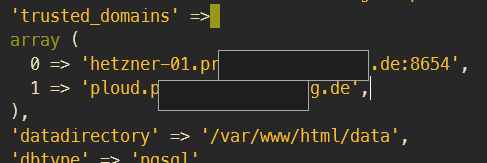
...muss die config/config.php noch bearbeitet werden:
'trusted_domains' =>
  array (
   0 => 'localhost',
   1 => 'server1.example.com',
   2 => '192.168.1.50',
   3 => '[fe80::1:50]',
),
PERMISSION / OWNER FEHLER
Configuration was not read or initialized correctly, not overwriting /var/www/html/config/config.php
Passiert evtl beim Migrieren
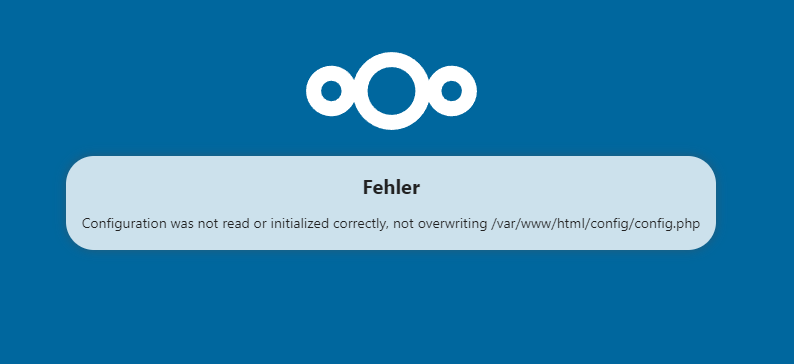
Wenn dieser Fehler kommt, kann es sein, dass der Besitz oder die Berechtigungen der Dateien im Volume nicht stimmen.
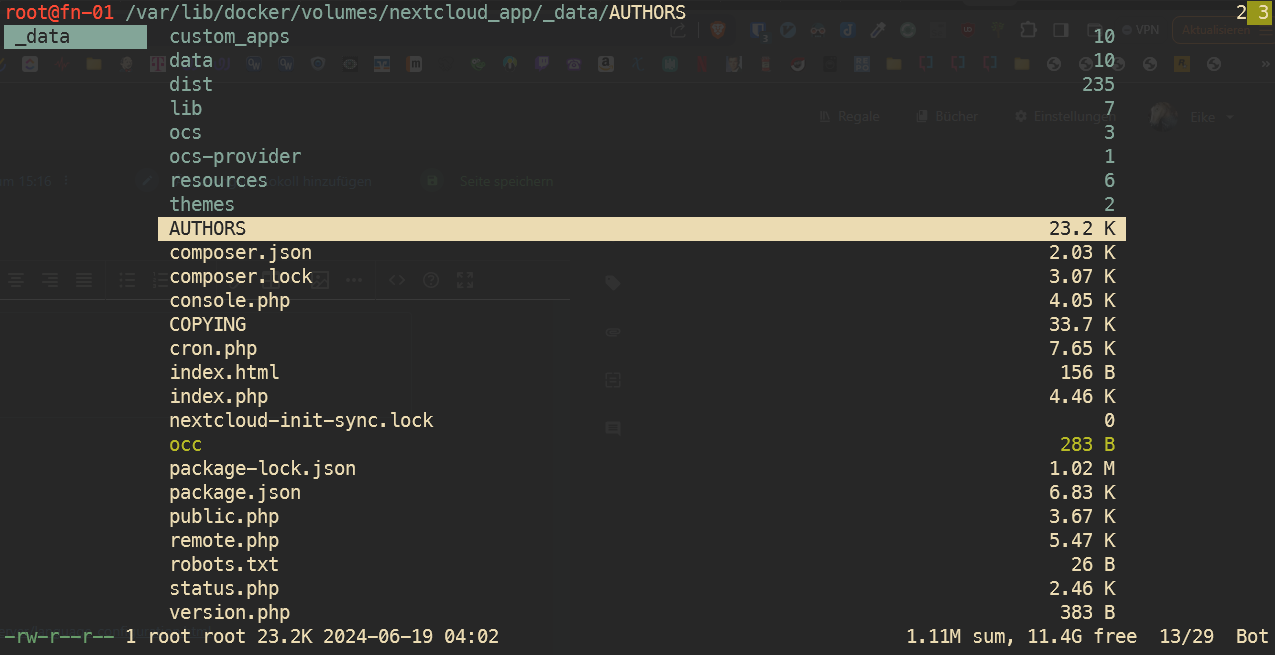
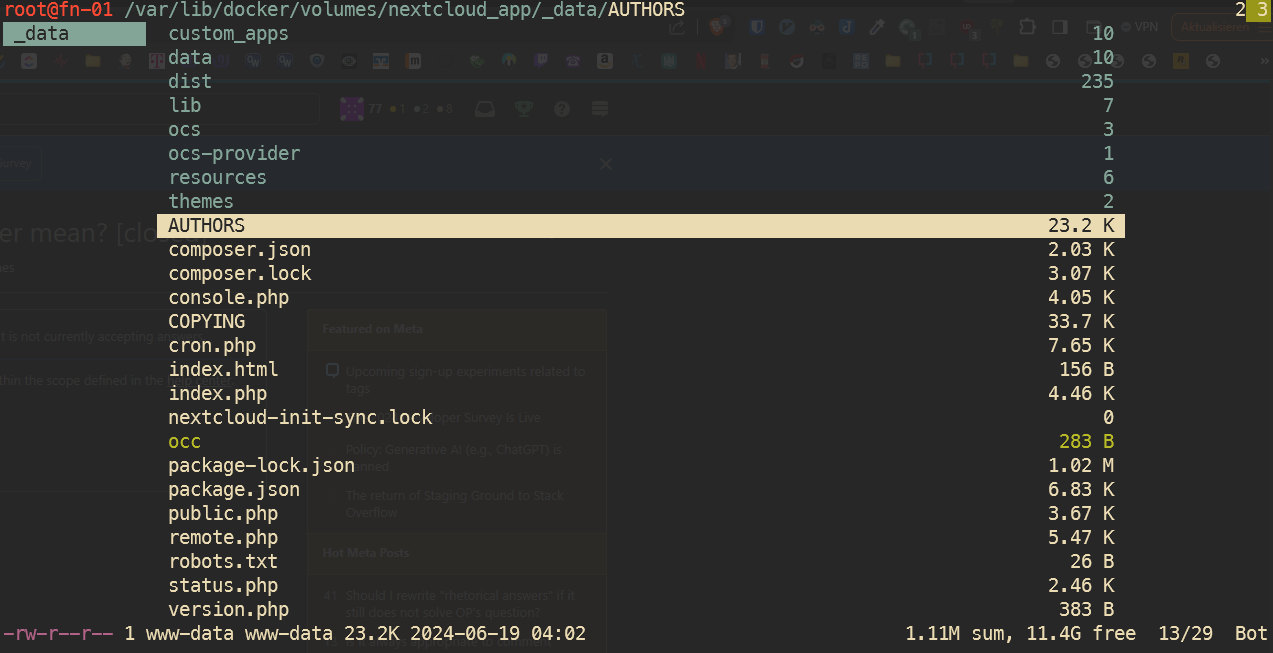
Hier zu sehen im CLI Fileexplorer Ranger, dass der Besitzer root ist (unten links), sollte aber www-data sein.
Um den Besitzer zu ändern, eine Ebene höher gehen, sodass der Ordner _data zu sehen ist, mit ! ein Shell Command ausführen
('@'-Zeichen ist der Shortcut für Shell-Kommando in Ranger):
chown -R www-data:www-data _datadas ändert die Rechte rekursiv, also auch alle untergeordneten Dateien und Ordner:
ALTE VARIANTEN AB HIER
Kunde PL
nicht-samba-variante: (Diese Variante installiert sich komplett selbst)
stand 22.11.2024, aktuelle docker-image-versionen ausm dockerhub holen:
https://hub.docker.com/r/collabora/code
https://hub.docker.com/_/nextcloud
https://hub.docker.com/_/postgres
https://hub.docker.com/_/redis
version: '3'

services:
  db:
    image: postgres:16.5-alpine3.20
    restart: always
    volumes:
      - db:/var/lib/postgresql/data:Z
    env_file:
      - stack.env

  redis:
    image: redis:7.4.1-alpine3.20
    restart: always

  app:
    image: nextcloud:30.0.2-apache
    restart: always
    ports:
      - 8654:80
    volumes:
      - app:/var/www/html:z
    environment:
      - POSTGRES_HOST=db
      - REDIS_HOST=redis
    env_file:
      - stack.env
    depends_on:
      - db
      - redis
    deploy:
      resources:
        limits:
          cpus: '0.90'
          memory: 4000M

  cron:
    image: nextcloud:30.0.2-apache
    restart: always
    volumes:
      - app:/var/www/html:z
    entrypoint: /cron.sh
    depends_on:
      - db
      - redis

  whiteboard:
    image: ghcr.io/nextcloud-releases/whiteboard:v1.0.4
    ports:
      - 3002:3002
    environment:
      - NEXTCLOUD_URL=https://nextcloud.DOMAIN.de
      - JWT_SECRET_KEY=XYZ123...[openssl rand -base64 32]...321ZYX
    restart: unless-stopped

  collabora:
    image: collabora/code:24.04.9.2.1
    container_name: collabora
    environment:
      - aliasgroup1=https://nextcloud.DOMAIN.de
      - aliasgroup2=https://another.DOMAIN.de
      - aliasgroup3=https://another.DOMAIN.de
      #- server_name=collabora.DOMAIN.de
      - username=MYUSERNAME
      - password=MYPASSWORD
    ports:
      - '9980:9980'
    restart: unless-stopped


volumes:
  db:
  app:
dazugehörige Environment variables (bei einem Portainer stack unten auf advanced mode stellen, da steht auch dass sie als stack.env eingebunden werden müssen)
POSTGRES_PASSWORD=MEINPASSWORD123
POSTGRES_DB=nextcloud
POSTGRES_USER=nextcloud

NEXTCLOUD_ADMIN_USER=MEIN-NC-ADMIN
NEXTCLOUD_ADMIN_PASSWORD=MEIN-NC-PW

OVERWRITEPROTOCOL=https
OVERWRITECLIURL=https://nextcloud.MEINEDOMAIN.de
NEXTCLOUD_TRUSTED_DOMAINS=nextcloud.MEINEDOMAIN.de
NEXTCLOUD_DEFAULT_LANGUAGE=de

OBJECTSTORE_S3_BUCKET=nextcloud
OBJECTSTORE_S3_KEY=DC...MEIN-minio-ACCESSKEY...dVZP
OBJECTSTORE_S3_SECRET=jJsHxEhdIJUM....MEIN-minio-SECRETKEY....4xTd9REse
OBJECTSTORE_S3_HOST=minio-s3.MEINEDOMAIN.de
OBJECTSTORE_S3_PORT=443
OBJECTSTORE_S3_SSL=true
OBJECTSTORE_S3_USEPATH_STYLE=true
Diese env-vars werden nur beim ersten Erzeugen in die config/config.php geschrieben. Wenn sie bei einer bestehenden Instanz nachgetragen werden, muss man die config.php von Hand bearbeiten.
weitere interessante Einstellungen in der config/config.php:
  'default_language' => 'de',
  'default_locale' => 'de',
  'default_timezone' => 'Europe/Berlin',
  'defaultapp' => 'files',
  'knowledgebaseenabled' => false,
  'lost_password_link' => 'disabled',
  'skeletondirectory' => '',
  'simpleSignUpLink.shown' => false,
  'loglevel' => 2,
  'default_charset' => 'UTF-8',
  'activity_use_cached_mountpoints' => true,
  'forbidden_filename_characters' => array('?', '<', '>', ':', '*', '|', '"'),
Whiteboard: https://github.com/nextcloud/whiteboard
samba-variante
version: '3'

services:
  db:
    image: postgres:alpine
    restart: always
    volumes:
      - hetzner_sb:/var/lib/postgresql/data:Z
    env_file:
      - stack.env

  redis:
    image: redis:alpine
    restart: always

  app:
    image: nextcloud:apache
    restart: always
    ports:
      - 8654:80
    volumes:
      - hetzner_sb:/var/www/html:z
    environment:
      - POSTGRES_HOST=db
      - REDIS_HOST=redis
    env_file:
      - stack.env
    depends_on:
      - db
      - redis

  cron:
    image: nextcloud:apache
    restart: always
    volumes:
      - hetzner_sb:/var/www/html:z
    entrypoint: /cron.sh
    depends_on:
      - db
      - redis


volumes:
  db:
  hetzner_sb:
    driver: local
    driver_opts:
      type: cifs
      o: "username=u12345-sub1,password=zwwEXAMPLEQpp,file_mode=0770,dir_mode=0770,vers=3.1.1,seal,uid=33"
      device: "//u12345-sub1.your-storagebox.de/u12345-sub1/dockervolume_nextcloud"
...,file_mode=0770,dir_mode=0770,vers=3.1.1,seal,uid=33"am ende nicht vergessen!
Quellen:
https://help.nextcloud.com/t/how-to-get-a-rock-solid-nextcloud-installation/150002
https://github.com/nextcloud/docker/blob/master/.examples/docker-compose/insecure/postgres/apache/docker-compose.yml
Mit MariaDB von
https://xmpls.org/install-nextcloud-with-docker-compose/
Kunde WIS
version: '2'

services:
  db:
    image: mariadb:10.5
    command: --transaction-isolation=READ-COMMITTED --binlog-format=ROW
    volumes:
      - ./nextcloud-mariadb/mariadb:/var/lib/mysql
    environment:
      - MYSQL_ROOT_PASSWORD=nextclouddb
      - MYSQL_PASSWORD=nextclouddb
      - MYSQL_DATABASE=nextcloud
      - MYSQL_USER=nextcloud
    restart: unless-stopped

  app:
    image: nextcloud
    ports:
      - 5001:80
    links:
      - db
    volumes:
      - ./nextcloud-mariadb/nextcloud-itself:/var/www/html
    environment:
      - MYSQL_PASSWORD=nextclouddb
      - MYSQL_DATABASE=nextcloud
      - MYSQL_USER=nextcloud
      - MYSQL_HOST=db
    restart: unless-stopped
Für weitere Schritte (DOMAIN ZU TRUSTED DOMAINS HINZUFÜGEN), den Nextcloud Artikel im Buch TrueNAS folgen:
Fernnetz (arm)
WICHTIG! Die Environment-Variablen NEXTCLOUD_TRUSTED_DOMAINS, OVERWRITEPROTOCOL und OVERWRITECLIURL werden in die config.php von Nextcloud nur bei Erstellung des Containers geschrieben. Eine nachträgliche Änderung ist nicht möglich (zumindest nicht ueber docker-compose ENVs. Wenn man es aendern möchte muss man die config.php im container editieren).
Siehe https://github.com/nextcloud/docker/issues/582#issuecomment-834225766
<nextcloud.mydomain.com> ersetzen
version: '2'

services:
  db:
    image: mariadb:10.5
    command: --transaction-isolation=READ-COMMITTED --binlog-format=ROW
    volumes:
      - ./nextcloud/mariadb:/var/lib/mysql #befindet sich unter /data/compose/<stack-nummer>/... auf dem docker host
    environment:
      - MYSQL_ROOT_PASSWORD=nextclouddb
      - MYSQL_PASSWORD=nextclouddb
      - MYSQL_DATABASE=nextcloud
      - MYSQL_USER=nextcloud
    restart: unless-stopped

  app:
    image: nextcloud
    ports:
      - 5001:80
    links:
      - db
    volumes:
      - ./nextcloud/app:/var/www/html
    environment:
      - NEXTCLOUD_TRUSTED_DOMAINS=<nextcloud.mydomain.com>
      - OVERWRITEPROTOCOL=https
      - OVERWRITECLIURL=https://<nextcloud.mydomain.com>

      - MYSQL_PASSWORD=nextclouddb
      - MYSQL_DATABASE=nextcloud
      - MYSQL_USER=nextcloud
      - MYSQL_HOST=db
    restart: unless-stopped