
Jitsi Meet
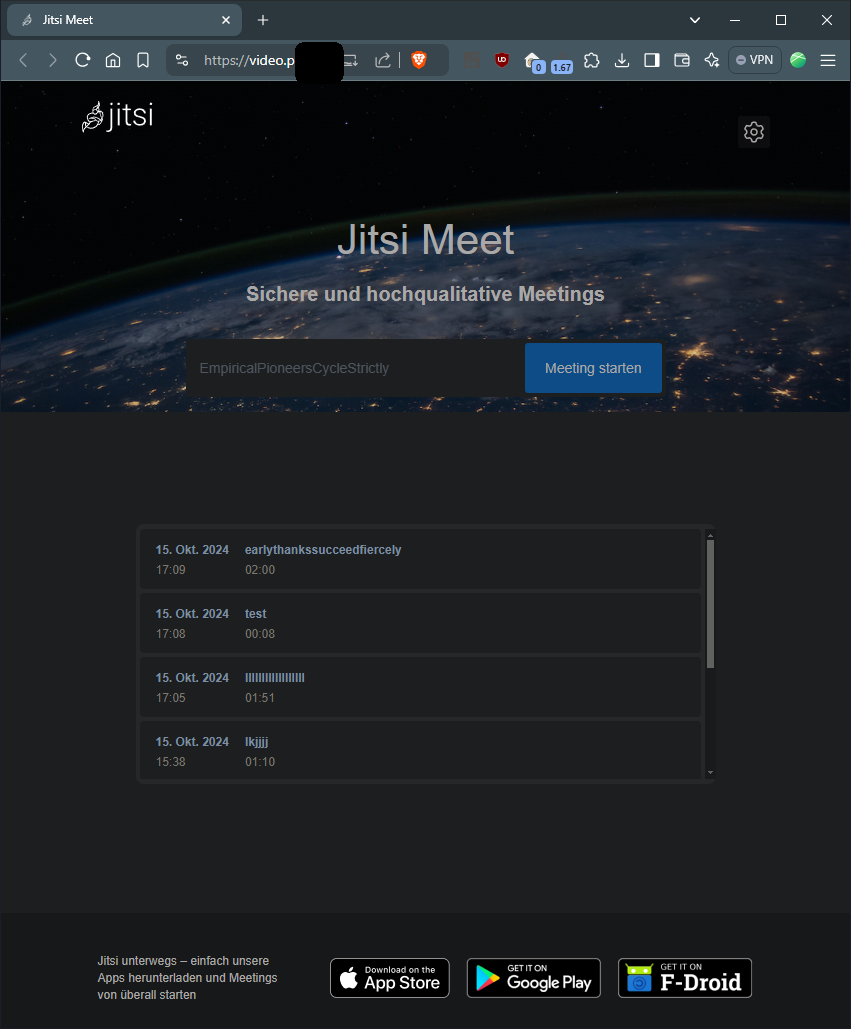
https://jitsi.support/wiki/install-jitsi-meet-docker/#step-2-download-jitsi-meet-docker-files
oder
https://jitsi.github.io/handbook/docs/devops-guide/devops-guide-docker
Installation
Jitsi Meet sollte nicht in Portainer installiert werden, weil ein Skript zur Passworderstellung benutzt und damit eine eigene .env erzeugt wird.
Git Repo Klonen
git clone https://github.com/jitsi/docker-jitsi-meet
cd docker-jitsi-meet
.env kopieren
cp env.example .envPasswörter autogenerieren
./gen-passwords.shdocker-compose.yml anpassen
ein paar kleine Änderungen habe ich für die yml gemacht:
#......
    web:
        image: jitsi/web:${JITSI_IMAGE_VERSION:-unstable}
        restart: ${RESTART_POLICY:-unless-stopped}
        ports:
            - '${HTTP_PORT}:80'
            - '${HTTPS_PORT}:443'
        volumes:
            - ${CONFIG}/web:/config:Z
            - ${CONFIG}/web/crontabs:/var/spool/cron/crontabs:Z
            - ${CONFIG}/transcripts:/usr/share/jitsi-meet/transcripts:Z
            - ${CONFIG}/web/load-test:/usr/share/jitsi-meet/load-test:Z
            - ${CONFIG}/web/images:/usr/share/jitsi-meet/images:Z # um zb das watermark.svg zu ersetzen
        labels:
#......
.env anpassen
# shellcheck disable=SC2034

################################################################################
################################################################################
# Welcome to the Jitsi Meet Docker setup!
#
# This sample .env file contains some basic options to get you started.
# The full options reference can be found here:
# https://jitsi.github.io/handbook/docs/devops-guide/devops-guide-docker
################################################################################
################################################################################


#
# Basic configuration options
#

# Directory where all configuration will be stored
#CONFIG=~/.jitsi-meet-cfg
CONFIG=/var/lib/docker/volumes/jitsimeet
# ^ wähle hier das Standardverzeichnis für deine Docker Volumes, ansonsten werden alle Volumes im Root-Nutzerverzeichnis des Servers (~/.jitsi-meet-cfg) erstellt (welches meistens bei Backups ignoriert wird).
#Falls ein Hetzner-Volume auf dem Server eingehängt ist, kann zb das als Config-Directory verwendet werden:
#CONFIG=/mnt/praxis-volume-01/docker-data/volumes/jitsimeet

# Exposed HTTP port (will redirect to HTTPS port)
HTTP_PORT=8043

# Exposed HTTPS port
HTTPS_PORT=8443

# System time zone
TZ=Europe/Berlin

# Public URL for the web service (required)
# Keep in mind that if you use a non-standard HTTPS port, it has to appear in the public URL
PUBLIC_URL=https://jitsi.MEINE-DOMAIN.de

# Media IP addresses to advertise by the JVB
# This setting deprecates DOCKER_HOST_ADDRESS, and supports a comma separated list of IPs
# See the "Running behind NAT or on a LAN environment" section in the Handbook:
# https://jitsi.github.io/handbook/docs/devops-guide/devops-guide-docker#running-behind-nat-or-on-a-lan-environment
#JVB_ADVERTISE_IPS=192.168.1.1,1.2.3.4
JVB_ADVERTISE_IPS=116.xxx.xxx.143 #Public IP zb vom Hetzner Server, auf dem die JVB läuft


#https://jitsi.github.io/handbook/docs/devops-guide/devops-guide-docker/#turn-server-configuration
#JVB_STUN_SERVERS=meet-jit-si-turnrelay.jitsi.net:443, stun.l.google.com:19302, stun1.l.google.com:19302, stun2.l.google.com:19302
JVB_STUN_SERVERS=turn.MEINEDOMAIN.de:443

TURN_CREDENTIALS=rqjmfcGhY
TURN_HOST=turn.MEINEDOMAIN.de
TURN_PORT=443
#TURNS_HOST=turn.praxisluebberding.de
#TURNS_PORT=443

TURN_TRANSPORT=tcp
ENABLE_TURN=1
ENABLE_P2P=1

# Beim starten mit docker compose -f docker-compose.yml -f log-analyser.yml -f prometheus.yml -f grafana.yml up -d
PROSODY_ENABLE_METRICS = true

#https://github.com/jitsi/docker-jitsi-meet/issues/992#issuecomment-811373266
#https://jitsi.github.io/handbook/docs/devops-guide/devops-guide-docker/#running-behind-a-reverse-proxy
#ENABLE_SCTP=1
#ENABLE_COLIBRI_WEBSOCKET=0
#ENABLE_XMPP_WEBSOCKET=0


#
# Memory limits for Java components
#

#JICOFO_MAX_MEMORY=3072m
#VIDEOBRIDGE_MAX_MEMORY=3072m

#
# JaaS Components (beta)
# https://jaas.8x8.vc
#

# Enable JaaS Components (hosted Jigasi)
# NOTE: if Let's Encrypt is enabled a JaaS account will be automatically created, using the provided email in LETSENCRYPT_EMAIL
#ENABLE_JAAS_COMPONENTS=0

#
# Let's Encrypt configuration
#

# Enable Let's Encrypt certificate generation
#ENABLE_LETSENCRYPT=1

# Domain for which to generate the certificate
#LETSENCRYPT_DOMAIN=meet.example.com

# E-Mail for receiving important account notifications (mandatory)
#LETSENCRYPT_EMAIL=alice@atlanta.net

# Use the staging server (for avoiding rate limits while testing)
#LETSENCRYPT_USE_STAGING=1


#
# Etherpad integration (for document sharing)
#

# Set the etherpad-lite URL in the docker local network (uncomment to enable)
#ETHERPAD_URL_BASE=http://etherpad.meet.jitsi:9001

# Set etherpad-lite public URL, including /p/ pad path fragment (uncomment to enable)
#ETHERPAD_PUBLIC_URL=https://etherpad.my.domain/p/

#
# Whiteboard integration
#

# Set the excalidraw-backend URL in the docker local network (uncomment to enable)
WHITEBOARD_COLLAB_SERVER_URL_BASE=http://excalidraw.jitsi_meet.jitsi

# Set the excalidraw-backend public URL (uncomment to enable)
WHITEBOARD_COLLAB_SERVER_PUBLIC_URL=https://excalidraw.MEINEDOMAIN.de


#
# Basic Jigasi configuration options (needed for SIP gateway support)
#

# SIP URI for incoming / outgoing calls
#JIGASI_SIP_URI=test@sip2sip.info

# Password for the specified SIP account as a clear text
#JIGASI_SIP_PASSWORD=passw0rd

# SIP server (use the SIP account domain if in doubt)
#JIGASI_SIP_SERVER=sip2sip.info

# SIP server port
#JIGASI_SIP_PORT=5060

# SIP server transport
#JIGASI_SIP_TRANSPORT=UDP


#
# Authentication configuration (see handbook for details)
#

# Enable authentication (will ask for login and password to join the meeting)
ENABLE_AUTH=1

# Enable guest access (if authentication is enabled, this allows for users to be held in lobby until registered user lets them in)
ENABLE_GUESTS=1

# Select authentication type: internal, jwt, ldap or matrix
AUTH_TYPE=internal

#https://jitsi.github.io/handbook/docs/devops-guide/devops-guide-docker/#features-configuration-configjs
ENABLE_WELCOME_PAGE=0
# Prejoin Page deaktiviert, weil Teilnehmer manchmal beim Moderator-Login auf Abbrechen drücken und dann auf der Prejoin-Page vereinsamen, wo man seinen Namen eingibt
ENABLE_PREJOIN_PAGE=0
# Die Lobby aktiviert ein Moderator im Raum nach der Erföffnung über Sicherheitseinstellungen > Lobby aktivieren
ENABLE_LOBBY=1
ENABLE_CLOSE_PAGE=0

# JWT authentication
#

# Application identifier
#JWT_APP_ID=my_jitsi_app_id

# Application secret known only to your token generator
#JWT_APP_SECRET=my_jitsi_app_secret

# (Optional) Set asap_accepted_issuers as a comma separated list
#JWT_ACCEPTED_ISSUERS=my_web_client,my_app_client

# (Optional) Set asap_accepted_audiences as a comma separated list
#JWT_ACCEPTED_AUDIENCES=my_server1,my_server2

# LDAP authentication (for more information see the Cyrus SASL saslauthd.conf man page)
#

# LDAP url for connection
#LDAP_URL=ldaps://ldap.domain.com/

# LDAP base DN. Can be empty
#LDAP_BASE=DC=example,DC=domain,DC=com

# LDAP user DN. Do not specify this parameter for the anonymous bind
#LDAP_BINDDN=CN=binduser,OU=users,DC=example,DC=domain,DC=com

# LDAP user password. Do not specify this parameter for the anonymous bind
#LDAP_BINDPW=LdapUserPassw0rd

# LDAP filter. Tokens example:
# %1-9 - if the input key is user@mail.domain.com, then %1 is com, %2 is domain and %3 is mail
# %s - %s is replaced by the complete service string
# %r - %r is replaced by the complete realm string
#LDAP_FILTER=(sAMAccountName=%u)

# LDAP authentication method
#LDAP_AUTH_METHOD=bind

# LDAP version
#LDAP_VERSION=3

# LDAP TLS using
#LDAP_USE_TLS=1

# List of SSL/TLS ciphers to allow
#LDAP_TLS_CIPHERS=SECURE256:SECURE128:!AES-128-CBC:!ARCFOUR-128:!CAMELLIA-128-CBC:!3DES-CBC:!CAMELLIA-128-CBC

# Require and verify server certificate
#LDAP_TLS_CHECK_PEER=1

# Path to CA cert file. Used when server certificate verify is enabled
#LDAP_TLS_CACERT_FILE=/etc/ssl/certs/ca-certificates.crt

# Path to CA certs directory. Used when server certificate verify is enabled
#LDAP_TLS_CACERT_DIR=/etc/ssl/certs

# Wether to use starttls, implies LDAPv3 and requires ldap:// instead of ldaps://
# LDAP_START_TLS=1


#
# Security
#
# Set these to strong passwords to avoid intruders from impersonating a service account
# The service(s) won't start unless these are specified
# Running ./gen-passwords.sh will update .env with strong passwords
# You may skip the Jigasi and Jibri passwords if you are not using those
# DO NOT reuse passwords
#

# XMPP password for Jicofo client connections
JICOFO_AUTH_PASSWORD=

# XMPP password for JVB client connections
JVB_AUTH_PASSWORD=

# XMPP password for Jigasi MUC client connections
JIGASI_XMPP_PASSWORD=

# XMPP password for Jigasi transcriber client connections
JIGASI_TRANSCRIBER_PASSWORD=

# XMPP recorder password for Jibri client connections
JIBRI_RECORDER_PASSWORD=

# XMPP password for Jibri client connections
JIBRI_XMPP_PASSWORD=

#
# Docker Compose options
#

# Container restart policy
#RESTART_POLICY=unless-stopped

# Jitsi image version (useful for local development)
#JITSI_IMAGE_VERSION=latest

### Benutzerdefinierte Variablen, ua. von https://goneuland.de/jitsi-anpassungen-docker/
ENABLE_TRANSCRIPTIONS=0

config.DEFAULT_REMOTE_DISPLAY_NAME= 'PL-Teilnehmer'
config.DEFAULT_LOCAL_DISPLAY_NAME= 'Ich'
interfaceConfig.JITSI_WATERMARK_LINK= 'https://praxisluebberding.de'
interfaceConfig.APP_NAME= 'Jitsi-PL'
#DEFAULT_LOGO_URL= 'images/watermark.svg'
#DEFAULT_WELCOME_PAGE_LOGO_URL= 'images/watermark.svg'
Container starten
docker-compose up -dMit Grafana, Prometheus, Loki und OpenTelemetry-Connector starten:
docker compose -f docker-compose.yml -f log-analyser.yml -f grafana.yml -f prometheus.yml -f transcriber.yml up -dAnpassungen für grafana.yml, prometheus.yml usw: überall container_name: jitsi-prometheus hinzugefügt, damit alles einheitlich benannt ist. Außerderm bei log-analyser.yml den hostname: jitsi-otel hinzugefügt, damit prometheus den hostname erkennt:
also docker-compose.yml, grafana.yml, prometheus.yml usw:
    web:
        image: jitsi/web:${JITSI_IMAGE_VERSION:-stable-10008}
        ...
        container_name: jitsi-web  # <-- container_name in allen ymls hinzugefügt
        labels:
            service: "jitsi-web"
        environment:
            - AMPLITUDE_ID
            - ANALYTICS_SCRIPT_URLS
        ...
log-analyser.yml:
  otel-collector:
    image: otel/opentelemetry-collector-contrib
    container_name: jitsi-otel
    hostname: otel
    volumes:
    ...
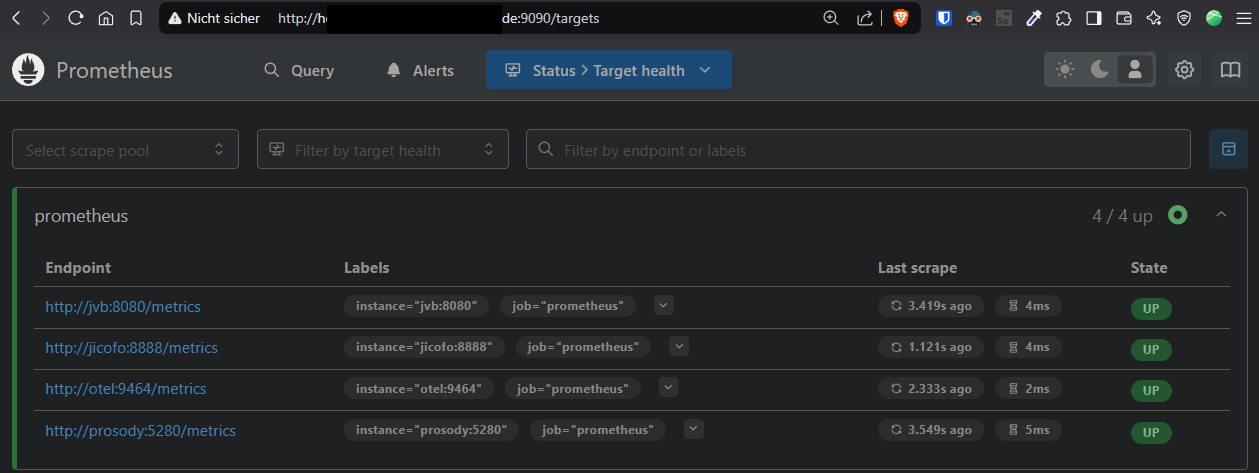
Prometheus kontrollieren: http://DOCKER-HOST:9090/targets oder Prometheus > Status > Target health:
.env bearbeiten und Container neustarten
Wenn die .env bearbeitet wird, müssen die Container mit
docker compose down
docker compose up -d
neugestartet werden.
❗ Wenn nur docker compose restart ausgeführt wird, wird die aktualisierte .env nicht erneut eingelesen!
Firewall: Ports freischalten
Port 80 & 443 werden über den Reverse Proxy Manager geregelt, zusätzlich muss aber Port 10000 UDP freigeschaltet werden!
https://jitsi.github.io/handbook/docs/devops-guide/devops-guide-docker/#external-ports ansonsten passiert es, dass nur zwei Teilnehmer miteinander videokonferenzen können und alle stummgeschaltet und deren Videos deaktiviert werden, sobald drei oder mehre Teilnehmer im Jitsi Raum sind.
Fehler im JVB (Jitsi Videobridge) Container:
BridgeSelectionStrategy.select#127: Existing bridge does not have a relay, will not consider other bridges.
https://github.com/jitsi/docker-jitsi-meet/issues/1735
Moderator Account erstellen
https://jitsi.github.io/handbook/docs/devops-guide/devops-guide-docker#authentication
Wenn die Einstellungen aus meiner .env übernommen wurden, muss noch ein Moderator Account erstellt werden, um einen Jitsi Meet Raum eröffnen zu können. Dafür in die Shell des Containers "prosodyctl" gehen, entweder mit ctop, portainer (/bin/bash) oder über die docker cli:
docker compose exec prosody /bin/bashdanach in der shell des prosody containers:
Benutzer anlegen
prosodyctl --config /config/prosody.cfg.lua register <MODERATORNAME> meet.jitsi <MODERATORPASSWORT>meet.jitsi ist dabei der Name des Netzwerks aus der docker-compose.yml
Benutzer entfernen
prosodyctl --config /config/prosody.cfg.lua unregister <MODERATORNAME> meet.jitsiBenutzer auflisten
find /config/data/meet%2ejitsi/accounts -type f -exec basename {} .dat \;Nginx Proxy Manager Konfiguration
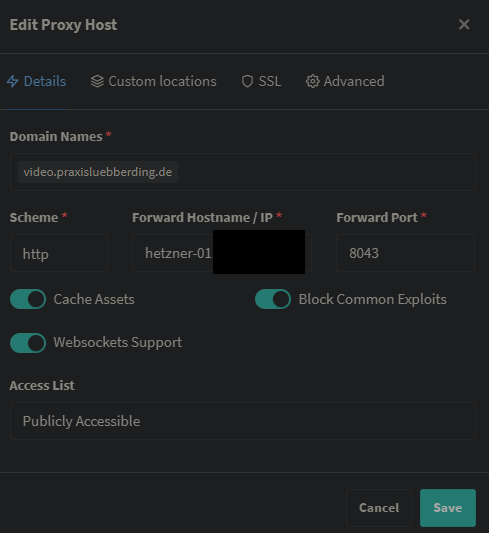
- an Jitsi HTTP Port aus .env weiterleiten, 8043 in meinem Fall
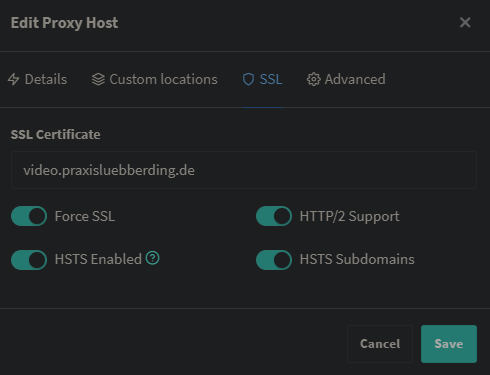
- Alles Checkboxes aktivieren (Websockets!)
- Custom Locations (nicht unter custom locations sondern im "Advanced" Tab! siehe unten)
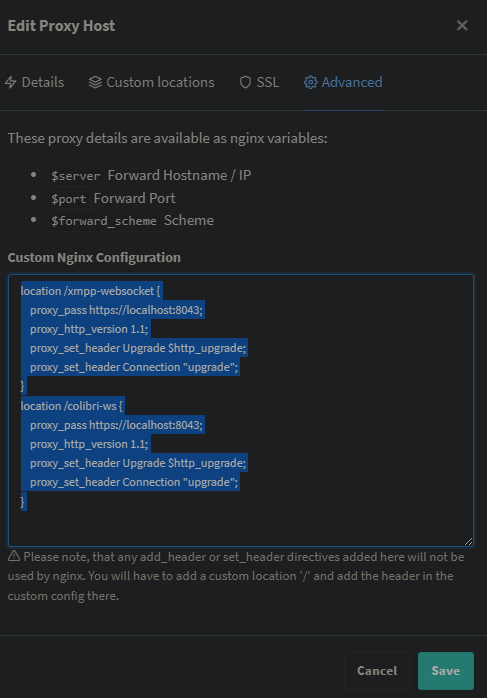
location /xmpp-websocket {
    proxy_pass https://localhost:8043;
    proxy_http_version 1.1;
    proxy_set_header Upgrade $http_upgrade;
    proxy_set_header Connection "upgrade";
}
location /colibri-ws {
    proxy_pass https://localhost:8043;
    proxy_http_version 1.1;
    proxy_set_header Upgrade $http_upgrade;
    proxy_set_header Connection "upgrade";
}
Whiteboard (ExcaliDraw) integrieren
https://discussion.scottibyte.com/t/add-a-whiteboard-to-jitsi-meet/320
https://github.com/jitsi/excalidraw-backend
git clone https://github.com/jitsi/excalidraw-backend.git
cd excalidraw-backend

touch docker-compose.yml
docker-compose.yml
version: "3.8"

services:
  excalidraw:
    build:
      context: .
      args:
        - NODE_ENV=development
    container_name: excalidraw
    ports:
      - "6421:80"
    restart: unless-stopped
    stdin_open: true
    networks:
      - jitsi_meet.jitsi
    healthcheck:
      disable: true
    environment:
      - NODE_ENV=development
    volumes:
      - ./:/opt/node_app/app:delegated
      - ./package.json:/opt/node_app/package.json
      - ./yarn.lock:/opt/node_app/yarn.lock

networks:
  jitsi_meet.jitsi:
      name: jitsi_meet.jitsi
      external: true
      driver: bridge
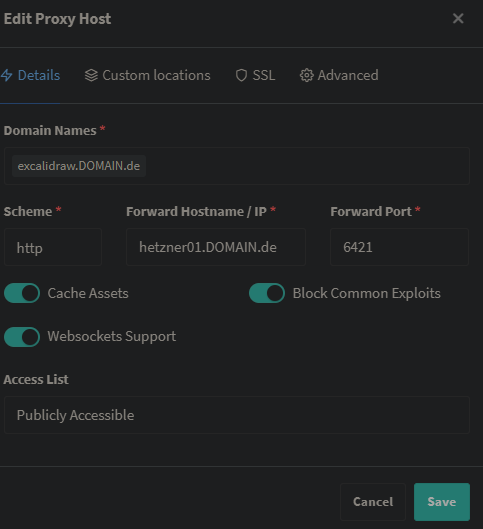
docker compose up --build -dNPM Reverse Proxy Eintrag für excalidraw anlegen:
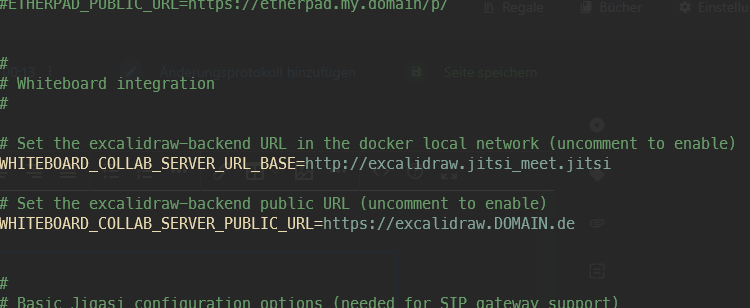
.env von Jitsi anpassen:
#
# Whiteboard integration
#

# Set the excalidraw-backend URL in the docker local network (uncomment to enable)
WHITEBOARD_COLLAB_SERVER_URL_BASE=http://excalidraw.jitsi_meet.jitsi

# Set the excalidraw-backend public URL (uncomment to enable)
WHITEBOARD_COLLAB_SERVER_PUBLIC_URL=https://excalidraw.DOMAIN.de
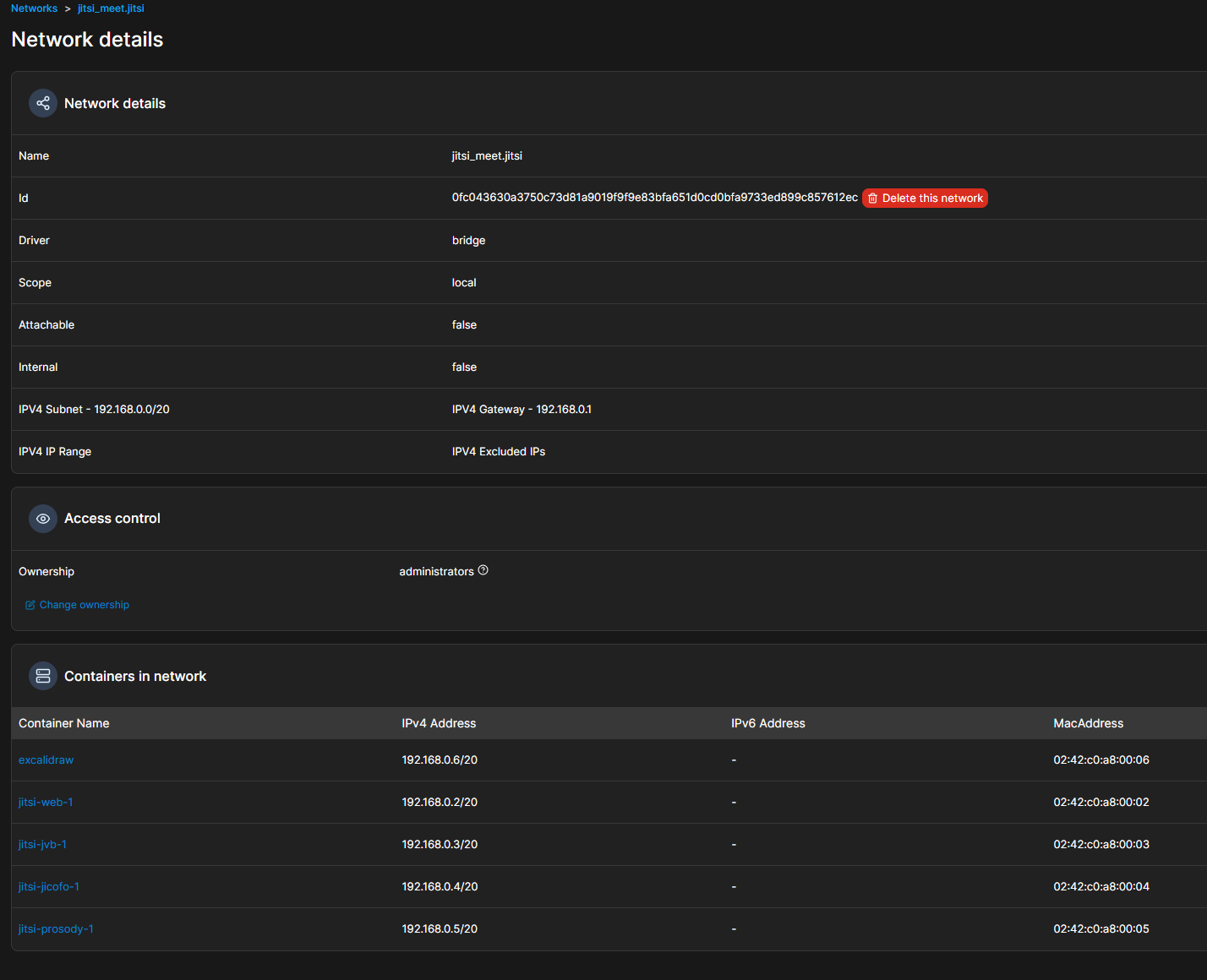
Obacht: damit die lokale URL funktioniert, müssen die jitsi container im gleichen Netzwerk wie excalidraw sein, daher auch in der docker-compose.yml von excalidraw das netzwerk von jitsi als external einpflegen. Am besten mit exec in den jitsi-web container gehen und prüfen, ob exclidraw erreichbar ist:
ping excalidraw -c 1
ping excalidraw.jitsi_meet.jitsi -c 1


nachdem die .env mit URLs versorgt wurde, nochmal in den jitsi docker Ordner wechseln und
docker compose down
docker compose up -d
TURN / STUN Server einrichten (Coturn)
Weil einige Firewalls auf der Clientseite verhindern, sich mit UDP Port 10000 zu verbinden, um WebRTC durchzuschleusen, sollte ein TURN Server aufgesetzt werden, über den dann der Verkehr geleitet wird. Wenn UDP Ports möglich sind, stellt der STUN Server eine Peer2Peer Verbinung her. Wenn nicht, wird der Traffic über Port 443 geleitet, was bei jedem restriktiven Netzwerk funktionieren sollte.
Mehr dazu hier im Eintrag Coturn: https://wiki.folkerts.it/books/docker/page/coturn-stun-turn-server-fur-jitsi-meet
⚠ Wichtig ⚠ Der TURN Server kann nicht ohne weiteres über einen Reverse Proxy geleitet werden, weil er nicht auf dem HTTP Protokoll beruht, sondern auf TCP und/oder TLS. Es sollte also am besten ein eigener Server sein, auf dem der Port 443 freigegeben werden kann, ohne auf einen Reverse Proxy zu zeigen.
Design anpassen
https://goneuland.de/jitsi-anpassungen-docker/
https://scheible.it/das-design-von-jitsi-meet-anpassen
Logo anpassen
    web:
        image: jitsi/web:${JITSI_IMAGE_VERSION:-stable-10008}
        ...
        volumes:
        ...
            - ${CONFIG}/web/load-test:/usr/share/jitsi-meet/load-test:Z
            - ${CONFIG}/web/images/watermark.svg:/usr/share/jitsi-meet/images/watermark.svg:Z # <-- Logo als .svg hinzufügen
        container_name: jitsi-web
        ...
Troubleshooting
Jitsi in Kubernetes, Port 10000 kann nicht freigeschaltet werden, stattdessen 30000 bis 32.000 irgendwas
https://stackoverflow.com/questions/71495351/how-to-setup-jitsi-meet-on-a-custom-kubernetes