MediaServer
- Nvidia GPU Pass-through to Container in Docker VM
- TruenNAS NFS-Volume für Container
- Containers losing GPUs with error: "Failed to initialize NVML: Unknown Error"
- Webhook sonarr/radarr to Jellyfin
- Linux Commands
Nvidia GPU Pass-through to Container in Docker VM
1.) Install driver in VM
2 Fehler bei Treiberinstallation beheben:
- blacklist nouveau Treiber
# Datei erstellen nano /etc/modprobe.d/blacklist-nouveau.conf #Inhalt der Datei blacklist nouveau options nouveau modeset=0 # Update initframs sudo update-initramfs -u # Neu starten reboot - gcc-compiler installieren
# Install dependencies
sudo apt-get install build-essential gcc-multilib dkms
Kompatible Treiber-Versionen + Unlock-Patch installieren: https://github.com/keylase/nvidia-patch
#Directory erstellen
mkdir /opt/nvidia && cd /opt/nvidia
#Treiber download
wget https://international.download.nvidia.com/XFree86/Linux-x86_64/525.89.02/NVIDIA-Linux-x86_64-525.89.02.run
#Mount
chmod +x ./NVIDIA-Linux-x86_64-525.89.02.run
#Execute
./NVIDIA-Linux-x86_64-525.89.02.run
2.) Setting up NVIDIA Container Toolkit in VM
Setup the package repository and the GPG key:
$ distribution=$(. /etc/os-release;echo $ID$VERSION_ID) \
      && curl -fsSL https://nvidia.github.io/libnvidia-container/gpgkey | sudo gpg --dearmor -o /usr/share/keyrings/nvidia-container-toolkit-keyring.gpg \
      && curl -s -L https://nvidia.github.io/libnvidia-container/$distribution/libnvidia-container.list | \
            sed 's#deb https://#deb [signed-by=/usr/share/keyrings/nvidia-container-toolkit-keyring.gpg] https://#g' | \
            sudo tee /etc/apt/sources.list.d/nvidia-container-toolkit.list
Install nvidia-container-toolkit package (and dependencies):
# Install the nvidia-container-toolkit package (and dependencies) after updating the package listing:
$ sudo apt-get update
$ sudo apt-get install -y nvidia-container-toolkit

# Configure the Docker daemon to recognize the NVIDIA Container Runtime:
$ sudo nvidia-ctk runtime configure --runtime=docker

# Restart the Docker daemon to complete the installation after setting the default runtime:
$ sudo systemctl restart docker

# At this point, a working setup can be tested by running a base CUDA container:
$ sudo docker run --rm --runtime=nvidia --gpus all nvidia/cuda:11.6.2-base-ubuntu20.04 nvidia-smidocker-compose erweitern mit "runtime: nvidia" und "NVIDIA_VISIBLE_DEVICES=all":
version: "2.1"
services:
  jellyfin:
    image: lscr.io/linuxserver/jellyfin:latest
    container_name: jellyfin
    runtime: nvidia
    environment:
      - ....
      - NVIDIA_VISIBLE_DEVICES=all

.....
4.) (Optional-Proxmox) Blacklist GPU auf pve-Host:
#AMD GPUs
echo "blacklist amdgpu" >> /etc/modprobe.d/blacklist.conf
echo "blacklist radeon" >> /etc/modprobe.d/blacklist.conf
#NVIDIA GPUs
echo "blacklist nouveau" >> /etc/modprobe.d/blacklist.conf
echo "blacklist nvidia*" >> /etc/modprobe.d/blacklist.conf
#Intel GPUs
echo "blacklist i915" >> /etc/modprobe.d/blacklist.conf
5.) Container verliert GPU ("Failed to initialize NVML: Unknown Error")
https://github.com/NVIDIA/nvidia-docker/issues/1730
#Config editieren
nano /etc/nvidia-container-runtime/config.toml
# Uncomment folgende Zeile
no-cgroups = false
#Docker neu starten
sudo systemctl restart docker
#Testen mit test container
docker run -d --rm --runtime=nvidia --gpus all \
    --device=/dev/nvidia-uvm \
    --device=/dev/nvidia-uvm-tools \
    --device=/dev/nvidia-modeset \
    --device=/dev/nvidiactl \
    --device=/dev/nvidia0 \
    nvcr.io/nvidia/cuda:12.0.0-base-ubuntu20.04 bash -c "while [ true ]; do nvidia-smi -L; sleep 5; done"
# Container ID
455dca9339e2184e3d0a93c1c216efa543642627783c1e0cbaf2c136162d89f9
# Log des Containers öffnen
docker logs 455dca9339e2184e3d0a93c1c216efa543642627783c1e0cbaf2c136162d89f9
# Absturz -Befehl testen
sudo systemctl daemon-reload
# Log wieder öffnen
docker logs 455dca9339e2184e3d0a93c1c216efa543642627783c1e0cbaf2c136162d89f9

#Falls kein Eintrag mit "Failed to initialize NVML: Unknown Error" auftaucht hat der Fix funktioniert
TruenNAS NFS-Volume für Container
TrueNAS NFS Freigabe
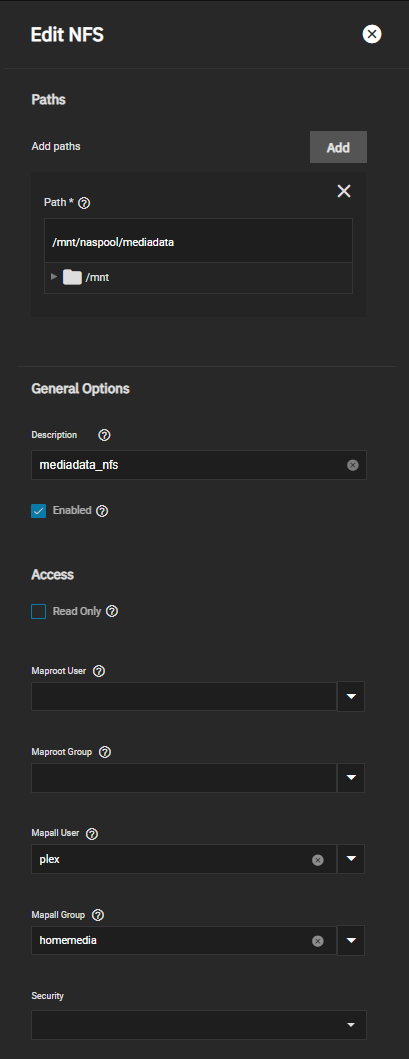
NFS-Freigabe in Truenas aktivieren
- Dienst aktivieren
- NFS-Version V4 wählen (default: V3) > System Settings > Services > NFS > Configure
Für Plex Container:
- Mapall User + Mapall Group zuordnen
- docker-compose file siehe unten
Für Ubuntu VM:
- Maproot User + Group, z,B. "root", zuordnen (UID/GID müssen in identisch sein für TrueNAS und VM)
- Ggfls. Kernel-Modul installieren:
sudo apt-get install nfs-common - Mount-Befehl:
sudo mount -t nfs -o rw 192.168.178.201:/mnt/naspool/mediadata_nfs /mnt/mediadata
Docker-compose File:
---
version: "2.1"
services:
  plex:
    image: ...
    ...
    volumes:
      - mediadata_nfs:/mnt/mediadata_nfs

volumes:
  mediadata_nfs:
    driver: local
    driver_opts:
      type: "nfs"
      o: "addr=192.168.178.201,nolock,soft,rw"
      device: ":/mnt/naspool/mediadata"
Options "o" für NFS-Einbindung -> https://blog.stefandroid.com/2021/03/03/mount-nfs-share-in-docker-compose.html
nfsvers=3ornfsvers=4nolock(optional): remote applications on the NFS server are not affected by lock files within the Docker container (only other processes within the container are affected by locks)soft(optional): the NFS client fails an NFS request afterretrans=nunsuccessful retries, otherwise it will try indefinitelyretrans=n(optional, default 2): specify the number of retries for NFS requests, only relevant if usingsofttimeo=n(optional, default 600): the NFS client waitsntenths of a second before retrying an NFS requestrw: read-write accessro: read only
Containers losing GPUs with error: "Failed to initialize NVML: Unknown Error"
https://github.com/NVIDIA/nvidia-docker/issues/1730
5. Workarounds
The following workarounds are available for both standalone docker environments and k8s environments (multiple options are presented by order of preference; the one at the top is the most recommended):
For Docker environments
-
Using the
nvidia-ctkutility:The NVIDIA Container Toolkit v1.12.0 includes a utility for creating symlinks in
/dev/charfor all possible NVIDIA device nodes required for using GPUs in containers. This can be run as follows:sudo nvidia-ctk system create-dev-char-symlinks \ --create-allThis command should be configured to run at boot on each node where GPUs will be used in containers. It requires that the NVIDIA driver kernel modules have been loaded at the point where it is run.
A simple
udevrule to enforce this can be seen below:# This will create /dev/char symlinks to all device nodes ACTION=="add", DEVPATH=="/bus/pci/drivers/nvidia", RUN+="/usr/bin/nvidia-ctk system create-dev-char-symlinks --create-all"A good place to install this rule would be:
/lib/udev/rules.d/71-nvidia-dev-char.rulesIn cases where the NVIDIA GPU Driver Container is used, the path to the driver installation must be specified. In this case the command should be modified to:
sudo nvidia-ctk system create-dev-symlinks \
        --create-all \
        --driver-root={{NVIDIA_DRIVER_ROOT}}
Where
{{NVIDIA_DRIVER_ROOT}}is the path to which the NVIDIA GPU Driver container installs the NVIDIA GPU driver and creates the NVIDIA Device Nodes. -
Method 2 (WORKING FOR ME):
-
Explicitly disabling systemd cgroup management in Docker
- Set the parameter
"exec-opts": ["native.cgroupdriver=cgroupfs"]in the/etc/docker/daemon.jsonfile and restart docker. -
{
   "runtimes": {
       "nvidia": {
           "args": [],
           "path": "nvidia-container-runtime"
       }
   },
   "exec-opts": ["native.cgroupdriver=cgroupfs"]
}
- Set the parameter
-
Method 3:
-
Downgrading to
docker.iopackages wheresystemdis not the defaultcgroupmanager (and not overriding that of course).
-
Webhook sonarr/radarr to Jellyfin
- Apikey bei Jellyfin generieren:

Unter Sonarr/Radarr webhook unter settings --> connect erstellen:
- URL : http://<IP>:<PORT>//library/refresh?api_key=<APIKEY>
- Method: Post

Linux Commands
| rm | remove file |
| ls | List files in directory |
| nvidia-pmi -pm 1 | activate persistence mode |
| cat |
Dateiinhalt in Konsole anzeigen |
| type git | path to command |