# Nextcloud
## Empfohlen:
Nextcloud AIO Manual-Install Variante
siehe [https://wiki.folkerts.it/books/docker/page/nextcloud-aio](https://wiki.folkerts.it/books/docker/page/nextcloud-aio)
## Nextcloud AIO Variante
Anleitung für Nextcloud AIO: [https://github.com/nextcloud/all-in-one](https://github.com/nextcloud/all-in-one)
Dockerhub: [https://hub.docker.com/r/nextcloud/all-in-one](https://hub.docker.com/r/nextcloud/all-in-one)
Folgende docker-compose.yml für Reverse Proxy angepasst. Mehr dazu unter [https://github.com/nextcloud/all-in-one/blob/main/reverse-proxy.md](https://github.com/nextcloud/all-in-one/blob/main/reverse-proxy.md)
```yaml
services:
nextcloud-aio-mastercontainer:
image: ghcr.io/nextcloud-releases/all-in-one:20250424_092733
init: true
restart: always
container_name: nextcloud-aio-mastercontainer # This line is not allowed to be changed as otherwise AIO will not work correctly
volumes:
- nextcloud_aio_mastercontainer:/mnt/docker-aio-config # This line is not allowed to be changed as otherwise the built-in backup solution will not work
- /var/run/docker.sock:/var/run/docker.sock:ro # May be changed on macOS, Windows or docker rootless. See the applicable documentation. If adjusting, don't forget to also set 'WATCHTOWER_DOCKER_SOCKET_PATH'!
network_mode: bridge # add to the same network as docker run would do
ports:
#- 80:80 # Can be removed when running behind a web server or reverse proxy (like Apache, Nginx, Caddy, Cloudflare Tunnel and else). See https://github.com/nextcloud/all-in-one/blob/main/reverse-proxy.md
- 8080:8080 # AIO Web-UI
#- 8443:8443 # Can be removed when running behind a web server or reverse proxy (like Apache, Nginx, Caddy, Cloudflare Tunnel and else). See https://github.com/nextcloud/all-in-one/blob/main/reverse-proxy.md
environment: # Is needed when using any of the options below
# AIO_DISABLE_BACKUP_SECTION: false # Setting this to true allows to hide the backup section in the AIO interface. See https://github.com/nextcloud/all-in-one#how-to-disable-the-backup-section
# AIO_COMMUNITY_CONTAINERS: # With this variable, you can add community containers very easily. See https://github.com/nextcloud/all-in-one/tree/main/community-containers#community-containers
APACHE_PORT: 11000 # Is needed when running behind a web server or reverse proxy (like Apache, Nginx, Caddy, Cloudflare Tunnel and else). See https://github.com/nextcloud/all-in-one/blob/main/reverse-proxy.md
APACHE_IP_BINDING: 0.0.0.0 # Should be set when running behind a web server or reverse proxy (like Apache, Nginx, Caddy, Cloudflare Tunnel and else) that is running on the same host. See https://github.com/nextcloud/all-in-one/blob/main/reverse-proxy.md
APACHE_ADDITIONAL_NETWORK: "" # (Optional) Connect the apache container to an additional docker network. Needed when behind a web server or reverse proxy (like Apache, Nginx, Caddy, Cloudflare Tunnel and else) running in a different docker network on same server. See https://github.com/nextcloud/all-in-one/blob/main/reverse-proxy.md
# BORG_RETENTION_POLICY: --keep-within=7d --keep-weekly=4 --keep-monthly=6 # Allows to adjust borgs retention policy. See https://github.com/nextcloud/all-in-one#how-to-adjust-borgs-retention-policy
# COLLABORA_SECCOMP_DISABLED: false # Setting this to true allows to disable Collabora's Seccomp feature. See https://github.com/nextcloud/all-in-one#how-to-disable-collaboras-seccomp-feature
# FULLTEXTSEARCH_JAVA_OPTIONS: "-Xms1024M -Xmx1024M" # Allows to adjust the fulltextsearch java options. See https://github.com/nextcloud/all-in-one#how-to-adjust-the-fulltextsearch-java-options
#NEXTCLOUD_DATADIR: /mnt/hz-s3-pl-01/nextcloud_data # Allows to set the host directory for Nextcloud's datadir. ⚠️⚠️⚠️ Warning: do not set or adjust this value after the initial Nextcloud installation is done! See https://github.com/nextcloud/all-in-one#how-to-change-the-default-location-of-nextclouds-datadir
# NEXTCLOUD_MOUNT: /mnt/ # Allows the Nextcloud container to access the chosen directory on the host. See https://github.com/nextcloud/all-in-one#how-to-allow-the-nextcloud-container-to-access-directories-on-the-host
# NEXTCLOUD_UPLOAD_LIMIT: 16G # Can be adjusted if you need more. See https://github.com/nextcloud/all-in-one#how-to-adjust-the-upload-limit-for-nextcloud
# NEXTCLOUD_MAX_TIME: 3600 # Can be adjusted if you need more. See https://github.com/nextcloud/all-in-one#how-to-adjust-the-max-execution-time-for-nextcloud
# NEXTCLOUD_MEMORY_LIMIT: 512M # Can be adjusted if you need more. See https://github.com/nextcloud/all-in-one#how-to-adjust-the-php-memory-limit-for-nextcloud
# NEXTCLOUD_TRUSTED_CACERTS_DIR: /path/to/my/cacerts # CA certificates in this directory will be trusted by the OS of the nextcloud container (Useful e.g. for LDAPS) See https://github.com/nextcloud/all-in-one#how-to-trust-user-defined-certification-authorities-ca
# NEXTCLOUD_STARTUP_APPS: deck twofactor_totp tasks calendar contacts notes # Allows to modify the Nextcloud apps that are installed on starting AIO the first time. See https://github.com/nextcloud/all-in-one#how-to-change-the-nextcloud-apps-that-are-installed-on-the-first-startup
# NEXTCLOUD_ADDITIONAL_APKS: imagemagick # This allows to add additional packages to the Nextcloud container permanently. Default is imagemagick but can be overwritten by modifying this value. See https://github.com/nextcloud/all-in-one#how-to-add-os-packages-permanently-to-the-nextcloud-container
# NEXTCLOUD_ADDITIONAL_PHP_EXTENSIONS: imagick # This allows to add additional php extensions to the Nextcloud container permanently. Default is imagick but can be overwritten by modifying this value. See https://github.com/nextcloud/all-in-one#how-to-add-php-extensions-permanently-to-the-nextcloud-container
# NEXTCLOUD_ENABLE_DRI_DEVICE: true # This allows to enable the /dev/dri device for containers that profit from it. ⚠️⚠️⚠️ Warning: this only works if the '/dev/dri' device is present on the host! If it should not exist on your host, don't set this to true as otherwise the Nextcloud container will fail to start! See https://github.com/nextcloud/all-in-one#how-to-enable-hardware-acceleration-for-nextcloud
# NEXTCLOUD_ENABLE_NVIDIA_GPU: true # This allows to enable the NVIDIA runtime and GPU access for containers that profit from it. ⚠️⚠️⚠️ Warning: this only works if an NVIDIA gpu is installed on the server. See https://github.com/nextcloud/all-in-one#how-to-enable-hardware-acceleration-for-nextcloud.
# NEXTCLOUD_KEEP_DISABLED_APPS: false # Setting this to true will keep Nextcloud apps that are disabled in the AIO interface and not uninstall them if they should be installed. See https://github.com/nextcloud/all-in-one#how-to-keep-disabled-apps
SKIP_DOMAIN_VALIDATION: true # This should only be set to true if things are correctly configured. See https://github.com/nextcloud/all-in-one?tab=readme-ov-file#how-to-skip-the-domain-validation
# TALK_PORT: 3478 # This allows to adjust the port that the talk container is using which is exposed on the host. See https://github.com/nextcloud/all-in-one#how-to-adjust-the-talk-port
# WATCHTOWER_DOCKER_SOCKET_PATH: /var/run/docker.sock # Needs to be specified if the docker socket on the host is not located in the default '/var/run/docker.sock'. Otherwise mastercontainer updates will fail. For macos it needs to be '/var/run/docker.sock'
# security_opt: ["label:disable"] # Is needed when using SELinux
# # Optional: Caddy reverse proxy. See https://github.com/nextcloud/all-in-one/discussions/575
# # Alternatively, use Tailscale if you don't have a domain yet. See https://github.com/nextcloud/all-in-one/discussions/5439
# # Hint: You need to uncomment APACHE_PORT: 11000 above, adjust cloud.example.com to your domain and uncomment the necessary docker volumes at the bottom of this file in order to make it work
# # You can find further examples here: https://github.com/nextcloud/all-in-one/discussions/588
# caddy:
# image: caddy:alpine
# restart: always
# container_name: caddy
# volumes:
# - caddy_certs:/certs
# - caddy_config:/config
# - caddy_data:/data
# - caddy_sites:/srv
# network_mode: "host"
# configs:
# - source: Caddyfile
# target: /etc/caddy/Caddyfile
# configs:
# Caddyfile:
# content: |
# # Adjust cloud.example.com to your domain below
# https://cloud.example.com:443 {
# reverse_proxy localhost:11000
# }
volumes: # If you want to store the data on a different drive, see https://github.com/nextcloud/all-in-one#how-to-store-the-filesinstallation-on-a-separate-drive
nextcloud_aio_mastercontainer:
name: nextcloud_aio_mastercontainer # This line is not allowed to be changed as otherwise the built-in backup solution will not work
# caddy_certs:
# caddy_config:
# caddy_data:
# caddy_sites:
```
## verbotene Zeichen am Ende von Dateien und Ordnern
erstmal bestimmte zeichen generell verbieten siehe oben config.php
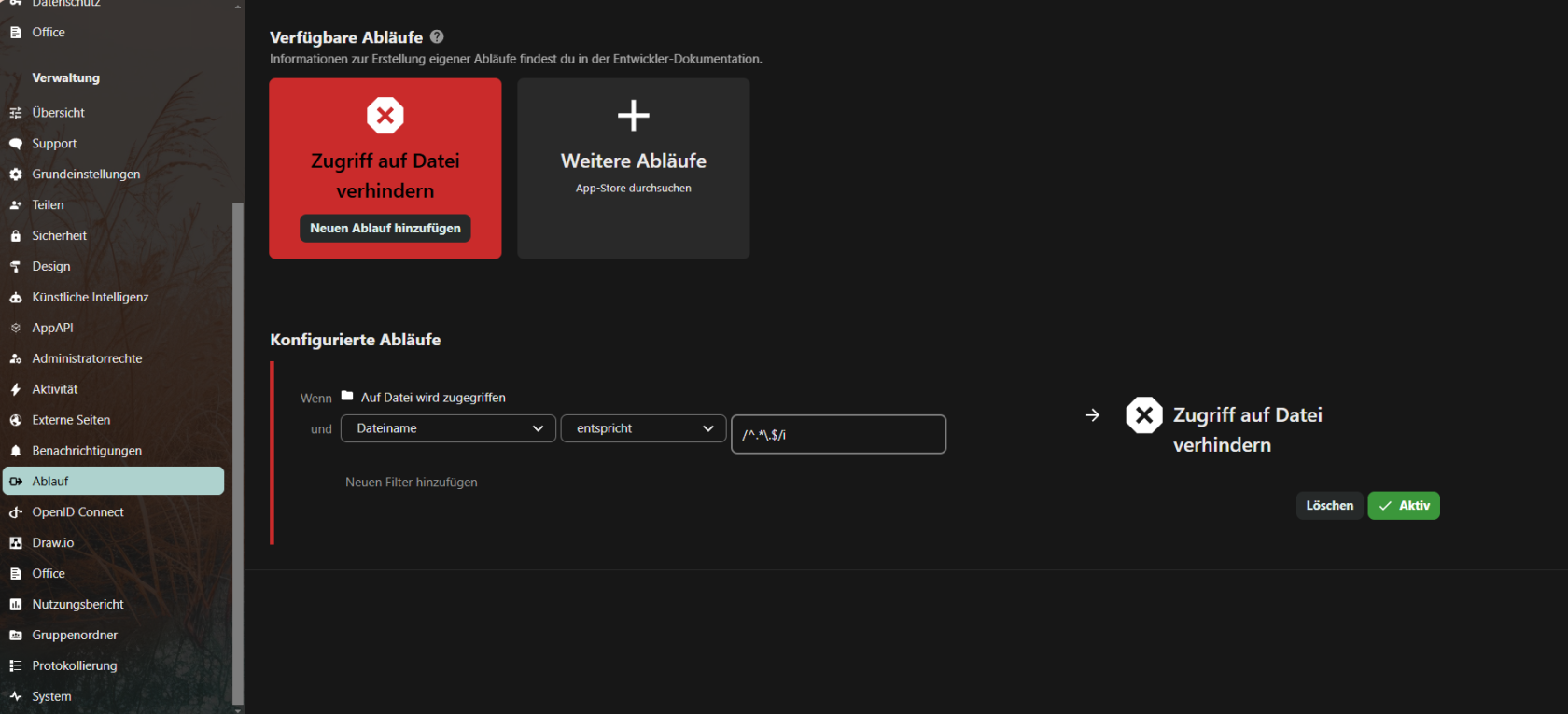
danach App File Access Control installieren [https://apps.nextcloud.com/apps/files\_accesscontrol](https://apps.nextcloud.com/apps/files_accesscontrol)
Regel für Dateiname > entspricht > `/^.*\.$/i `aktivieren, um Punkte am Ende einer Datei zu verhindern
[](https://wiki.folkerts.it/uploads/images/gallery/2025-02/image.png)
### Standardsprache DE für neue Benutzer
mit
```bash
docker exec -it nextcloud-app-1 bash
```
in die Shell des Containers gehen (oder einfach im Volume), dann
```
apt-get update
apt-get install nano
nano config/config.php
```
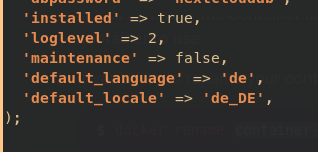
und folgendes anhängen:
```php
'loglevel' => 2,
'maintenance' => false,
'default_language' => 'de',
'default_locale' => 'de_DE',
'default_timezone' => 'Europe/Berlin',
);
```
[](https://wiki.folkerts.it/uploads/images/gallery/2023-07/KoDimage.png)
[https://docs.nextcloud.com/server/16/admin\_manual/configuration\_server/language\_configuration.html](https://docs.nextcloud.com/server/16/admin_manual/configuration_server/language_configuration.html)
### S3 Minio als primary storage in config.php
(eigentlich über die env-vars im Stack, aber falls das verpasst wurde)
```
'objectstore' =>
array (
'class' => '\\OC\\Files\\ObjectStore\\S3',
'arguments' =>
array (
'bucket' => 'nextcloud',
'region' => '',
'hostname' => 'minio-s3.MEINEDOMAIN.de',
'port' => '443',
'StorageClass' => '',
'objectPrefix' => 'urn:oid:',
'autocreate' => false,
'use_ssl' => true,
'use_path_style' => true,
'legacy_auth' => false,
'key' => '3svCe...wVvluT',
'secret' => 'mHK6Q............0GTa',
),
),
```
### E-Mail Einstellungen SMTP in config.php (auch über GUI)
```
'mail_from_address' => 'admin',
'mail_smtpmode' => 'smtp',
'mail_sendmailmode' => 'smtp',
'mail_domain' => 'MEINEDOMAIN.de',
'mail_smtphost' => 'smtp.strato.de',
'mail_smtpauth' => 1,
'mail_smtpport' => '587',
'mail_smtpname' => 'admin@MEINEDOMAIN.de',
'mail_smtppassword' => 'MEIN-123-PASSWORT',
```
### Direkter Login (umgeht OIDC/SAML)
[http://nextcloud.MEINEDOMAIN.de/login?direct=1](http://nextcloud.MEINEDOMAIN.de/login?direct=1)
## Troubleshooting
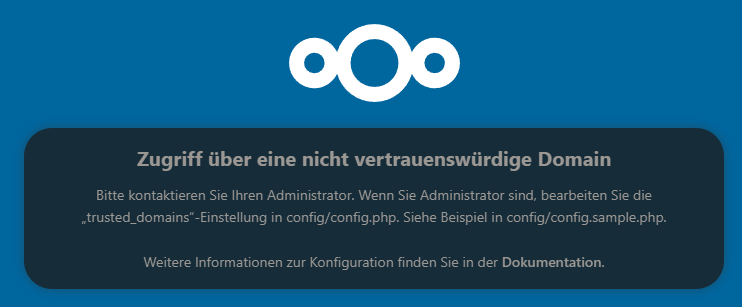
### Zugriff ueber eine nicht vertrauenswuerdige Domain
[](https://wiki.folkerts.it/uploads/images/gallery/2024-07/oqYimage.png)
Zugriff über eine nicht vertrauenswürdige Domain
Bitte kontaktieren Sie Ihren Administrator. Wenn Sie Administrator sind, bearbeiten Sie die „trusted\_domains“-Einstellung in config/config.php. Siehe Beispiel in config/config.sample.php.
falls die trusted domains in den env nicht passen, siehe ....
\- NEXTCLOUD\_TRUSTED\_DOMAINS=<nextcloud.mydomain.com>
\- OVERWRITEPROTOCOL=https
\- OVERWRITECLIURL=https://<nextcloud.mydomain.com>
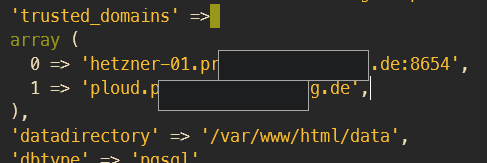
...muss die config/config.php noch bearbeitet werden:
```
'trusted_domains' =>
array (
0 => 'localhost',
1 => 'server1.example.com',
2 => '192.168.1.50',
3 => '[fe80::1:50]',
),
```
[](https://wiki.folkerts.it/uploads/images/gallery/2024-07/8vIimage.png)
#### PERMISSION / OWNER FEHLER
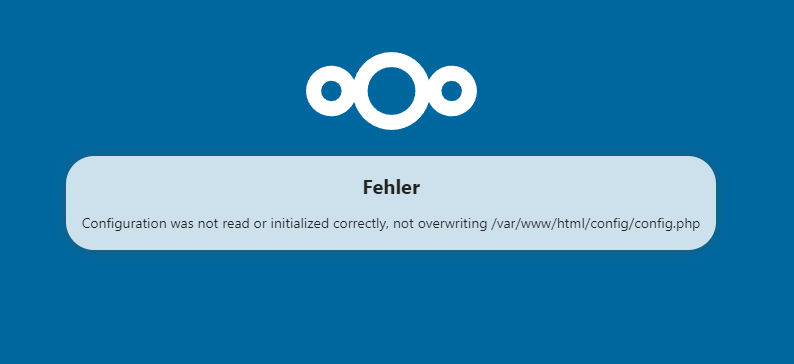
Configuration was not read or initialized correctly, not overwriting /var/www/html/config/config.php
Passiert evtl beim Migrieren
[](https://wiki.folkerts.it/uploads/images/gallery/2024-06/maNimage.png)
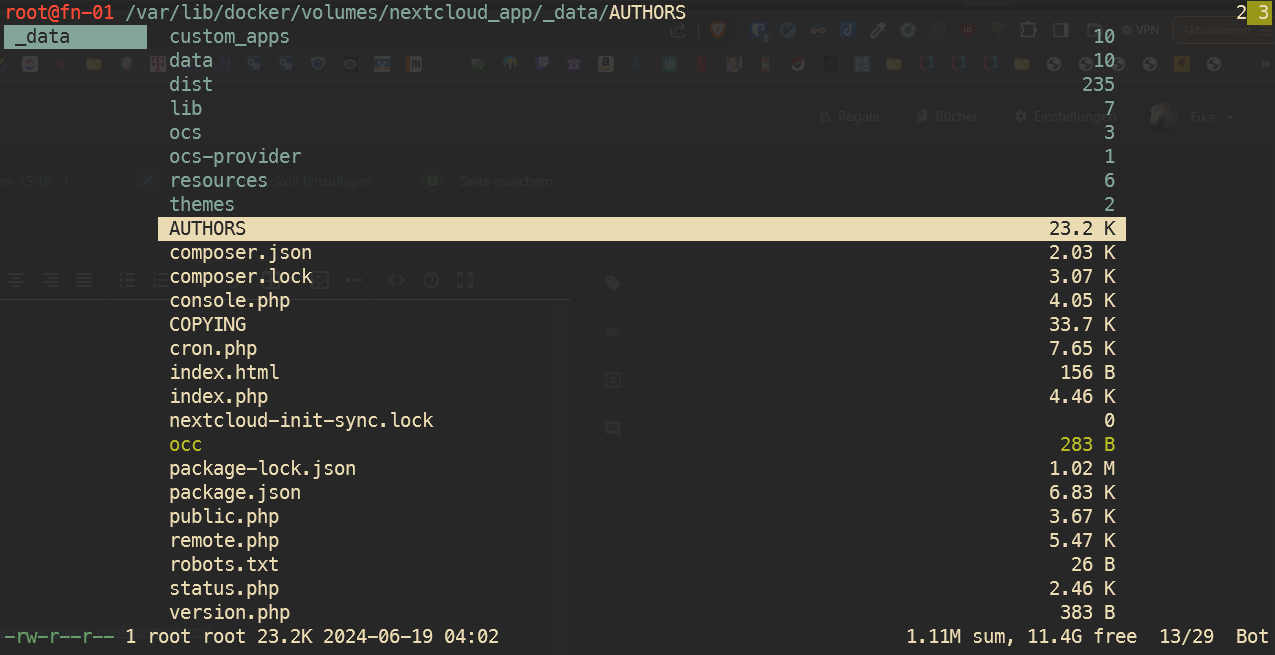
Wenn dieser Fehler kommt, kann es sein, dass der Besitz oder die Berechtigungen der Dateien im Volume nicht stimmen.
[](https://wiki.folkerts.it/uploads/images/gallery/2024-06/behimage.png)
Hier zu sehen im CLI Fileexplorer [Ranger](https://github.com/ranger/ranger), dass der Besitzer root ist (unten links), sollte aber www-data sein.
Um den Besitzer zu ändern, eine Ebene höher gehen, sodass der Ordner \_data zu sehen ist, mit ! ein Shell Command ausführen
('@'-Zeichen ist der Shortcut für Shell-Kommando in Ranger):
```bash
chown -R www-data:www-data _data
```
das ändert die Rechte rekursiv, also auch alle untergeordneten Dateien und Ordner:
[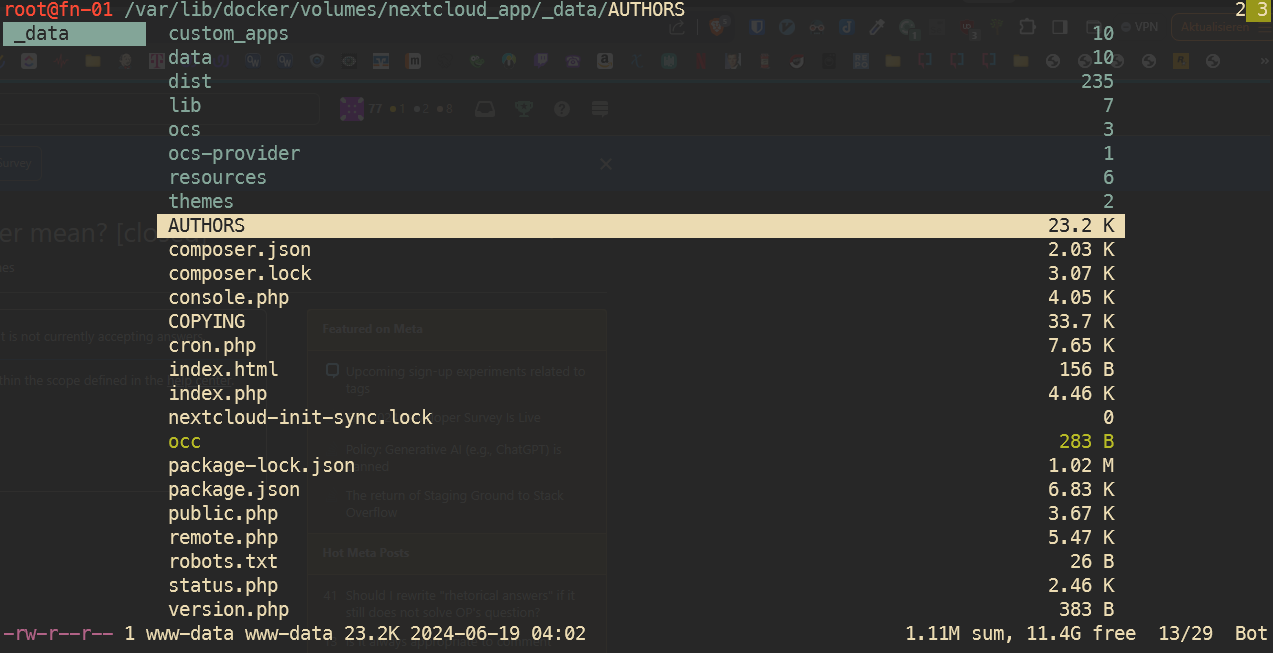](https://wiki.folkerts.it/uploads/images/gallery/2024-06/ysXimage.png)
## ALTE VARIANTEN AB HIER
### Kunde PL
#### nicht-samba-variante: (Diese Variante installiert sich komplett selbst)
stand 22.11.2024, aktuelle docker-image-versionen ausm dockerhub holen:
[https://hub.docker.com/r/collabora/code](https://hub.docker.com/r/collabora/code)
[https://hub.docker.com/\_/nextcloud](https://hub.docker.com/_/nextcloud)
[https://hub.docker.com/\_/postgres](https://hub.docker.com/_/postgres)
[https://hub.docker.com/\_/redis](https://hub.docker.com/_/redis)
```yaml
version: '3'
services:
db:
image: postgres:16.5-alpine3.20
restart: always
volumes:
- db:/var/lib/postgresql/data:Z
env_file:
- stack.env
redis:
image: redis:7.4.1-alpine3.20
restart: always
app:
image: nextcloud:30.0.2-apache
restart: always
ports:
- 8654:80
volumes:
- app:/var/www/html:z
environment:
- POSTGRES_HOST=db
- REDIS_HOST=redis
env_file:
- stack.env
depends_on:
- db
- redis
deploy:
resources:
limits:
cpus: '0.90'
memory: 4000M
cron:
image: nextcloud:30.0.2-apache
restart: always
volumes:
- app:/var/www/html:z
entrypoint: /cron.sh
depends_on:
- db
- redis
whiteboard:
image: ghcr.io/nextcloud-releases/whiteboard:v1.0.4
ports:
- 3002:3002
environment:
- NEXTCLOUD_URL=https://nextcloud.DOMAIN.de
- JWT_SECRET_KEY=XYZ123...[openssl rand -base64 32]...321ZYX
restart: unless-stopped
collabora:
image: collabora/code:24.04.9.2.1
container_name: collabora
environment:
- aliasgroup1=https://nextcloud.DOMAIN.de
- aliasgroup2=https://another.DOMAIN.de
- aliasgroup3=https://another.DOMAIN.de
#- server_name=collabora.DOMAIN.de
- username=MYUSERNAME
- password=MYPASSWORD
ports:
- '9980:9980'
restart: unless-stopped
volumes:
db:
app:
```
dazugehörige Environment variables (bei einem Portainer stack unten auf advanced mode stellen, da steht auch dass sie als stack.env eingebunden werden müssen)
```
POSTGRES_PASSWORD=MEINPASSWORD123
POSTGRES_DB=nextcloud
POSTGRES_USER=nextcloud
NEXTCLOUD_ADMIN_USER=MEIN-NC-ADMIN
NEXTCLOUD_ADMIN_PASSWORD=MEIN-NC-PW
OVERWRITEPROTOCOL=https
OVERWRITECLIURL=https://nextcloud.MEINEDOMAIN.de
NEXTCLOUD_TRUSTED_DOMAINS=nextcloud.MEINEDOMAIN.de
NEXTCLOUD_DEFAULT_LANGUAGE=de
OBJECTSTORE_S3_BUCKET=nextcloud
OBJECTSTORE_S3_KEY=DC...MEIN-minio-ACCESSKEY...dVZP
OBJECTSTORE_S3_SECRET=jJsHxEhdIJUM....MEIN-minio-SECRETKEY....4xTd9REse
OBJECTSTORE_S3_HOST=minio-s3.MEINEDOMAIN.de
OBJECTSTORE_S3_PORT=443
OBJECTSTORE_S3_SSL=true
OBJECTSTORE_S3_USEPATH_STYLE=true
```
Diese env-vars werden nur beim ersten Erzeugen in die config/config.php geschrieben. Wenn sie bei einer bestehenden Instanz nachgetragen werden, muss man die config.php von Hand bearbeiten.
weitere interessante Einstellungen in der config/config.php:
[https://docs.nextcloud.com/server/latest/admin\_manual/configuration\_server/config\_sample\_php\_parameters.html](https://docs.nextcloud.com/server/latest/admin_manual/configuration_server/config_sample_php_parameters.html)
```
'default_language' => 'de',
'default_locale' => 'de',
'default_timezone' => 'Europe/Berlin',
'defaultapp' => 'files',
'knowledgebaseenabled' => false,
'lost_password_link' => 'disabled',
'skeletondirectory' => '',
'simpleSignUpLink.shown' => false,
'loglevel' => 2,
'default_charset' => 'UTF-8',
'activity_use_cached_mountpoints' => true,
'forbidden_filename_characters' => array('?', '<', '>', ':', '*', '|', '"'),
```
Whiteboard: [https://github.com/nextcloud/whiteboard](https://github.com/nextcloud/whiteboard)
#### samba-variante
```yaml
version: '3'
services:
db:
image: postgres:alpine
restart: always
volumes:
- hetzner_sb:/var/lib/postgresql/data:Z
env_file:
- stack.env
redis:
image: redis:alpine
restart: always
app:
image: nextcloud:apache
restart: always
ports:
- 8654:80
volumes:
- hetzner_sb:/var/www/html:z
environment:
- POSTGRES_HOST=db
- REDIS_HOST=redis
env_file:
- stack.env
depends_on:
- db
- redis
cron:
image: nextcloud:apache
restart: always
volumes:
- hetzner_sb:/var/www/html:z
entrypoint: /cron.sh
depends_on:
- db
- redis
volumes:
db:
hetzner_sb:
driver: local
driver_opts:
type: cifs
o: "username=u12345-sub1,password=zwwEXAMPLEQpp,file_mode=0770,dir_mode=0770,vers=3.1.1,seal,uid=33"
device: "//u12345-sub1.your-storagebox.de/u12345-sub1/dockervolume_nextcloud"
```
...,file\_mode=0770,dir\_mode=0770,vers=3.1.1,seal,uid=33"am ende nicht vergessen!
Quellen:
[https://help.nextcloud.com/t/how-to-get-a-rock-solid-nextcloud-installation/150002](https://help.nextcloud.com/t/how-to-get-a-rock-solid-nextcloud-installation/150002)
[https://github.com/nextcloud/docker/blob/master/.examples/docker-compose/insecure/postgres/apache/docker-compose.yml](https://github.com/nextcloud/docker/blob/master/.examples/docker-compose/insecure/postgres/apache/docker-compose.yml)
Mit MariaDB von
[https://xmpls.org/install-nextcloud-with-docker-compose/](https://xmpls.org/install-nextcloud-with-docker-compose/)
## Kunde WIS
```yaml
version: '2'
services:
db:
image: mariadb:10.5
command: --transaction-isolation=READ-COMMITTED --binlog-format=ROW
volumes:
- ./nextcloud-mariadb/mariadb:/var/lib/mysql
environment:
- MYSQL_ROOT_PASSWORD=nextclouddb
- MYSQL_PASSWORD=nextclouddb
- MYSQL_DATABASE=nextcloud
- MYSQL_USER=nextcloud
restart: unless-stopped
app:
image: nextcloud
ports:
- 5001:80
links:
- db
volumes:
- ./nextcloud-mariadb/nextcloud-itself:/var/www/html
environment:
- MYSQL_PASSWORD=nextclouddb
- MYSQL_DATABASE=nextcloud
- MYSQL_USER=nextcloud
- MYSQL_HOST=db
restart: unless-stopped
```
Für weitere Schritte (DOMAIN ZU TRUSTED DOMAINS HINZUFÜGEN), den Nextcloud Artikel im Buch TrueNAS folgen:
[https://wiki.folkerts.it/books/truenas/page/nextcloud-configphp-anpassen-fuer-trusted-domains-und-ssl](https://wiki.folkerts.it/books/nextcloud/page/nextcloud-configphp-anpassen-fuer-trusted-domains-und-ssl)
## Fernnetz (arm)
WICHTIG! Die Environment-Variablen NEXTCLOUD\_TRUSTED\_DOMAINS, OVERWRITEPROTOCOL und OVERWRITECLIURL werden in die config.php von Nextcloud nur bei Erstellung des Containers geschrieben. Eine nachträgliche Änderung ist nicht möglich (zumindest nicht ueber docker-compose ENVs. Wenn man es aendern möchte muss man die config.php im container editieren).
Siehe [https://github.com/nextcloud/docker/issues/582#issuecomment-834225766](https://github.com/nextcloud/docker/issues/582#issuecomment-834225766)
<nextcloud.mydomain.com> ersetzen
```yaml
version: '2'
services:
db:
image: mariadb:10.5
command: --transaction-isolation=READ-COMMITTED --binlog-format=ROW
volumes:
- ./nextcloud/mariadb:/var/lib/mysql #befindet sich unter /data/compose//... auf dem docker host
environment:
- MYSQL_ROOT_PASSWORD=nextclouddb
- MYSQL_PASSWORD=nextclouddb
- MYSQL_DATABASE=nextcloud
- MYSQL_USER=nextcloud
restart: unless-stopped
app:
image: nextcloud
ports:
- 5001:80
links:
- db
volumes:
- ./nextcloud/app:/var/www/html
environment:
- NEXTCLOUD_TRUSTED_DOMAINS=
- OVERWRITEPROTOCOL=https
- OVERWRITECLIURL=https://
- MYSQL_PASSWORD=nextclouddb
- MYSQL_DATABASE=nextcloud
- MYSQL_USER=nextcloud
- MYSQL_HOST=db
restart: unless-stopped
```